Test Points - Formulas
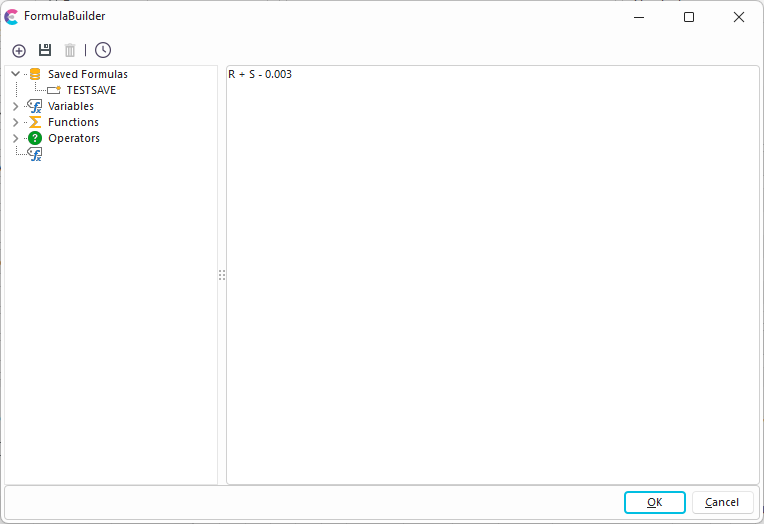
FormulaBuilder
Test Point Formulas
Whenever you are in a test point formula field, you can press the formula button to display the dialog above.

Example - Modifying a Formula inside Test Points - Launching FormulaBuilder
](/pt/Storage/indysoft-help-publication/hm_clip0645.png)
FormulaBuilder Toolbar
The test point toolbar allows you to create new formulas, save formulas, delete saved formulas, and check a formula's validity.

The FormulaBuilder Toolbar
 New Formula
The New Formula button will clear the formula area so that a new formula can be created.
 Save Formula
The Save Formula button will save the formula for later retrieval. When saving a formula, you will be given the option to make the formula available to all users.
 Delete Saved Formula
If viewing a previously saved formula, pressing this button will delete the formula. Note: a previously selected formula must be selected underneath 'Saved Formulas' for this button to be enabled.
 Test Formula
The Test Formula button makes sure that the formula has been formatted correctly.
 Saved Formulas
The Saved Formulas property allows you to select from previously saved formulas.
 Variables
The Variables section allows you to drag/drop variables that you can use in the formula. The variable abbreviation name will appear after dropping the variable onto the formula section.
 Functions
The Functions section allows you to drag/drop functions that you can use in the formula. The function abbreviation name will appear after dropping the function onto the formula section.
 Operators
The Operators section allows you to drag/drop operators that you can use in the formula. The operator abbreviation name will appear after dropping the operator onto the formula section.
Rounding Functions
There are three rounding functions available for test point formulas.
·Round: returns an integer value from a numeric value using standard rounding techniques
·RoundToD(x,d): takes two parameters - the value to round and, as a 2nd parameter, the # of decimals to round to
·RoundToSigDigs(x,d,r): takes three parameters - the value to round, the # of decimals to round to, and as a 3rd parameter, the # to use for resolution
ASK* Functions
There are 7 ASK functions available for test point formulas. These functions are unique because they prompt the user for input when the formula calculation takes place. The first 6 of these functions prompt for a certain number of values at a given precision, then perform the desired operation:
·ASKMAX: returns the largest of all input values. The first parameter is the # of values in the prompt; the second parameter is the precision.
·ASKMIN: returns the smallest of all input values. The first parameter is the # of values in the prompt; the second parameter is the precision.
·ASKAVG: returns the average of all input values. The first parameter is the # of values in the prompt; the second parameter is the precision.
·ASKMED: returns the median of all input values. The first parameter is the # of values in the prompt; the second parameter is the precision.
·ASKSUM: returns the sum of all input values. The first parameter is the # of values in the prompt; the second parameter is the precision.
·ASKSTD: returns the standard deviation of all input values. The first parameter is the # of values in the prompt; the second parameter is the precision.
If 0 is input for the first parameter (# of values), then any # of values can be input (unlimited). For the most flexibility, a final ASK* function is given that will display an event-level script project:
·ASKPROJ: returns any value set in an event project script through the SetProjectResult procedure. This function takes only one parameter, the name of the event script project, without any quotes. |