Event Steps - Documents
Managing Documents During an Event
The 'Documents' event tab appears if the 'Documents' event tab has been selected for the current event type through the Event Configuration Wizard.
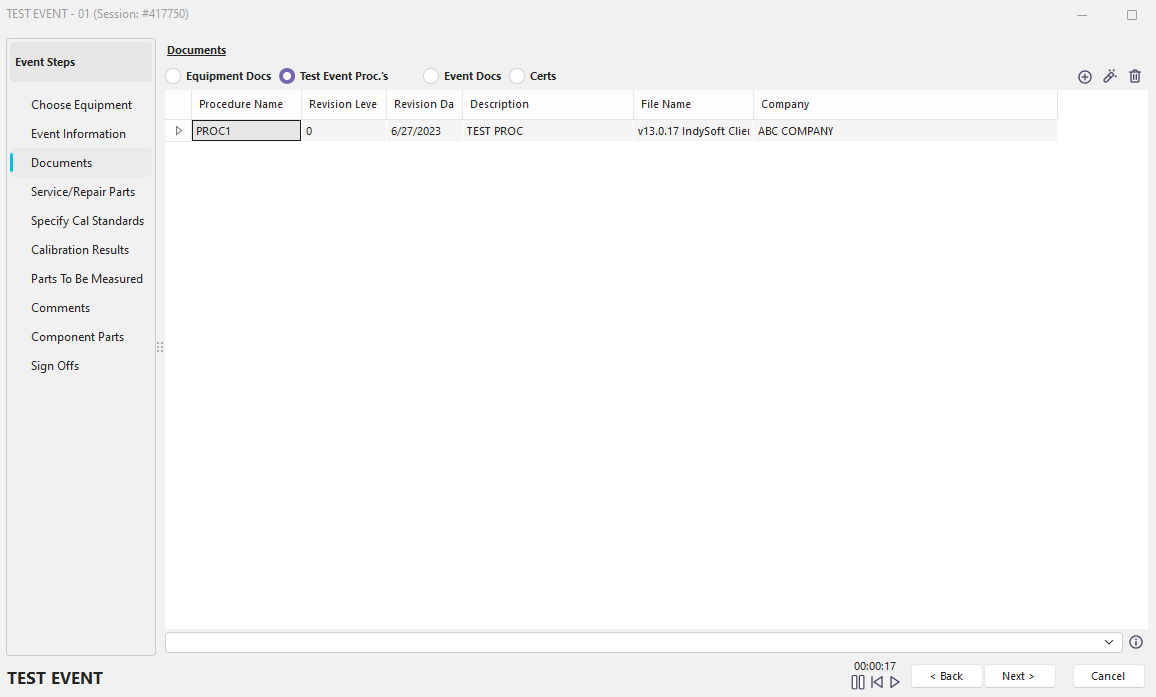
Event Steps - Documents
This event tab provides an overview of all event documents. The types of documents available on this tab can be modified in the Event Configuration Wizard. Four types of documents can be shown. The selected document type will determine the documents grid's content. Below is the selection step in the Work Flow Configuration - Event Steps:

Work Flow Configuration Step 3 - Document Types
 Add a Document
Equipment Docs
When this document type is selected, the grid will be populated with documents specified for the chosen piece of equipment on the IndySoft Equipment View screen...Notes/Docs tab...Supporting Documents grid. These documents typically contain information about the equipment in general, not the specific event being performed.
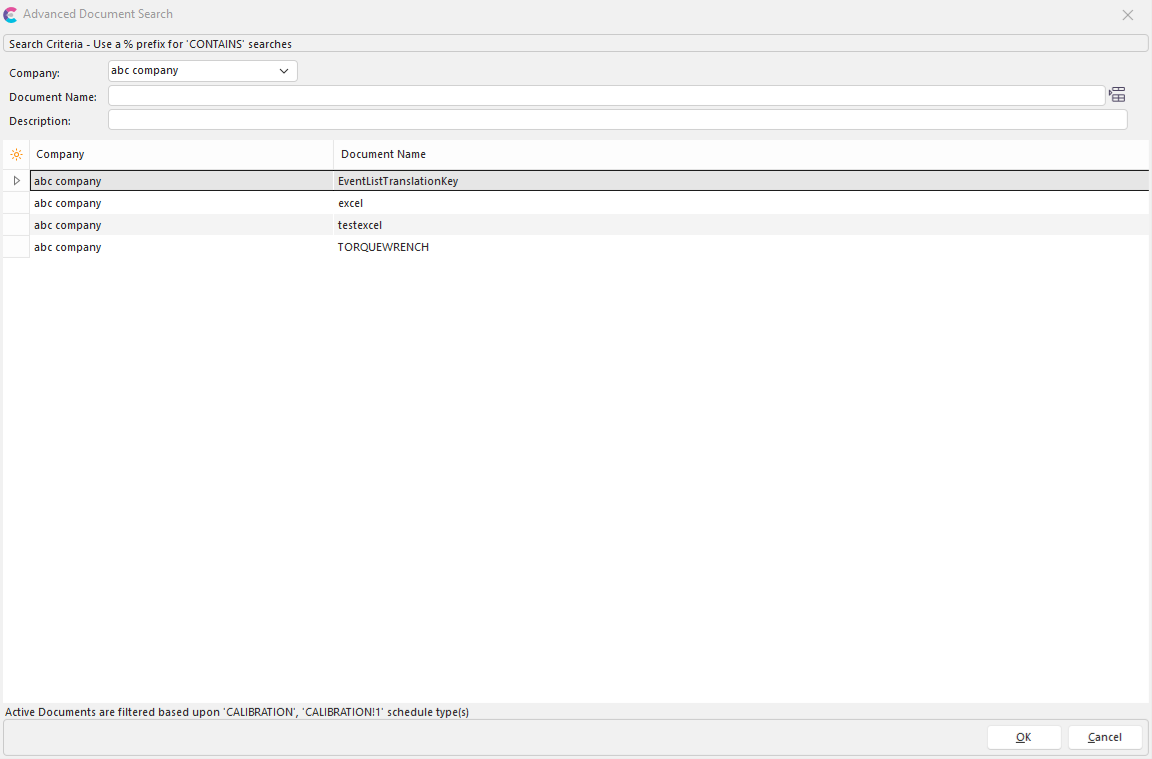
Add Equipment Doc Dialog
Test Event Procedures
When this document type is selected, the grid will be populated with a listing for the calibration procedure appropriate for the selected equipment. The calibration procedure is specified per equipment ID on the IndySoft Equipment View screen...Calibration Info. box...Cal. Procedure field.
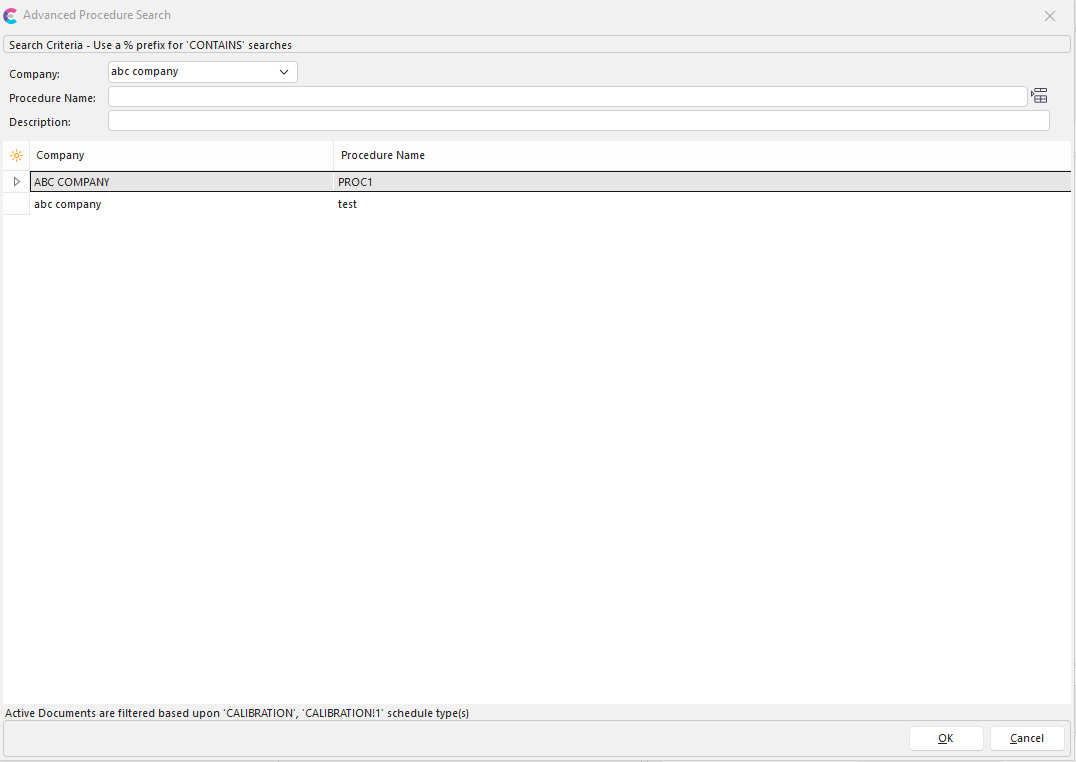
Add Test Event Procedure Dialog
Event Docs
When this document type is selected, the grid will be populated with event documents (as differentiated from event certificates) created for the current event. If the event has never been marked as complete, this grid will often be blank. Event documents are typically made using the Report Rules in the Event Configuration Wizard and a PrintBuilder custom report. Also, event documents can be scanned or attached from external files. See notes below on 'Scanning/Attaching a Document.'
When adding a new document under this tab, you are prompted with three options: Add Event Doc, Add Signature, and Add Signature from Phone App (requires mobile application).
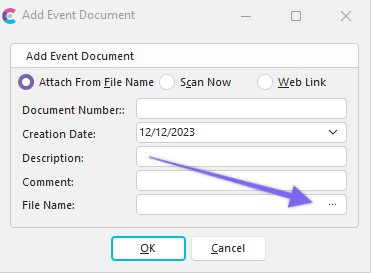
Add Event Doc Dialog (from file)
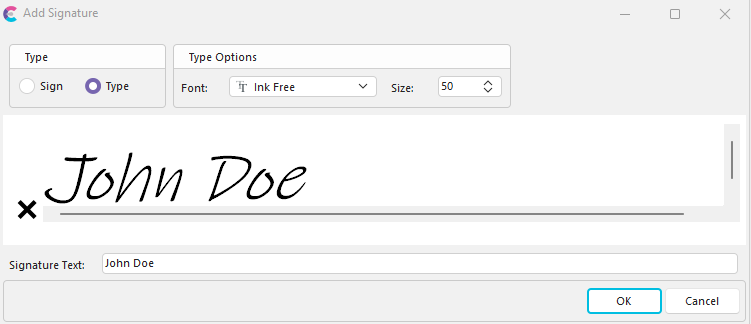
Add Event Signature Dialog
Certs
When this document type is selected, the grid will be populated with event certificates (as differentiated from event documents) created for the current event. An event certificate differs from an event document in that event certificates require a vendor, cert. type, cert. number, and complete event status to be created. If the event has never been marked as complete, this grid will often be blank. Event certificates are typically made using the 'Calibration Certificate Options' in the Report Rules section of the Event Configuration Wizard and a PrintBuilder custom certificate template (see the Using PrintBuilder section for more details). Also, event certificates can be scanned or attached from external files. See notes below on 'Scanning/Attaching a Document.'

Add Certificate Dialog (from file)
Scanning/Attaching a Document
Note: This option is only available for event documents and event certificates.
Event Documents and Event Certificates can be scanned directly into an IndySoft event or attached from an external file. When the 'Add a Document' button is pressed, an initial dialog will appear, asking whether the document will be attached from an external file or scanned.
If you are scanning an Event Document, you will be prompted for the following:
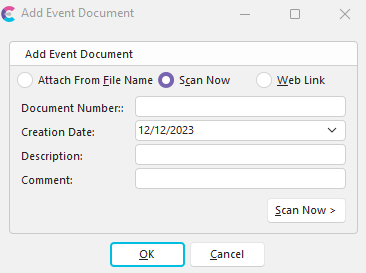
Scan Event Doc Dialog
Document Number
unique number for this document, among all other event documents specified for this event.
Creation Date
when the event document was created, the current date defaults
Description
(optional) enter a short description of the event document.
Comment
(optional) insert any misc. comment about the event document.
If you are scanning an Event Certificate, you will be prompted for:

Scan Certificate Dialog
Cert. Comment
(optional) enter a short description of the certificate.
Scan Now
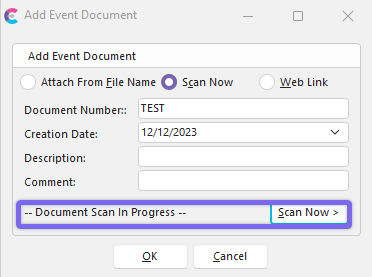
Event Document - Scan Now
If you are scanning the event document or certificate, press the 'Scan Now' button before confirming the dialog. This will display the text 'Document Scan In Progress' and launch the Document Scanning Wizard.
Other Options
 Remove Document
This option is only available for event documents and event certificates. This button will permanently remove the selected document from the documents grid upon confirmation.
 Modify Selected Document
This button will launch the currently selected document in the default Windows viewer for this document type. If you are launching a scanned event document or scanned event certificate, then IndySoft document viewer is used.
 Note: The following feature is specific IndySoft version 12.1.0 and on.
If you are using version 12.1.0 and on, you will see a new option in the documents section of an event when dragging/dropping Event Docs or Certs. If you have more than one document pulled in simultaneously, you will see added confirmation options of 'Yes to All' and 'No to All.' This feature is intended to enhance ease for the user.

Adding Documents: New Confirmation Dialog
Event Steps - Documents
hm-document-scanning-wizard.md