Export Progress
Once all filters have been completed, IndySoft will prompt for the file name location (if saving to file) or email address(es) (if attaching the export to an email), then the Export will begin. You will see a progress dialog similar to the one below. The import is complete when the bar reaches 100 percent. After completion, press 'Repeat' to return to the start page and perform additional operations.
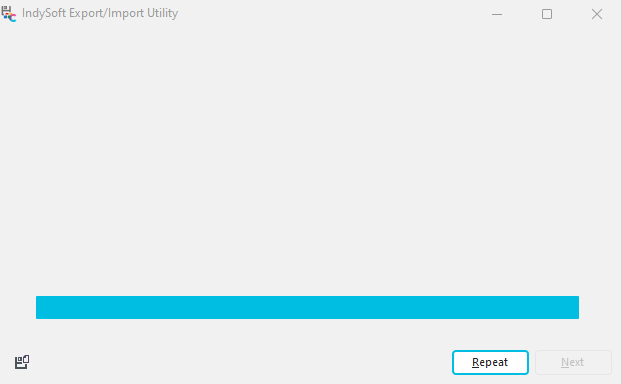
Export Progress
Upon completion, if the 'To File' option was selected, a confirmation dialog will be shown reminding the user of the file location:

Export File Save Location
If the 'To EMail' option is selected, the email preview window will appear (assuming the EMail options in User/Location Settings allow email previewing).
Finally, after the export is completed, you will notice a small button in the left-left of the dialog for 'Save Recently Completed Export Settings:

Save Recently Completed Export Settings
Pressing this button will save all the settings in the last export (which categories were selected for export, if a 'Select' type screen was called, etc.). Note that this saved configuration will include any filters input during the 'Select' dialogs (or EquipmentFinder, OrderFinder, EventFinder, etc.) and the exact records selected for export. By saving these settings, the exact export can be quickly re-executed by simply recalling this zip of the saved configuration. Use the 'Read Export Settings From File' button to recall the settings during the Export Options step. Or, you can drag/drop the settings file onto the Export Options grid. |