Flowchart Editor Flowchart
Use the flowchart area of the Flowchart Editor to manipulate the objects in your flowchart directly:
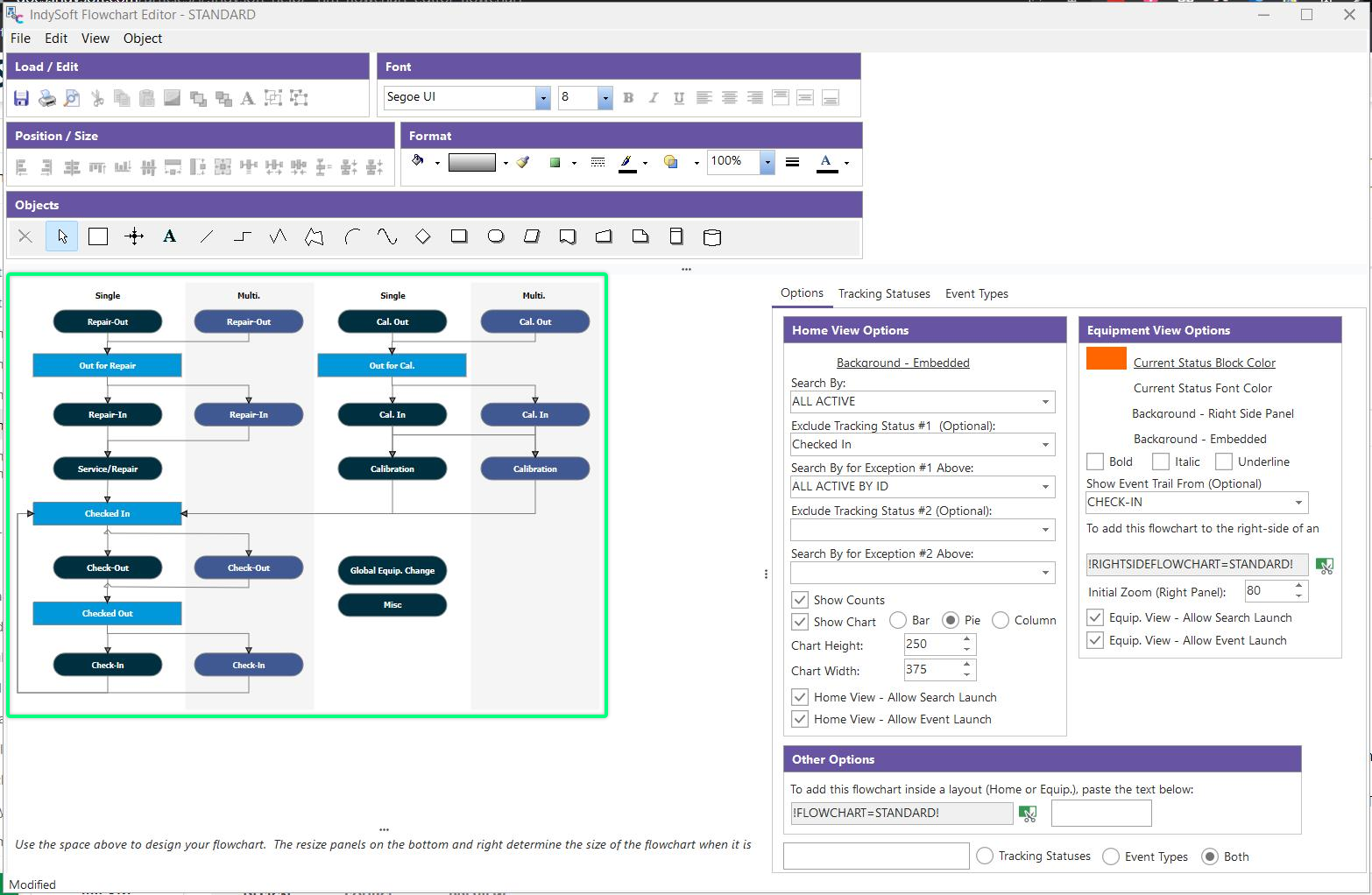
Flowchart Area
Use the resize panels (noted above) on the right and bottom of the flowchart to determine the size of the flowchart workspace. This size will be used when the flowchart is embedded in Dashboard layouts or shown on the right-hand side of an Equipment View.
To add new objects to the flowchart workspace, select the object type from the tabs above and then single click (left mouse click) in the flowchart. To change the position of an existing object, select the object in the workspace - when selected, an object will display handles surrounding the object:

Example - Handles
Click and drag the handles to modify the size. Click and drag inside the object (while the handles are visible) to reposition the object in the flowchart. Remember that while moving an object, any lines currently anchored to the object will also be automatically repositioned. For this reason, when moving several objects with various lines connecting, it is always best to select the objects only and reposition them, allowing the lines to follow automatically. Including the lines in the selection can sometimes cause the lines to become unanchored.
Once selected, objects can also be easily moved through keyboard shortcuts: Ctrl+Left/Right/Up/Down Arrow keys.
See the Flowchart Editor topic for more general notes on creating a flowchart.
Right-Mouse Click Options - Flowchart
There are several options available through a right-mouse click on the flowchart. These options are typically duplicated in main menu options and/or toolbar options:
Group - see description of equivalent option in File/Edit Toolbar Panel.
Ungroup - see description of equivalent option in File/Edit Toolbar Panel.
Shape Color - see description of equivalent option in Object Properties Toolbar Panel.
Line Color - see description of equivalent option in Object Properties Toolbar Panel.
Picture - see description of equivalent option in Object Menu.
Clear Image - use this option to clear a previously selected image on the current object.
Font - see description of equivalent option in Object Menu.
Edit Text - see description of equivalent option in Object Menu.
Bring to Front - see description of equivalent option in File/Edit Toolbar Panel.
Send to Back - see description of equivalent option in File/Edit Toolbar Panel.
Source Arrow - see description of equivalent option in Object Menu.
Target Arrow - see description of equivalent option in Object Menu. |