Flowchart Editor
The flowchart editor is used to create/modify flowcharts that can be used in Home Layouts and Equipment Layouts. There are several main sections of the editor:
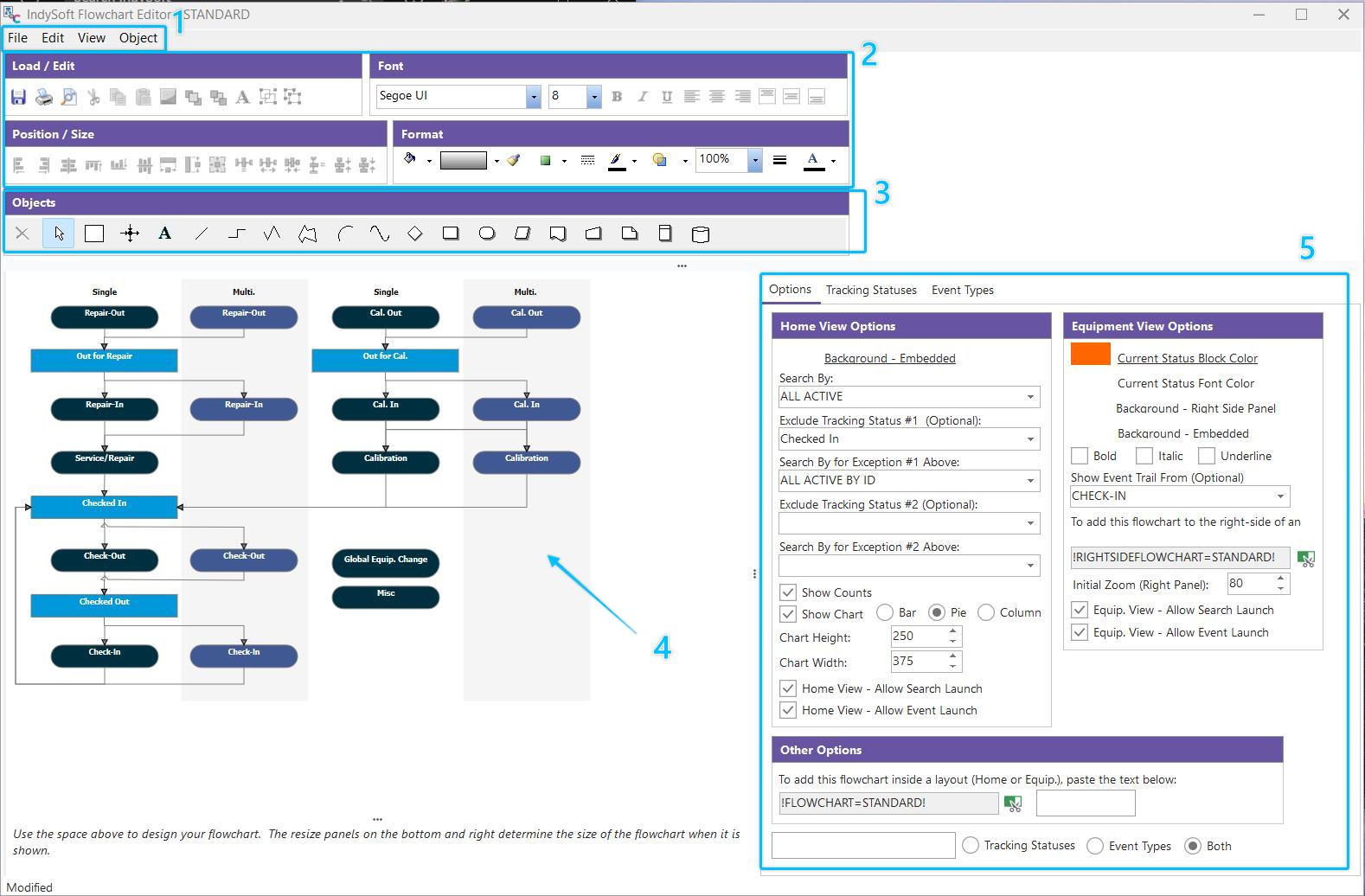
Flowchart Editor - Main Sections
1. Flowchart Editor Menu Items
2. Flowchart Editor Toolbar Buttons
3. Flowchart Editor Objects
4. Flowchart Editor Flowchart
5. Flowchart Editor - Options, Tracking Statuses, Event Types
See the above topics for more details on using all the available options. But in summary... use the Objects tabs...Flowchart subtab to select an object type. Then click inside the flowchart area to drop this object into the flowchart. Then use the toolbar options to format the object, set the color, edit text, gradients, etc. Many of these options are also available by right-mouse click options on the object in the flowchart. It is often best to start with designing a nice-looking 'event' type object. Once this is completed, copy (Ctrl+C) and paste (Ctrl+V) this object multiple times in the flowchart to create an object for each event in your flow. You can use the 'Event Types' tab on the right to remind you of the available event types. To quickly set the text of an object to an event type, go to the Event Types tab, select either 'Event Type' or 'Menu Name' for 'Drop Drop Using,' then drag that name over the object and release the mouse button (drop).
Then repeat this entire process for creating tracking status objects - typically, these tracking status objects will be placed between your event-type objects in the flowchart. Tracking statuses can be dragged/dropped onto objects in the flowchart from the 'Tracking Statuses' tab on the right.
Finally, use the 'Lines' sub-tab on the Objects tabs to create links between the tracking status and event-type objects in your flowchart. Drop a line onto a space in the flowchart and then move the endpoints over one of the anchor points on an object - you will see the line 'snap' when you fly over an anchor point. Once you are complete, use the 'Test Flowchart' button to ensure the flow progresses correctly, and select any additional options from the 'Options' tab on the right.
Flowchart Editor