Add/Edit...Equipment Info...Descriptions
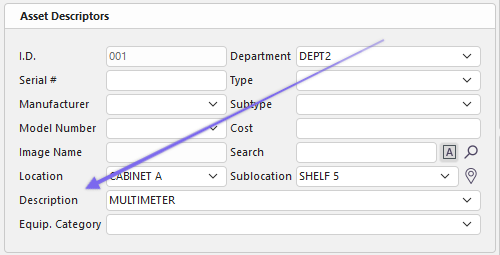
Descriptions are used to describe the equipment briefly. They can be auto-generated in a specific way based on a formula, added from a list of previously created Descriptions, or by manually typing in a new Description.
 ../Storage/indysoft-help-publication/bw_clip0280.png
Equipment View of Description
 ../Storage/indysoft-help-publication/bw_clip0285.png

Manually insert Description
To Add/Edit Descriptions using the Description Formula
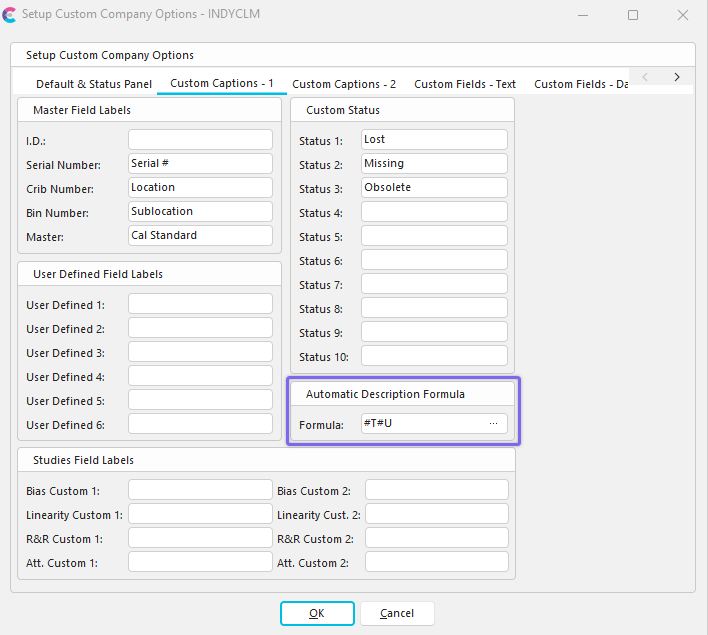
To access the Automatic Description Formula go to Company Preferences...Custom Captions - 1 from the Home Tab.
 ../Storage/indysoft-help-publication/bw_clip0282.png
Setup Company Options Dialog - Automatic Description Formula
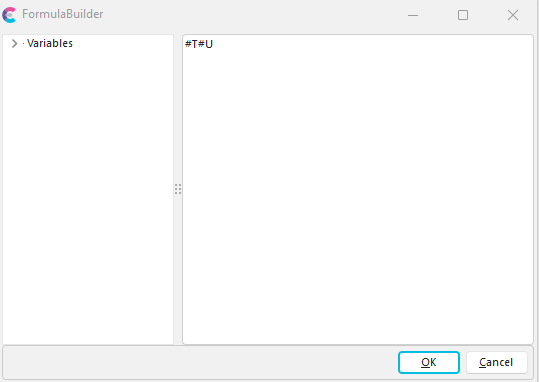
Clicking the  button will bring up this screen:
 ../Storage/indysoft-help-publication/bw_clip0283.png
FormulaBuilder with Current Formula
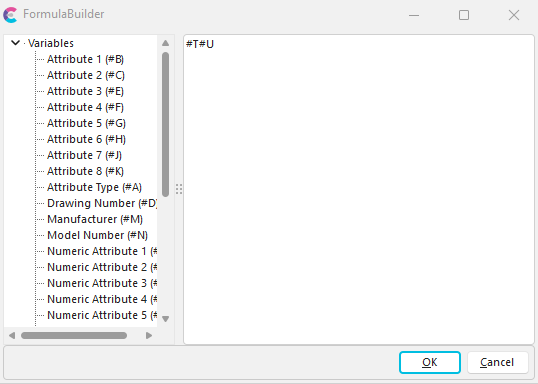
Clicking the small arrow next to 'Variables' will bring up the following screen:
 ../Storage/indysoft-help-publication/bw_clip0284.png
FormulaBuilder Dialog
Using FormulaBuilder, you can highlight and delete the current formula (or parts of it), then click on and drag a Variable on the left to the formula window on the right to design your custom Description. Remember to place a space (using your keyboard) between Variables in the formula, so the words (Variables) will be appropriately spaced in the Description field when finished. Attributes and Numeric Attributes may have Custom variables from the Attribute Types Wizard. User Defined Fields can be re-named in Preferences...By Company...Custom Captions 1 tab.
To Add a New Description Manually
To add to or manage the Description Lists, in the IndySoft header, click Add/Edit from the dashboard and select Equipment Info...Description from the drop-down menu.
 ../Storage/indysoft-help-publication/bw_clip0286.png
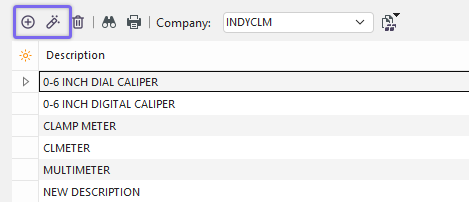
Add/Edit Descriptions
Be sure you're adding Descriptions to the right Company. Click  'New Item' to add a new Description or
  'View/Edit Item.'
 ../Storage/indysoft-help-publication/bw_clip0281.png
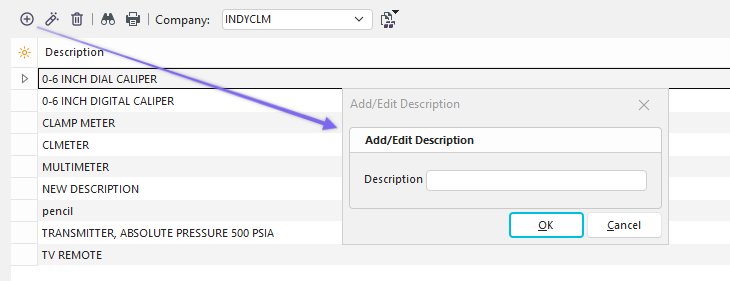
Add New Description
Type in the Description. Click 'OK,' then repeat as necessary.
Note: Remember, as mentioned in the opening paragraph, the Description can be added manually through the Add/Edit list you created or by typing in (over-riding) the Description shown in the Edit Description dialog.
 Productivity Tip
The Add/Edit Descriptions dialog box can be filtered and customized in many ways. See General Interface for more information.
Buttons and Icons are detailed here.