Add/Edit...Attributes...Attribute Types
With Attribute Types, users can add as many text and numeric fields as they like. 18 custom attributes can be visible as equipment-level fields in the Attributes section, and an unlimited number of additional Attributes can be viewed under the Attributes tab.

Add/Edit Attribute Types Dialog
Attribute Types give you some 'room to grow' in terms of fields, but these new fields do not need to be visible for all types of equipment. The new fields you set up per attribute type will only become visible for equipment when that Attribute Type is associated with the asset. We created a 'THREAD PLUG' attribute type in the example above. These thread plug-related fields are only visible on equipment with the 'THREAD PLUG' attribute type.
As mentioned above, attribute fields are in 2 groups. The first group of fields is set up in Wizard Step 2, as described below. There are 8 text-based fields, 8 numeric fields, a 'Unit of Measure' field, and a 'Resolution' field. These fields can be shown together in the Dashboard View through several hyperlink options described below:
!EQUIPMENTATTRIBUTES-CAPTIONS! | Shows all the captions for the 'Step 2' attribute fields (the 18 equipment-level fields) with carriage returns between each field. This option is typically used along with the '!EQUIPMENTATTRIBUTES-DATA! option below. These two merge text options can be shown in 2 adjoining grid cells (with Word Wrap turned off) to show attribute data effectively.
| !EQUIPMENTATTRIBUTES-DATA! | Shows all the data for the 'Step 2' attribute fields (the 18 equipment-level fields) with carriage returns between each field. This option is typically used along with the '!EQUIPMENTATTRIBUTES-DATA! option below. These two merge text options can be shown in 2 adjoining grid cells (with Word Wrap turned off) to show attribute data effectively.!EQUIPMENTATTRIBUTES-ALL! | Show add captions and data for the 'Step 2' attribute fields (the 18 equipment-level fields) with carriage returns between each field. The format is always 'caption: data,' meaning 2 spaces follow a colon between the caption and the data. This merge-text option can be used instead of the 'CAPTIONS and DATA' options.!GAGES.ATTRIBUTE1!
!GAGES.ATTRIBUTE2!
!GAGES.ATTRIBUTE3!
!GAGES.ATTRIBUTE4!
!GAGES.ATTRIBUTE5!
!GAGES.ATTRIBUTE6!
!GAGES.SIZE1!
!GAGES.SIZE2!
!GAGES.NUM_ATTRIBUTE1!
!GAGES.NUM_ATTRIBUTE2!
!GAGES.NUM_ATTRIBUTE3!
!GAGES.NUM_ATTRIBUTE4!
!GAGES.NUM_ATTRIBUTE5!
!GAGES.NUM_ATTRIBUTE6!
!GAGES.NUM_ATTRIBUTE7!
!GAGES.NUM_ATTRIBUTE8!
!GAGES.NUM_RESOLUTION!
!GAGES.UNIT_MEASURE! | Use these direct per-field hyperlinks to show one or more attribute fields. It is often not preferable to use these links since certain fields may not be appropriate depending upon the attribute type of the current asset. |

Equipment View Use of Attributes merge-text - In Layout

Equipment View Use of Attributes merge-text - Merged.
The fields from Wizard Step 2 in the Attribute Types wizard are unlimited - they are displayed on the 'Attributes' (sometimes called 'Ext. Attributes') detail dialog in the Equipment View or the 'Attributes' tab. The interface is the same between dialog or tab. You have either a 'Grid View' or 'Card View' for displaying the extended attributes:

Extended Attributes - Grid View

Extended Attributes - Card View
Attribute Types - Attribute Type
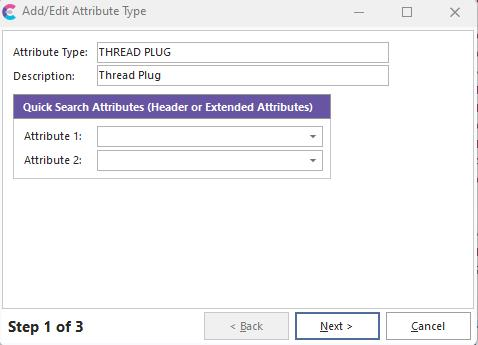
Adding Attribute Types - Step 1
Attribute Type - The text will appear in the Attributes drop-down in the Standard Equipment Information.
Description - An optional description.
Quick Search Attributes - Attributes fields can be used within equipment filter boxes like EquipmentFinder. To select attributes by name, you must first select the attribute type from the 'Attributes' field in the filter box. The 'Quick Search Attributes' fields allow you to select 2 of the attribute fields from Step 2 that should automatically become part of the filter box whenever this attribute type is selected in the filter box. This saves you the time of always selecting the same search criteria based on this attribute type. For example, say we have a text-based attribute named 'DIRECTION' and a numeric attribute named 'PITCH.' Whenever we select the 'THREAD PLUG' attribute type in a search filter, we typically want to search on both of these fields. So in the filter box, as soon as you input this:

The filter box will be immediately modified to show the following:

Attribute Types - General Info and Display Options

Adding Attribute Types - Step 2
This step allows you to select which attributes you want to appear in the Standard Equipment Information, what they will be labeled, and how many digits of numbers should be displayed. Use the left-hand section to select the fields that should be visible (8 text-based attributes, 8 numeric-based attributes, Unit Measure, and Resolution). Then use the right-hand section to input any custom captions for the attributes and custom resolutions for each numeric field (if applicable).
Attribute Types - Extended Attributes
 Don't be confused! We are discussing Equipment Attributes below (sometimes called Equipment Extended Attributes - as set up in Step 3). There are also Event Attributes. Event Attributes have similar options (by design) and can be linked to Equipment Extended Attributes.
IndySoft supports 3 different ways of adding equipment-level extended attributes. These extended attributes can be viewed/edited from the Equipment View's Attributes tab/dialog:
·Attribute Type - These extended attributes are set up within the Add/Edit...Attributes...Attribute Types wizard. These attributes are only created for assets with an attribute type currently set to the attribute type in the wizard (company + attribute type).
·Company - These extended attributes are set up within the Add/Edit...Companies...Companies wizard. These attributes are only created for the company's assets in the wizard.
·System-Wide - These extended attributes are set up for all assets in the database across all companies and all attribute types. These attributes are set up within the System Preferences - Extended Attributes dialog/step.
When the Attribute Types add/edit dialog is closed, all extended attributes are synced across equipment that contains the selected attribute type. Any attributes removed from the Preferences dialog are removed from the equipment level, and any new attributes are added.

Adding Attribute Types - Step 3
For the final step, you may create as many additional Attributes as you like that will be displayed in the Attributes tab.
Click 'Add Attribute' to start entering new information. You may also import or export attributes from options above the grid.

Adding Attribute Types - New Attributes
Attribute Name - the name of the extended attribute
Field Type - there are many different options available. Many options are 'stock' drop-down lists common in IndySoft, populated through other Add/Edit wizards. Use 'Custom SQL' to input your SQL to populate the drop-down list (typically provided by IndySoft Support in consulting). If 'Company Custom List' or 'System-Wide Custom List' is selected, you will see a new 'List #' appear below 'Field Type' - use this field to select the list number that should be used to populate the drop-down.
Res. (If Numeric) - if the Field Type is numeric, then this field will be enabled. Input the resolution (number of decimal places) for the field.
Group Name (Opt.) - if you have many extended attribute fields, you can group them into sub-tabs using this option. All distinct 'Group Name' values will be created as tabs, and related attributes will be placed on this tab. If some extended attributes do not have 'Group Name' values and other extended attributes, do, then the attributes missing 'Group Name' values will appear on a tab named '(None)'. Drag/drop the tabs from Step 3 in the Attribute Types wizard to re-arrange the tabs' left-right order.
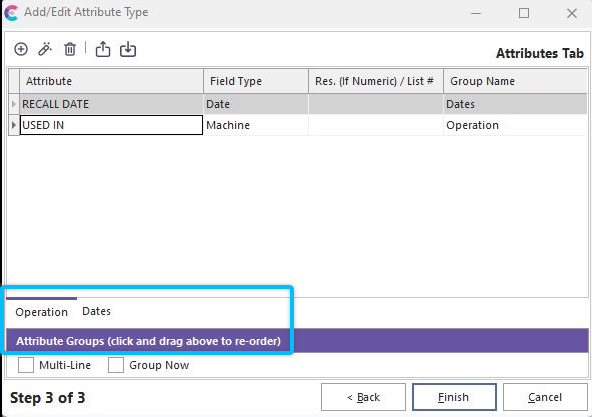
Example - Group Name Sub-Tabs for Extended Attributes
If you want sub-tabs to display on multiple lines (if you have more groups that can fit on one line), select 'Multi-Line.' All the extended attributes are shown in the grid in wizard step 3 by default. But if you would like to test the grouping of the sub-tabs, you can turn on 'Group Now' - then you must select the appropriate sub-tab before viewing its attributes in Step 3. When the attributes are shown with the equipment, the sub-tabs will always be used.
Sort# (Opt.) - the order of the attribute relative to other attributes (top to bottom)
Require Sign Off (User Logged In) - turn on this option if you would like to require that a user re-input their user password each time the equipment attribute is modified. If the attribute is sensitive data, this might prevent a random user from walking up to an IndySoft workstation temporarily unattended and changing the data. Only the password for the user currently logged into IndySoft can be used.
Show/Hide By Profile - sometimes, you might want to limit the display/modification of an attribute to a particular profile. Or, you might want to hide an attribute from a particular profile. If desired, select 'Show' or 'Hide,' then select the Profile from the option below.
Profile - see description of 'Show/Hide By Profile' above.
Custom SQL - this is only relevant if the Field Type is set to 'Custom SQL.' Input the custom SQL in this memo box. Typically this SQL is provided by IndySoft through custom consulting.
Hide This Attribute If - use these checkboxes to quickly filter the display of equipment attributes based on the status of specific equipment status fields. There are 10 equipment status fields and 10 lab status fields. These captions will be shown if custom captions are set up for these fields (using Company Preferences or System-Wide Preferences). For each field, 3 states are possible:
|  | Checked - field will only be displayed if this attribute is checked.
|  | Unchecked - field will only be displayed if this attribute is unchecked.
 | N/A - this field will not be relevant for the display of the attribute. |
 Productivity Tip
Most of the dialog boxes seen here can be filtered and customized differently. See General Interface for more information.
Buttons and Icons are detailed here.