Automatic Database Update Utility
On certain updated client versions (not all), the IndySoft database will need to be updated to a new database version. Note that database versions are not equivalent to client versions. One database version might be used for several client versions, etc. But each client version requires an exact database version - since that includes the tables/fields in use by the client version. System Administrators can use the Automatic Database Update utility to upgrade the database when needed.
 Important: the Automatic Database Update Utility can only be run from a workstation currently connected to the database through a 2-Tier connection. So immediately after starting the Database Upgrade wizard, you must input/check your 2Tier database connectivity settings. These settings are identical to those input in Database Settings. Please see Database Settings for more details. Failure to input the correct 2Tier connectivity settings will block the upgrade wizard from proceeding.
Upon every login, IndySoft checks the current database version to see if an upgrade is required. If the upgrade is needed, the login is stopped, and the user is alerted to run the Automatic Database Update Utility. Only IndySoft 'System Administrators' can use this utility - which is located in the IndySoft program directory:
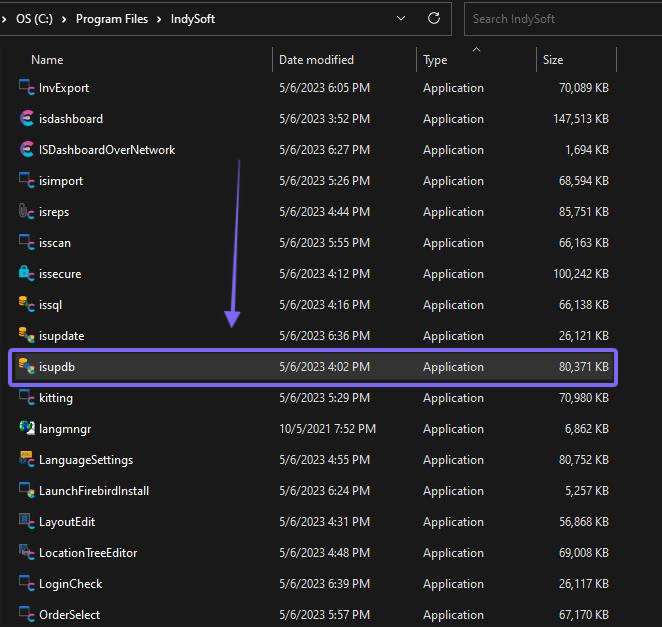
File Explorer - isupdb.exe
Certain product installations (like Single-User) will automatically launch this utility when appropriate. When launched, you will first be asked to confirm your database settings. Next, you will be prompted to log in using IndySoft Admin credentials. This utility displays the current database level and target database level:
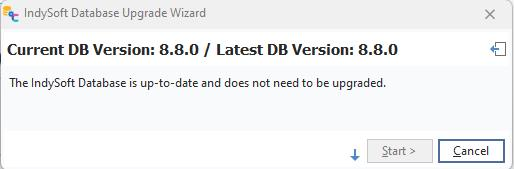
IndySoft Database Upgrade Wizard - No Upgrade Required
The database is already at the target version in the above example, and no upgrade is required. The  button will allow you to select the DB override level. See the dialog below. Note: Only use this option if instructed so by IndySoft Support.
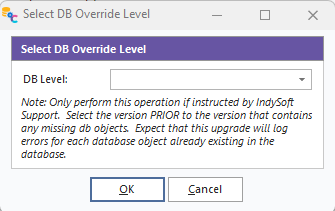
DB Override Level
In the screenshot below, the version requires an update from 8.3 to 8.8 - and the 'Start' button is enabled:
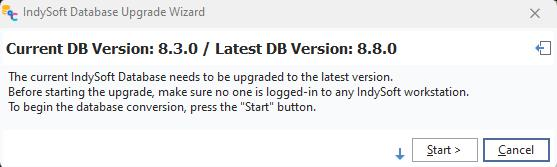
IndySoft Database Upgrade Wizard - Upgrade Required
Press 'Start' to begin the upgrade. A progress bar will appear - typically, a database upgrade will complete in only a few minutes. Any errors during the upgrade will be noted in an error dialog. If this dialog appears, export the errors to a file (buttons above the error listing) and contact IndySoft support as instructed. Often any such errors are simply cautionary - but it is best to confirm with IndySoft support.
If instructed by IndySoft Support - the small button to the left of 'Start' can be pressed before beginning a database upgrade. This option will display a small memo box at the bottom of the dialog that logs all SQL commands performed by the database upgrade. Upon closing the Database Upgrade Wizard, this text will be copied to the Windows Clipboard. It can then be pasted into an email to IndySoft support or saved as a file for reference.
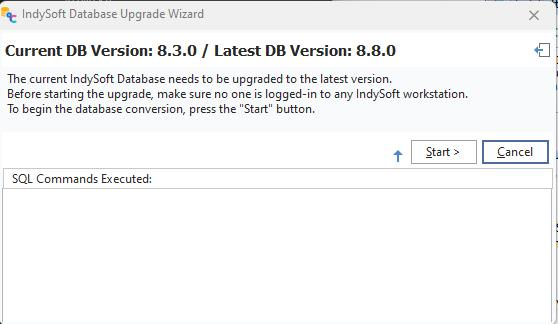
IndySoft Database Upgrade Wizard - SQL Commands Executed
Important: A database upgrade to a particular version is a one-time process. Once the upgrade has been completed, all users will be ok to run the updated client version that matches this database version. |