Employee Time Log Utility
The Employee Time Log Utility is launched from the Home View through a hyperlink in the 'Options' tab. The default location for this link is below:
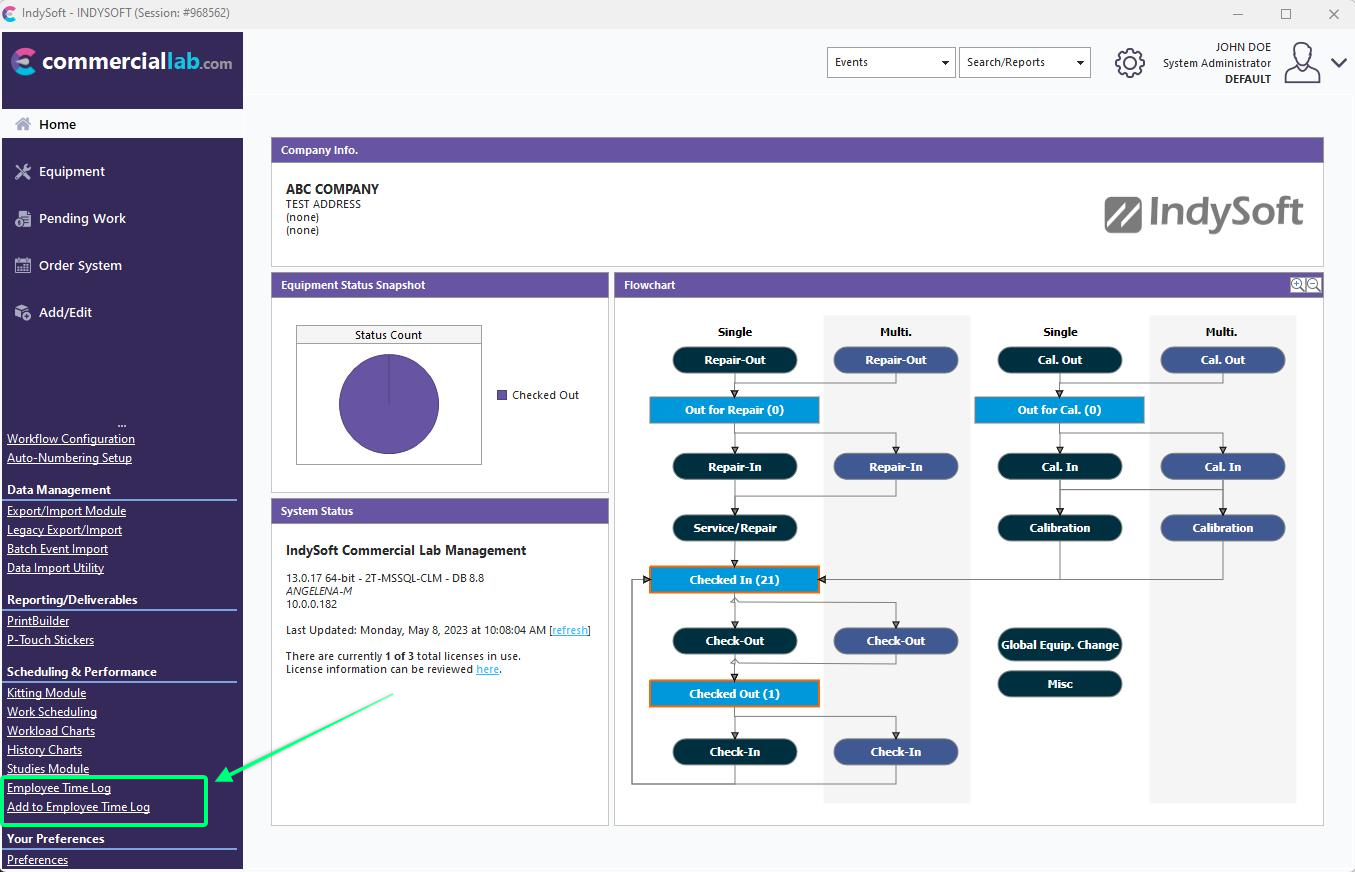
Employee Time Log Utility & Add to Employee Time Log
In version 13, Employee Time Log can also be launched from within the Admin Panel:
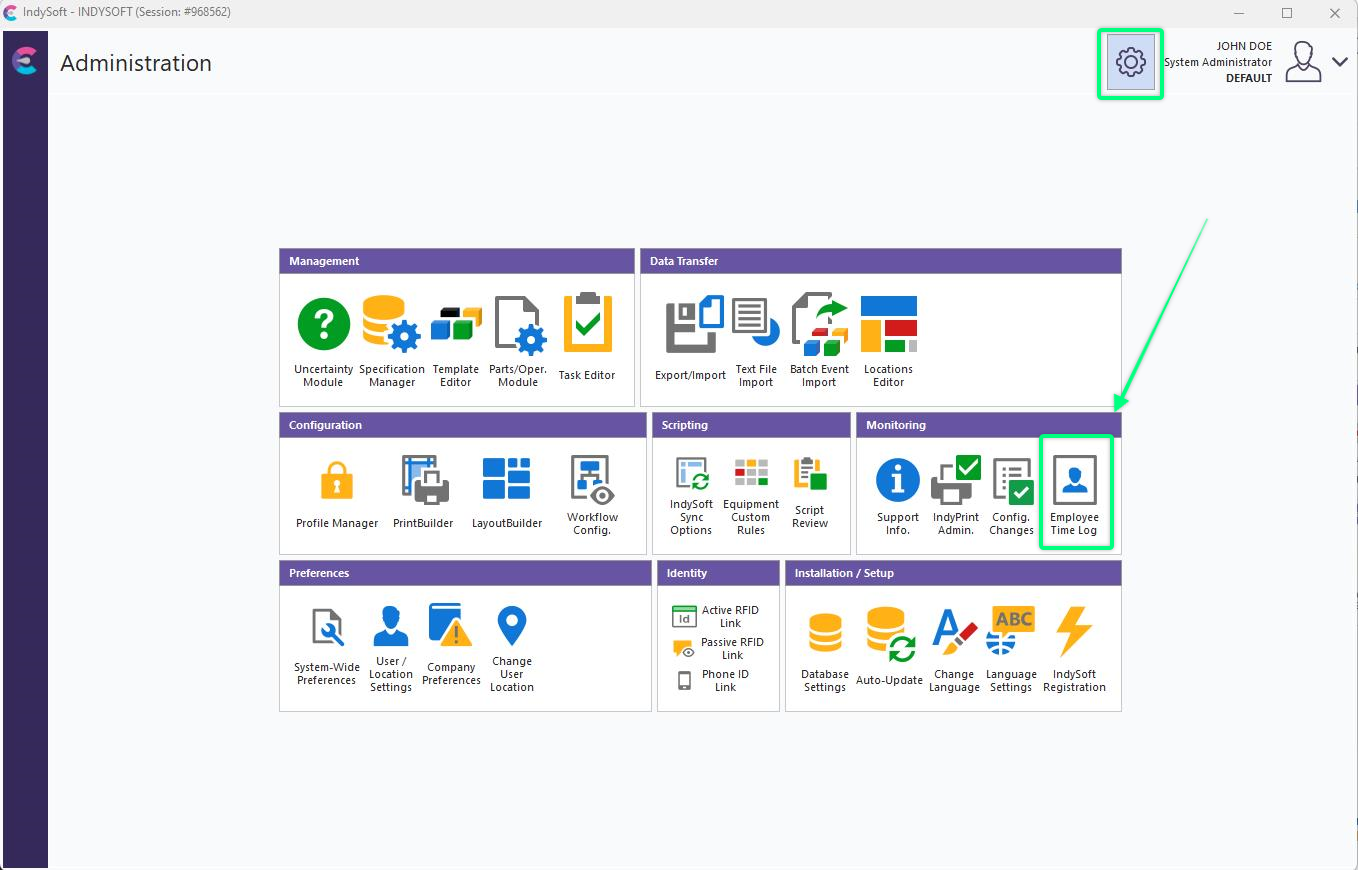
Admin Panel - Task Editor
This simple utility reviews Employee Time Log entries across all employees, as added in IndySoft events or through the 'Add to Employee Time Log' hyperlink on the Home View (below 'Employee Time Log' in the above example'). The Employee Time Log utility shows these calendar entries in 4 possible views:
1. Grid View - displays all entries in grid form
2. Month View - displays all entries for one selected month. Use the arrows above the month calendar to scroll past/future months. Double-clicking on a day in the month will automatically launch the Week View for that week.
3. Week View - displays all entries for one selected week. Use the arrows above the week to scroll to past/future weeks. Double-clicking on a day in the Week View will automatically launch the Day View for that day.
4. Day View - displays all entries for one selected day. Double-clicking on an event in Day View will display the Employee Time Log dialog for editing the entry.
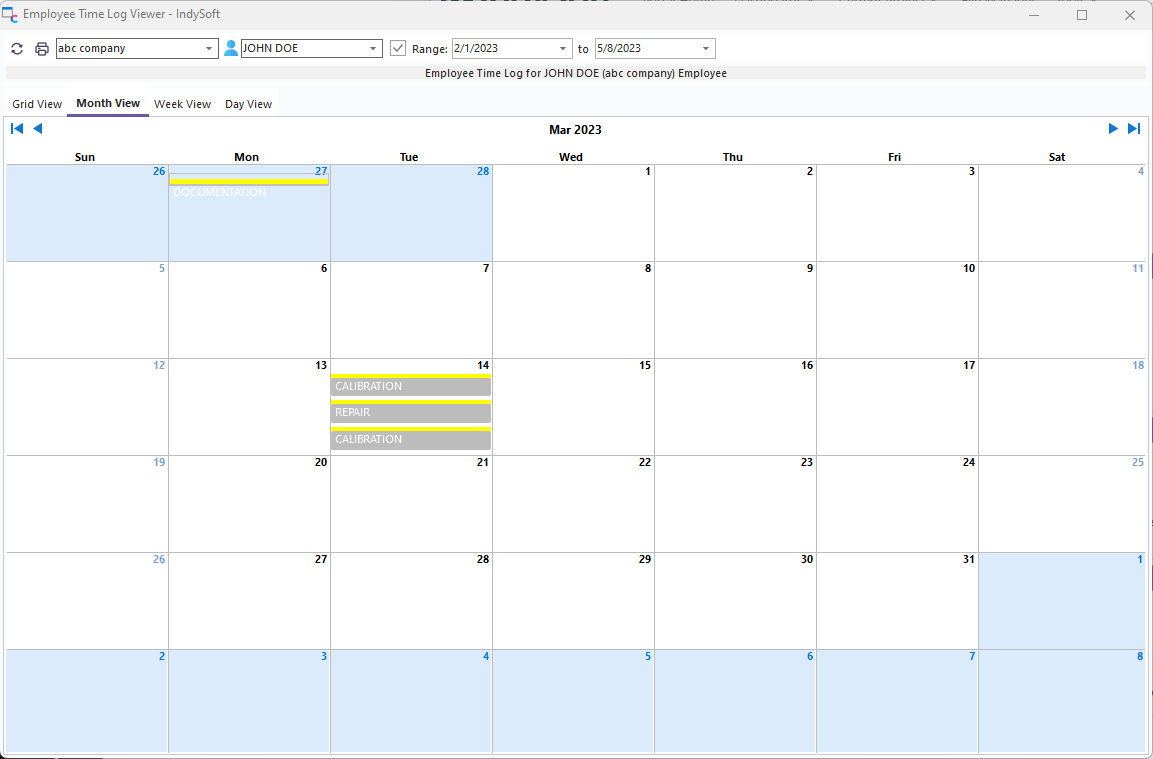
Employee Time Log Utility - Month View
These entries can be filtered by both employee and date range. To filter by the employee, use the Company and Employee drop-downs above the grid. Note that the employee drop-down has an 'All' option for viewing entries across all employees. To view entries with no date filter, uncheck the box to the left of 'Range.' To filter for a specific date range, use the two date drop-down filters to the right of 'Range' (start and end dates for the filter).
Adding Employee Time Log Entries - Main Screen
Note: these entries will NOT be linked to an IndySoft event.
To add an employee time log entry from the main screen, click the 'Add To Employee Time Log' hyperlink on the Home View. The following dialog will display:
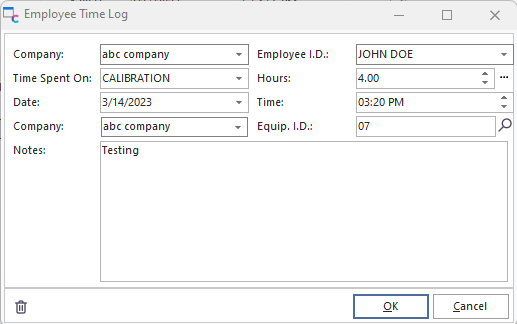
Employee Time Log Dialog
Input the company and employee name of the person acting. Finally, input the total hours spent on the action, date/time, and miscellaneous notes. Press OK to save the item. The 'Time Spend On' drop down corresponds to the Add/Edit...System-Wide...Time Log Types wizard. See below:
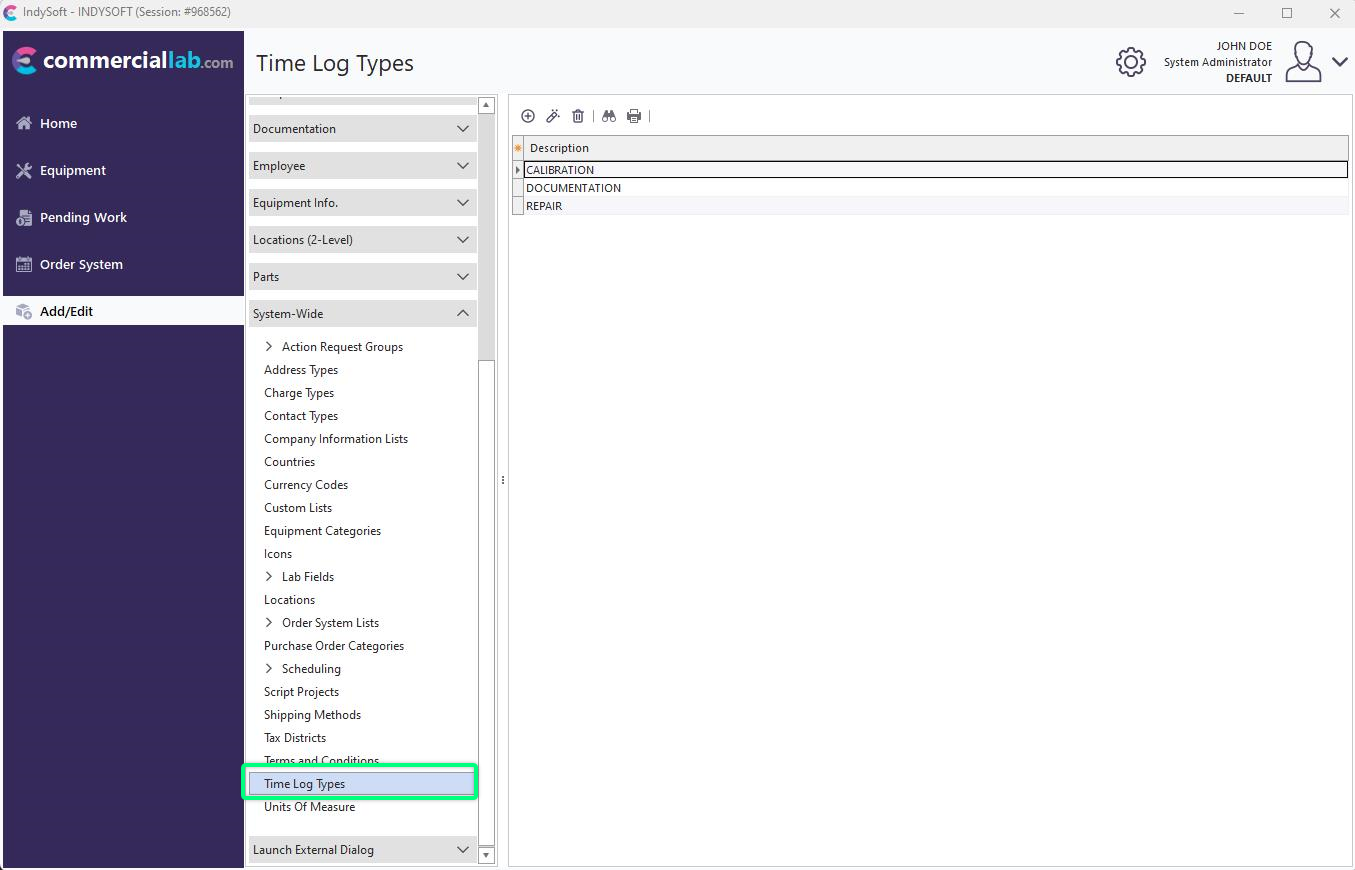
Add/Edit Time Log Types
Adding Employee Time Log Entries - Inside An Event
Employee Time Log entries can also be added from within an IndySoft event - through an optional event layout hyperlink (MULTIEMPTIMELOG) - or if an event layout is not being used, then click on the icon next to the 'Total Time' field to select the 'Add Multiple Employee Time Logs...' menu option. The following dialog will display:
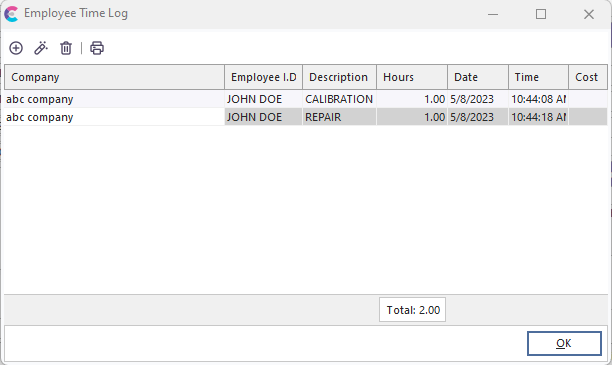
Employee Time Log Dialog In IndySoft Event
This dialog shows the Employee Time Log entries added for the current event. This grid begins as empty for new events. Use the buttons above the grid to add/edit/delete entries. Note the total of Hours in the footer of the grid. When the OK button is pressed, this total time will be input into the event's 'Total Time' field - overwriting any past value:
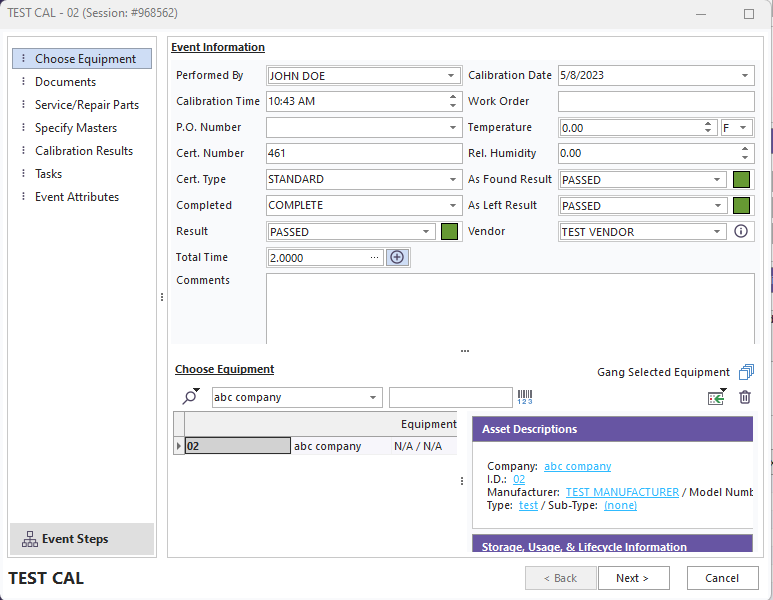
Total Time - Events |