Database Backup Utility
 Note: the topic below only applies to the Single-User version of IndySoft or the Multi-User version when the Firebird database is used (not MSSQL or Oracle)
 Important: This backup utility only applies to the Firebird database. If using MSSQL or Oracle database, defer to your DBA and set up scheduled backups within MSSQL or Oracle's native utilities.
This utility allows for the quick backup of an IndySoft Firebird database. This backup operation can be either performed manually or scheduled for routine backup. To launch the utility, run the executable below located in the IndySoft program directory:
isbackup.exe

IndySoft Database Backup
Database Backup
To perform a simple manual database backup, input the desired directory in 'Backup to (Loc. 1)' and the desired name for the backup zip in 'Save As' and press 'Start Backup.' A command line utility will be launched that performs the backup. A 2nd copy of the backup zip can also be saved - note this optional directory in 'Backup to (Loc. 2)'. Some users use a directory (or directories) of procedures/documents. These directories can be set up per workstation in User/Location Settings - Document Locations. The backup utility can also quickly back up all these files when performing the backup. If this is desired, click the 'Backup Proc. and Doc. Dir(s)' checkbox before executing 'Start Backup.' Upon completion of the backup, the following dialog will be displayed:

Firebird Database Backup Complete
You will note that within the zip file created during the backup, there is a BAK file - this is the actual database backup in the native format for Firebird - it is zipped to reduce file size. If performing a manual backup - before the backup IndySoft will check if a file of this name already exists; if so, confirmation of overwrite will occur before the backup. If the 'Backup Proc. and Doc. Dir(s)' option is checked, then the procedures will be backed up to a zip file in the same directory as the database backup zip - this file will have the same name as the database backup, but with a '-PROCS suffix. The documents will be backed up to a zip file in the same directory as the database backup zip - this file will have the same name as the database backup but with a '-DOCS suffix. With each docs/procs zip, the full directory structure of each file will be reflected in the zip.
Database Restore
To restore a database from a backup, select Options...Restore From Backup. First, select a folder for the restored database (it does not have to be the location of the current IndySoft database):

Select a Folder for Restored Database
Then select the backup file created from a previous backup operation (the zip file). A command line utility will be launched to restore the database. After the restore, you will be prompted to set the restored database as the current database in Database Settings (optional).
Multi-User to Single-User Copy
This operation is only enabled if both Single-User and Multi-User versions of IndySoft are installed on the same workstation. You will see this option as a 'Copy Now' button to the right of a text explanation:

Multi-User to Single-User Copy Now
This operation combines a backup of the multi-user database with a restore to the Single-User database - thereby copying the multi-user data in place of the single-user. This operation is helpful if you are going into the field and want to take a complete copy of the multi-user database. Note: This operation also includes a backup of your single-user databases' software registration before the process begins, then restoring this license after the database copy. (IndySoft software registration depends on some database records, so a complete copy of a database will not retain appropriate licensing).
Advanced Options
Several advanced options are available from the Options menu:

View the Location of the Database to Backup
Use this option to quickly confirm the location of the database that will be backed up by the utility - this database location is as set in Database Settings.
Set Database Location
Setting the database location here is equivalent to setting the database location through Database Settings - note confirmation:

Confirmation Before Setting Database Location - Backup Utility
Specify Document And Procedure Locations
Use this option to quickly review or change the workstation-specific directory locations for documents and procedures. These locations are equivalent to those set in User/Location Settings.

Specify the Location of GBAK.exe
Firebird/Interbase uses the GBAK.exe utility to perform backup and restore operations - so IndySoft must know the location to perform operations through this utility. If this location is in question, it can be set here. Typically this exe is located in your [Program Files]\Firebird\Bin directory.
Auto-Backup Settings
Use this dialog to set up an automatic database backup, i.e., every Sunday night, every day at noon, etc.
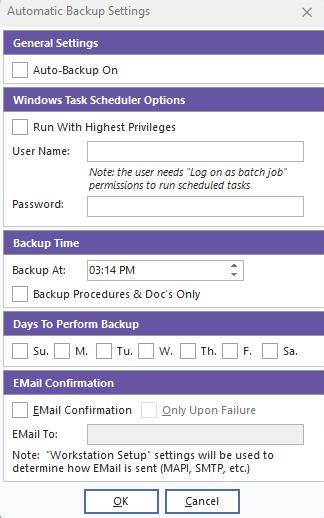
Auto-Backup Interval
·General Settings - automatic backups can be performed with a Windows Service or a System Tray application. IndySoft automatically installs the service that could perform the backup upon installation named 'IndySoft - Auto-Backup' (AutoISBackupService.exe). The exe that can run in the System Tray in Windows to run automatic backup operations is AutoISBackupApp.exe.
·Windows Task Scheduler Options - the Windows user information will set a task in the Windows Task Scheduler to run the backup automatically. Note this Windows user must have 'Log on as batch job' permissions set to run successfully.
·Backup Time - the time when the automatic backup should be performed. Only one time per day is allowed. If you would like the procedure and document files backed up, turn on the related checkbox.
·Days To Perform Backup - check one or more days when the backups should be performed.
·Email Confirmation - an optional email can be sent to the address input here after each backup. Check 'only upon failure' if you only desire the email to be sent if an issue is encountered with the backup operation.
Restore From Backup
See description above
Interbase Database (*.GDB) or Firebird Database (*.FDB)
All IndySoft databases from version 9.0 and beyond are Firebird-based, not Interbase-based; select the *.FDB option.
Backup Single-User Registration - Before Database Copy
If you are about to copy another database (typically a Multi-User database) over your current Single-User database, then your Single-User registration will be lost. It can always be recalled quickly through my.indysoft.com - but this operation can be used to back up the registration locally. Once backed up, it will be automatically applied upon the next client login. Note confirmation message:

Confirmation Before Backup Single-User Registration
Set Database Sweep Interval
All IndySoft 9.0 installations for the Firebird database automatically set the Database Sweep interval to 0, thus turning off all sweep operations, which can occasionally slow down database operations unnecessarily. But it is possible that a database could be copied and upgraded manually (not running during 9x install), and the default sweep interval would still be in place. Use this operation to set the interval - set to 0 to disable (suggested).
Launch Manual Database Sweep
Use this option if you would like to launch a Database Sweep operation on the database manually. This would only be relevant if you ran a database with a 0 for Sweep Interval (default). Typically this operation is not necessary. |