Event Steps - Event Attributes
Using Event Attributes During an Event
The 'Event Attributes' event step appears if the 'Event Attributes' event step has been selected for the current event type through the Event Configuration Wizard - Event steps.
- As An Event Step
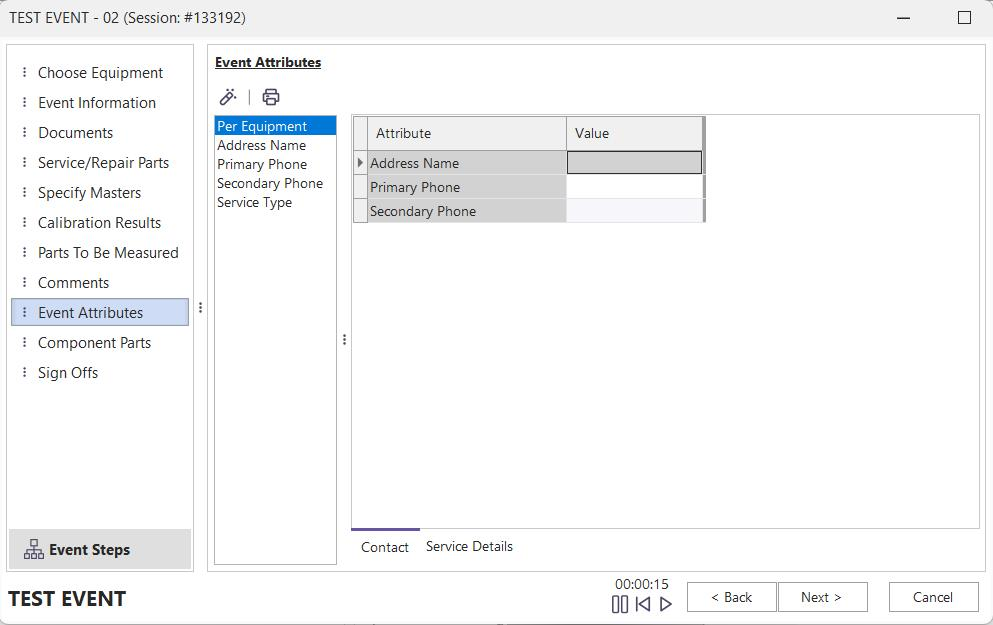
Event Attributes Step
Event Attributes are helpful when you have additional event fields/data that go beyond the fields available in the Field Settings tab in Workflow Configuration. Event Attributes allow for an unlimited # of additional fields of various types. Event Attributes can be displayed in an event in multiple ways:
- Below Tabs
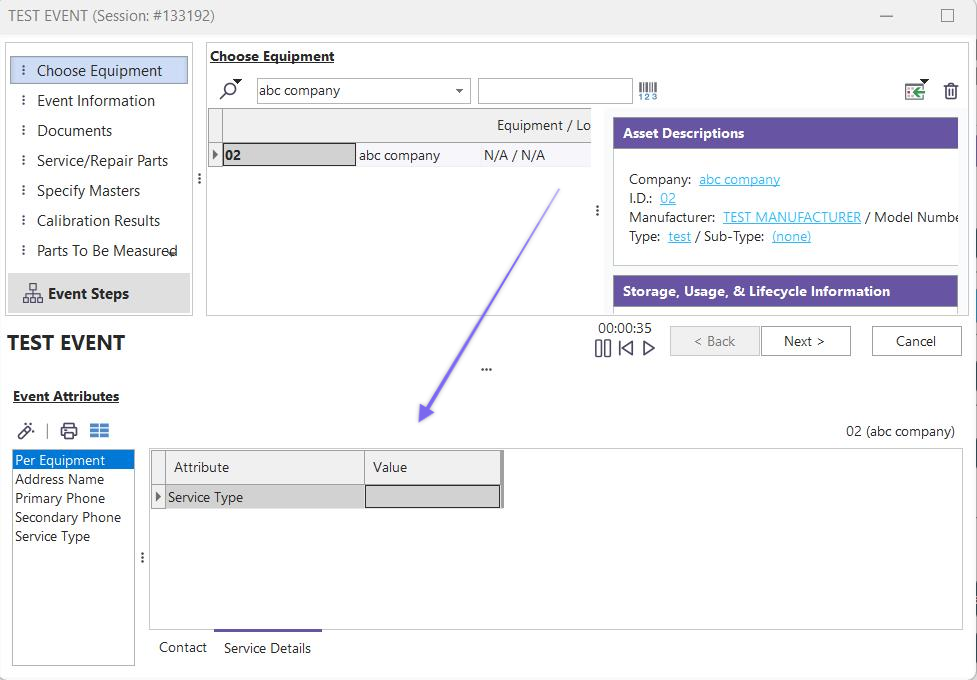
Event Attributes Below Tabs In Event
To turn on this mode for Event Attributes in the Workflow Configuration Module, go to event Tabs (Step 3) and turn on the 'Show Event Att. Below Tabs' checkbox. See Workflow Configuration - Event Tabs for more information. Ensure the 'Event Attributes' tab is marked non-visible if this mode is used. The functionality for the event attributes grid is the same for both modes - when displayed as an event step or below the event tabs. Note that most event attributes are set up to contain data unique to each event asset. So as a piece of equipment is selected in the 'Choose Equipment' grid (if visible), then this asset's attributes are filtered into the attributes grid. A caption above the attributes grid reminds the user of the selected asset (see the red arrow in the screenshot above). Alternately, you can see the values of one event attribute across all the equipment selected for the event - this helps compare values. To take this alternate view for the grid, use the attributes listed to the left of the grid. In the example below, the 'Address Name' attribute is selected - causing the grid to re-arrange so that only the 'Address Name' attribute is shown - with values for all assets in the event:
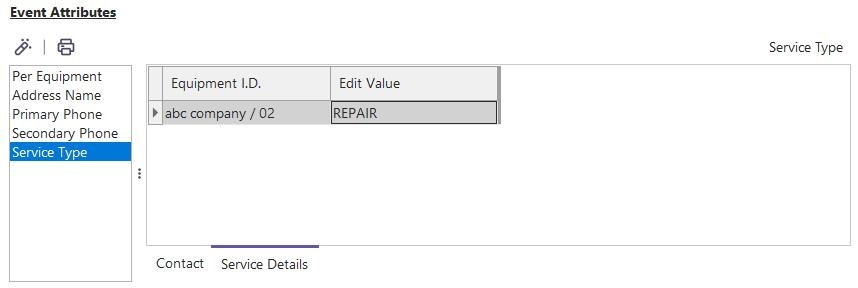
Event Attributes Filtered - One Attribute
Select the 'Per Equipment' top item in the list box to return to the equipment view.
- Inside Event Layout
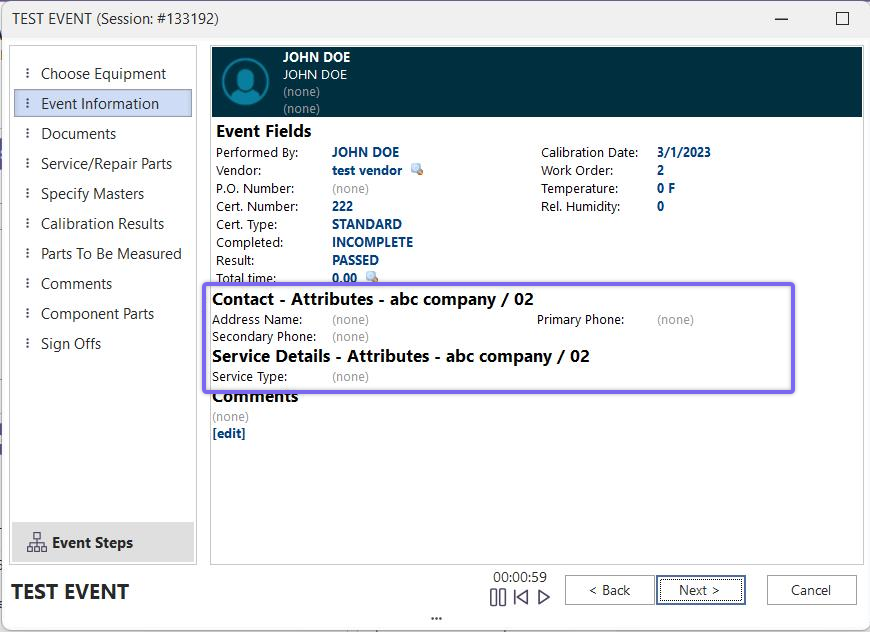
Event Attributes Within Event Layout
In Version 9x, event layouts were introduced, showing event attributes alongside event fields (set up in the Field Settings tab in Workflow Configuration). Viewing/editing event attributes in this manner is helpful because more attributes can be shown in a smaller space onscreen. Also, these attributes can be re-positioned within the layout among Field Settings fields, making the data entry more intuitive for users. Note that event layouts have a necessary SELECTATTMODE hyperlink and merge option. When this link is clicked, the user is presented with a choice of how the event attributes should be drawn within the layout:
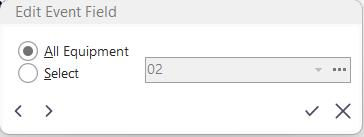
Select Attribute Display Mode
If 'All Equipment' is selected, the attribute values are shown as a summary across all the selected equipment in the event. For instance, say there are two assets in the event: 'ABC123' and 'ABC234', and the value for the 'Service Type' attribute for both assets is 'REPAIR.' The 'Service Type' attribute will be displayed as 'REPAIR' in that case. But if the 'Service Type' attribute for 'ABC123' was 'REPAIR' and the 'Service Type' attribute for 'ABC234' was 'VALIDATION,' then the 'Service Type' attribute would display as '(various).' However, if the Attribute Display Mode was set to a select asset, say 'ABC123,'...then the 'Service Type' would display the value for the selected asset, which in this example is 'REPAIR.' Selecting 'ABC234' would display 'VALIDATION' for 'Service Type.' Important: when the current asset is changed in the event's 'Choose Equipment' grid, the Attribute Display Mode is automatically changed to the current asset. So, if you temporarily set the display to 'All Equipment' or to an asset that does not match the asset currently selected in the 'Choose Equipment' grid, then you are making an exception. Using the 'ALL EQUIPMENT' mode helps set attributes quickly across all assets.
Adding Event Attributes
For more information on adding event attributes, please see the manual's Workflow Configuration - Event Attributes section.
Editing Event Attributes
To edit an event attribute using grid-based attributes, double-click on the attribute record or press the 'edit' button above the grid. If the event attributes are displayed within the event layout, click on the attribute value or '(none)' text. Attribute edit dialogs are similar to the small edit dialogs used for editing event fields. The type of editor depends on the type of attribute (text, numeric, date, etc.).
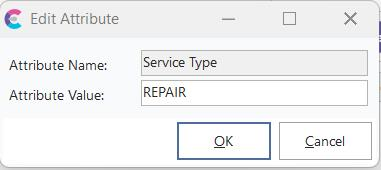
Edit Attribute Dialog
As noted above, if the attributes are edited with an event layout, the 'ALL EQUIPMENT' option is utilized for attribute display/editing. Any attribute edits will be applied across all equipment in the 'Choose Equipment' grid. Similarly, if the event attributes are being used in a grid format, there is a right-mouse click option that allows the user to take an attribute value and copy it across all other assets in the event:
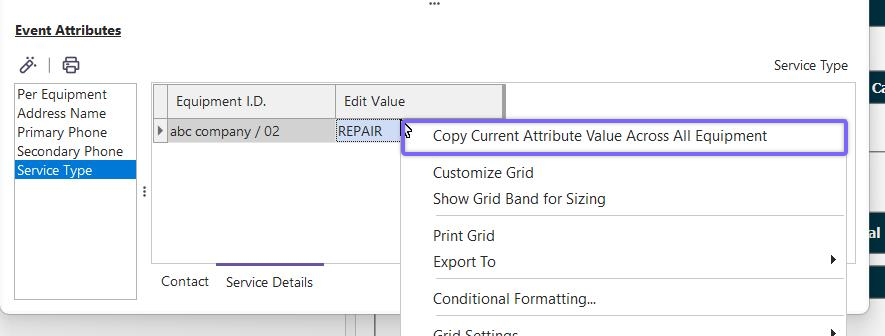
Grid-Based Event Attributes - Copy Current Attribute Value Across All Equipment |