Event Steps - Specify Masters That Will Be Used To Calibrate This Equipment
Specifying Masters or Standards During an Event
The 'Specify Masters That Will Be Used to Calibrate This Gage' event tab appears if the 'Default Masters' event tab has been selected for the current event type through the Work Flow Configuration Wizard (see the Work Flow Configuration - Event Steps section for more details).
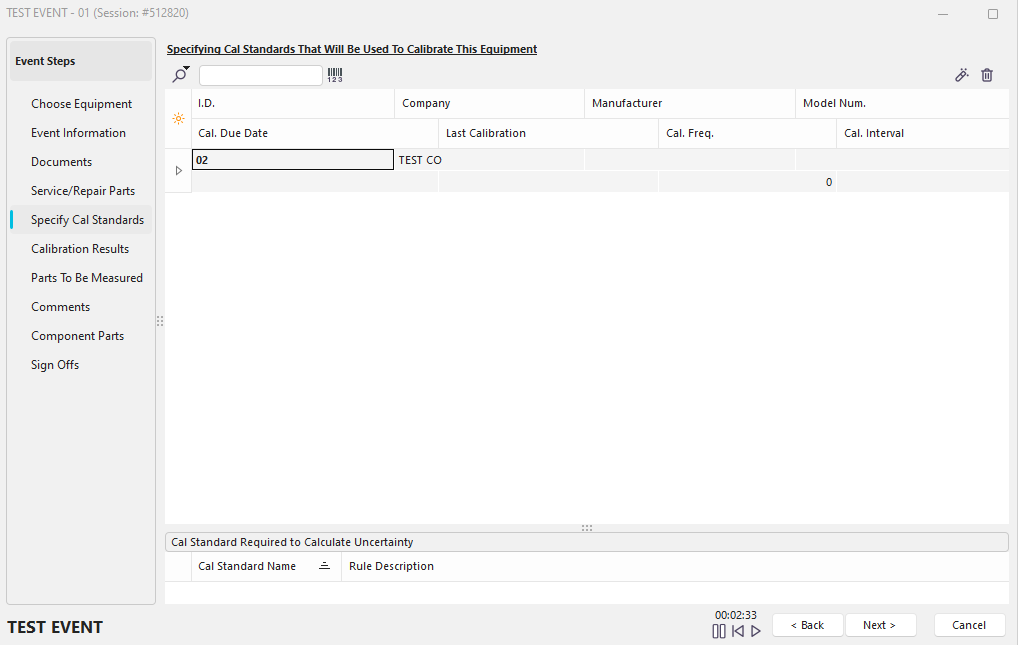
Event Step - Specify Masters
(Note: Uncertainty bottom grid will only be visible if Uncertainty Module is installed)
During this step, you can specify the master gages used to calibrate the current asset. The default masters that will appear in this grid are the masters that are chosen in the 'Default Masters Tab' in the Equipment View tab. These masters can be changed, however, for any particular calibration event, by using this event step.
Note: Equipment is specified as a 'Master' on the 'Additional Info.' box on the Equipment View Tab. (With Layout Editor, the users can change the label as needed - or use the company-specific alias under Company Preferences).
There are two ways to add a master:
Add Equipment Typed In Edit Box
 Type the master equipment's ID number in the white edit box provided (or scan with a barcode wand). Then you have typed the ID, press 'Enter' on your keyboard, or press the yellow lightning bolt button: When this button is pressed, then IndySoft will attempt to find a master gage that belongs to the default Masters company (see the User/Location Settings - Default Companies section for more details), that matches the ID typed. If a piece of equipment is found, it will be added to the grid.
Add a Master
 This search by window allows you to incrementally search among all master equipment belonging to the selected company. The functionality of this dialog is the same as the Search By...ID dialog is available on the IndySoft header Search By menu. See the Search By I.D. section for more details.
Search Options:
·Add a Master // Keyboard shortcut: Ins
·Add a Master - All Companies // Keyboard Shortcut: Ctrl+Ins
·Add a Master - Use Employee Filter
·Add a Master - Use EquipmentFinder
·Add Master(s) from Most Recent Calibration
- Select...
- Add All // Keyboard Shortcut: Ctrl+4
·Add Master(s) from Most Recent Calibration (Current User)
- Select...
- Add All // Keyboard Shortcut: Ctrl+5
Above and to the right of the grid, there are buttons representing two additional functions:
Goto Selected Master Gage
 Pressing this button will close the current event and look up the selected master gage on the IndySoft Equipment View Tab. If the current event is incomplete, you will be asked if you would first like to complete the current event.
Remove Selected Equipment
 Pressing this button will remove the selected master gage from the grid. If you want to 'select' from a group of masters, an easy way is to use the Ctrl key and click the masters you want to remove. Last, press the trash can button to remove all masters that don't belong to the event. |