System Preferences - Variables
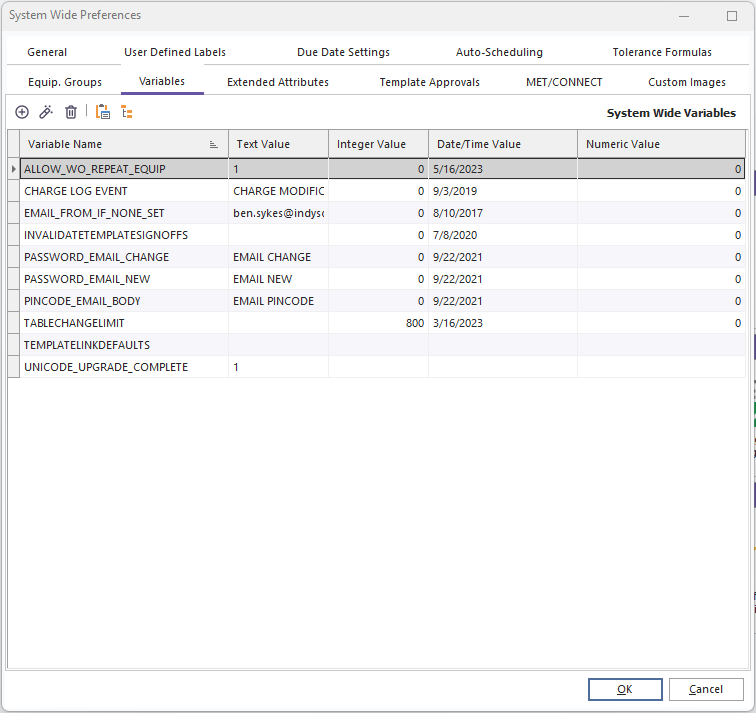
System-Wide Preferences...Variables
These variables are an open-ended location where custom/advanced functionality can be set up in IndySoft. Typically, these settings are only modified when instructed through IndySoft Support. You might note some items in the grid even if you have not interacted with support - these are occasionally populated automatically to note certain software conditions. When variables are added/edited, they have a standard interface. Note that this interface is identical to Company Variables and User Variables:
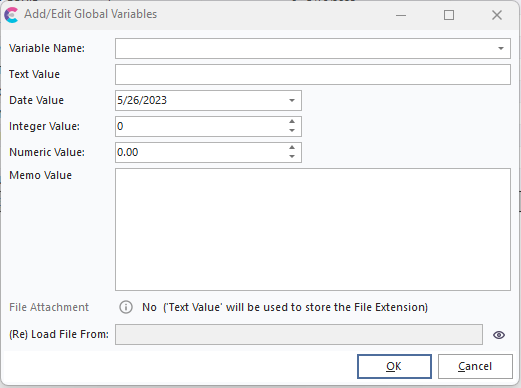
Add/Edit User Variable
Variable Name - This field is required; all variables must be unique per user.
Text / Date / Integer / Numeric / Memo Values: these five values are optional - commonly each variable might only need, to store one of these variables, depending upon the variable type, but all 5 fields can be assigned together if needed.
(Re) Load File From - it is also possible to associate a file saved to the database with this variable. Press the 'Choose File Name' button to the right of the edit box and locate the file on your hard drive/network. If needed, this file will be saved to the database for recall with this variable. To recall a file attachment from this dialog, press the 'View File Attachment' button to the right of 'File Attachment.'
Special Global Variables
 Add/Edit Special Global Variables
Typically, you would only need to modify the settings in this dialog if instructed by IndySoft support. 2 special types of variables can be setup through this dialog (these variables require a bit more explanation/interface than other Global Variables - so this dialog is used - but ultimately they are stored into the same grid). First, Default Company exceptions can be input. Typically Default Companies are setup within User/Location Settings - Default Companies - but in certain instances an exception can be made. As noted in the memo box on this dialog:
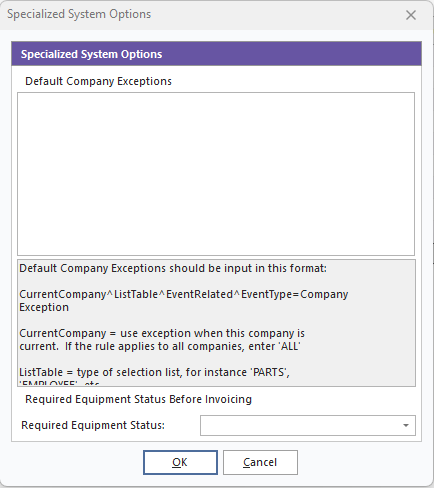
Specialized System Options
Default Company Exceptions should be input in this format:
CurrentCompany^ListTable^EventRelated^EventType=CompanyException
·CurrentCompany = use exception when this company is current. If the rule applies to all companies, enter 'ALL'
·ListTable = type of selection list, for instance 'PARTS', 'EMPLOYEE', etc.
·EventRelated = if event related, enter '1', if non-event, enter '0'
·EventType = if event related, enter the name of the related event. If the rule should apply to all events, enter 'ALL'
·CompanyException = if the scenario is true, this is the company that should be used for the default. If you would like to insure that user preference default company is used, enter 'DEFAULT'. Or, enter 'CURRENTCOMPANY' to force the selection of the current company (instead of a default company setup for the current user, for instance)
Next, this dialog can be used to set a required Equipment Status that must be true before Invoicing (Commercial Lab Edition only). If this status is not current for the asset about to be invoiced then an error will occur and the invoicing process will be stopped and the user alerted.
 Edit Template Link Filter
This is a powerful feature that allows you to filter system-wide the checkboxes that will be displayed to users when they setup Template Links between assets and templates, or when defining default Template Links for templates within the Template Editor. There are dozens of available fields that can be linked, in various groups, so often this listing is daunting - especially if a large # of the fields are not relevant to your usage.
Template Link Filter
The outline-tree shown in this dialog is just like a typical Template Link filter dialog - but in this case you are checking the items that should be visible when the actual Template Link Filter dialog is shown to users. Items checked ON in the above tree will be displayed when editing template links. Items checked OFF will be hidden. If no template link filter is defined, all items will be shown. To continue the above example - if that filter is applied (note that Status 1-10 fields are hidden, as well as 'Owner') then the following Template Link dialog will be shown to users - simplifying their available choices:
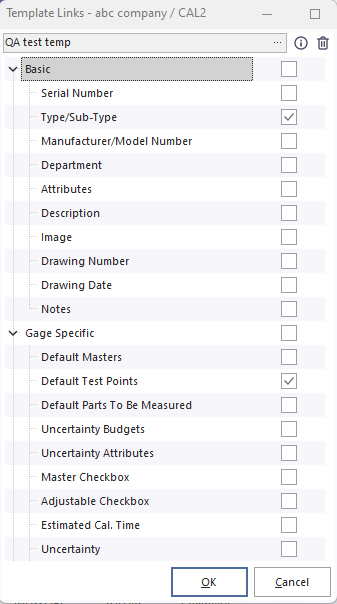
Template Linked - Filtered Example
Specific System Variables
PLEASE NOTE
The following topic may include references to the custom scripting aspects of the IndySoft product line and as such some aspects of the discussed features may not be accessible by end customers. For reference, the affected features will either use the word 'script' or phrase 'custom script.' Refer to the Custom Scripting Overview topic for more information about custom scripting and how it is implemented and supported within the product.Several variables are available in IndySoft that relate to options or functionality that is beyond the norm when using IndySoft. Some of these custom variables are user-specific and stored in the Variables section of the User/Location Settings dialog. Some are company-specific and stored in the Company add/edit wizard...Custom Info tab...Additional Company Information grid. But many of these custom variables are system-wide - these are input in the System-Wide Preferences dialog...Variables tab.
A listing of the available preferences is given below, along with a description of each:
| Variable Name | Display Name | Type | Description
| [Image Name] | Image Name | Blob | Images can be input as System-Wide custom variables. Enter the name of the image as the variable name then use the file selection option to load the image. These images can be drawn in layouts using the '!INSERTSTATUSIMAGE=FieldName!' syntax, where 'FieldName' is replaced with a GAGES table field name that holds the name of the System-Wide variable with the image. For instance, after each 'CHECK IN' event in your workflow you could use a custom rule to populate the LAB_CUSTOM5 field with the text 'IN'. Similarly, the 'CHECK OUT' event could populate LAB_CUSTOM5 with the text 'OUT'. Then you could populate a system-wide variable named 'IN' with a matching image. Finally, use the '!INSERTSTATUSIMAGE=LAB_CUSTOM5!' text somewhere in your Equipment View to show the appropriate image at that position. Or...you can also use the layout syntax of '!IMAGENAMEFROMSQL=EnterSQLHere!' - where 'EnterSQLHere' is replaced with sql that returns a single record and a single field name. The value returned from the sql is looked up as a System-Wide variable and the image is shown in the layout at that position.ADVANCEDEQUIPSEARCH | Advanced Equipment Search | Integer 0/1, Memo | Use this variable to setup an advanced search-by that will be used instead of the normal one-edit box and grid. This allows you to specify multiple fields that will be searched. The Integer field can be a 1 or 0 to turn the feature on/off. The memo is populated with one or more lines in this format: 10MODEL_NUM;Model Number. The first character is a 1 or 0 to determine if the field should be a drop down. The second character is a 1 or 0 to determine if the field drop down uses incremental searching (if applicable). Starting at the 3rd character the GAGES field name should be input, followed by a semicolon, then the friendly name of the field that will be displayed before the edit control.ALLOW_WO_REPEAT_EQUIP | Allow Work Order Repeat Equipment | Text 0/1 | If this variable exists and the Text value is set to exactly '1' then duplicate assets with the same event type can be scheduled in Order System. For example, typically if 'ABC COMPANY' / 'TEST1' asset is scheduled for CALIBRATION on Work Order #123 (and #123 is incomplete) then this same asset cannot be scheduled again for CALIBRATION on that order or any order until the original work is complete. This option removes this requirement. The variable's text value can be set to '0' to disable functionality (or variable can be deleted).ALLOWNOACCESSTEMPLATEEDITING | Allow No Access Template Editing | Integer 0/1 | Allow No Access users to run Template EditorALLOWROCHARGES | Allow Read Only Charges | Integer 0/1 | Allow Read Only event types in Workflow Config. to show the Charges tabALTDOCWITHCERT | Include Event Docs with Certificate Emails | None | Include Event Documents as email attachments along with Certificate when auto-emailing from Report RulesALWAYS_BCC | Always BCC on Emails | Memo | Listing of email(s) that should be automatically BCC'd on any emails, delimit by semicolonALWAYS_CC | Always CC on Emails | Memo | Listing of email(s) that should be automatically CC'd on any emails, delimit by semicolonAUTOCORRECT_NONUNICODE | Autocorrect if Non-Unicode | Text 0/1 | Turn on/off Autocorrect for a non-unicode database. Default is FalseBARCODE_DELIMITER | Barcode Delimiter | Text | Set the Text value to a single character that is used to delimit the Company and I.D. values in barcodes read from the Equipment View and event system. This same delimiter is used to create the 'Equip. Single ID' fields in PrintBuilder templates. The default value is '~'.CAL_FIELDS_POST_ON_CHANGE | Calibration Fields Auto-Post | Memo | List of CALPNTS field names that should be auto-posted upon change. Input a comma-delimited listing of fields.
Note: you can also add additional field reference flags with a _CHANGE_RESULT1 suffix to trigger an As Found change for the prefixed-field, or use a _CHANGE_RESULT2 suffix to trigger an As Left change, or use a _CHANGE_RESULT12 suffix to trigger both As Found and As Left change. Be sure to still include the field in the comma listing. For instance: EXTRA_NUM1,EXTRA_NUM2,EXTRA_NUM1_CHANGE_RESULT1 will post the test point after EXTRA_NUM1 and EXTRA_NUM2 changes, but only EXTRA_NUM1 will also respond as if RESULT1 (As Found) also changed.CERT_REV_START_NUM | Cert. Revision Start Number | Integer | Number to begin certificate revisions for an event. Default is 1CERTTYPEDEFAULTONLYIFBLANK | Default Cert. Type if Blank | Text | The presence of this variable changes the functionality only within a calibration-type event that has a visible Cert. Type field. Specifically, this scenario deals with a potential conflict between a default value for 'Cert. Type' that might be specified in Field Settings...Cert. Type field for the event and the 'Cert. Type' default value that can be set on the equipment level. When the asset is added into a calibration event it is the 'Field Settings' default for the Cert. Type that hits first, followed second by the equipment-level Cert. Type. So without this option set the equipment-level Cert. Type value would effectively be retained, since it is posted last. But in the presence of this variable the equipment-level Cert. Type is skipped when the Cert. Type has already been set (typically from the Field Setting default).CHARGE LOG EVENT | Charge Log Event | Text | Populate this text with the name of an event in your Workflow Configuration. If this event name is populated then an audit trail of all charge modifications will be logged to the History with each asset. This event type is typically a very simple event with only an Event Information step, Employee, Date, Time, Status, Comment fields visible.CHARGE_REPAIRPARTS_HIDE_PREFIX | Hide Prefix on Repair Parts in Order System | None | Add this variable to hide the prefix text for parts when they are added from Order SystemCHARTHEIGHT | Home View Pie Chart Height | Integer | When using the PIECHART options in a Home View this controls the height of the chartCHARTWIDTH | Home View Pie Chart Height | Integer | When using the PIECHART options in a Home View this controls the width of the chartCOMBOEQUIPSEARCH | Combo Equipment Search | Integer 0/1, Memo | Use this variable to modify the # of field searched in the default equipment search dialog when searching by I.D. (this is not applicable if you are using the ADVANCEDEQUIPSEARCH option). By default only the GAGES.GAGE_SN field is searched. Use the Integer field to set a 1 or 0 to turn the feature on/off. The memo should be populated with one or more lines in this format: MODEL_NUM;Model Number. The text should begin with the GAGES table field name followed by a semicolon by the friendly name of the field. IndySoft will insure that all the fields are visible in the grid and labeled with their friendly names. Up to 8 custom fields can be searched - but note that when searching on these fields the LAB_CUSTOM1-8 fields are swapped out in the grid to allow for the custom fields.CONFIRMTEMPLATECHANGES | Confirm Template Changes | Integer 0/1 | Set this variable to 1 to disable the confirmation dialog for affected equipment when posting a template in Template EditorCURRENCY SYMBOL | Currency Symbol | Text | Replaces the default currency symbol (i.e. $) in grids for the current session. Note : Can be overwritten by the SetCurrencySymbol script procedureCUSTOM_BARCODE_FIELD | Custom Barcode Field | Text | When barcoding to select Equipment inside an event, by default the GAGES.GAGE_SN field is used. Input text into this variable to specify a different field that should be searched. Input the exact field name in the GAGES table. This option will only work if in the Workflow Configuration you have turned on the 'Custom Field' checkbox in Barcode settings in Step 4.CUSTOM_REPORTS_USE_DICTIONARY | Custom Reports Use Dictionary | Integer 0/1 | Set the Integer to 0 to turn off the default usage of the Data Dictionary for friendly field names and table names in custom reports. If this variable is not present then the dictionary is used. If this variable is present and integer = 1 then the dictionary is used. Typically this option would only be needed if a user had modified the database structure from the IndySoft default.DASHBOARDFORMHEIGHT | Dashboard Form Height | Integer | Height of main form - default height when the screen is run for the very first time on a workstation - not relevant to WebTierDASHBOARDFORMWIDTH | Dashboard Form Width | Integer | Width of main form - default width when the screen is run for the very first time on a workstation - not relevant to WebTierDATESEPARATOR | Date Separator | Text | Input a character that should be used for date separator in on-screen displayDEFAULTAUTONUMBERSCHEME | Default AutoNumber Scheme | Text | Set this text to the name of the autonumber scheme that should be defaulted into the Template Search dialogDEFAULTROOTDRIVE | Default Root Drive | Text | Populate with a single character to set a default root drive in common 'Open File' dialogs.DISABLE_AUTOCORRECT | Disable Autocorrect | Text 0/1 | Set to 1 to disable all AutoCorrect functionality, even if using unicodeDISABLEIMPLIEDAUTOADD | Disable Implied Auto-Add Flowcharts | None | The presence of this variable changes the default functionality when an event object is clicked from a flowchart on the Equipment View tab. Typically this event launched will always add the asset on the Equipment Layout into the event, regardless of that event's 'Auto Add Current Equip' checkbox. But when this option is added the equipment will only be auto-added if the Workflow Config. option is ON.DISPLAYRULESCOMBINE | Display Rules Combine | None | The presence of this variables changes the default functionality when a menu display rule is NOT system-wide and instead depends on the presence of specific company, profile, or user records for the display rule. In default functionality any one of these company, profile, user records (if specified) being true will result in the menu item being displayed. When this variable is added, however, these company, profile, user conditions must ALL be true for the menu item to be displayed. A particular group (company, profile, user) is not required if the table is completely blank. For instance, say you have a non-system-wide menu item for a STANDARD report. You have it setup to display for 'ABC COMPANY' and 'BCD COMPANY' companies, then you also have it setup to display for 'System Administrator' profile, and you do not have any specific users specified. In normal functionality if any 'System Administrator' logs in, regardless of company, they will see the menu item. With this DISPLAYRULESCOMBINE setting, however, the user logging in must be a 'System Administrator' AND be viewing either 'ABC COMPANY' or 'BCD COMPANY'DO_NOT_COPY_ATTVALS_TEMPLATE | Do Not Copy Att. Values | Text TRUE/FALSE | Set this text value to TRUE if you want to always default the 'Do Not Copy Attribute Values' checkbox to checked - in the Template Search dialog.DO_NOT_COPY_CHARGES_TEMPLATE | Do Not Copy Charges | Text TRUE/FALSE | Set this text value to TRUE if you want to always default the 'Do Not Copy Charges' checkbox to checked - in the Template Search dialog.EMAIL_FROM_IF_NONE_SET | EMail From If None Set | Text | Input an email address that should be used as From address if none is currently set at user/location settings or system-wide override levelEQUIPVIEWHEIGHT | Equip. View Window Height | Integer | The default height of the Equipment View window as visible in the Custom Equipment Search Dialog when the Equipment View Position is set to 'Window' - only used the very first time the window is run.EQUIPVIEWLEFT | Equip. View Window Left | Integer | The default left position of the Equipment View window as visible in the Custom Equipment Search Dialog when 'Window' option is used - only used the very first time the window is run.EQUIPVIEWNONE | Equip. View (none) Word | Text | Can be used to set the text used when no data is available for a field. The default value is '(none)'.EQUIPVIEWPANELHEIGHT | Equip. View Bottom Height | Integer | The default height of the Equipment View panel in the Custom Equipment Search dialog - only applicable when the Equipment View Position is 'Bottom' - only used the very first time the dialog is run.EQUIPVIEWPANELWIDTH | Equip. View Right Width | Integer | The default width of the Equipment View panel in the Custom Equipment Search dialog - only applicable when the Equipment View Position is 'Bottom' - only used the very first time the dialog is run.EQUIPVIEWTOP | Equip. View Window Top | Integer | The default top position of the Equipment View window as visible in the Custom Equipment Search Dialog when 'Window' option is used - only used the very first time the window is run.EQUIPVIEWWIDTH | Equip. View Window Width | Integer | The default width of the Equipment View window as visible in the Custom Equipment Search Dialog when the Equipment View Position is set to 'Window' - only used the very first time the window is run.EVENTDOCS-NOWEBDROP | Event Docs - No Web Drag/Drop | Integer 0/1, Text | Use this setting to disable standard WebTier drag/drop functionality for files in browser when adding documents in an event. Instead, a local directory on server must be specified. Default directory can be specified in Text fieldEXCELINBROWSER | Excel in Browser | None | The presence of this setting causes Excel documents launch as test points in an event to appear in the browser window (Excel must be installed on the server), rather than downloaded and launched locally in ExcelFILE_UPLOAD_SECURITY_PROMPT | File Upload Security Prompt | Text 0/1, Memo | This setting will show a security prompt on any file upload in web-tier. The text of message should be populated in the memo.FINDBYHEIGHT | Find By Default Height | Integer | Use this value to specify the initial Height of all custom search by dialogs - only used the very first time a custom search dialog comes onscreen (any custom search dialog).FINDBYLEFT | Find By Default Left | Integer | Use this value to specify the initial Left position of all custom search by dialogs - only used the very first time a custom search dialog comes onscreen (any custom search dialog).FINDBYSPLITTER | Find By Default Splitter | Integer | Use this value to specify the initial middle splitter position vertically in all custom search by dialogs - only used the very first time a custom search dialog comes onscreen (any custom search dialog).FINDBYTOP | Find By Default Top | Integer | Use this value to specify the initial Top position of all custom search by dialogs - only used the very first time a custom search dialog comes onscreen (any custom search dialog).FINDBYWIDTH | Find By Default Width | Integer | Use this value to specify the initial Width of all custom search by dialogs - only used the very first time a custom search dialog comes onscreen (any custom search dialog).FROMTEMPLATE_NOCREATEANDREPEAT | No Finish & Repeat on Create From Template | None | The presence of this setting hides the Finish & Repeat button hidden on the Create from Template dialogFULL_COMPANY_NAME_ALLCASE | Full Company Name Mixed Case | None | If this variable exists then Add/Edit Companies...Company wizard allows for mixed case in 'Full Name' field. This is only relevant if Disable Casing is turned on in System-Wide Prefs.HISTORY_GO_TO_LAST_EVENT | History Go To Last Event | Text 0/1 | If this variable is on then the History grid data (upon load) moves focus to the last record according to the ORDER BY in the sql. Otherwise, the focus is given to the last record as specified by the grid sortingINDYCALDELETEDAYS | Work Scheduling Delete Days | Integer | If this variable is on then upon launch of Work Scheduling Module calendar items are removed if older than the date specified in the integer (number of days before today). Use only with care, and after instruction from IndySoft Support - but can speed the launch of Work Scheduling ModuleINVALIDATETEMPLATESIGNOFFS | Invalidate Template Sign Offs | Integer 0/1 | Toggle the Integer value to 1 or 0 to enable/disable this functionality. When this is enabled, any change to a template will automatically invalidate all existing sign offs, moving the template back to 'AWAITING APPROVAL' status, requiring new sign offs.INVOICEEQUIPSTATUS | Invoice Equipment Status | Text | Set this text to the required equipment status before invoicing. This can be input from the 'Add/Edit Special Global Variables' dialog. Note : This is the full tracking status name, not the abbreviationLIMITEDATTRIBUTESIZE | Limited Attribute Field Size | Integer | By default the 9x 6.5 database has a size of 50 for GAGES.LIMITED_ATTRIBUTE. This option would be rarely used only in a database where the DBA has manually increased the size of this field beyond 50 characters. (Note : In 6.6 db for 10x client and beyond the size is already increased to 200). Set the integer to the new size.MAXRECORDS | Search Max Records | Integer | For setting maximum # of equipment records to return in searches system-wide. Note that if a User Preference is set for 'Maximum # of Records to Retrieve' then the user-specific # will override the system-wide #.METCAL9 | Met/Cal 9 | None | The presence of this setting causes FlukeResultsImporter.exe to be used for Call MET/CAL Program operations - only relevant if a Pull MET/CONNECT Results trigger is not present. This this option is missing or off then MetCalImport.exe is used insteadNEWESTIMATE-NODEFAULT | New Estimate No Default Company | Integer 0/1 | If this option is on then default companies are not used in the address confirmation dialog on new estimatesNEWINVOICE-NODEFAULT | New Invoice No Default Company | Integer 0/1 | If this option is on then default companies are not used in the address confirmation dialog on new invoicesNEWWORK_ORDER-NODEFAULT | New Work Order No Default Company | Integer 0/1 | If this option is on then default companies are not used in the address confirmation dialog on new work orderNO_DOCPROC_DB_UPLOAD | No Doc/Proc DB Upload | Text 0/1 | If this option is on then any upload of documents or procedures to Add/Edit is disallowedNO_ORACLE_LINGUISTIC_SORT | No Oracle Linguistic Sort | Integer 0/1 | Use this option to turn off default functionality when making a connection to an Oracle database. If this is off then a linguistic sort will NOT be set for the connection. Linguistic sorts are set for the session with nls_sort=BINARY_CI and NLS_COMP = LINGUISTICNOADMINLOGDELETE | No Admin. Log Delete | Integer 0/1 | If this option is on then any attempts to delete a log from System Admin. Log will be blockedNOALTADDRESSSECURITY | No Alt. Address Security | None | The presence of this setting causes all security items related to the blocking of fields on the Alt. Address confirmation dialog to be skippedNOCERTEXCELPRINT | No Cert. Excel Print | None | The presence of this record turns off the functionality of automatically printing the embedded Excel document used in a calibration event, if applicable. This functionality was added in 2011, but customers might prefer to revert to older functionality. This automatic Excel printing occurs when indyprint.exe System Tray utility first creates the certificate.NOLOCK | MSSQL No Lock | Text | Use this text in MSSQL only to specify lock text that will be added to all SELECT sql. If not present, by default all MSSQL connections use ' WITH (NOLOCK) 'OLD_SCRIPT_OPEN_DIALOG | Alt. Project Scripting Open Dialog | Integer 0/1 | Turn on this setting to alter the behavior of the Open dialog in script projects. If on, the selected file will be added from the Open dialog, rather than copied to the temporary project sub-directory in IndySoft Temp directoryPARTFINDERAUTOSEARCHDEFAULT | PartFinder Auto Search Default | Text 0/1 | Sets the default value for the Auto-Select option in PartFinder in Part/Operations ModulePASSWORD_EMAIL_CHANGE | Password EMail Change | Text or Memo | If Text is not blank, use that Email layout for sending a password change email. The layout supports replacement for !PASSWORD! (the new password), !USER! (the user with the new password), !PRODUCTTYPE!, the version of IndySoft, and !VERSION! (the client version). If Text is blank, then use the memo as the body of the password change email. %s must be present in the text at the location for the new pincode.PASSWORD_EMAIL_NEW | Password EMail New | Text or Memo | If Text is not blank, use that Email layout for sending a new user password email. The layout supports replacement for !PASSWORD! (the new password), !USER! (the user with the new password), !PRODUCTTYPE!, the version of IndySoft, and !VERSION! (the client version). If Text is blank, then use the memo as the body of the new user password email. %s must be present in the text at the location for the new pincode.POCC_TYPES | Purchase Order Credit Card Types | Memo | Add a custom list of Credit Card Types for Purchase Order dialog in Add/Edit CompanyPRINTBUILDER-NTV | PrintBuilder Native Language | Integer 0/1 | Use this option for force PrintBuilder to use the ntv (Native) language - this avoids any potential pitfalls in field names being translated in Calc tab scripting, etc.RESULTS_USE_NULL | Calibration Results Use NULL | Text 0/1 | Turn on this option to have calibration results respond to NULL data. Default value is FalseRUN_EVERY_ORACLE_SESSION | Run Every Oracle Session | Memo | Input text in the memo as sql that should be executed immediately upon each new Oracle session. This text can be helpful if you need to run any additional ALTER SESSION statements in OracleSCRIPTPROJECTS-ADMINONLY | Script Projects Admin. Only | Integer 0/1 | If this option is ON then only System Administrator profile can run the Script Projects dialog.SEPARATESCHEDULEDWOR | Separate Scheduled Work | Integer 0/1 | Allows you to set the default value for the menu option at: Order System...Estimates View...Charges tab... Create Work Order From Estimate options... Separate Scheduled Work Items Based On Quantity. Set integer value to 1 to default to checked upon login, set integer value to 0 to default to unchecked upon login.SHORTMONTHNAMES | Short Month Names | Text | Use the memo to input 12 lines specifying custom names for each month, used in onscreen display onlySHOWTEMPLATEVIEW | Show Template View | Integer 0/1 | Set to a 1 or 0 for force the initial setting of the 'Show Template View' right-mouse click option in the Template Searching dialog.
| SIMPLE_RESULTS_COLORS | Simple Results Colors | Integer 0/1 | If ON then the test point tab results in an event show as the older color scheme, rather than the updated colors in v13+SKIPUNCERTMASTERSMAP | Skip Uncertainty Masters Map Dialog | None | If this variable exists then the 'Uncertainty Masters Map' dialog in an event (that is typically shown when the test point wizard step needs to begin uncertainty calculations) is NOT automatically displayed. Instead, the Uncertainty Masters Map dialog must be manually recalled from the menu option only.STANDARDREPORTSNOTLEGACY | Standard Reports Not Legacy | None | The presence of this setting causes older reports to not be drawn to Classic Reports submenuTABLECHANGELIMIT | Table Change Limit | Integer | By default IndySoft uses a caching system to speed up common database operations. Database triggers are setup to flag when groups of data are changed - these dates are then compared to similar dates for locally cached data to determine if the local data can be used instead of reloading from remote db. But sometimes large sql operations (like a data load from isimport.exe, etc.) can create a large # of table change records - slowing down future cache decisions. So, by default IndySoft will clear table change records if they exceed 1,500 (the TABLECHANGE table in db - in past client versions this limit was 500). This TABLECHANGELIMIT variable can be used if the customer prefers a different limit than the default 1,500. Set the integer value to the desired limit. If NO limit is desired, set the integer to 0.TECHSYNC_INVITE_EMAIL | TechSync Invite EMail | Memo | Populate the memo text of this variable with html that should be used for the outgoing email sent on a TechSync invite (rather than the default html email)TEMPLATE TYPE FILE NAMES | Template Type File Names | Memo | This variable can be populated with memo text that maps the template types to custom suffixes used when creating the file names used in event reports that are emailed, etc.:
ALARMS=-alarm
CERTIFICATES=-cert
ESTIMATES=-estimate
INVOICES=-invoice
MULTI-EQUIP CERTIFICATES=-cert
NON-CONFORMANCE=-nonconformance
PARTS/OPERATIONS=-partop
RECEIPTS=-receipt
PACKING SLIPS=-packingslip
STICKERS=-sticker
WORK ORDERS=-workorder
WORKSHEETS=-worksheet
The template type is shown above before the = sign. The text following the = sign is the suffix that will be used - the default values are shown above. Note that in IndySoft the file name for event-based reports (that are typically only seen by filename when attached to an email) are in the format:
Random#-TemplateTypeSuffix.extension
So the random # is hardcoded in IndySoft - the insures uniqueness of the file in the \Temp directory. The suffix (including the '-' symbol) is what can be modified with this variable. The extension is also hardcoded (a function of the file type). You do not need to populate all 12 template types - since only the exceptions from the defaults will be used. For instance, if you only wanted to change the suffix for '-nonconformance' to something more specific to your use of that template type, like 'quote', then add a single line as:
NON-CONFORMANCE=-quoteTEMPLATEVIEWHEIGHT | Template View Default Height | Integer | The default height of the Template View window as visible in the Template Searching Dialog when the Template View Position is set to 'Window' - only used the very first time the Template View Window is run.TEMPLATEVIEWLEFT | Template View Default Left | Integer | The default left position of the Template View window as visible in the Template Searching Dialog when 'Window' option is used - only used the very first time the Template View Window is run.TEMPLATEVIEWPANELHEIGHT | Template View Bottom Default Height | Integer | The default height of the Template View panel in the Template Searching dialog - only applicable when the Template View Position is 'Bottom' - only used the very first time the Template Search dialog is run.TEMPLATEVIEWPANELWIDTH | Template View Right Default Width | Integer | The default width of the Template View panel in the Template Searching dialog - only applicable when the Template View Position is 'Right' - only used the very first time the Template Search dialog is run.TEMPLATEVIEWTOP | Template View Default Top | Integer | The default top position of the Template View window as visible in the Template Searching Dialog when 'Window' option is used - only used the very first time the Template View Window is run.TEMPLATEVIEWWIDTH | Template View Default Width | Integer | The default width of the Template View window as visible in the Template Searching Dialog when the Template View Position is set to 'Window' - only used the very first time the Template View Window is run.USE_COMPILED_SCRIPTING | Use Compiled Scripting | Integer 0/1 | Set the Integer to 0 to disable use of compiled scriptingWEBTIERINSTALLNAME | WebTierTools Install Name | Text | Set text to an alternative file name that will be used for the IndySoftWebTierTools64.exe (or IndySoftWebTierTools32.exe) downloaded by users requesting access to this tool. The default text is IndySoftWebTierTools.exePINCODE_EMAIL_BODY | Pincode EMail Body | Text or Memo | If Text is not blank, use that Email layout for sending a new pincode email. The layout supports replacement for !PINCODE!, !USER!, !EMPLOYEE!, !PROFILE!, !PRODUCTTYPE!, and !VERSION!. If Text is blank, then use the memo as the body of the new user password email. %s must be present in the text at the location for the new pincode. | |