Workflow Configuration - Event Completion Rules
Configuration Wizard - Event Completion Rules (Step 9 of 22)
The Event Completion Rules allow you to specify what constitutes an event that can be completed. This type of rule is checked when you attempt to complete an event. This is particularly important for situations where you want to verify that the conditions, location, etc, are correct. These things cannot be done until the necessary information is entered.
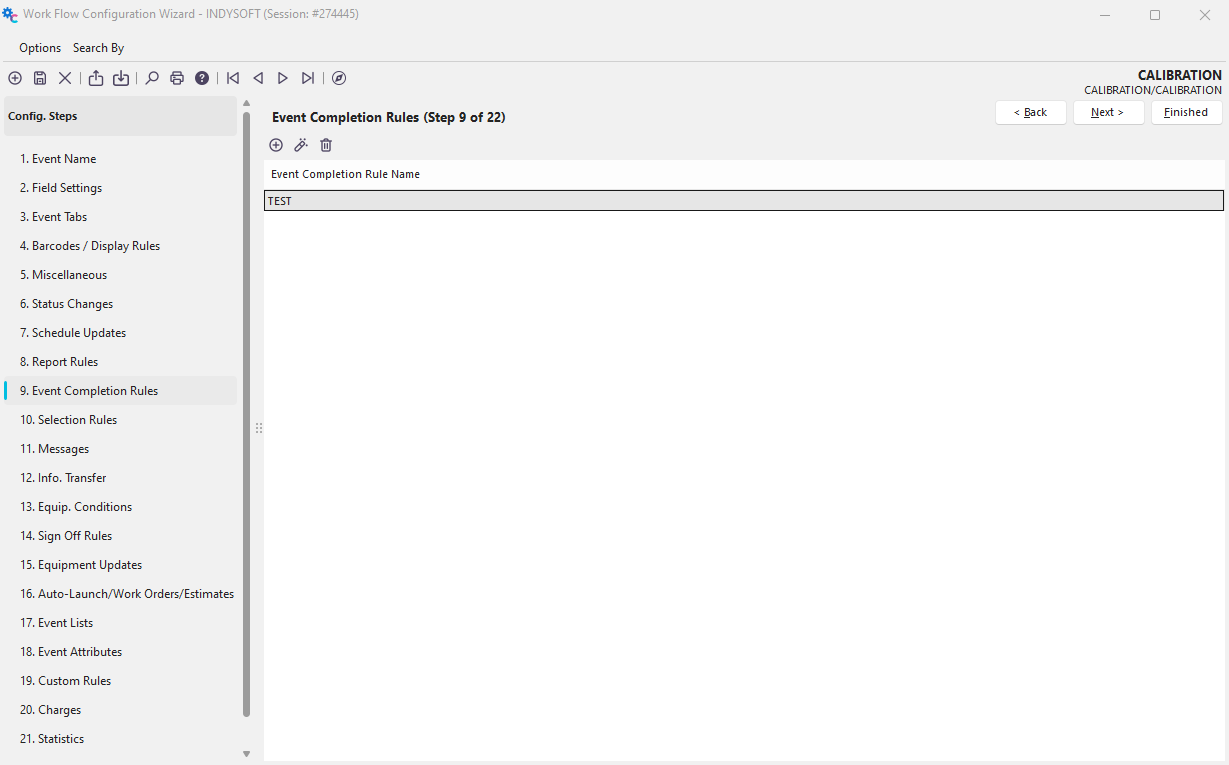
Configuration Wizard - Step 9 of 22 - Event Completion Rules
Adding Event Completion Rules
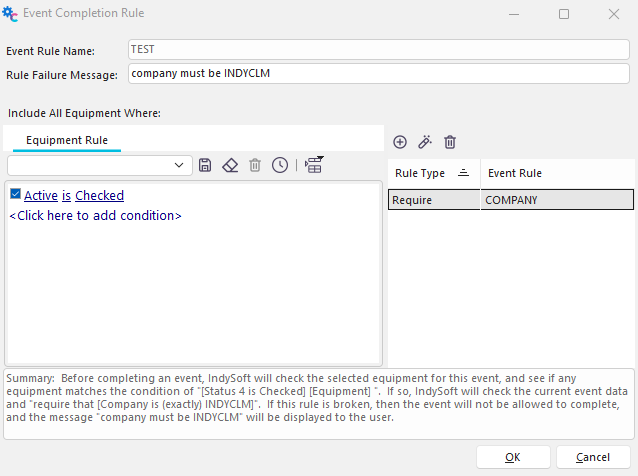
 Event Completion Rules are great for forcing events to allow/disallow certain things with specified equipment. Click the 'Add Equipment' button to add a new completion rule.
 ../Storage/indysoft-help-publication/hm_clip3262.png
Add/Edit Event Completion Rule
Event Rule Name
This field is a unique name for the Event Completion Filter. This name must only be unique for each Event Type you set up.
Rule Failure Message
This message will be displayed if an event fails a specified event rule.

Equipment Rule Message Example
Equipment Rule
Use this dialog to pick the type of equipment that you want to be considered in the Event Rule. Note: these rules describe the equipment.
Event Requirements
To add an event requirement, press the 'Add Event Rule' button. Note: you must select (or create) an Event Rule first. This will bring up another dialog:
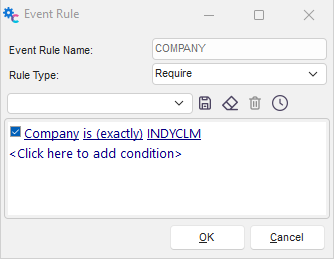
Add/Edit Event Rule
Event Rule Name
Name this condition. Try to separate conditions so it is easy to find what you need to change later on.
Rule Type
Every rule will either Require or Forbid certain conditions.
At this point, you could continue to add event completion rules or press OK to complete the event completion rule.
Notice that as you add rules, the Summary at the bottom of the page is updated to inform you what the rule does.

Event Completion Rule Summary
Event Completion Rule
After this rule is created, it will be enforced in every event of the type you are currently working on. The Rule Failure Message dialog will display when a technician tries to calibrate outside the tolerances set in the Event Rule.
 Productivity Tip
After creating the rule described above and clicking 'Finish,' a refresh of IndySoft, by right-clicking in the header and selecting 'Reload all Settings, is suggested before trying to use that rule in an event.