Location Tree Editor
Location Tree Editor
Overview
The Location Tree Editor allows for various complex setups of Locations. In version 13.1, IndySoft has reworked this structure to include even more functionality. A few of the main improvements include:
- Up to 10 levels of Locations
- Company Specific vs. Not Company Specific Setups
- Reference Locations vs. Storage Locations
- Improved searching options
- Improved conversion options from former structures
The location tree structure differs from other lists in the software in several ways. Some of the primary differences include:
- Locations can be company specific BUT can still allow the user to access additional company locations when choosing from the location search grid
- A GUID controls locations within the Location Tree
- GUID: Global Unique Identifier - a unique 40-character code representing a particular record
- Note: This means that multiple locations can have the same name in the system and remain unique
Since the GUID is stored at the equipment level (GAGES table), only specific fields can successfully interpret the GUID to its user-friendly display name.
At the equipment level, those fields include:
- Storage ID
- Current Location ID
- Transit Location ID
At the event level, those fields are:
- Location From
- Location To
Getting StartedLocation Tree Setup
Upon opening the location tree editor, you will notice an 'Options' menu dropdown in the top left-hand corner of the screen.
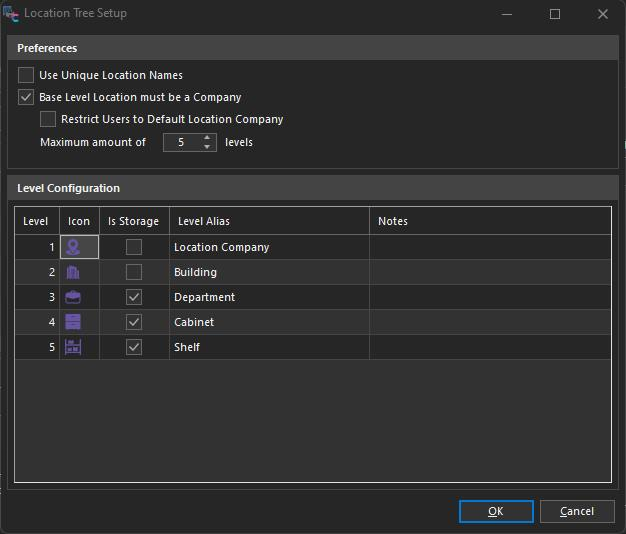
Location Tree Setup Dialog
If using the location tree for the first time or upgrading to 13.1 from a previous version of IndySoft, the Location Tree Setup is where you will want to start. There are two sections: Preferences and Level Configuration.
Preferences
- Use Unique Location Names- When enabled, this will require the location description to be unique across each location. The location description is displayed to the end user as the identifier for a location. Note: This setting is systemwide, not per company
The example below would represent this by the values INDYCLM, TEST CO, etc.
IndySoft Locations - Unique Location Names (Descriptions)
- Base Level Location must be a Company - If enabled, when adding a base/top-level location, the company dropdown will always be shown and required for selection. If unchecked, users can free-form entry of the location name that will not be associated with a company.
IndySoft recommends that any labs or multi-site facilities enable this option. It is unnecessary if you are a single-site facility but could still be utilized if desired.
Add/Edit Location Info - Base Level must be a Company
Restrict Users to Default Location Company - This option can be used with the 'Base Level Location must be a Company' setting. If enabled, users with a default company set for "Locations" in their user/location settings will be restricted to only accessing locations within that company. If no default company is referenced in the user's preferences, the location company will default to the current company on the equipment view. If this option is unchecked, users will have access to locations under companies that 1. have locations in the new tree structure and 2. the user has access to.

Edit Storage ID - Restricted to 'INDYCLM' company
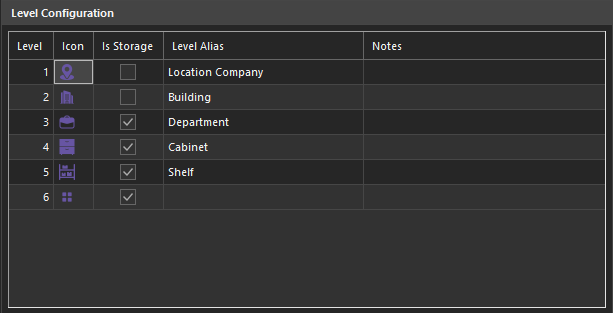
Location Tree Setup - Level Configuration
The level configuration grid allows administrators to alias the different location levels and set defaults like 'is storage' and icons.
Level - The order in which the location tree levels will show -- 1 represents the top level, descending to each child location depending on the maximum number of levels
Icon - Choose from 25 pre-loaded icons, which will default on that location level in the tree
Is Storage - defaults the location level as a storage location -- "Is Storage" checked in Add/Edit Location Info
Level Alias - Caption/alias for the location level name -- will show in search by's as Storage ID [alias]
Notes - Additional notes related to the location level for reference
Upgrading from IndySoft Pre-v13.1
If you are upgrading from 13.0 or previously and have already used the location tree, you may want to review the Location Tree Setup Options. You may find it useful to set a maximum number of levels and label your Levels as you see fit for your company. At a minimum, you can label them "Level 1", "Level 2", etc. Labeling these options will show in search filters in the future.
It is recommended/essential that you right-click in the Location Tree and select the option to "Rebuild Structure for All Locations." Rebuilding will only occur for any locations visible to the user. It is recommended to rebuild the structure for all locations before and after running the Location Tree Setup. This will allow locations to show appropriately when exposed in equipment layouts displaying the assigned icons.
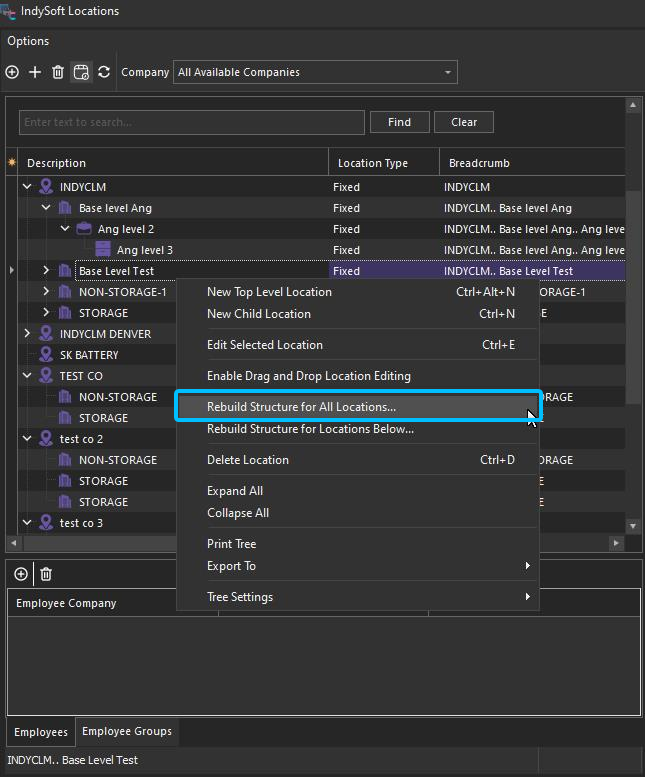
Location Tree Editor - Rebuild Structure for All Locations
Convert Bi-Level Locations to Location Tree Structure…
Under the 'Options' tab in Location Tree Editor, new options allow for converting existing, bi-level location structures directly over to the Location Tree structure. You can choose the Company List to convert to the Tree Structure and choose 'Locations and Sublocations' or 'Cribs and Bins.' A message will note how many locations exist under that company to allow for quick confirmation of counts before running the conversion. Admins can run this as many times as necessary until all desired locations have been migrated from the older location structures. By default, the Company (Level 1) will not be marked as IS_STORAGE, and the 2nd and 3rd levels will be marked for allowing storage ('Is Storage' is checked). Data from older, bi-level structures will not be updated and will remain intact.
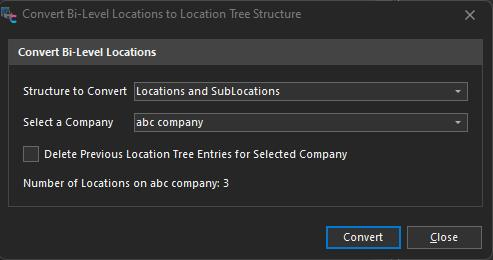
Location Tree Editor - Options - Convert Bi-Level Locations to Tree Structure
Important note: Emails from former structures will not be converted during this process.
Convert Equipment to New Location Structure…
If the 'Convert Bi-Level Locations to Location Tree Structure' has been used, IndySoft has also provided a quick way to update Equipment to use those newly created locations. The 'Covert Equipment to New Location Structure' option can only effectively be used if the Base Level location is required to be a company. The filters include Location Tree Company for Reference, Update Field, and Convert Equipment Based Upon Existing Values. First, choose the company to reference in the new location tree structure. Next, choose the field you want to update on the equipment level: Storage ID, Current Location ID, Transit Location ID. Next, choose which existing values to convert based upon: 'Crib and Bin' or 'Location and Sub-Location.' Lastly, specify an equipment filter in the 'Equipment to Convert' section filter box. Data from older, bi-level structures will not be updated and will remain intact.
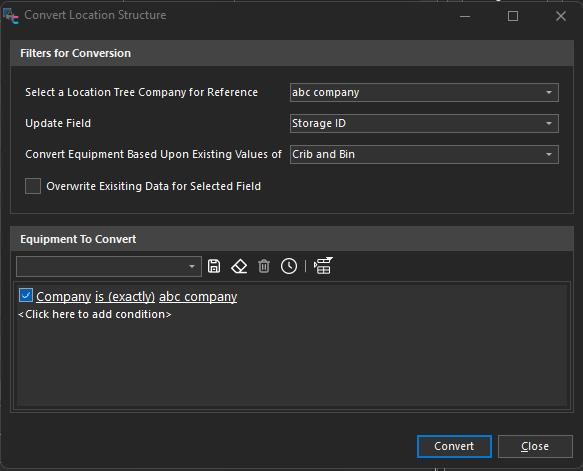
Location Tree Editor - Options - Convert Equipment
Important note: Tooling Bin quantities will not be converted during this process.
[+] Show More
[-] Hide
Select a Location Tree Company for Reference: Will only pull lists of companies with Locations in the Tree that are associated with a company.
Update Field: Allows the User to select which Location ID type of field will be updated based upon consistencies between the Location Tree Company records and Existing Values. The three options are Storage ID, Current Location ID, and Transit Location ID.
Convert Equipment Based Upon Existing Values : This represents which Bi-Level Fields the user wants to compare values with against the Descriptions of the CompanyBased Location Tree Structure.
Overwrite Existing Data for Selected Field: If unchecked, and there is a value at the field to be updated, then that value for that asset will not be updated.
Equipment to Convert: This is where one can specify which assets one wants to try and update.
Location Tree Editor OptionsNew Top-Level Location 
This button or right-click option creates a new base level or Level 1 location. If using a company structure (See Location Tree Setup…), the Top Level can only be selected from a list of companies. The location icon and Is Storage value will be inherited from any Level 1 option in the Location Tree Setup.
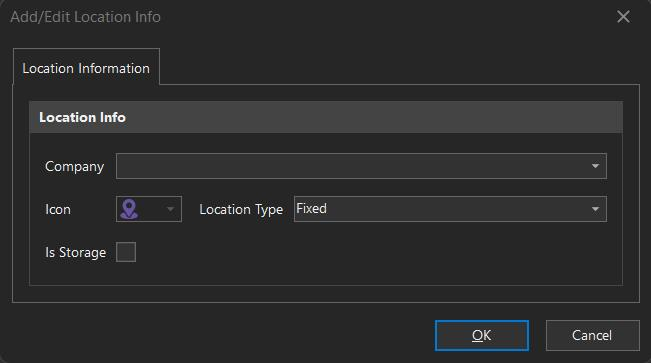
New Top-Level Location
New Child Level Location 
This button or right-click option will create a child location for any currently selected location in the grid. The new location will inherit options from the "Location Tree Setup."
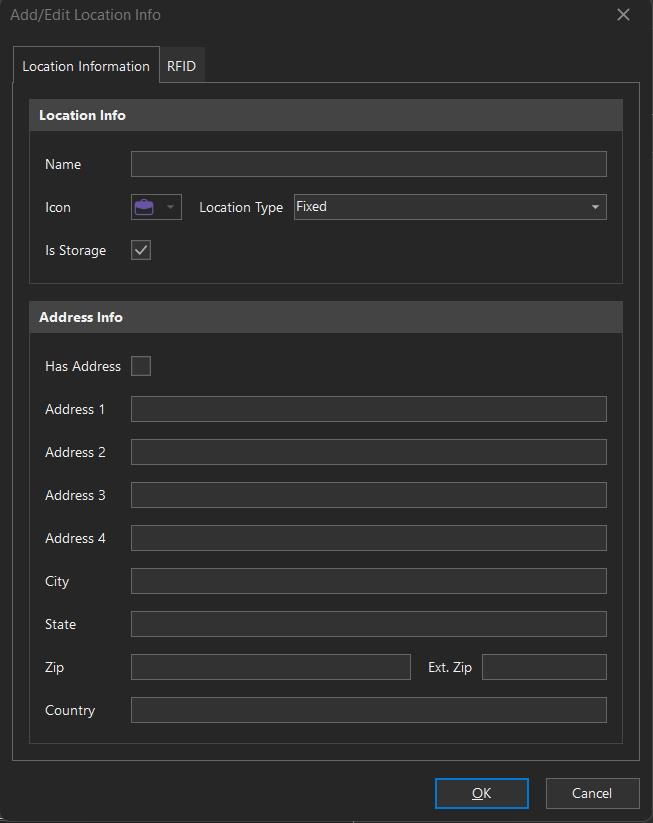
New Child Level Location
Delete Location
This button or right-click option will delete the selected location in the grid. The user will be prompted to confirm the deletion of this location and all its children's locations.

Delete Location Confirmation
Show Equipment For Locations 
This button will toggle the right-hand equipment panel on/off. When enabled, this option shows a quick report on the right-hand side of the location editor indicating all Equipment associated with that Location. The user can specify with the checkboxes above that search if they want to see any combination of the associated value with any of the three related Location Tree fields. The search will show any items at or below the selected field. (Exception is the Highest Level Company)
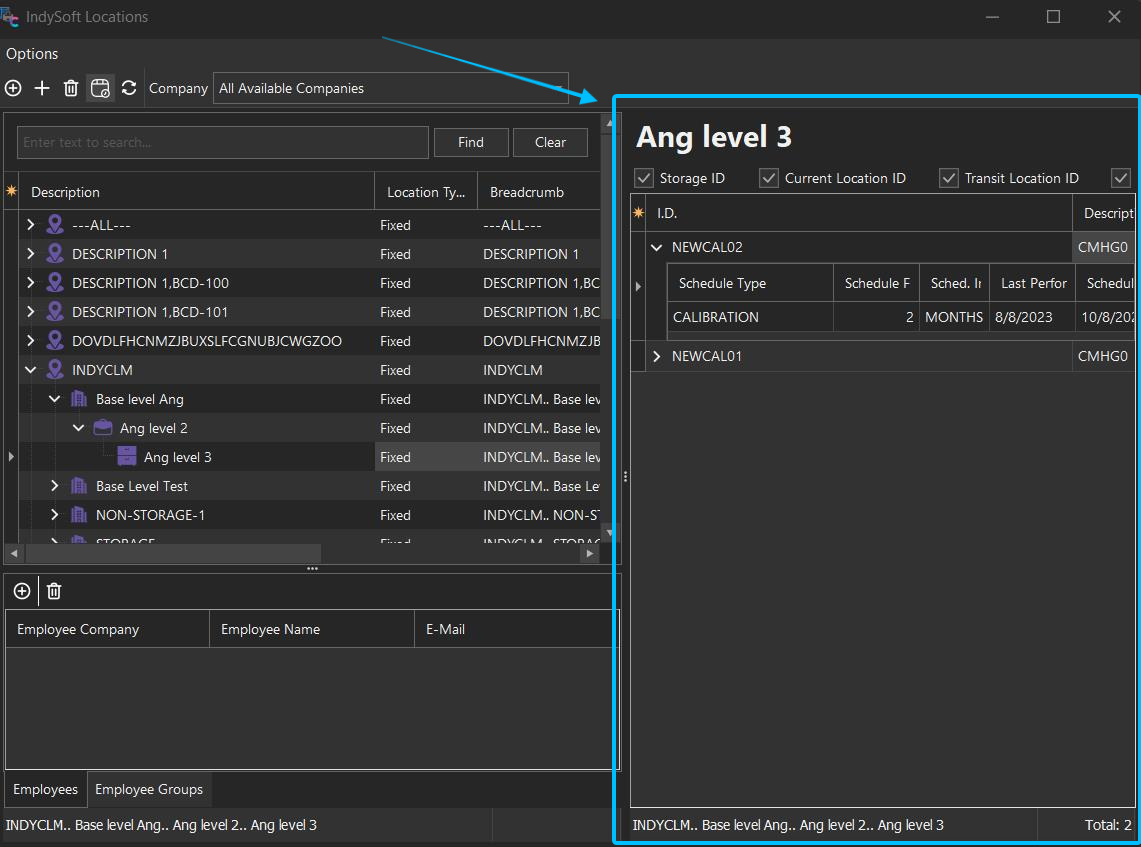
Location Tree Editor - Show Equipment for Locations
Refresh Locations 
This button will refresh all locations in the grid.
Renaming Locations
Users can edit and change the location name by double-clicking on the selected record or right-clicking in the grid and selecting the "Edit Selected Location" option. Since the GUID is stored at the equipment level, no validation occurs. Renaming the location is essentially renaming the description of the record while the GUID (Primary Key) remains unmodified.
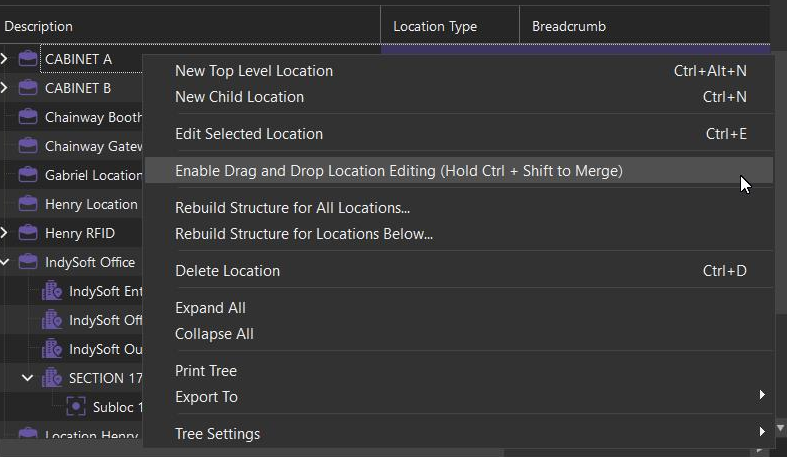
Enable Drag and Drop Location Editing
New in Version 13.1, administrators can go into edit mode and move locations between parents. Once the right-click option is selected, a user can click on a location, hold the mouse button down, and drag underneath another parent location. The children of the location that was moved will remain children of that location. Child locations cannot be moved to become Top Level locations, and Top Level locations cannot become children. The user will be blocked if attempting to move a location with children with more levels than allowed in Location Tree Setup. No validation needs to occur at the equipment level, as the GUID will remain intact.
To merge a location (and its associated equipment) into another location, hold CTRL+Shift when drag/dropping.
Show All Locations Which are not Company Specific
This option will only be exposed if the system has "Base Level Location must be a Company" checked, AND Locations exist in the tree which do not belong to Companies. This allows the user to convert existing non-company options to company-specific locations using the drag-and-drop edit Option.
Rebuild Structure for All Locations
This is a courtesy to users who may have used the Location Tree before version 13.1. More fields were added to help with searching and finding assets under specific locations, and this option will allow them to be populated for all locations visible to that user. The related "Below" option will enable users to rebuild the 13.1 structure underneath the selected location.
Import Locations
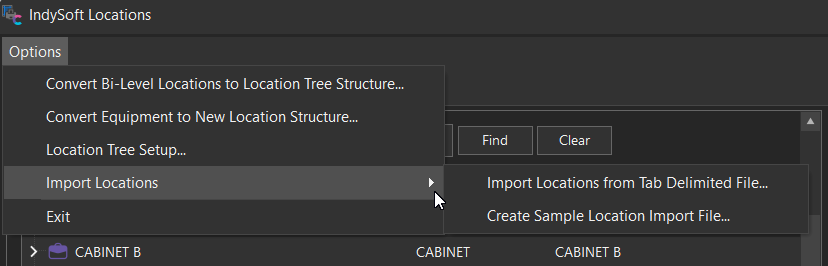
Under the options tab, there is an option to Import Locations -- this function will accept a tab-delimited file and import the listed locations into the location tree structure. Use the "Create Sample Location Import File" for a base template - then open the file in Excel, make adjustments, and export the file to tab-delimited. Once you have the .txt file ready for import, go into the Location Tree Options and select "Import Locations from Tab-Delimited File. Once selected, the user will be prompted to select the designated file from the Windows File Explorer.
Add/Edit Location InfoLocation Information Tab
Add/Edit Location Info
When creating a new location, the user must enter the location's name. Location names may or may not be required to be unique in the database based on the setting in Location Tree Setup. The Icon and the "Is Storage" fields are defaulted upon creation from the corresponding location level in the Location Tree Setup. These fields can also be altered in this creation screen. Users can also specify if a location has an address and what that address is. When selecting a Location Type, please note that only the "Kiosk" option has functionality that allows a device to be associated with it in the IndyGo Mobile application.
RFID Tab
Add/Edit Location Info - RFID Tab
RFID Device Association
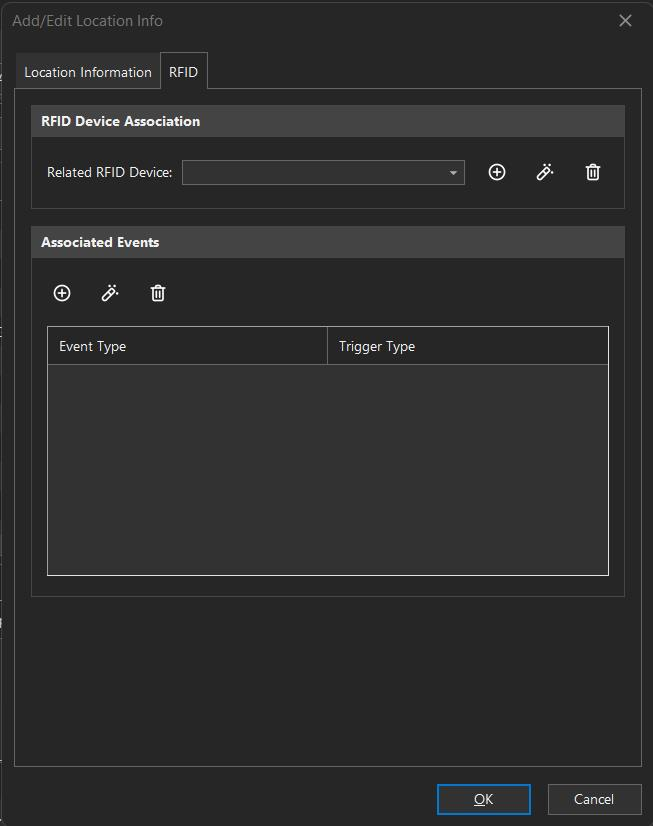
This feature can be used in 13.1 to set up an RFID portal or Choke Point to detect RFID tags associated with assets. The device must be pointed to a valid URL where the REST server can "Listen" for incoming .json format data. If set up correctly, the general flow stands to update the Asset's Current Location ID if that Asset's Current Location ID does not match the incoming value from the reader. This feature set is currently functional for testing but is in the Beta state overall.
Add RFID Device Dialog
[+] Show More
[-] Hide
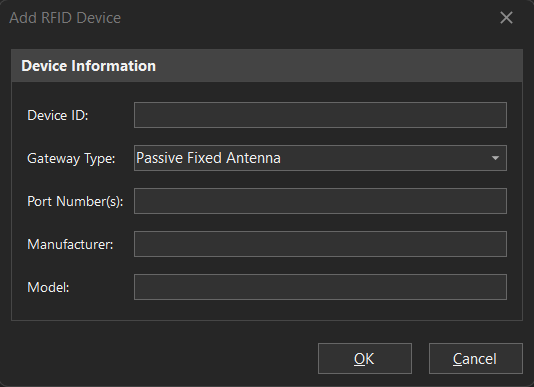
Device ID is generally the MAC address of the reader sending the tag reads and is required.
Gateway Type is simply a description of the Gateway.
Port Number(s) can be used if the user wants to separate antennas attached to the same reader in separate locations. If this is blank, the endpoint will accept all ports as the same location. Otherwise, the user can enter the port numbers separated by a comma.
Manufacturer and Model Number can be filled out to inform the user what device is used.
Associated Events
If a reader is set up and updating the Current Location ID, then the Admin can also set up Events for such scenarios. Events can only be eligible for this if they are flagged in Workflow Configuration as an "IndyGo" type of event.

Associated Event Dialog
Trigger Types
Essentially, there are two trigger types for these associated events. The "To" trigger type occurs when a reader detects a tag associated with an asset at a location and that asset's Current Location ID is not already detected at the associated location. The "From" trigger type occurs when an asset's Current Location ID already has that associated location. This event will be triggered if the asset is located at another gateway. Locations can have both "To" and "From" associated events. Only one event per trigger is recommended per location.
Locations in Equipment View
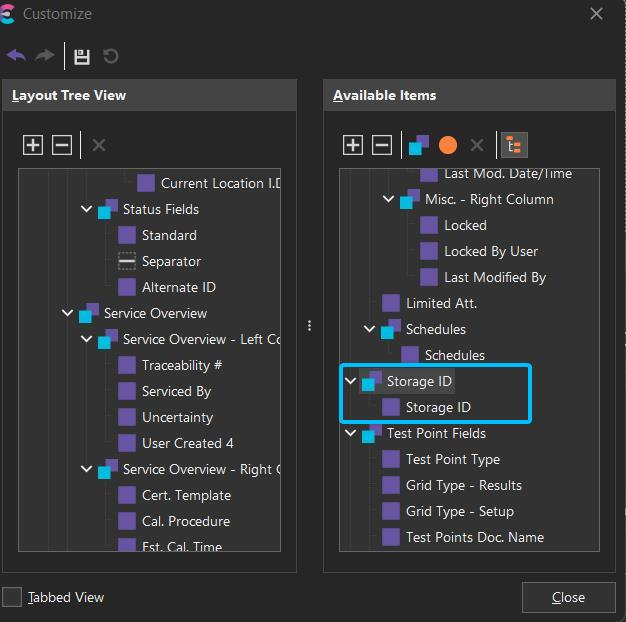
We have a new object to pull into the equipment view Field layout. The object is named 'Storage ID' and will be automatically grouped as 'Storage ID' - A dynamic field that will adjust to show a location tree in view. To bring this object into the layout, right-click and select "Customize":
Equip View - Storage ID Object Group
Drag/drop the 'Storage ID' group either into the left-hand panel or directly into the equipment view layout. Once the view is set up how you would like, close the Customize dialog and save changes to the layout.
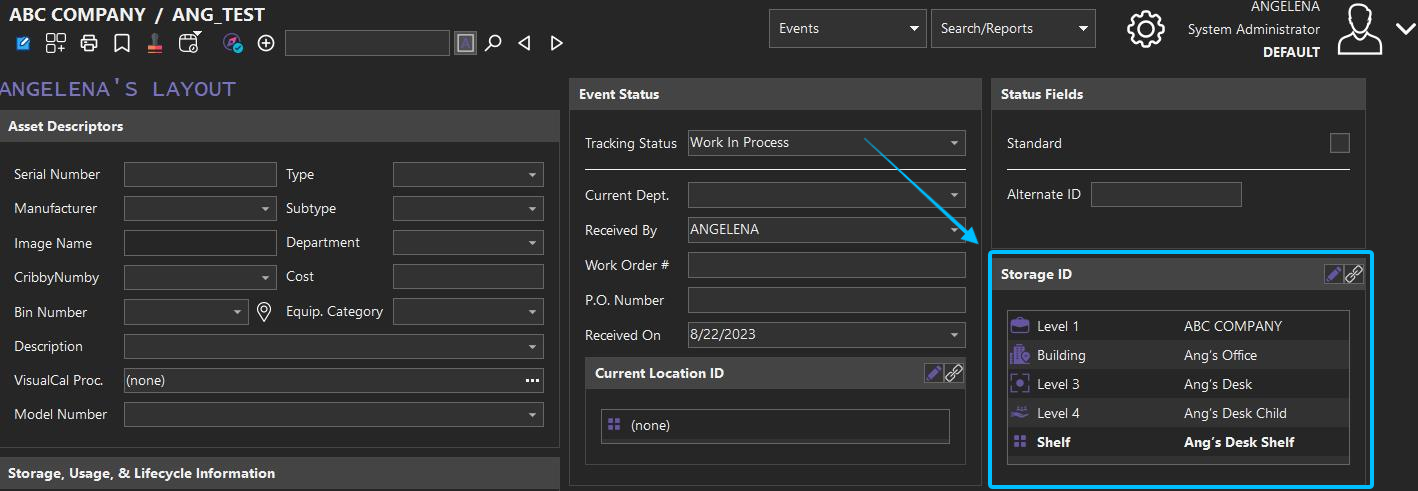
Equip View - Storage ID Object exposed in view
The Storage ID field will dynamically resize within the layout depending on the chosen location and how many levels down it is. Each location shown in this object is also selectable by clicking on it and will open that location directly within the Location Tree Editor. The icons/level aliases will be defaulted from the Location Tree Setup within Location Editor. If you would prefer not to show icons in view, you can right-click on the object and toggle 'Show Default Images' off:

Storage ID Object - Show Default Images Toggle
In the above example, the 'ANG_TEST' gage is stored in the 'Ang's Desk Shelf' location. You can recognize which location level you are on because it will be displayed in bold in the view. This location is the 5th level, displaying the breadcrumb of higher levels as well. So, the complete breadcrumb for this location is: ABC COMPANY (Level 1)...Ang's Office (Level 2 aliased as Building)...Ang's Desk (Level 3)...Ang's Desk Child (Level 4)...Ang's Desk Shelf (Level 5 aliased as Shelf)
There are two buttons in the top-right-hand corner of the Storage ID object: Edit Storage ID and Launch Location Tree Editor.
 Edit Storage ID - This option links a location from the location tree to the equipment in view. A new dialog will open, displaying a tree of different locations that apply to the logged-in user—Double-click on a location in the grid to select it.
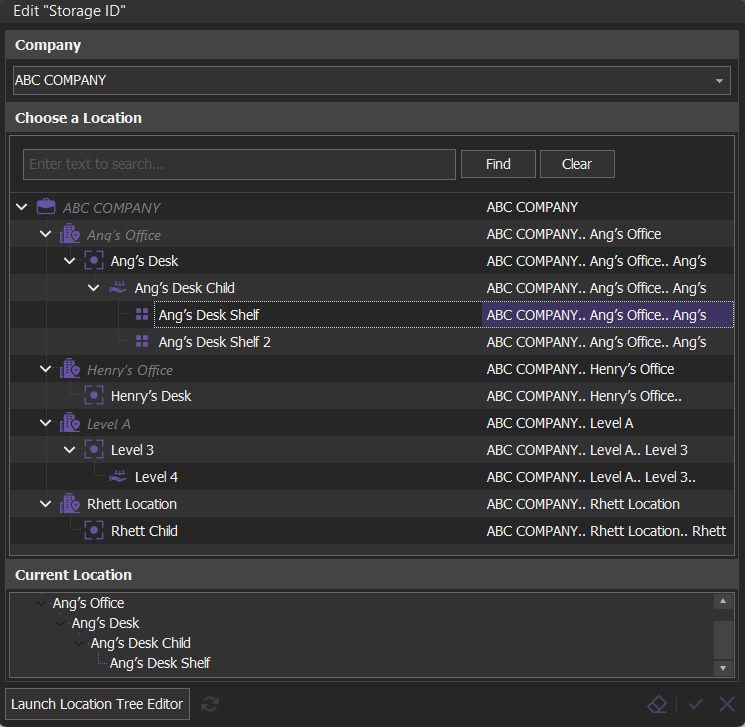
Equip View - Edit Storage ID Dialog
Note the company field at the top of the dialog - if the user has access, they can change the company to display the associated locations. At the bottom of the dialog is a 'Current Location' section listing the breadcrumb of the location the equipment is currently linked to for quick reference. Any location that does not have the 'Is Storage' checkbox checked will be displayed in gray italicized font and will not be selectable to store equipment.
 Launch Location Tree Editor - Use this option to launch the Location Tree Editor directly from the equipment view.
The same type of object will show under certain tracking statuses as well (if set up successfully):
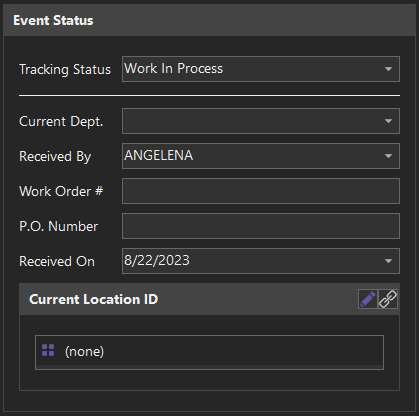
Equip View - Tracking Status - Current Location ID Object
If no location is selected, then (none) will be shown in the object.
Locations in Search By's
We also have new fields to search on and expose in the results grid of equipment searches. These fields include:
- Storage ID
- Storage ID (Breadcrumb)
- Storage ID Level 1-10 (Depending on Location Tree Setup)
For example, if you are searching on 'Storage ID' within EquipmentFinder Advanced Selection, you will notice that you are displayed with a tree selection when clicking on the <?>
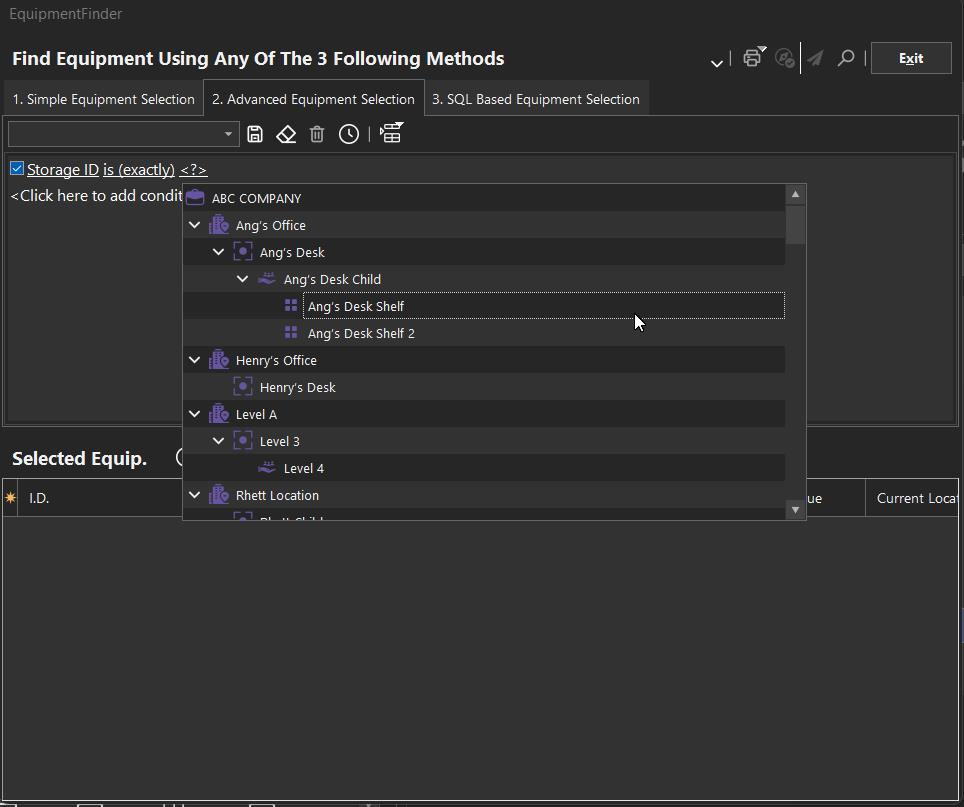
EquipmentFinder - Searching on Storage ID
One thing to note when using the 'Storage ID' field is that the search will only filter on the currently selected location, disregarding equipment that is located within the associated child locations. So, if you search on 'Storage ID is exactly Ang's Desk Child', 0 records will be returned.
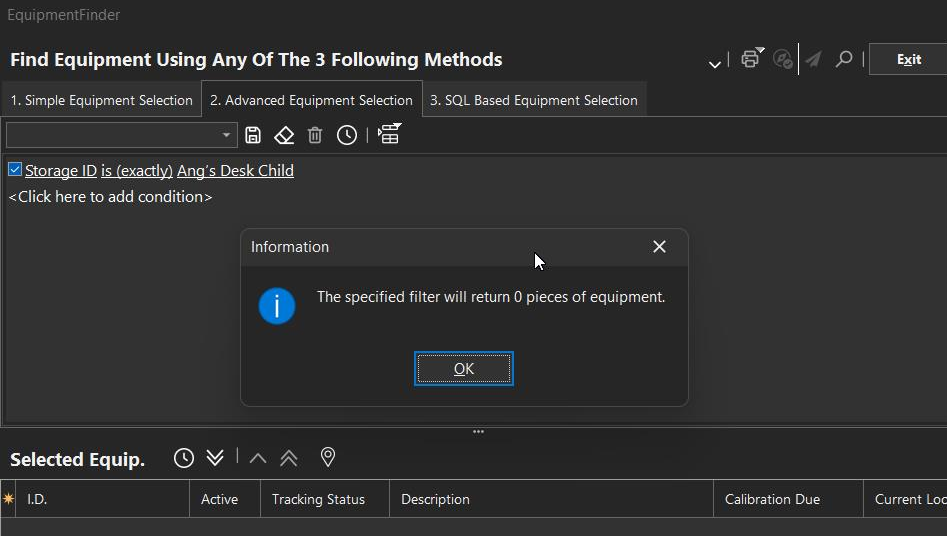
EquipmentFinder - Storage ID returns 0 records
However, if you compare to within the Location Tree Editor 'Show Equipment for Locations' section, you will see that there are a total of 2 records located under Ang's Desk Child -- however, this equipment is not located in Ang's Desk Child but actually within the child locations of 'Ang's Desk Child'
- ANG_TEST --> Ang's Desk Shelf
- ANG_TEST2 --> Ang's Desk Shelf 2
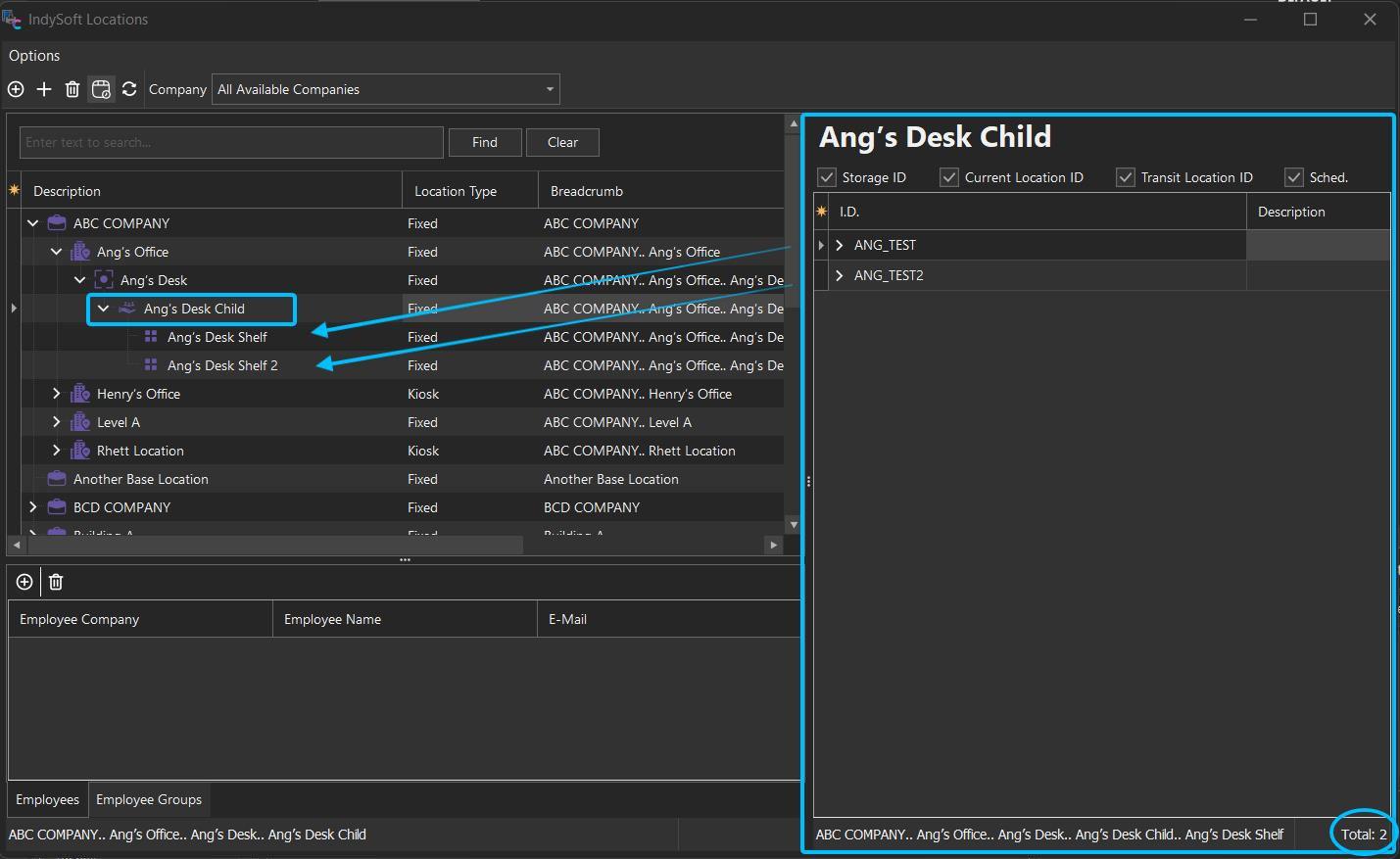
Location Tree Editor - Show Equipment for Locations Comparison to EquipmentFinder
Contrary to searching on 'Storage ID', if we search on 'Storage ID Level 4' (or any of the specific levels), we will be shown all equipment located in child locations as well. In the same example, if we search on 'Storage ID Level 4 is exactly Ang's Desk Child', 2 records will be returned:
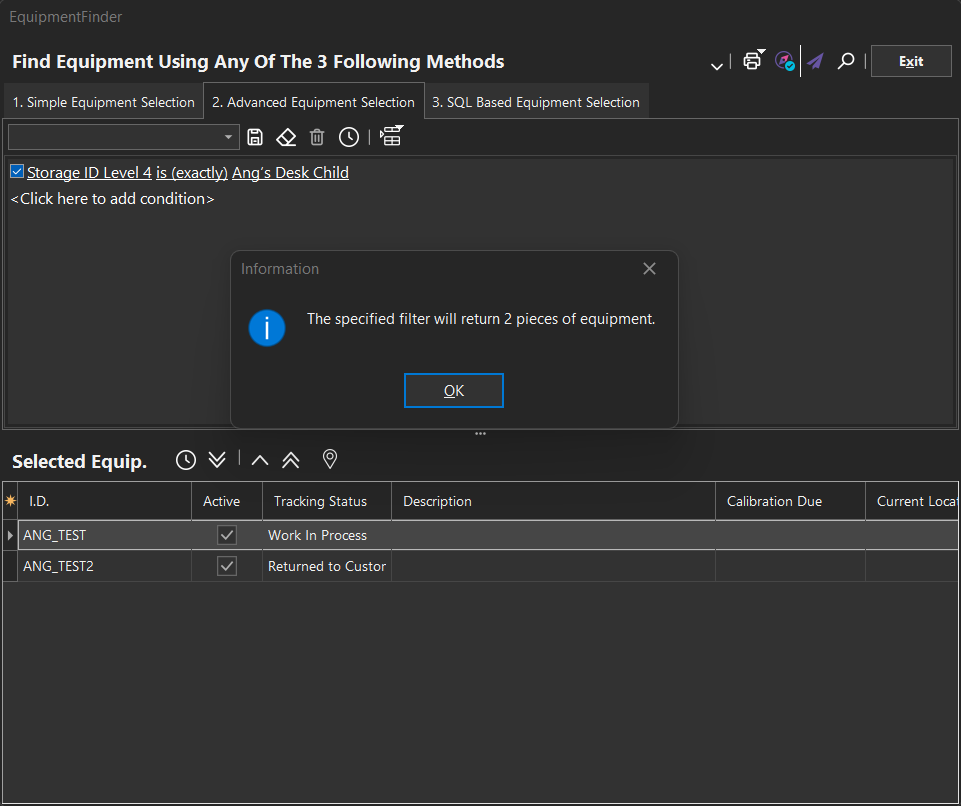
EquipmentFinder - Storage ID Level 4 returns 2 records |