Script Review Utility
PLEASE NOTE
The following topic may include references to the custom scripting aspects of the IndySoft product line. Some aspects of the discussed features may not be accessible to end customers. For reference, the affected features will use the word 'script' or 'custom script.' Refer to the Custom Scripting Overview topic for more information about custom scripting and how it is implemented and supported within the product.The Script Review Utility gives a convenient view of all custom scripts currently saved for use in the IndySoft database across all script types, events, etc. These scripts can then be searched - search results are shown in an external text file summarizing the matches. Scripts can also be tested and edited from within the utility.
Six types of scripts can be reviewed with this Utility - each has its tab:
·Event Scripts
·Equipment Scripts
·Template Scripts
·Order System Scripts
·Login Scripts
·Uncertainty Scripts
Note: The Script Review Utility only includes single scripts, NOT project-based scripts. Also - Alarm Scripts are NOT included since they are only stored locally as text files on the workstation running the alarm, not stored in the database.
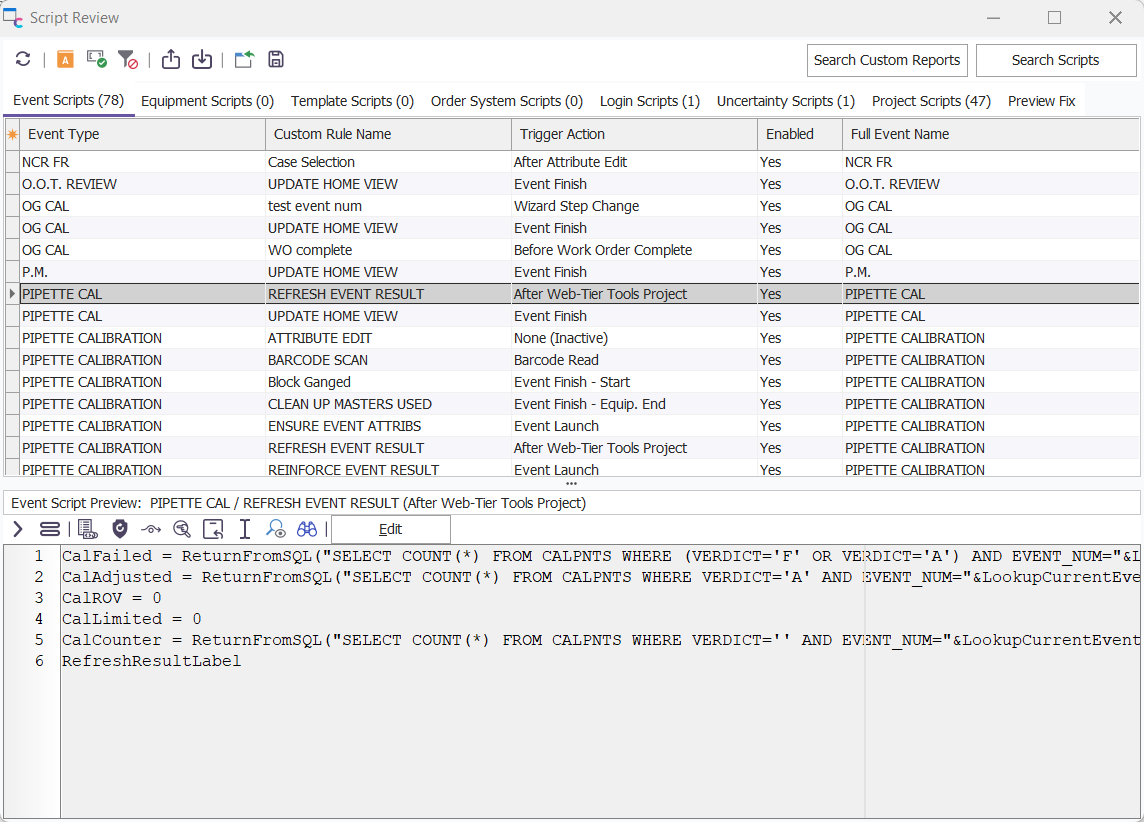
Selecting a script in the grid will show the script text in the preview at the bottom of the screen:
Script Review Utility
Press the 'Edit' button above the script to make the text editable. Press 'Apply Changes' when the edits are complete. This same editing functionality is also duplicated on the 'Preview Fix' tab. The 'Preview Fix' tab is helpful if you want to compare the updated and old script easily before applying changes.
Script/Report Searching
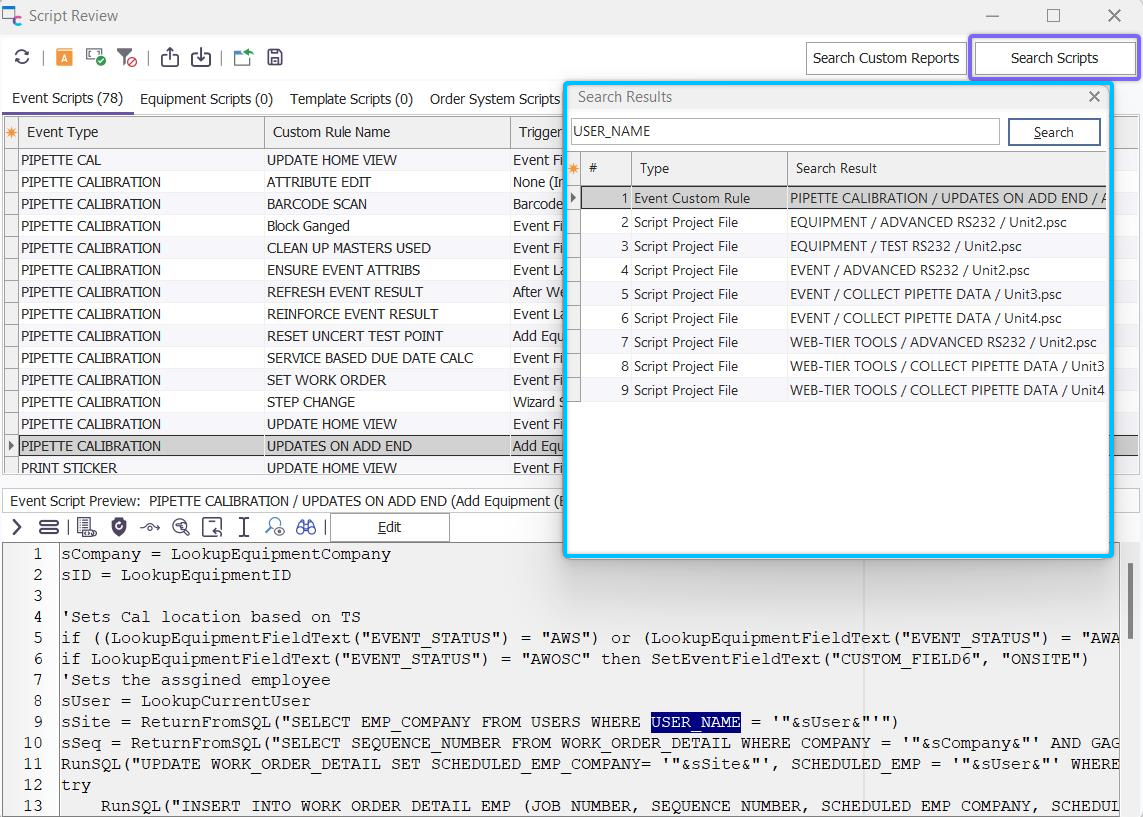
To search a script, type text into the edit box in the upper right of the dialog and select Search...Scripts:
Searching Scripts
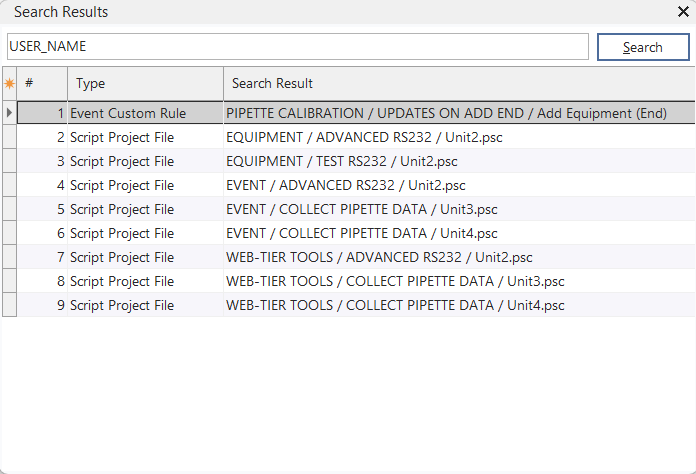
Any results will be shown in a summary text document that is automatically launched:
Script Search Results
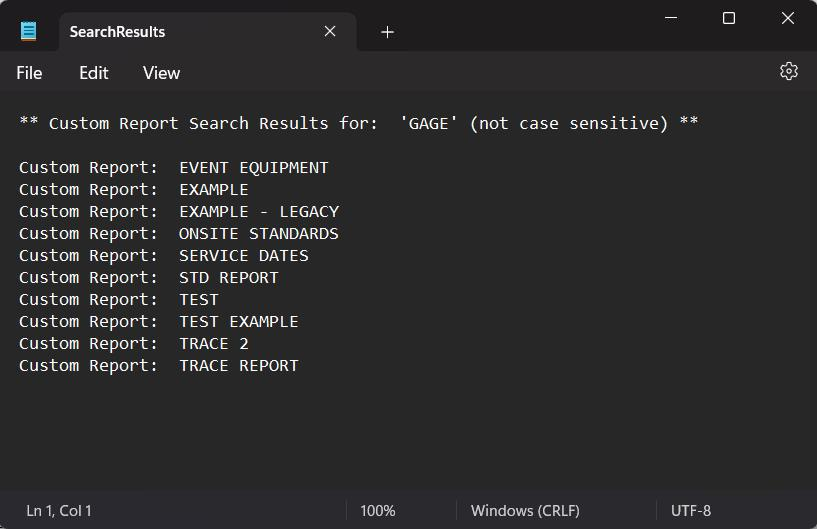
These search results will remind you of the script type...rule name...and trigger action (if appropriate). Similarly, it is also possible to search within the custom scripting inside IndySoft reports (the Calc tab) - although these report-based scripts are not visible in a grid within this utility. Input your search text into the same edit box and press the Search button...select 'Custom Report.' Any matching report scripts will be shown in a similar SearchResults.txt file.
Custom Report Search Results
Other Options
Several options are also available above the script grids:
 Refresh
Refresh the scripts in the current grid - any scripts recently created will be shown.
 Syntax Check For all Rules In Grid Below
This option performs a syntax check upon all the scripts in the current grid to ensure that the script will at least compile without error. This option is helpful if you suspect the same syntax mistake has been made across several scripts, etc.
 Fix Scripts And Run Syntax Check
This option is typically not required. Much older versions of IndySoft (before version 8) used a variety of scripting that allowed for if...then statements to be used all within one line. This syntax changed in version 8, so the Script Review utility was used automatically (behind the scenes upon the first launch) to fix any scripts as needed. This button performs the same older fix on the scripts.
 Ignore Version Line During Fix
Only selecting this option is prompted by support. It is related to the 'Fix Scripts' option described above. After a script was fixed, a line was inserted at the top of the script to note that it was fixed (so subsequent fixes would be skipped):
' IndySoft Script Version 1.4 - Do Not Remove
This option instructs IndySoft to disregard this comment line when fixing.
 Export All Scripts To Zip
This option will export all scripts (all types) to a single zip file. Each script is included as a separate text file in the zip.
 Import All Scripts From Zip
This option will import all scripts within an export zip (as created from the 'Export All Scripts To Zip' option above) into the current database. Scripts will be merged into all current scripts in the database. If a script in the import file already exists in the destination database, the user will be prompted before overwriting the script. If a script in the import file applies to an event that does not exist in the destination database, then the import of that script will be skipped (and the user will be alerted to this condition at the end of the import).
 Restore Scripts Created From Backup During Last Fix
This option will import the zip file created during the automatic fix of the script syntax during the Version 8 upgrade (as described in 'Fix Scripts And Run Syntax Check' above). When this automatic script fix was performed (if it was) IndySoft made a backup copy of all scripts as a zip file and saved it to the database. If you want to return the scripts to their previous state, use this option. This is very rare - only use it if instructed by IndySoft Support.
 Save Backup To File (Created During Last Fix)
The zip file created automatically during the automatic script fix (as described above) is saved to the IndySoft database if it needs to be recalled from the 'Restore Scripts Created From Backup During Last Fix' button. If you want to save this zip file from the database to an external file, use this option. |