Loop Calibrations
Loop Calibrations are a powerful option that allows you to set up a parent asset on the main screen, associate child equipment, then perform a loop calibration event on the parent asset that makes use of all the related assets. Any child assets that require special work within the loop can be selected within the event, and these sub-events can be completed simultaneously with the loop calibration. Loop Calibration functionality allows for quick navigation between parent and child assets from within the loop, and a worksheet can be quickly referenced for each child asset to be reminded of the current asset location, test points, status, etc.
Start by creating a parent asset for the loop on the Equipment View of the Dashboard main screen. Set the 'Loop Calibration' field to true, then associate all child assets required for the loop, just as you would for any child equipment association:
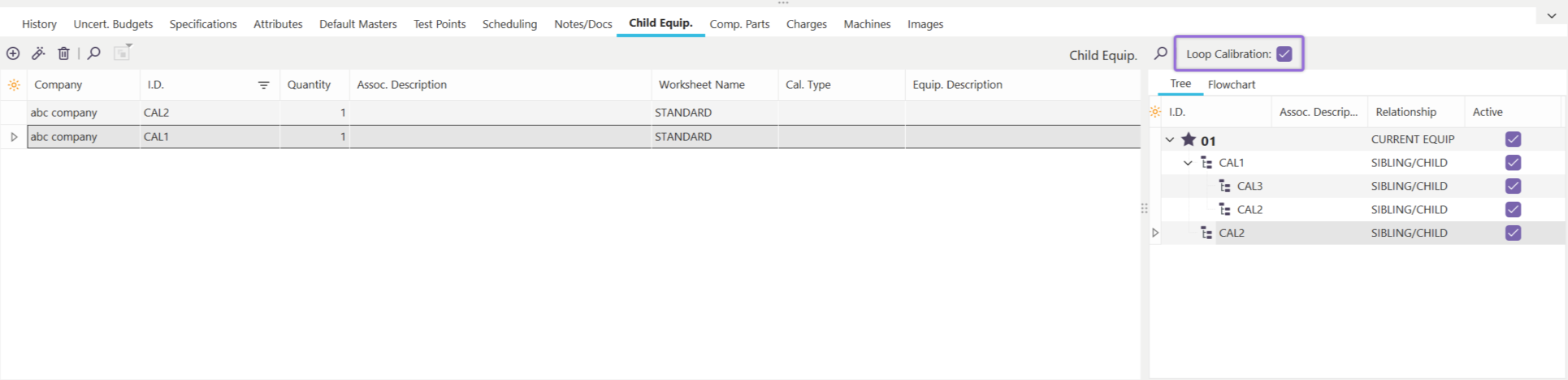
Loop Calibration Setup - Main Screen
IndySoft provides a flowchart editor to help illustrate the relationship between the various equipment in the loop. To make use of this flowchart, go to the 'Flowchart' tab in the bottom-right of the Child Equipment screen:
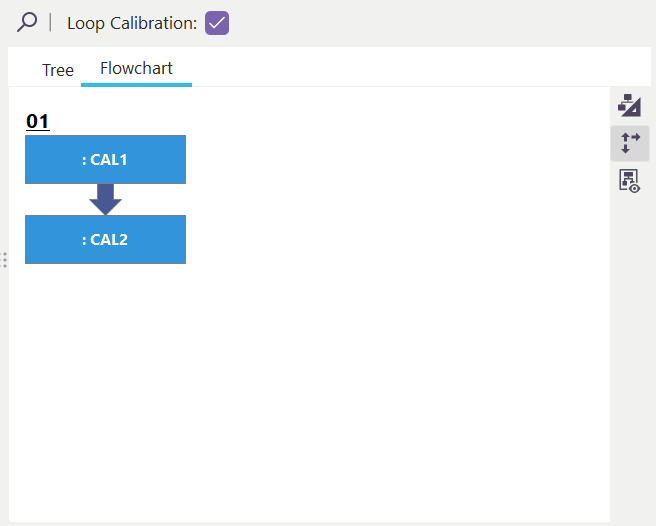
Flowchart Options - Child Equipment
The flowchart can be drawn/edited from an included editor. See the flowchart buttons on the right-hand side:
 Edit Flowchart - Use this button to launch the included flowchart editor and manually make adjustments.
 Recreate Starter Flowchart - Use this button to create a flowchart in the style shown above with the name of the loop (the name of the current asset on Equipment View) as the title, then each child asset is drawn as a block.
 Include Arrows On New Flowcharts - use this toggle to select whether arrows are drawn in between the child assets.
Once the flowchart is created, you can drag/drop child assets from the grid on the left onto blocks in the flowchart to quickly re-arrange the ordering of the child assets in the loop.
Loop calibration events use a 'Loop Calibration - Reference' dialog that shows the loop flowchart, then a worksheet for a selected asset within the flowchart. This allows for quick navigation/reference between assets in the loop. However, the specific worksheet displayed for each asset within the loop can be varied. To select the appropriate worksheet that should be used for display within the event for a child asset, double-click on the asset from the Child Equipment grid and modify the 'Worksheet' field:
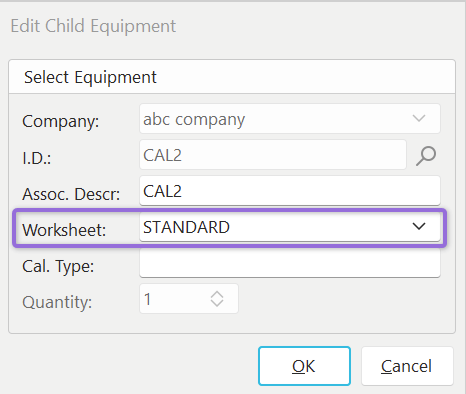
Worksheet Selection - Child Assets in a Loop
Note there is also a 'Cal. Type' option on this same dialog. This is the name of the calibration group or tab appropriate for the asset when displayed in the loop, as set up from the Test Points tab.
Loop Calibrations - Workflow Config. Setup
To set up an event type as a loop calibration, go to Step 3 (Event Tabs) and turn on the 'Loop Calibration' checkbox. When this 'Loop Calibration' option is turned on, several other options below become relevant to the event:
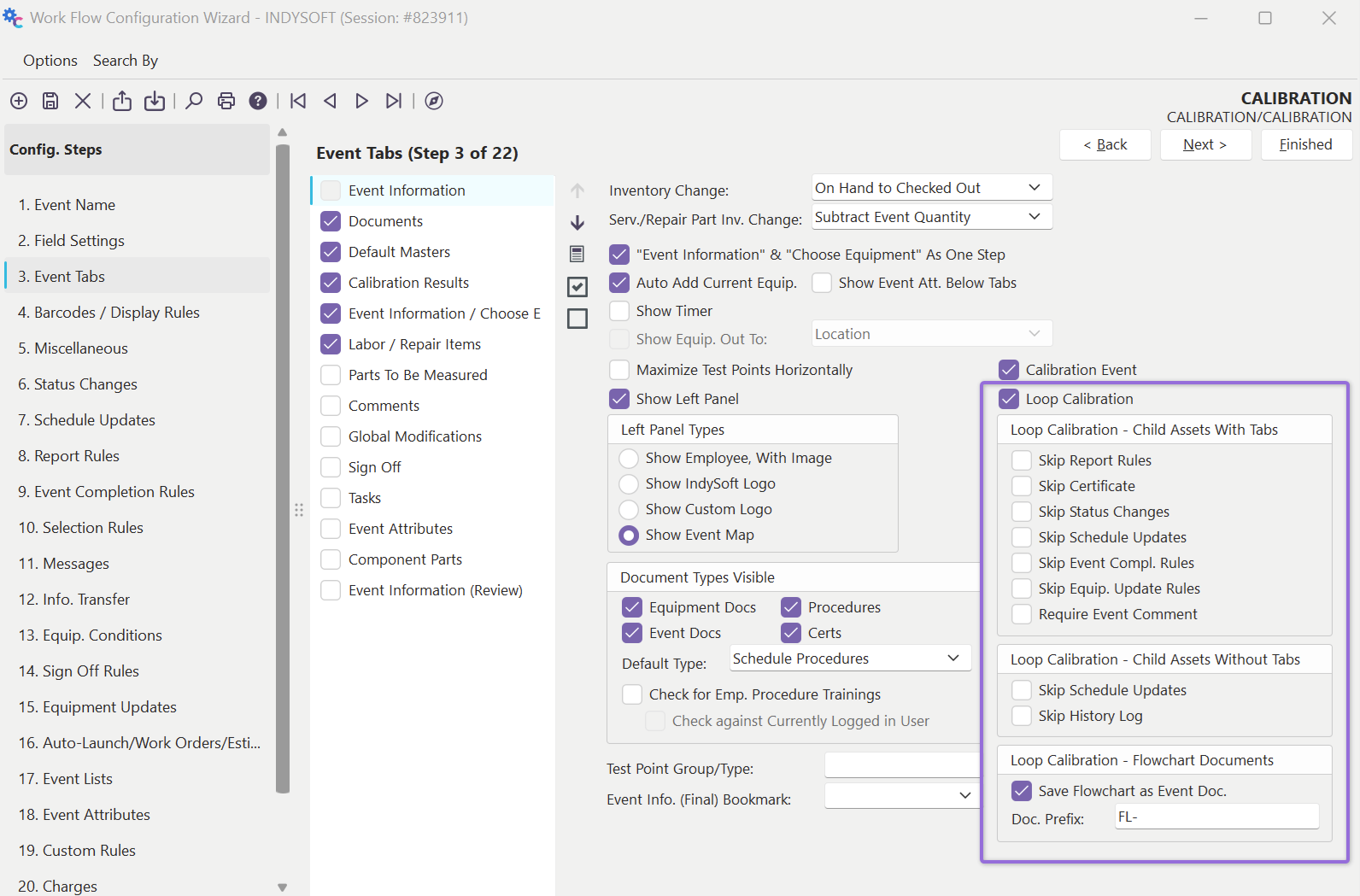
Loop Calibration Options - Workflow Config.
For additional notes on these settings, reference Workflow Configuration - Event Tabs
Loop Calibrations - Event Functionality
Only assets flagged as 'Loop Calibration' on the Child Equipment tab can be added to a Loop Calibration event. Otherwise, the message below will display:
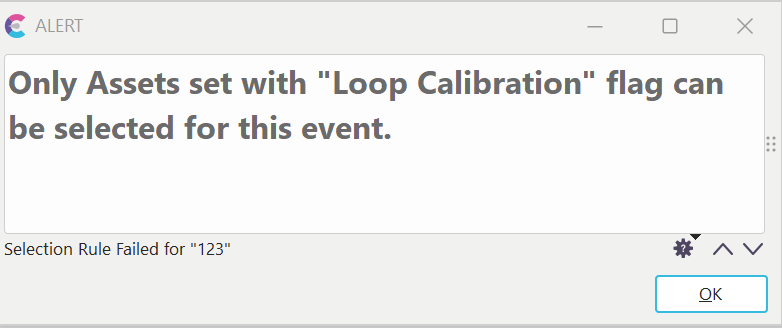
Block from Selection - Non-Loop Calibration Assets
There are two main visual differences in a loop calibration event. First, the parent asset is drawn as a tab below the 'Choose Equipment' dialog. To the left of this tab are a set of options that allow for quick selection of any of the child equipment if special work needs to be performed:
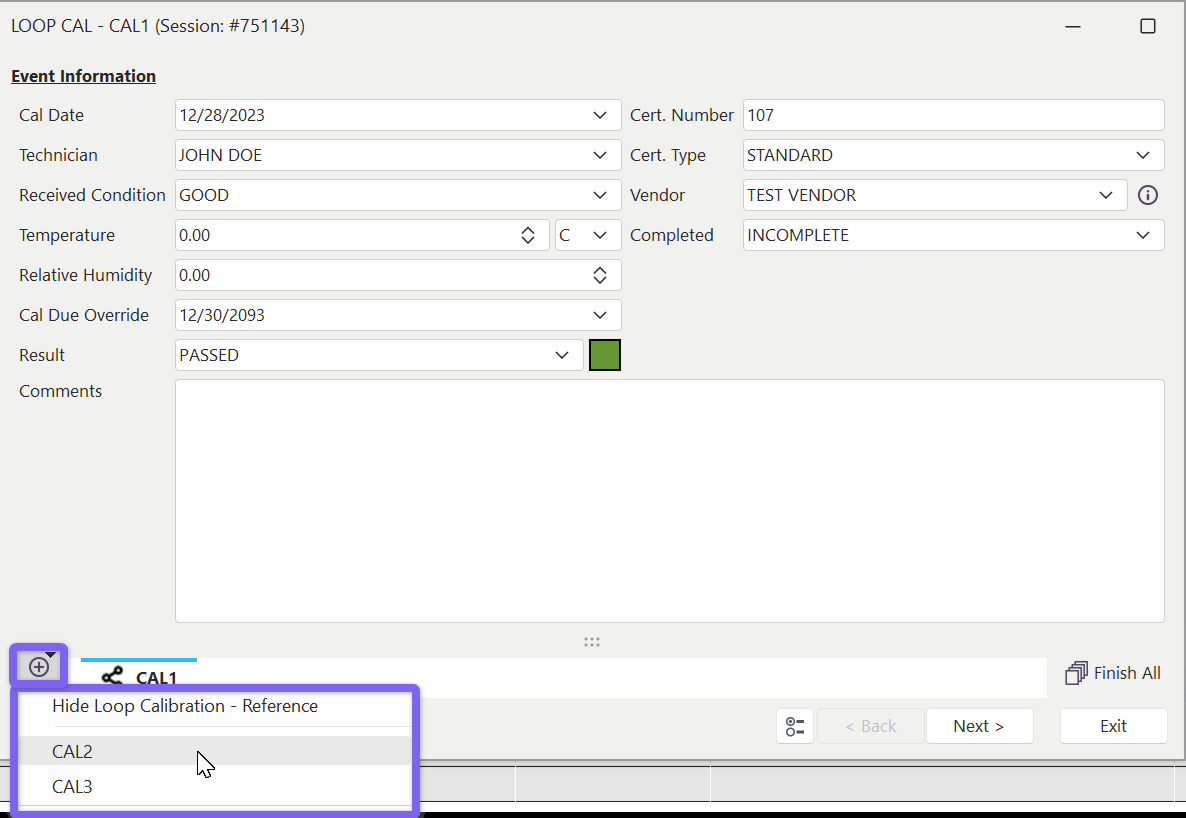
Loop Calibration - Child Asset Selection Options
Upon selecting a child asset, the asset will be added as an additional tab - much as in a ganged event. But unlike a ganged event, it is possible to move between the tabs, even after a child asset has been completed.
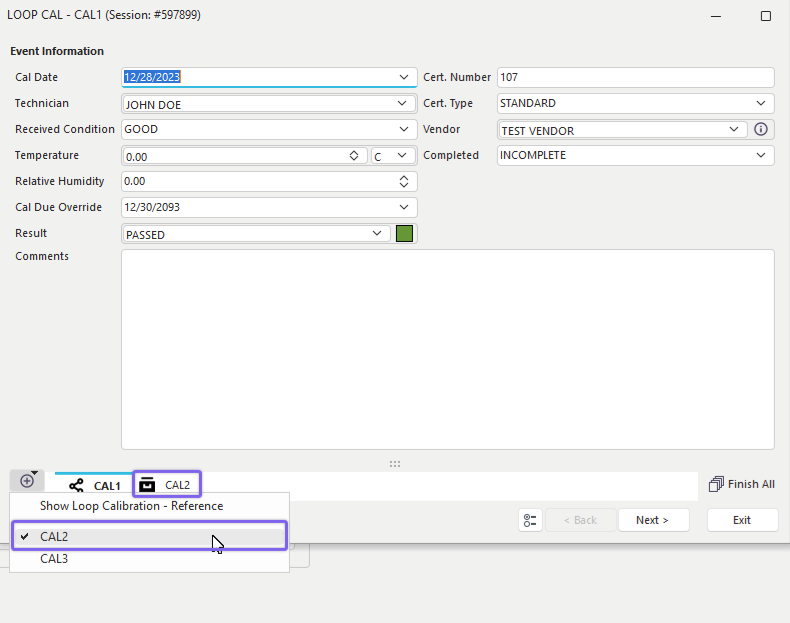
Loop Calibration - Child Asset Selected
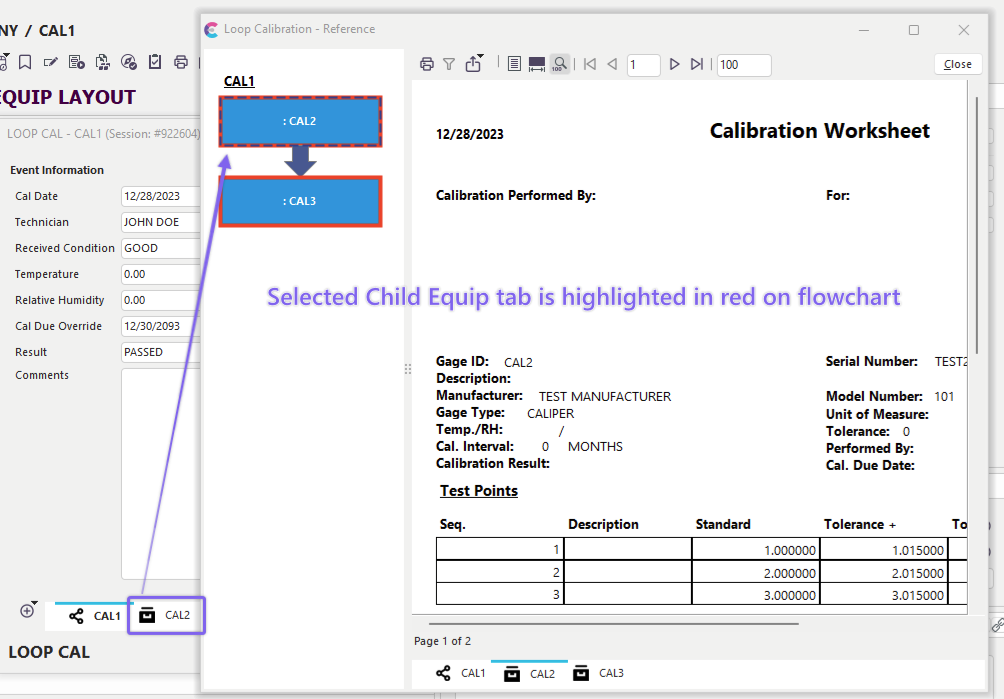
Next, you will note that a 'Loop Calibration - Reference' dialog is shown (this dialog can be later recalled from the 'Show/Hide Loop Calibration - Reference' menu item, as shown above):
 ../Storage/indysoft-help-publication/bs28-hkm_clip0153.png
Loop Calibration - Reference Dialog
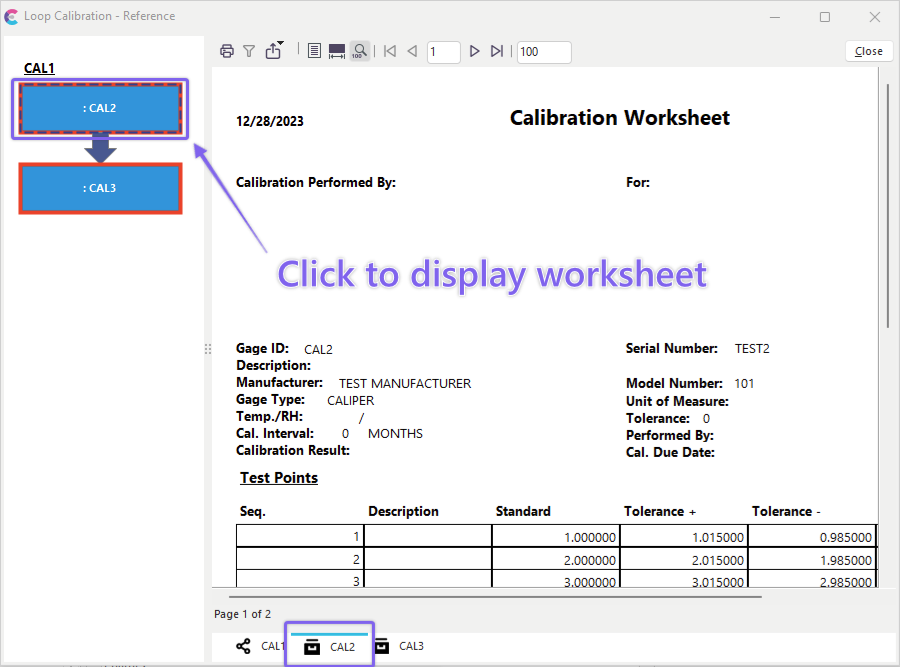
This dialog displays the flowchart for the loop parent (as drawn from the Flowchart sub-tab on the Child Equipment detail section of Equipment View). Each block in the flowchart then represents a child asset that can be selected. Upon selection, the related worksheet for that asset is displayed to the right. This worksheet is a quick reminder of the asset's current state/location/test points, etc. Each asset can show a different worksheet type, as set up from the Child Equip. tab on the main screen. Note that any child assets selected within the event for special work are then highlighted in red on their related box in the flowchart:
 ../Storage/indysoft-help-publication/bs29-hkm_clip0153.png
Loop Calibration - Selection of Child Asset for Work Within Loop
Worksheet data can be refreshed with a quick right-mouse click option on the worksheet or by re-selecting in the flowchart.
Note that all child assets in the loop (selected for special work within this loop) must have their sub-events completed before the main loop event is finished. Any attempt to finish the loop event before the child events are complete will display the following:

Block of Finish of Loop - Child Events Not Yet Complete
Also, note that the icons used on the tabs both on the bottom of the Choose Equipment grid and the 'Loop Calibration - Reference' dialog are informative:
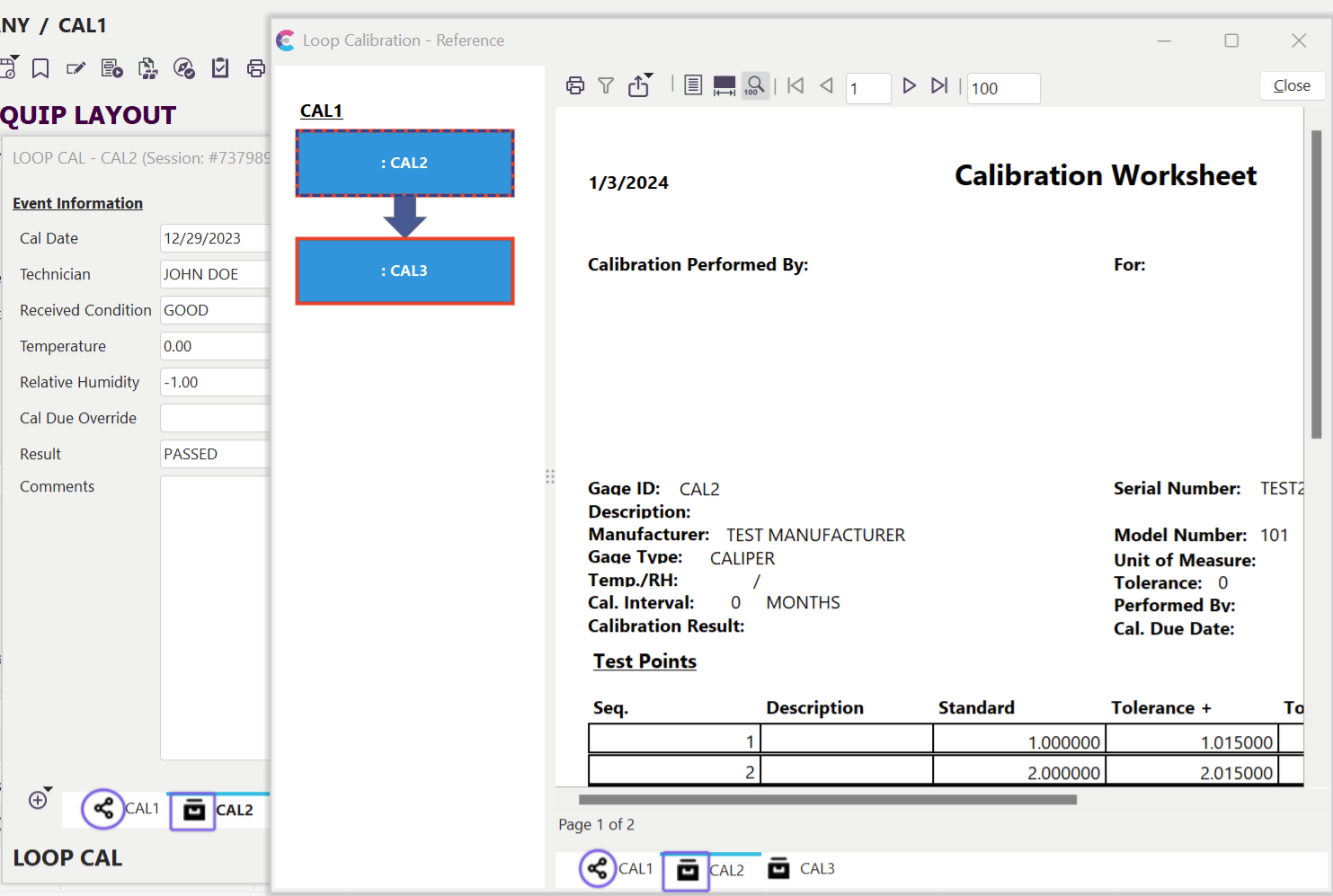
Loop Calibration - Tab Icons
 Specifies the asset is the Loop Parent
 Specifies this is a child asset selected for special work in the loop.
Once the loop calibration parent event has been completed (unless options are turned off in Workflow Config.), all child assets will have their schedules updated along with the parent, and a [Loop Usage] event will be added to each child asset. If the child asset had special work performed in the event, a [Loop Service] event would also be shown. Finally, a loop flowchart is typically added as an event document for each event, allowing a quick recall to note which child assets required special work. This flowchart is interactive, just as in the event - double-click to navigate to the selected asset on the Equipment View:
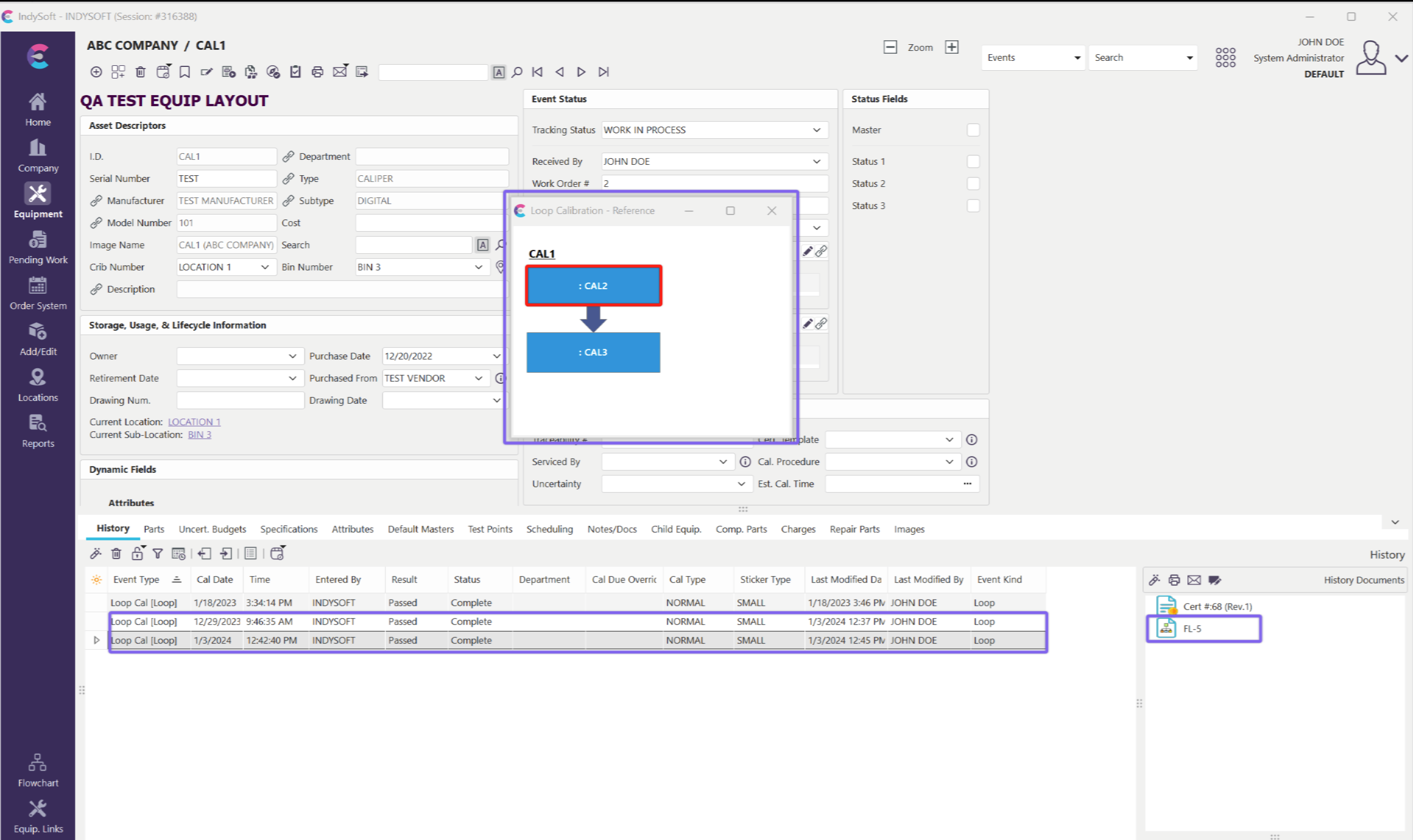
Loop Calibrations - Event History |