Add/Edit...System-Wide...Custom Lists
System-Wide Custom Lists are another way to enhance extended attributes further. These lists can be populated with hundreds of items about a particular piece of equipment and Attributes used System-Wide and available to any user or Company. See also Company Custom Lists, which are very similar but Company-specific.
Add/Edit System-Wide Custom Lists
To add to or manage the System-Wide Custom Lists, select Add/Edit from the left-hand panel in Dashboard View and select System-Wide --> Custom Lists from the drop-down menu.
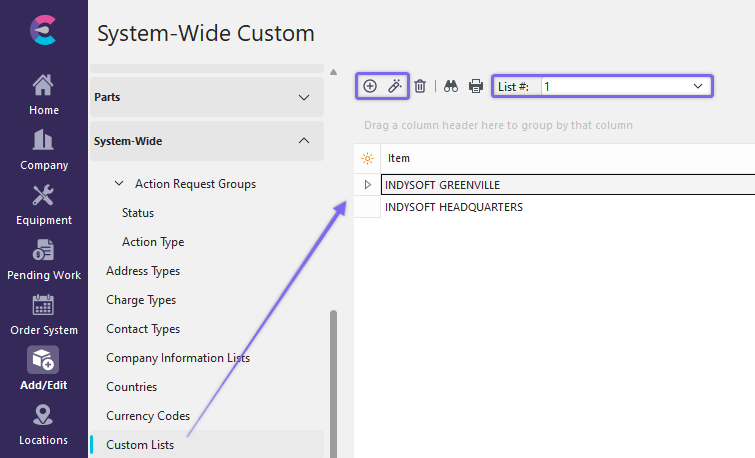
System-Wide Custom List
Be sure you're adding Items to the correct List #. Click  'New Item' to add a new Item or
  to 'View/Edit Item.'
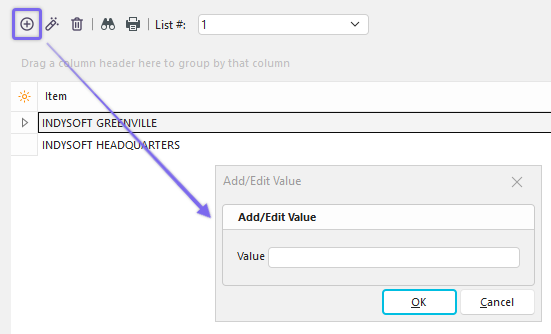
Add New Item to List
Add the new item to the list, click OK, and repeat as necessary.
Adding System-Wide Custom Lists to Attribute
As mentioned earlier, System-Wide Custom Lists are attached to extended attributes for viewing in the Ext. Attributes Dialog under 'Details...Attributes' in Dashboard. For information on how to create an attribute, go to Add/Edit Attribute Types.
Once an Attribute is added, go to Step 3 of the Add/Edit Attribute Types Wizard.
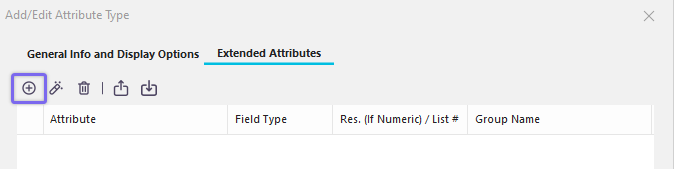
Add/Edit Attribute Type Step 3 - Attributes Tab
Click  'New Item' to add a new External Attribute or
  to 'View/Edit Item.'
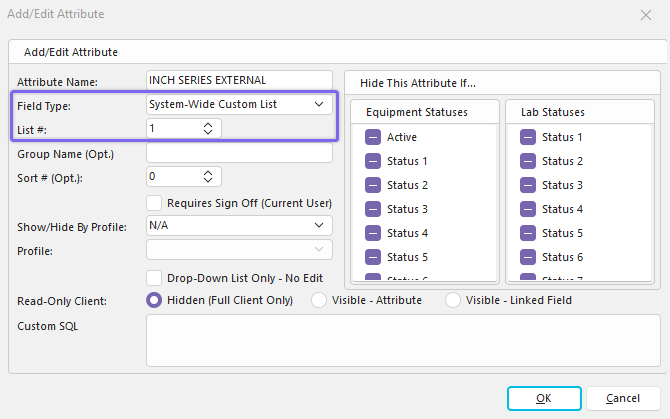
Add/Edit Attribute - Company Custom List
Type in the new Attribute Name (if necessary). Select 'System-Wide Custom List' from the drop-down menu in 'Field Type' along with the corresponding List # you created earlier for that Attribute. Select 'OK.' Repeat as necessary for other Attributes.
Using System-Wide Custom Lists in Dashboard
In Dashboard, make sure you have the correct Attribute selected under Equipment View:
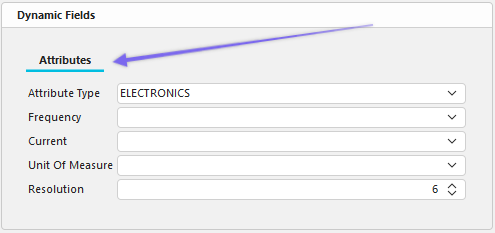
Attributes under Equipment View - Dashboard
While still in Equipment View, go to Details...Attributes:
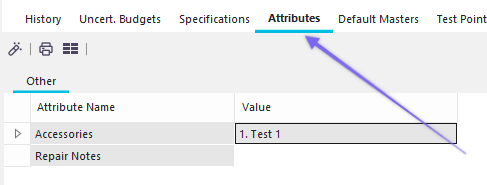
Details Dialog
The following window will appear:
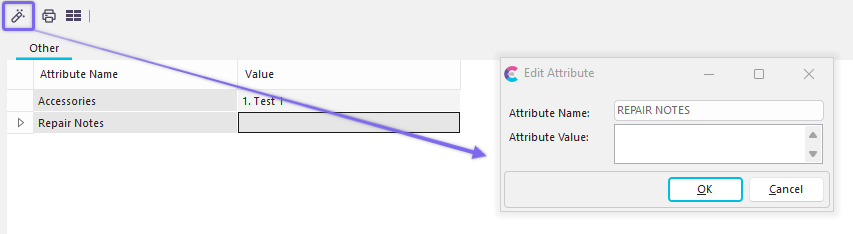
External Attributes Dialog - Dashboard
Click to 'View/Edit Item' or double-click in the value field.

Edit Attribute with Company Custom List Menu
Click the 'Attribute Value' field to see the System-Wide Custom List you created earlier.
Click 'OK' and repeat if necessary.
 Productivity Tip
Most of the dialog boxes seen here can be filtered and customized differently. See General Interface for more information.
Buttons and Icons are detailed here.