Legacy Export/Import Utility - Export to Lab
To export equipment to a lab, select Utilities: Export Information: To IndySoft Lab... and follow the steps through the wizard.
Export to Lab
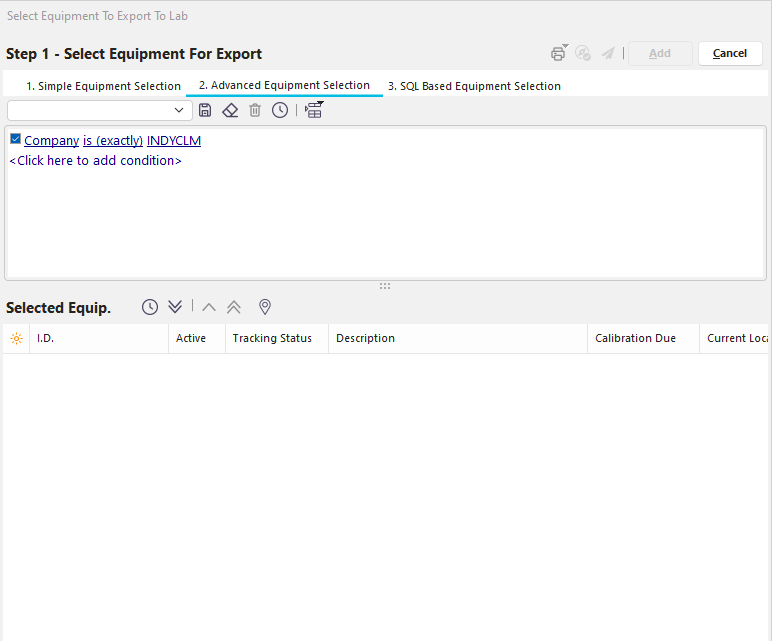
The first step is to select the equipment you want to send to the lab. In this case, TESTING sends caliper 0001's information to a lab. Select the equipment, as usual, using any of the Equipment Finder methods and click the 'Add' button.
Specify Export Information
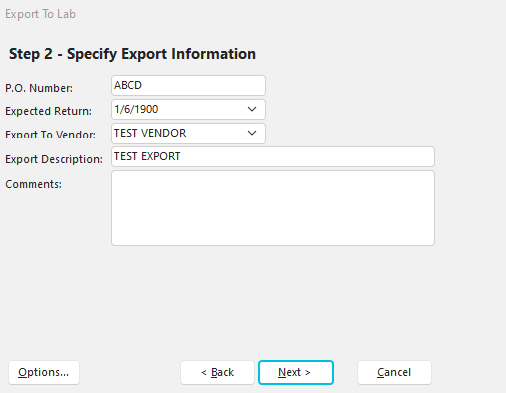
The second step is to specify what additional information will be exported. This includes a P.O. Number, Expected Return date, Vendor name, a required description, and comments.
Export Options
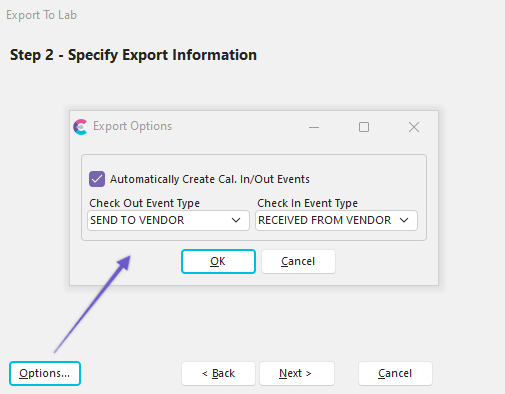
In addition, if you press the 'Options...' button, you can automatically create Cal. In/Out events and specify which events should be performed. This can be useful for tracking the fact that the calibration was performed off-site.
Export File Destination
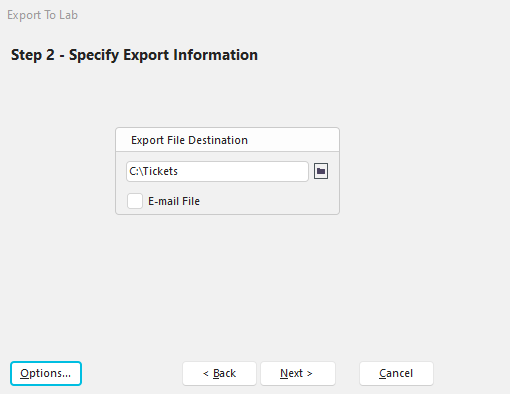
Finally, specify the file name to save to or select 'E-mail File' if you want to send the export data as an attachment to your lab. After performing the export event, your lab should have the following information from your database: Equipment information in the main area, Additional Info tab, Calibration Info tab, Test Points tab, and Scheduling tab. It will not pull in your events, documents, etc. |