Server
IndySoft Secure Server
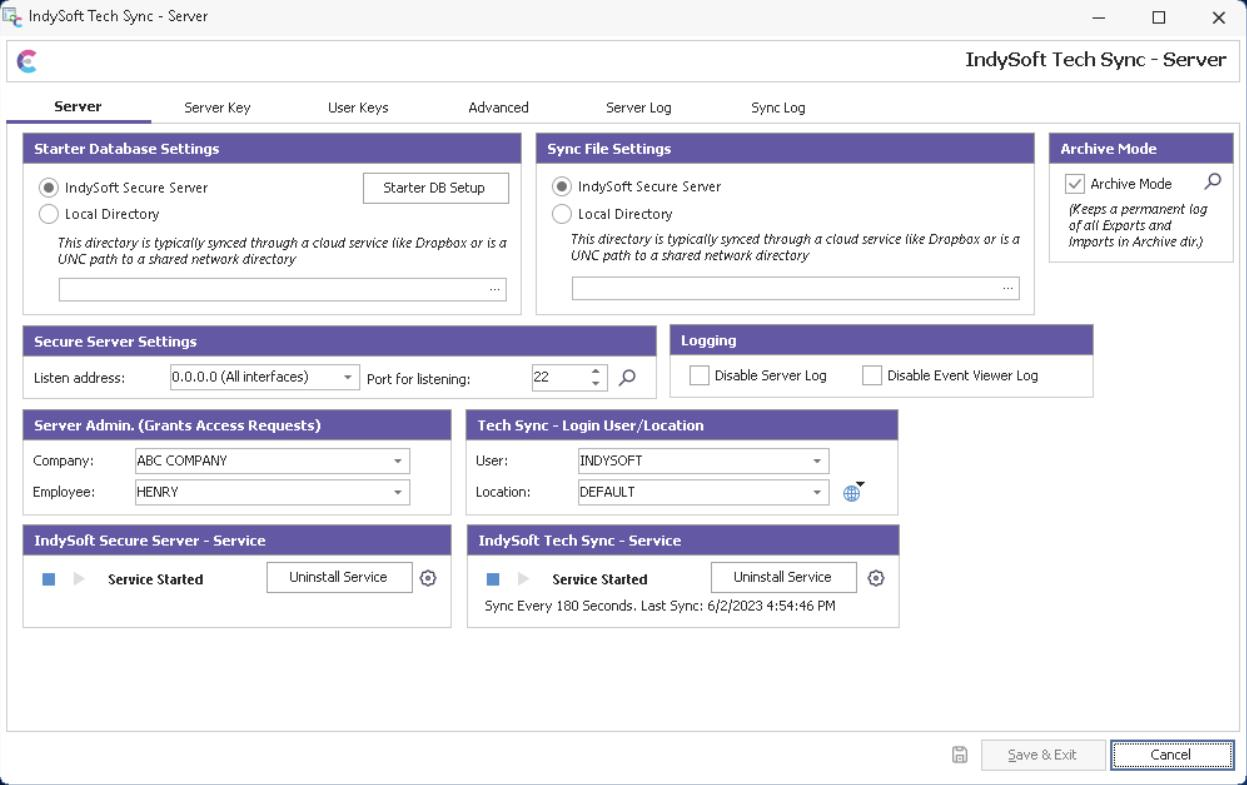
Listen Address: Specifies the local address to which the server should listen. If there are several netcards installed on the computer, and Listen Address is not assigned, the "0.0.0.0" address will be listened. This means that it is possible to connect to any of the installed netcards.
Port for listening: select the port used by the SFTP server. Make sure this port is open in all firewalls or other software/hardware options on the server.
View Files: Press this button to quickly launch the directory where all SFTP files are located. The directory is shown in Windows Explorer.
Server Admin. (Grants Access Requests): Select an employee from the Multi-User database that will server as the administrator for the IndySoft Secure Server. This means that this employee will receive email requests for tech sync connection. Each user will create a user key from their IndySoft Tech Sync utility (Setup IndySoft Secure Server Connection). This process emails the new user key to the server admin. The server admin. then adds the user key (upon approval of the user) then emails back the server key. See User Keys for more details. Be sure to select an employee that has a valid email address specified in Add/Edit...Employees within IndySoft.
Tech Sync - Login User/Location: Select a user/location that will be used by the Tech Sync Service when it starts. This user/location is important because it will contain all the Tech Sync settings used by the service. Press the 'View/Edit User/Location Settings'  button to edit settings for the selected user/location or globally:
Tech Sync User/Location Settings
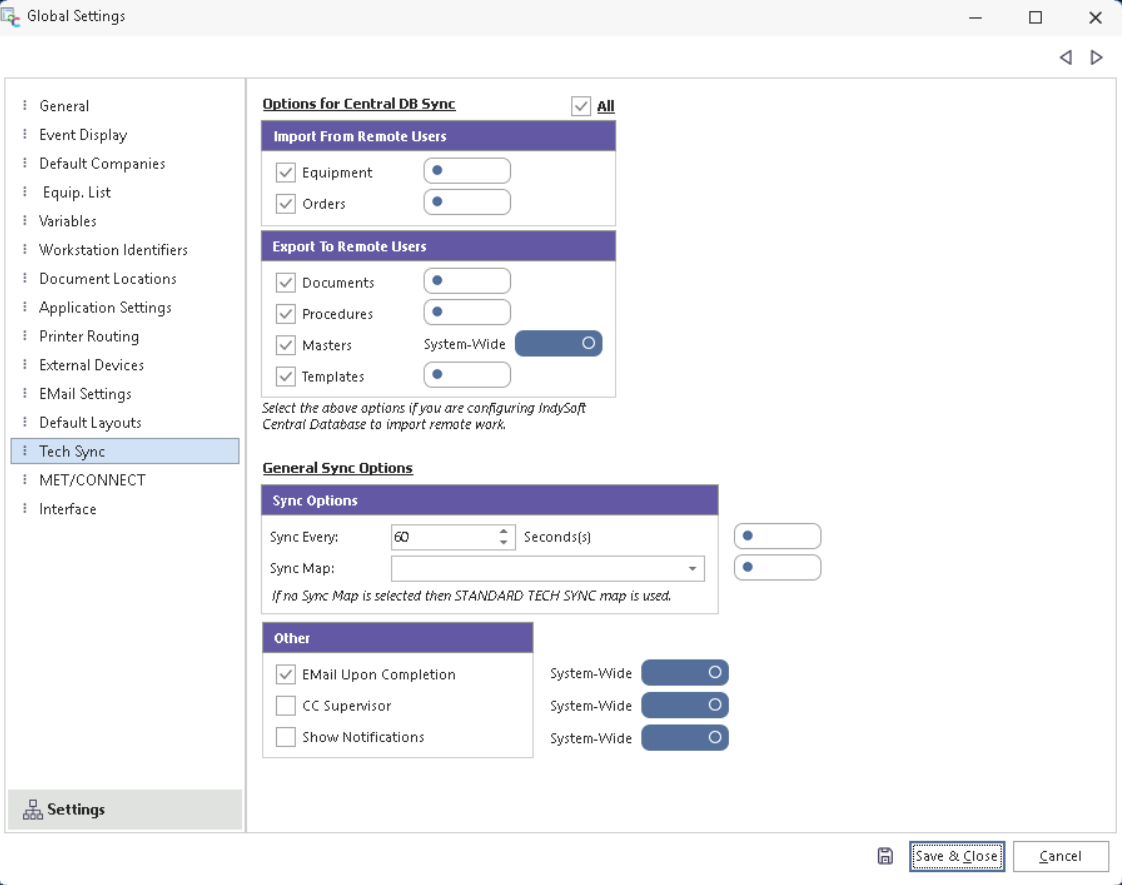
Import From Remote Users: select the items that should be automatically downloaded from the SFTP file directory and imported into the Multi-User database. These would correspond to files that have been uploaded from the Single-User IndySoft Tech Sync clients. Typically, the options selected would be as in the above screenshot: Equipment, and Orders. So as equipment and orders are modified out in the field, these files are automatically imported into the Multi-User database as soon as they appear in the SFTP directory.
Export To Remote Users: select with items should be automatically exported and uploaded from the Multi-User database when the IndySoft Tech Sync Service is running. Typically, the options selected would be as in the above screenshot: Documents, Procedures, Masters, and Templates. So any of those changes made in the Multi-User database are automatically exported and uploaded to the SFTP file directory for distribution to Single-User databases that run the IndySoft Tech Sync.
Sync Options: select how often the syncs should occur, in seconds. The default value is 60 seconds. Next, select the Sync Map that should be used for any equipment records that are exported. (If Equipment is not selected for export then this selection is unnecessary). Sync Maps are setup in the IndySoft DataSync utility.
Other: select a UNC path where the starter database created each week by the Multi-User IndySoft Tech Sync scheduled task should be placed. See Starter Database Setup (Admin Only) for more details on how this database is created each week. Next, if you would like an EMail sent after each file is imported, select 'EMail Upon Completion'. Use 'CC Supervisor' to include the employee's supervisor in the email (this option is uncommon when setting up the Multi-User sync - it applies more often in a Single-User sync scenario.) Finally, 'Show Notifications' can create Windows notifications upon each import. (It is also uncommon to turn on this option for the Multi-User sync - it applies more often in a Single-User sync scenario that runs from the System Tray.)
IndySoft Secure Server - Server: Use these options to start/stop the IndySoft Secure Server service. This service performs all SFTP file operations. Use the buttons to the right to install/uninstall the service as needed.
IndySoft Tech Sync - Service: Use these options to start/stop the IndySoft Tech Sync Service. This service performs all Multi-User Tech sync operations against the database. All files exported are placed into the file directory on the SFTP server. Andy new files found in the SFTP server (that match import options) are automatically imported. A reminder is shown of the current sync interval and last sync date/time. |