Contributing Items
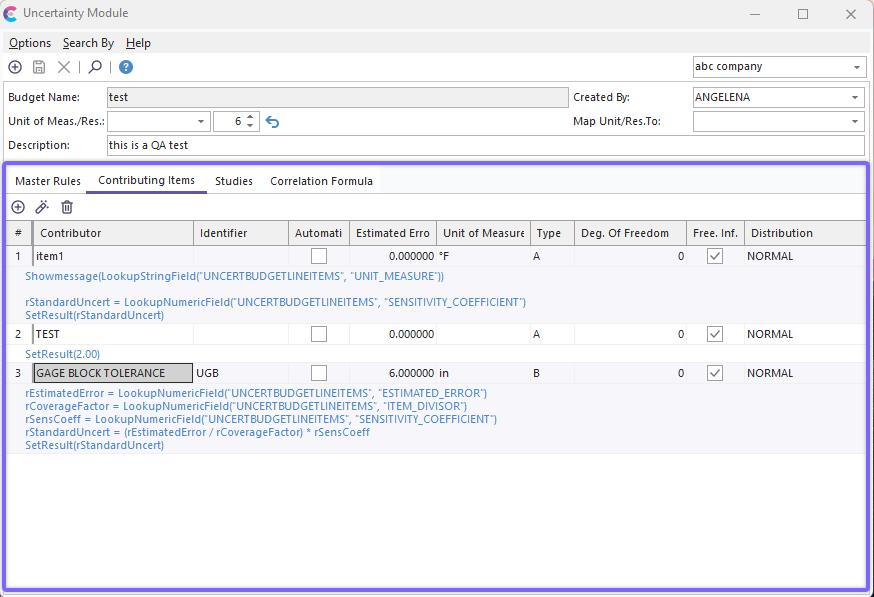
Contributing Items Tab
The 'Contributing Items' tab is where most of the work is input in the Uncertainty Module. This section lists the contributing items that break down the uncertainty for the entire budget. All field information is listed in a grid. You can click on various field headers to change the sort order of this grid. Fields can also be resized by dragging the edges of the field headers.
To add a new contributing item, press the  button above the grid.
To edit an existing item, press the  button above the grid.
Then adding/viewing a Contributing Item, you will see a screen similar to what is shown below:
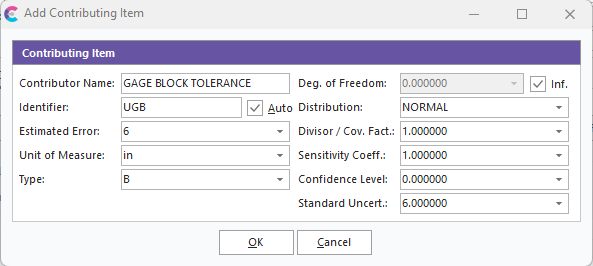
Insert/Edit Contributing Item - Auto Mode
In the example above, you will note that the 'Auto' button is checked. In this 'Auto' mode, there is no VBScript window; instead, a 'Standard Uncertainty' edit box is shown in the lower right of the dialog. This 'Auto' mode should be used when advanced calculations are not necessary, and you already know the 'Standard Uncertainty' for the Contributing Item (or it can be automatically calculated based upon the 'Estimated Error,' Divisor / 'Cov. Factor', and 'Sensitivity Coeff.'). Note that as values are modified for 'Estimated Error,' 'Divisor / Cov. Fact.', ' and 'Sensitivity Coeff.' that the 'Standard Uncertainty' will be re-calculated. The formula used is:
Standard Uncertainty = (Estimated Error / Coverage Factor) * Sensitivity Coefficient
If more advanced calculations are required to reference live events or equipment data, the non-Auto mode can be used, as shown below.
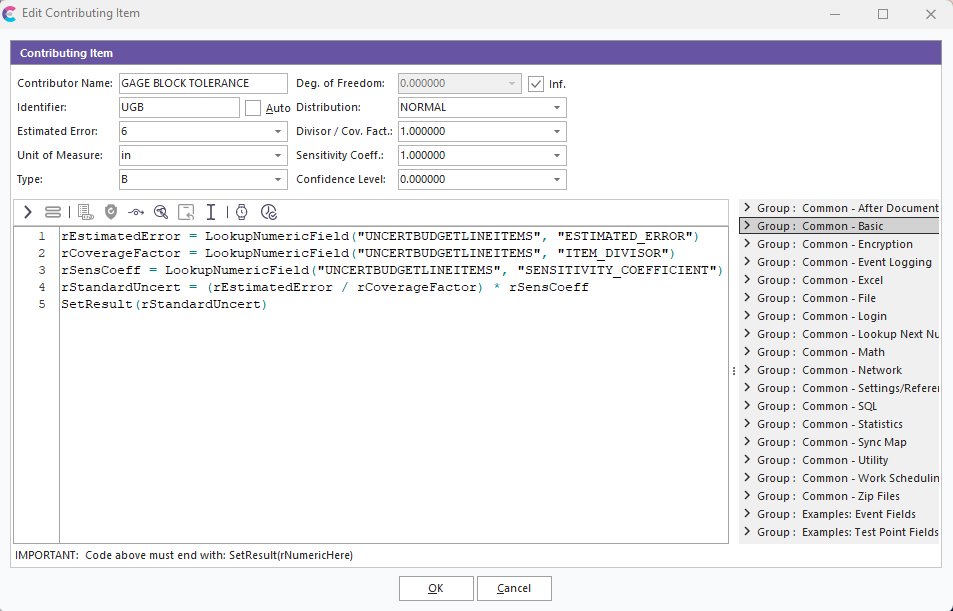
Insert/Edit Contributing Item - Auto Mode Off - Script Editor
You will note in this mode the appearance of a script editor that allows for the input of VBScript. This VBScript can reference live data fields by calling VBScript functions that return values. Examples of all potential VBScript functions specific to the IndySoft Uncertainty Module are listed to the right of the script editor. This VBScript can be as simple or complex as the budget requires - the only requirement is that the last line of VBScript code MUST call the SetResult function. This function returns the 'Standard Uncertainty' value for this Contributing Item that will be available to IndySoft. For more notes on the wealth of functions/procedures native to VBScript, see the VBScript Help topic. For more notes on the functions specific to the Uncertainty Module (that return live event data, etc.), see the following topics:
SetResult
LookupStudy
LookupAttributeGage
LookupAttributeMaster
ContribItemResult
SetCommonVarNumeric
ReturnCommonVarNumeric
LookupNumericField
LookupStringField
To test the VBScript you have edited, press the 'Test Script' button to the right of the Script Editor. When scripts are executed within the IndySoft event system, the live field data is automatically entered into the VBScript at the appropriate times. However, live event data is unavailable when debugging the script within the Uncertainty Module. For this reason, if example data is required by the VBScript when performing a 'Test Script' operation, the user will be prompted to type the appropriate field data, select an appropriate example gage, etc. This tool is provided so users can save time when creating VBScript - so they do not have to perform an actual IndySoft event to test the result.
To delete a Contributing Item, select the item in the grid on the left, then press the  button on the upper left of the tab. The deletion must be confirmed before completing. |