Add/Edit...Equipment Info...Note Types
Note types are like a clipboard that saves text you may reuse frequently. The notes can be viewed in Equipment View if the template layout has been set up with the 'Notes' box.
Add/Edit Note Types
To add to or manage the Note Types list, in the IndySoft header, click Add/Edit, then select Equipment Info...Note Types from the drop-down menu.
 ../Storage/indysoft-help-publication/bw_clip0302.png
Add/Edit Note Types List
Be sure you're adding Note Types to the right Company. Click  'New Item' to add a new Vendor or
  to 'View/Edit Item.'
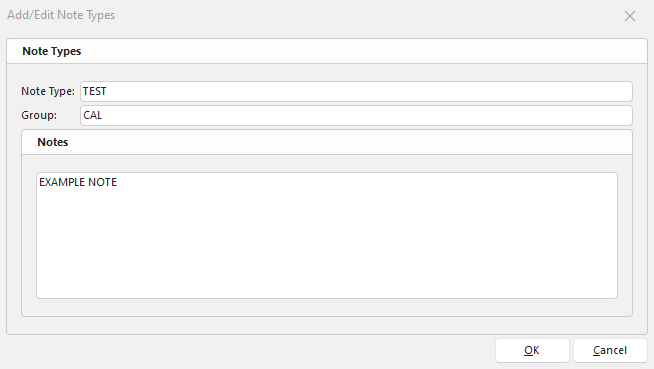 ../Storage/indysoft-help-publication/bw_clip0303.png
Add/Edit Note Types
Note Type
The name of the note.
Group
Notes can be added to groups.
Note
Type in your message here.
Using Note Types
Note types must be added to Equipment Builder when creating the layout in Layout Editor. (You can similarly use these same instructions in the 'Notes' tab in the Order System.)

Asset Notes and Lab Notes
Once here, click "[edit notes]," either lab or asset, depending on what you create a note about.
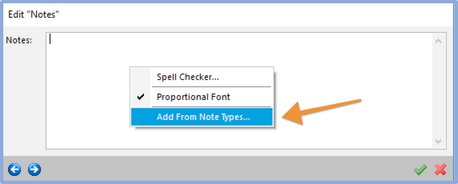
Add/Edit Notes
If the note is new, manually write a note in the space provided, or right-click, then click 'Add from Note Types.' The below window will appear, and notes will be shown based on Group.

Select Note Type
You will see the notes you added earlier under the Add/Edit Lists in this window. Select the note you wish to add, then click 'OK.' A window with the note in it will appear in case you want to make an edit to it. If so, edit and click  . If you do not wish to edit the chosen note, select
  . You will see your note in Equipment View.
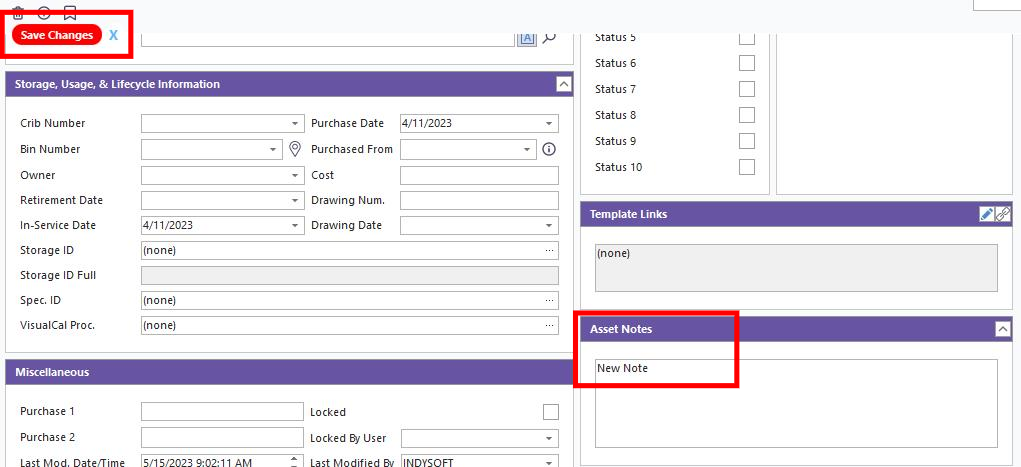
Example of Notes
 Productivity Tip
The Add/Edit Note Types dialog box can be filtered and customized in many ways. See General Interface for more information.
Buttons and Icons are detailed here.