Cloning Wizard
Creating Equipment Through Cloning
Use the Cloning Wizard to save yourself time when entering similar gages or when overwriting equipment with information very similar to another piece of equipment. To clone a piece of equipment, you must first locate the equipment with the features you want to copy. Acce s the cloning function by clicking the Cloning Wizard button on the toolbar. The clone Current Equipment screen indicates the 'clone from' equipment's Company and I.D. in the upper left-hand side of the screen. In t is screen's 'New Equipment Attributes' part, you will choose the new Company, I.D., and Serial Number for the equipment you're creating. Finally, n the Cloning Options section, select or deselect parts of the equipment you want to clone by pressing the space bar on the highlighted feature or single-clicking the checkbox beside a field. If you want to repeat the cloning process, click the Finish and Repeat button. This will clear the cloning window to allow for an additional entry. Otherwise, press Finished' to complete the wizard or 'Cancel' to leave the dialog without cloning the equipment.
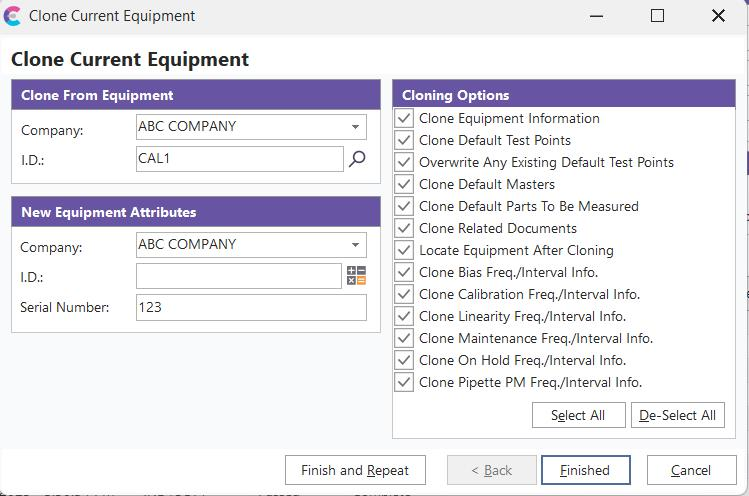
Cloning Wizard Dialog
Clone From Equipment
Enter the Company and I.D. of the equipment that you are cloning. The current equipment is the default.
New Equipment Attributes
Enter the name of the Company, I.D., and Serial Number of the new equipment created due to the cloning process. The current company is the default company. The current serial number is the default serial number.
Cloning Options
Choose the cloning options. Most of the options involve fields that can be selected for cloning. If only a few fields should be excluded from the cloning process, press 'Select All' to check all options and then deselect only the exceptions. Other non-field options include:
Overwrite Any Existing Default Test Points: This option will allow you to overwrite existing test points if you are cloning over a previously entered gage. If this option is not chosen, a dialog will appear asking you whether you want the test points to be merged. In this case, IndySoft will only merge in a test point's information if that new gage's test point Standard equals the old gage's test point Standard. Also, only the test point information checked in the 'Cloning Options' will be merged.
Locate Equipment After Cloning: If this option is checked, IndySoft will find the new gage after completing the cloning process.
Default Empty Schedules: If the new gage Company and I.D. match equipment that already exists in IndySoft, then the user will be prompted as to whether they want to Clone the old information over the existing equipment. When you are done cloning, press 'Finished' to exit or press 'Finish and Repeat' to cl ne another piece of equipment. |