Equipment View Flowchart
A flowchart can be embedded within the Equipment View Layout detail tabs. This flowchart is typically similar to the flowchart (if any) used on the Home View - but this flowchart is automatically highlighted with the tracking status of the current asset, and the following available options are also automatically highlighted.
Embedded Flowchart - Equipment View
A flowchart can be embedded at any location within the Equipment View through a text reference within the Equipment Layout (setup through LayoutBuilder...Equipment Layouts). Below is an example of an embedded flowchart:
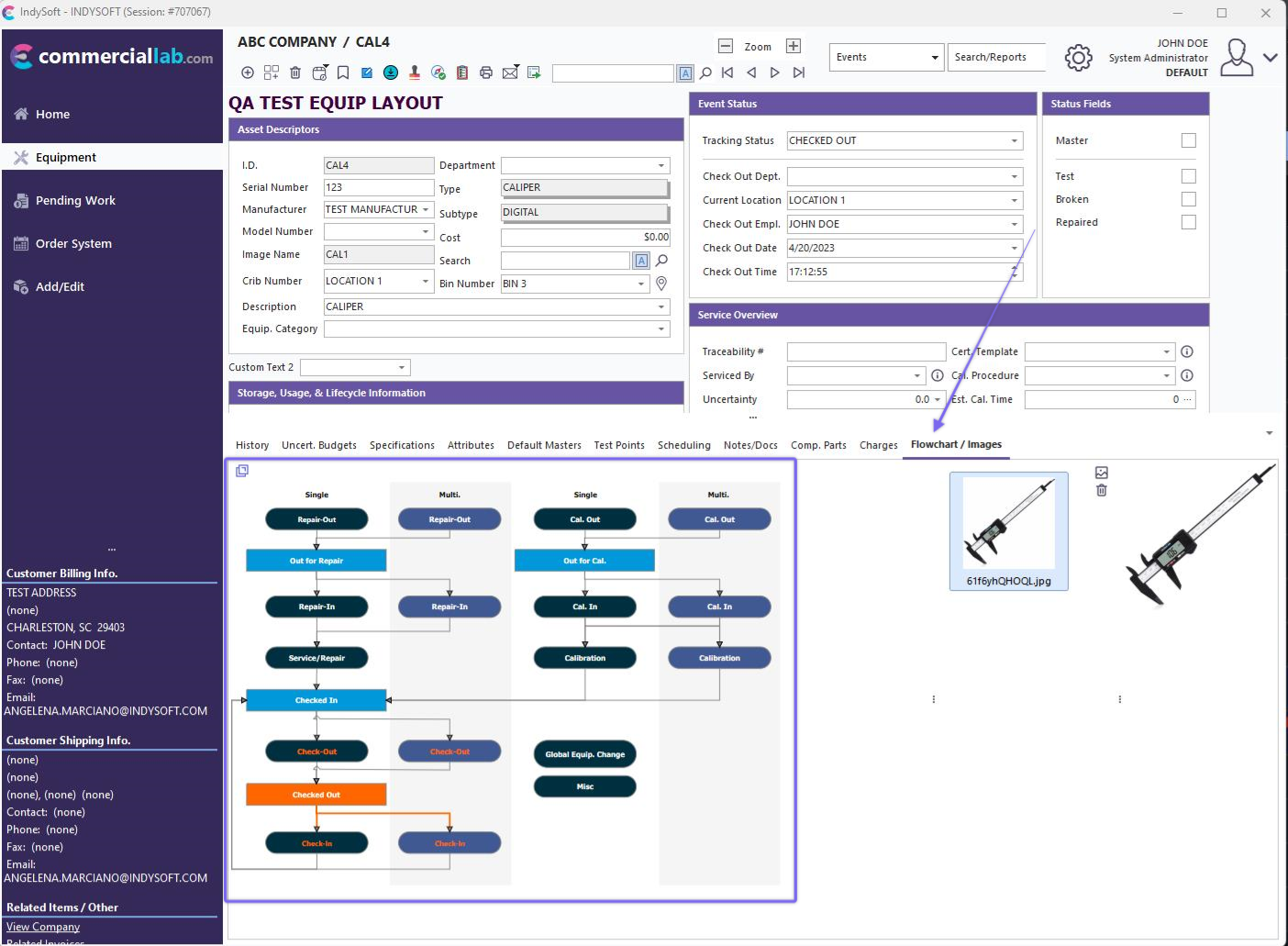
Example - Embedded Flowchart in Equipment View
To embed a flowchart into the new v13 equipment field layout, insert the text below anywhere in the Equipment Layout:
!RIGHTSIDEFLOWCHART=STANDARD!
Note: in the above example, replace the word 'STANDARD' with the name of the flowchart that you want to embed. The flowchart will be embedded into the layout within the flowchart detail tab. Several settings related to these flowcharts are selected in the Flowchart editor. See Flowcharts (Editor) for more details.
Flowchart in Right-Side Panel
A second option is to show the equipment flowchart in the right-side panel. Particularly when using the old equipment layout (prior to v13), you will see the embedded flowchart within the right-hand panel of the screen. When using old equip layouts (specified in User/Location settings), then the flowchart will be embedded directly into the layoutbuilder layout:
!RIGHTSIDEFLOWCHART=STANDARD!
Note: in the above example, replace the word 'STANDARD' with the name of the flowchart that you want to show in the right-side panel. Several settings related to these flowcharts are selected in the Flowchart editor. See Flowcharts (Editor) for more details. One of these settings is a default zoom percentage that can be used for the initial display of the flowchart in the right-side panel. This setting is commonly used to make a large flowchart more practical for use in the right-side panel:
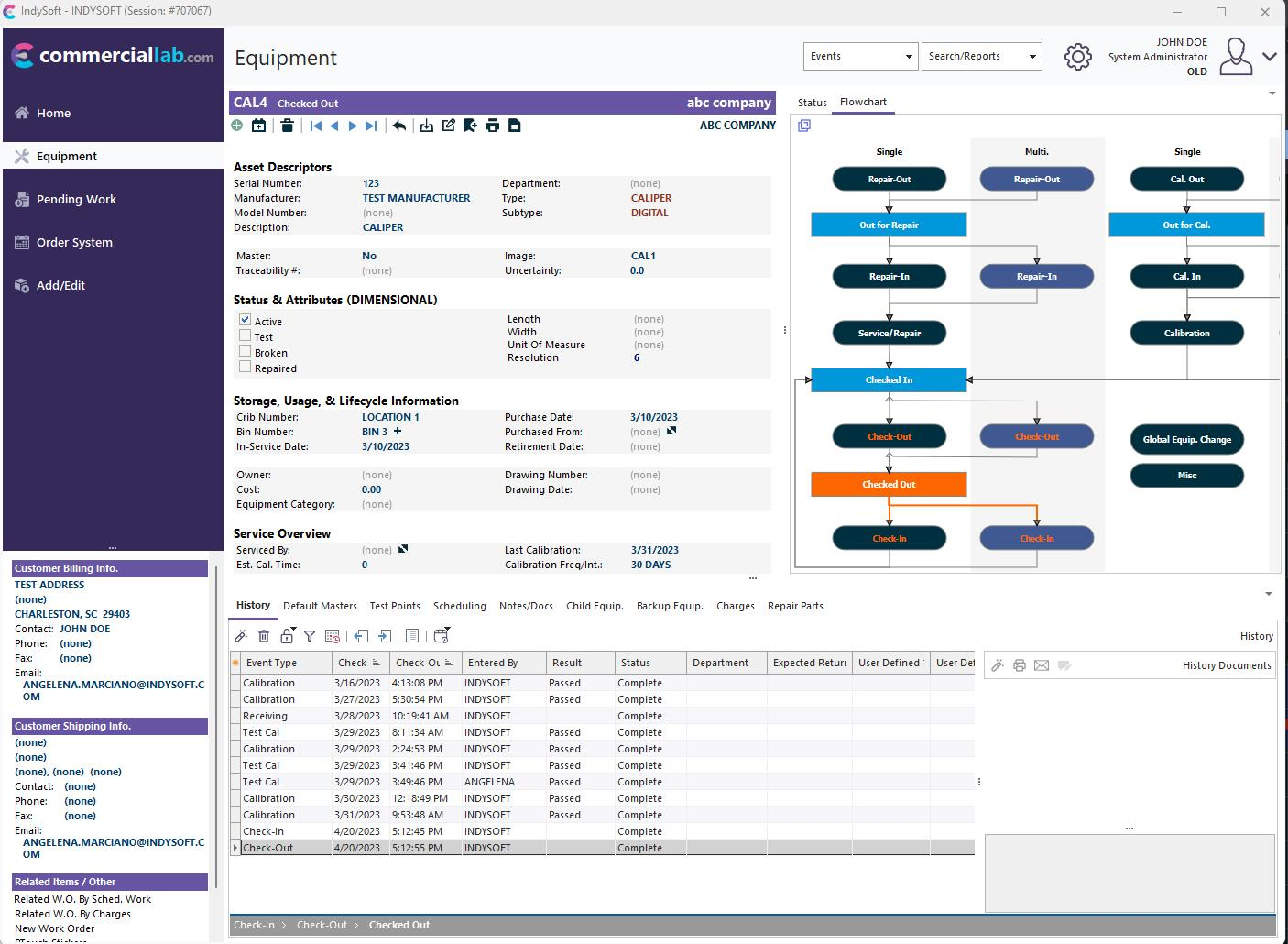
Example - Flowchart in Right-side Panel - Default Setting for Zoom
When a flowchart in the right-side panel has a zoom option, right-mouse click (single right-mouse click) on the flowchart. If the flowchart is currently zoomed 'out,' then the flowchart will be expanded to 100 percent. The width of the entire right-hand panel will be temporarily expanded to allow for a more extensive flowchart. This might also temporarily take away from the left-over space available for the Tracking Status, Schedules, and Details above (scroll bar will be shown). Perform a second right-mouse click to return the flowchart to the original zoomed size. When you scroll to a new asset (or the current asset is refreshed), the flowchart will reset back to the default zoom.
Automatic Highlighting of Status Within Equipment View Flowchart
IndySoft does more than draw a copy of the equipment view flowchart for reference. After drawing the flowchart (just as it is designed in the Flowchart Editor), three additional pieces of information are modified in the flowchart relative to the current asset:
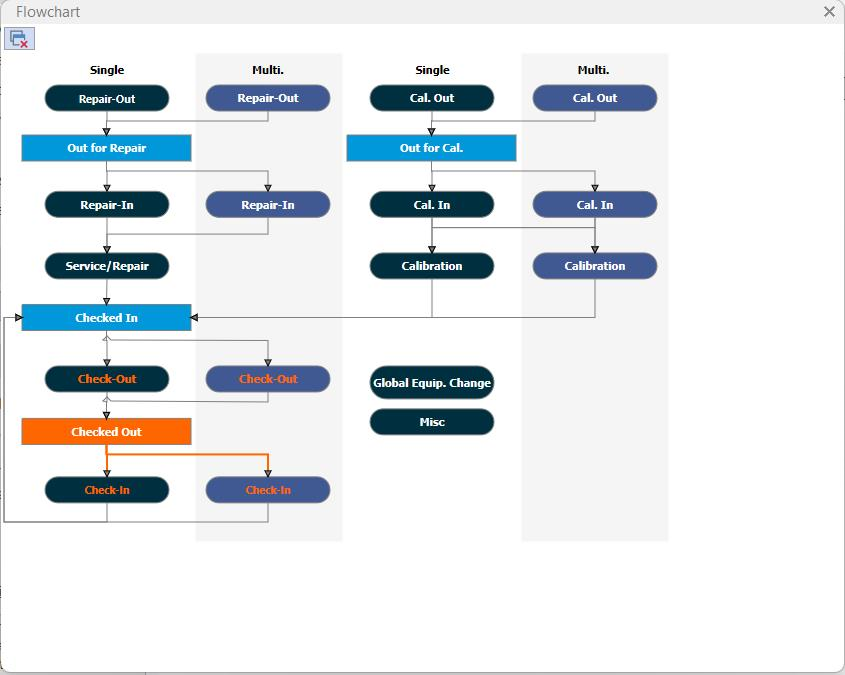
Example Equipment View Flowchart Highlighting
1. The current status of the asset is highlighted. IndySoft loops through all the boxes in the flowchart, looking for the box with a text value equal to the tracking status for the current asset. If the box is found, it is re-colored according to the settings established in the Flowchart Editor. By default, this means coloring the box bright blue and changing the font color to white. This helps the user quickly see 'we are here' - in terms of the workflow. In the above example, the current status is 'Awaiting Shipment.
2. The next available steps in the workflow are highlighted. If a 'current tracking status' box is found in the flowchart (described above), then IndySoft locates any other boxes linked to this 'current' box through directional flow arrows. If these arrows are found and lead to other boxes with text values equal to valid events in the IndySoft workflow, then the arrows are highlighted. The highlight color for these arrows//connectors is the same as the highlight color used for the current tracking status. This highlight reminds the user of the next appropriate steps in the workflow. In the above example, the next appropriate step is highlighted as leading to 'Shipping.' Note that 'next appropriate steps' refers ONLY to the flowchart's design. The workflow (as set up in Workflow Configuration Module) might allow additional steps not shown in the flowchart.
3. An 'event trail' is highlighted - this reminds the users of events already performed within the current 'round trip' in the workflow, leading up to the current tracking status. These previous events are highlighted by changing the font color (of the text on the event boxes) to the same color used to highlight the current tracking status. So in the above example, you will see that the 'Repair' has its text in orange - this means this event has been performed. This highlighting is only possible when the Event Trail functionality is also used. There is a 'Show Event Trail From' setting in the Flowchart Editor that determines the 'starting' event in your workflow.
Launching Events from Equipment View Flowchart
Flowcharts quickly alert users to the 'next appropriate' step(s) in the workflow. Users can then single-click on the box in the flowchart corresponding to this event type and launch directly into the event for the current asset. Note that (depending upon Workflow Configuration...Selection Rules) it might be possible to launch successfully into other events in the workflow through the flowchart - beyond the ones suggested by the highlighting. A single click on an event-related box within the flowchart initiates the event for the current asset - whether it is successful depends entirely upon the workflow configuration.
After events are completed (when launched in this manner or from header menus, etc.), the Equipment View will be refreshed with updated event settings, possibly new tracking status, etc. The flowchart will also be updated to reflect any new status.
Note: single-clicking on a box in the flowchart that is a tracking status will not perform any operation. The Home View flowcharts have this reverse behavior - in a Home View, you click on the tracking status boxes within a flowchart to launch search-bys (which can then launch events). But within an Equipment View, you click on event boxes in the flowchart to directly launch into events. |