Event Steps - Choose Equipment
The 'Choose Equipment' event step appears if the 'Choose Equipment' event step has been selected for the current event type through the Work Flow Configuration Wizard (see the Work Flow Configuration - Event Step section for more details).
This tab can be used to add equipment to the current event. If this event step is not used, then the event can only be performed on the equipment currently selected on the IndySoft Equipment View main screen. However, using this tab, you might occasionally want to perform an event upon multiple pieces of equipment.
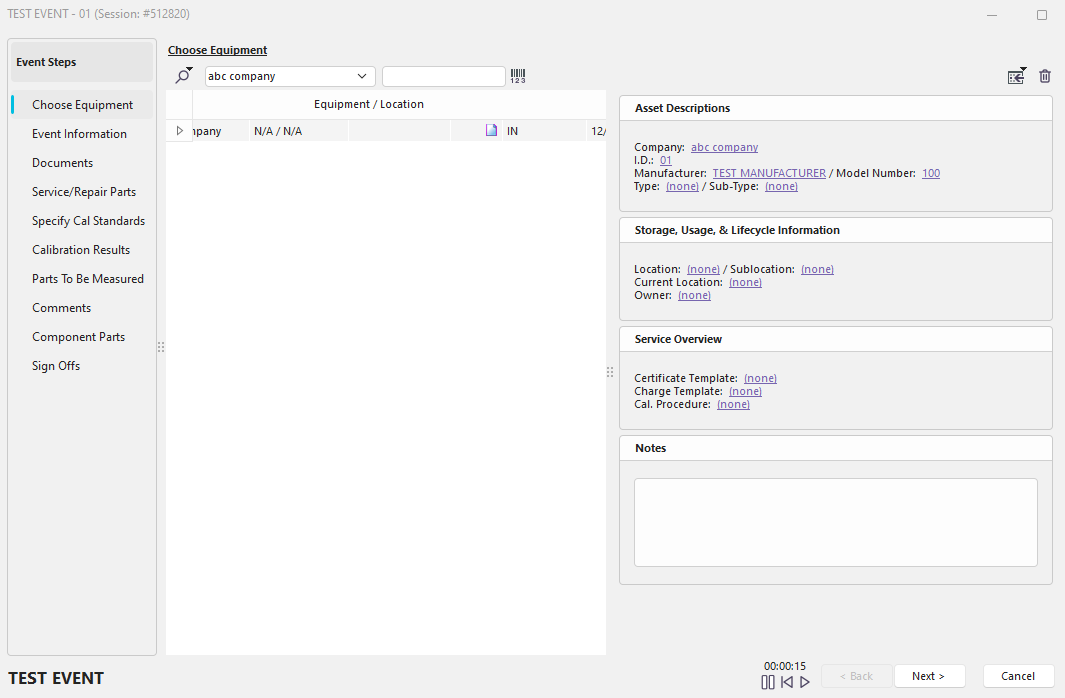
Event Steps - Choose Equipment
There are two primary ways to add equipment by using the 'Choose Equipment' step:
Add Equipment Typed In Edit Box
Above the grid is a company drop-down list and a white edit box to the right. Select the company of the equipment that you would like to add, then type (or scan with a barcode wand) the equipment ID that you would like to add to the event. When you have completed typing the ID, press the 'Enter' key on your keyboard, or press this button to the right of the white edit box:
 When this button is pressed, IndySoft will attempt to find a piece of equipment belonging to the selected company that matches the ID typed. If a piece of equipment is found, it will ensure it passes the equipment Selection Rules specified in the Event Configuration Wizard. (See the Event Configuration - Selection Rules section for more details). If a Selection Rule fails, you will be alerted, and the equipment will not be added.
Add Equipment By...
 Search for equipment using the popup menu options for Add a Gage By... Pressing the Search By button will display a list of search-by options for adding equipment to this event:
Add Equipment (Search by ID.)
This Search by window allows you to incrementally search among all equipment belonging to the selected company. The functionality of this dialog is the same as the Search By... ID dialog is available on the main screen Search By menu. See the Search By ID section for more details.
Add Equipment & Child Equip. (Search by ID.)
Similar to above, but adds Child Equipment if attached to the main equipment.
Add Equipment By
This option contains a sub-menu full of additional Search by windows, mirroring the Search By windows available on the main screen Search By menu. Searches are available by:
·Serial Number
·Description
·Type/Sub-Type
·Crib Number/Bin Number
·Current Location/Sub-location
·Manufacturer/Model Number
·Certification Number
· ID. (Across All Companies).
Add Equipment Using EquipmentFinder
This option allows you to add multiple pieces of equipment at once using the EquipmentFinder. For more details on using the EquipmentFinder, see the EquipmentFinder section.
Several options are also available for adding Tools to an event. Note: you may only add tools to an event if you have purchased the Tool Management product from IndySoft, and have Tool Management installed on this workstation.
Add Equipment From a Work Order
This option allows you to add all the equipment listed for a work order. Select a work order, and then press OK. All equipment from the selected work order will be added to the current event.
Add Equipment From an Estimate
This option allows you to add all the available equipment for an estimate. Select an estimate, and then press OK. All equipment from the selected estimate (through related charges) will be added to the current event.
Add Equipment From an Invoice
This option allows you to add all the equipment currently listed for an invoice. Select an invoice, and then press OK. All equipment from the selected invoice will be added to the current event.
Add Equipment From Text File
This option will open a Microsoft Windows directory to search for the .mdb file you have stored on your workstation or network.
Add Equipment Currently On Order
Add Equipment Currently On the Main Screen
Add New Equipment From the Template
This option will open the 'Create New Equipment from Template' window. There are several options to search for the template you are looking for. Once you find that template, double-click on the template name to add it to the event.
Right Mouse/Context Sensitive Options
All selected equipment is listed in a grid. For more information on utilizing the features of IndySoft grids, see the Grid Features section. When you right-mouse click within the grid, in addition to seeing the typical grid functions (as described in the Grid Features section), there is an additional option:
Goto Selected Equipment
Select this option if you would like to immediately find the selected equipment, bringing it to the IndySoft Equipment View screen. If the current event is incomplete, then IndySoft will ask you if you would like first to complete the current event.
Choose Equipment Toolbar Options
Four other options are also available in the Choose Equipment toolbar:
 Grid Options
This button gives you the same options as right-clicking in the grid mentioned above.

 Remove Selected Equipment
Select this option to remove the selected piece of equipment from the 'Choose Equipment' grid.
 Gang Selected Equipment
Select this option if you want to work with multiple pieces of equipment simultaneously. You can search for additional equipment to add to the event. This is useful if you want to decide on pass/fail or status changes for each item. This should not be made available for check-out events but can help perform inspections at receiving. |