Event Steps - Choose Service/Repair Parts and Charges
Choosing Service and Repair Parts During an Event
The 'Choose Service/Repair Parts and Charges' event tab appears if the 'Service/Repair Items' event step has been selected for the current event type through the Event Configuration Wizard (see the Workflow Configuration - Event Tabs section for more details).
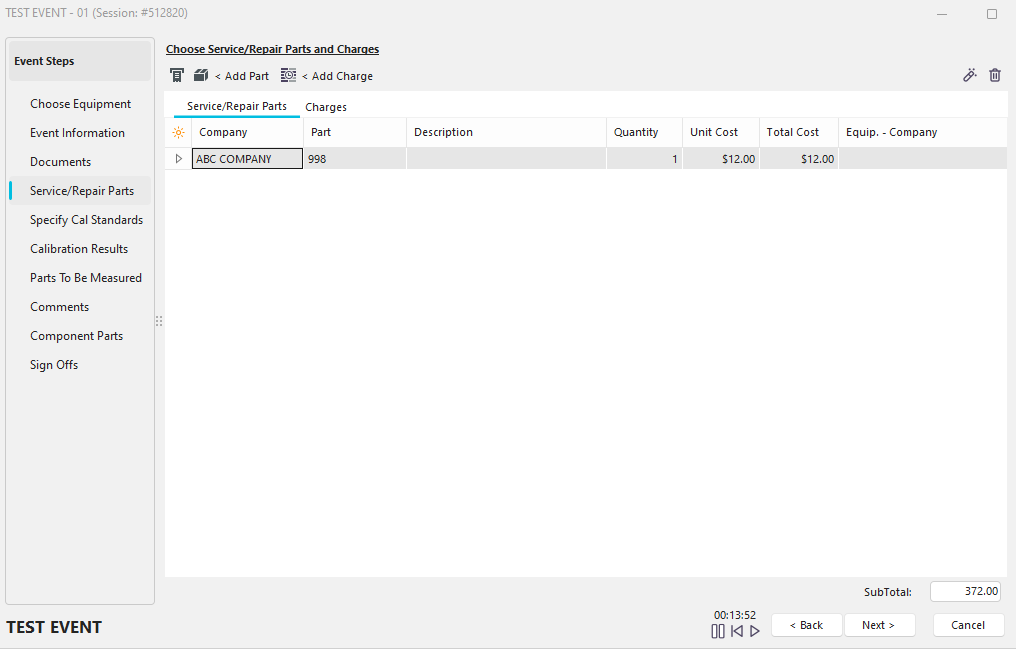
Event Steps - Choose Service/Repair Parts and Charges
This event tab can enter information about a repair or service event on the selected equipment. Both parts and labor items can be entered. All items are listed in the grid, which shows an overview of line item costs, and calculates the total price for the repair/service below the grid. There are several ways to add part or labor items:
Add a Service/Repair Part
 This button will pop up the 'Select a Service/Repair Part' dialog, allowing you to specify the part company, part number, quantity of items, unit cost ($'s), and any notes about the part. Service/Repair parts can be added to the drop-down list from the IndySoft Equipment View or Home tab using the 'Add/Edit' menu option. First, you will be prompted with the service/repair part search. Once you add the part number, the 'Select a Service/Repair Part' dialog will appear. An example of this is shown below:
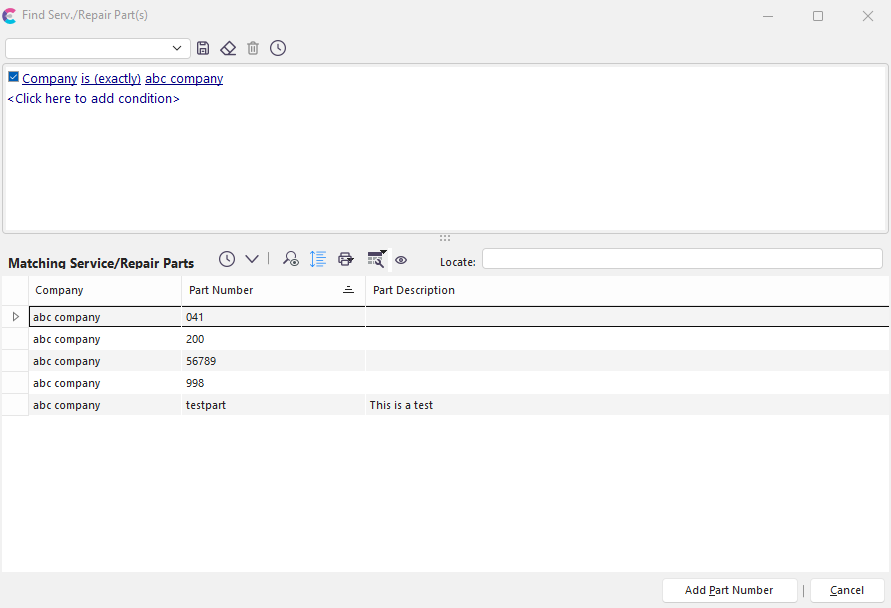
Find Service/Repair Part(s)
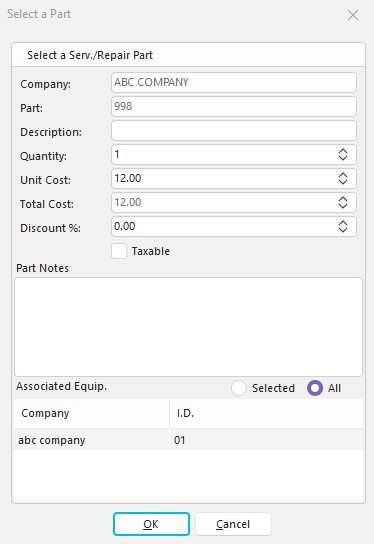
Select A Repair Part
Choose a Service/Repair Parts Assigned to Gage
 This button will pop up a dialog listing all Service/Repair parts assigned to the selected equipment on the Equipment View screen...Repair Parts tab. This listing of equipment should designate the parts typically required when performing a repair or service upon this piece of equipment. An example of this dialog is below:
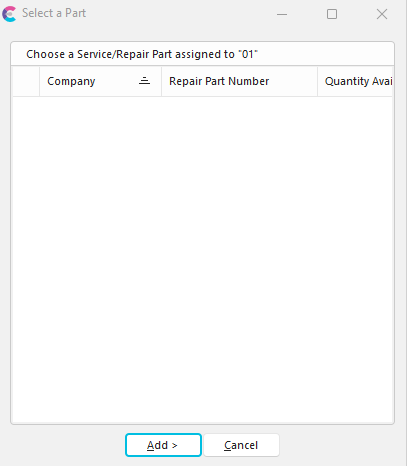
Choose Repair Part
Add a Charge
 This button will pop up the 'Add Charge' dialog, allowing you to specify a new Charge Type. See Charge Types and Units of Measure for populating the drop-down lists. An example of this dialog is below:
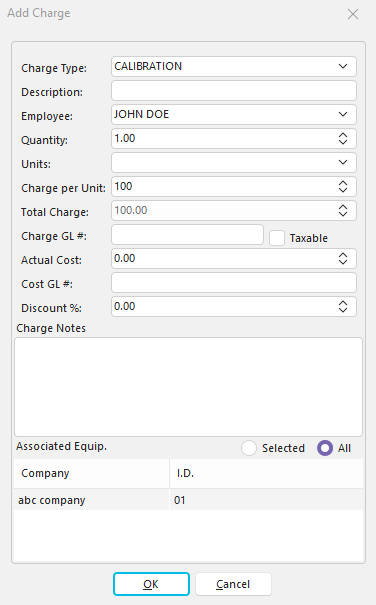
Add Charge
Finally, several options are available at the top right of the service/repair items grid:
Modify Selected Repair Part or Charge Type
 Pressing this button will pop up either the 'Select a Service/Repair Part' or 'Add Charge' dialog, depending on the type of item in the grid. Grid contents can be modified from these dialogs.
Remove Repair Part or Charge Info.
 This button will remove the selected part or charge item from the service/repair grid upon confirmation.
Multi-Equipment Events - Parts and Labor Charges
Note that if the event is set up with a 'Choose Equipment' grid, then the Parts and Labor Charges dialogs will have an additional section on the bottom, allowing for selecting a part/charge association. So if the part or charge should be targeted to only one of the assets added to the event, it can be noted here by clicking on 'Selected' and checking the desired boxes. Otherwise, select 'All' (the default):
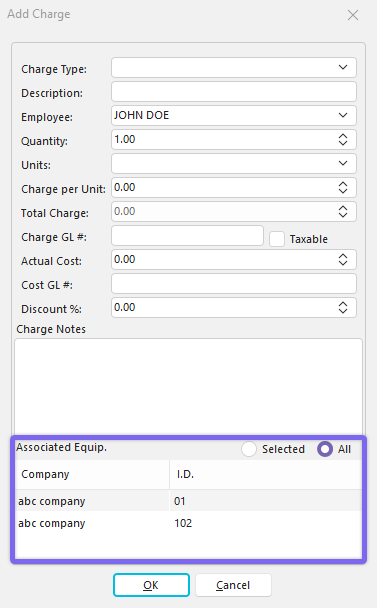
Add Charge - With Associated Equip.
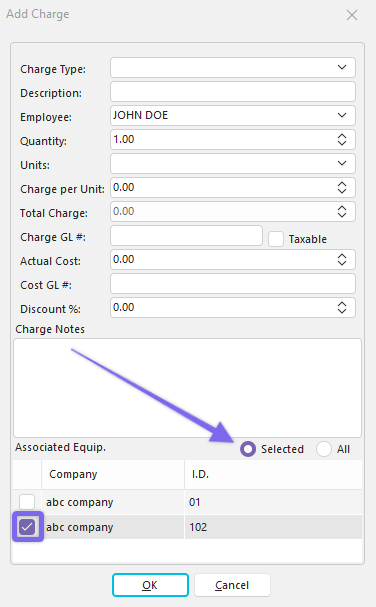
Add Serv./Repair Part - Associated Equip.
These equipment associations for parts and labor charges will be enforced if an 'Auto-Launch' rule for the event creates a new estimate (so the charge for that part/labor is only added for the selected asset, unless 'All Event Equipment' is ON). Also, when parts are removed from inventory upon event completion, any equipment association will ensure the inventory is only reduced for the selected asset.
Note: if you need charge/repair amounts to be masked/hidden in the dialogs and grids above, go to Profile Manager for the current profile and edit: 'Blocking Access to Utilities...Hide Charge Amounts from the display (does not include reporting)'.
Event Steps - Choose Service/Repair Parts & Charges
hm-default-charge-calculations.md