Preview tab
The Preview tab is integral to the report creation process because it lets you see how the report will look when printed. The iterative process of perfecting a report is generally accomplished by moving back and forth between the Preview and Design tabs of the Report Designer.
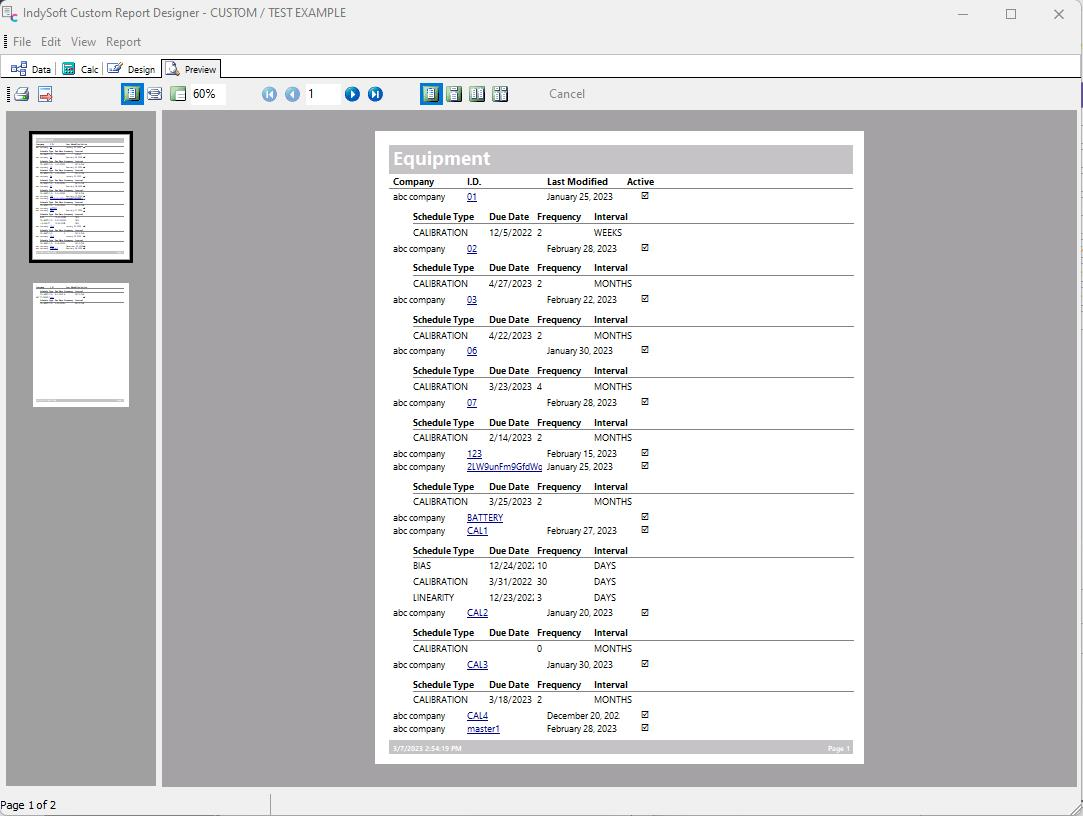
Report Designer - Preview Tab
The Preview Tab will be blank unless you have data to draw from. To get data to work with, exit Report Designer and PrintBuilder, and click on the Equipment View tab. Click on the History tab, then select a Calibration event and right-click. Select 'Use Event When Designing In PrintBuilder.' The data from this report will now be available in PrintBuilder. If you are designing an Estimate, Work Order, or Invoice, enter the Order System Tab and select a sample to right-click and use for your Preview.
You will get a certificate in the Preview tab with the new data. From here, you can print the certificate, adjust the zoom level, and navigate through the pages if there is more than one. Occasionally, you will find that some sections aren't displaying. If this is the case, ensure the event you are drawing data from has the missing information, such as test points. |