Add/Edit...Equipment Info...Manufacturers
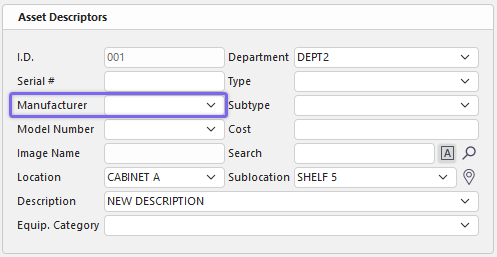
Manufacturers of the equipment you add to your database can be added in two ways. The first way is while you are populating the information while adding new equipment to a company in Equipment View. The second way is from a master list in Equipment Info. of manufacturers you have previously added.
Adding Manufacturers in Equipment View
 ../Storage/indysoft-help-publication/bw_clip0294.png
Adding Manufacturer in Equipment View
 ../Storage/indysoft-help-publication/bw_clip0295.png
Edit Equipment Field Dialog in Dashboard
In the Equipment Field, clicking the  will open the Edit Equipment Field dialog. You can type a new manufacturer, start typing one already populated, and the name will display, or select a manufacturer from the drop-down list. Click the
  to accept or the
  to cancel. Clicking
  will move you forward or back in the Equipment View fields. You can also edit/delete the text in this field.
Note: The drop-down list will only be populated if you have entered the manufacturer name previously in the field or from the master list, which is explained next.
Add/Edit Manufacturer List
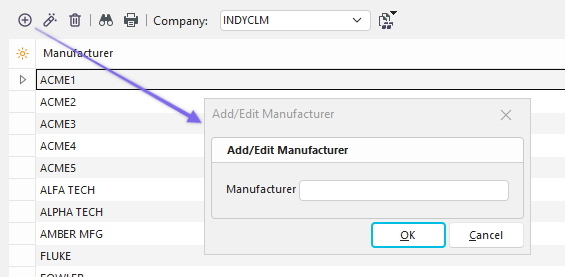
To add to or manage the Manufacturer List, in the IndySoft header, click Add/Edit and select Equipment Info...Manufacturer from the drop-down menu.

Add/Edit Manufacturers Dialog
Be sure you're adding machines to the right Company. Click  'New Item' to add a new Manufacturer or
  to 'View/Edit Item.'
 ../Storage/indysoft-help-publication/bw_clip0297.png
Add New Manufacturer Dialog
 Productivity Tip
The Add/Edit Manufacturers dialog box can be filtered and customized in many ways. See General Interface for more information.
Buttons and Icons are detailed here.