Customize Language Manager
You can customize some of the features of Language Manager by selecting "Edit | Options " menu item. A dialog box appears with the following customizable features:
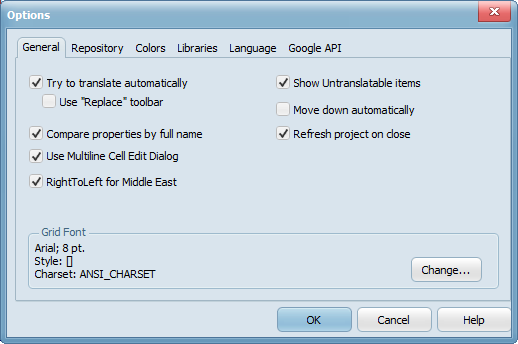
General Tab
The "General" tab
 Try to translate automatically By marking the check box if you want Language Manager to search the same string as you have just translated each time you enter some new value into a cell. Language Manager tries to translate each of found cells unless the "Use replace toolbar" check box is marked.
Use replace toolbar Mark check box if you want the toolbar to appear to manage the automatic translation. The check box is disabled if the "Try to translate automatically" check box is not marked.
Use the Multiline Cell Edit Dialog Mark check box to edit multiline cells with the special dialog. Otherwise, they are edited with drop-down memo control.
Comparing properties by full name Sets the rule for sorting properties in the fixed column. If checked, properties are sorted by full name (i.e., "Form1.Edit1.Text"), else just by property name (i.e., "Text").
Show Untranslatable items Mark the check box if you want untranslatable items to be shown in the grid. The untranslatable items are marked out with color.
Move down automatically Mark the check box if you want to automatically jump to the next cell when you change the current cell or its status (translated/untranslated, untranslatable, etc.).
Refresh the project on the close Mark check box if you want all language files to be refreshed when the project is closed. It is useful to change some items' "Untranslatable" status.
RightToLeft for the middle east Middle East languages will be displayed using RightToLeft alignment. Moreover, you will be able to input text right-to-left.
Grid Font Displays the grid font properties. Click the "Change..." button to change the grid font.
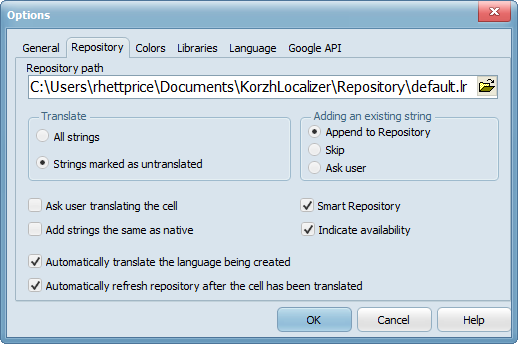
Repository Tab
The "Repository" tab
Repository path You can select what repository database (the set of two files: <name>.lr and <name>.mem) should be used.
Translate When the user chooses the "Repository | Translate language" menu item, this option defines which strings are to be translated:
 All strings All strings are to be translated independently of their "translated" status.
Strings marked as untranslated Program will try to translate the strings marked as untranslated.
Adding an existing string Defines what happens when the user is trying to add to the Repository a translation of the string that already has some translations:
Append to Repository The translation (if unique) is automatically appended to the Repository.
Skip The new translation is ignored.
Ask user The special dialog appears, where the user can append, ignore or replace some old translation with a new one.
Ask user translating the cell Mark check box if you want the special dialog to appear when the string being translated has more than one translation in the Repository. Otherwise, the first found translation will be used.
Add strings that are the same as native If marked, you will be able to add to the repository the translations that are the same as a native string (i.e., the pair "Cancel": "Cancel"). Otherwise, such pairs will be omitted.
Automatically translate the language being created Mark the check box if you want the "Repository | Translate language" action to be performed just after the new language is created.
Automatically refresh repository after the cell has been translated Mark the check box if you want the program to automatically add the current cell to the Repository each time you have finished the cell editing.
Smart Repository If marked, Language Manager will try to ignore "trailers" in the cells being translated via the repository.
Indicate availability Mark check box if you want to see a special mark in the cell if this cell can be translated via repository.

Colors Tab
The "Colors" tab
Active row color The background color of the current row. Click on the colored box to change it.
Untranslatable items color The background color of the rows is marked as untranslatable. Click on the colored box to change it.
Verified items color The background color of the rows that are marked as verified. Click on the colored box to change it.
Default colors Click the button to set colors to their default values.
Libraries Tab - This functionality is not relevant to IndySoft usage of the Language Manager.
Language Tab - IndySoft only supports the English Language for the Language Manager.
Google API Tab - Your API key can be input here to allow Google API calls from within Language Manager. However, it is HIGHLY recommended that you use the main Language Settings dialog to perform Auto-Translate operations since the Language Settings dialog takes precautions related to special '%s' and '&' characters that are common in the IndySoft interface. |