User/Location Settings - Overview
Many settings/preferences in IndySoft are stored and recalled specific to the current user logged-in and location. This user + location combination for the current login is easily recalled from the top header on the Dashboard main screen by pressing the hyperlink text showing the current location ('DEFAULT' in this example). Note there is also a small image to the right that can be clicked to launch into the User/Location Settings dialog - to modify any of the settings (if user profile security settings allow):

User/Location in Dashboard Header
So in the above example, the JOHN DOE employee is currently logged in with INDYSOFT user name as a 'System Administrator' profile at his DEFAULT location. All settings are stored in the database specific to the 'INDYSOFT' login at the 'DEFAULT' location. This allows 'JOHN DOE' to create other locations where he might also visit and use IndySoft with slightly different settings. To quickly change between locations setup for the currently logged-in user, click on the hyperlink for the current location in the header ('DEFAULT' in the above screenshot). The following dialog will be shown - allowing for quick location switching:

Change User Location Dialog
Only locations previously set up for the currently logged-in user will be available. If a location changes, all settings (as set up in the User/Location Settings dialog for this user+location combination) will be immediately loaded and implemented. Important: many settings are now stored in the User/Location Settings dialog in version 10 and beyond previously set up in the Workstation Setup dialog. Upon first login to a version 10 client, these workstation-specific settings are automatically copied to the database at a 'DEFAULT' location for the user. All the settings are stored/recalled from the database through the User/Location Settings dialog.
Upon the close of the main screen, the user's login location is also stored in the database for quick recall upon the next login. So if the user is at their 'DEFAULT' location, this will remain true across all logins until they set the location differently. If they switch to their 'REMOTE' location, this will remain true across logins until changed. The only exception to this 'sticky' location will be if the 'Default Workstation Location' field is set in DatabaseSettings.exe:
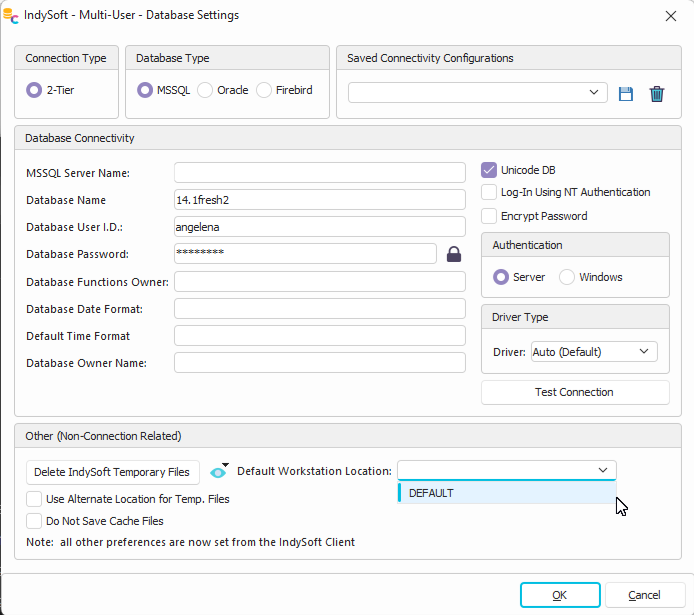
Default Workstation Location
If this field is set, then this location (if already set up for the user logging in) will be used upon login. The user can still change their location after login if needed. If this field is not set in DatabaseSettings.exe and they have not yet logged into the IndySoft client (to have saved a previous location), then the 'DEFAULT' location will be used. IndySoft ALWAYS creates a DEFAULT location for each user. Many IndySoft users are content to use this DEFAULT location for each login - so only one set of preferences will be maintained per user.
The User/Location Settings dialog can be accessed from 3 places:
- From Profile Manager...Right-Mouse Click on a User...Edit User/Location Settings
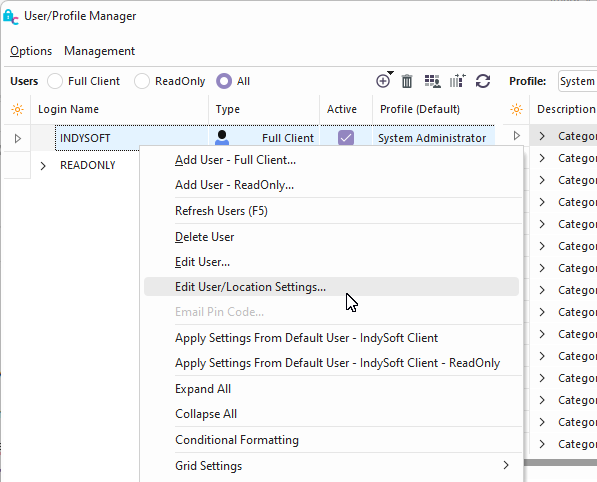
Launch Edit User/Location Settings from Profile Manager
- From Home View top-right hand corner:

Launch Edit User/Location Settings from Home View
- From Home Links...Preferences...By User Location...
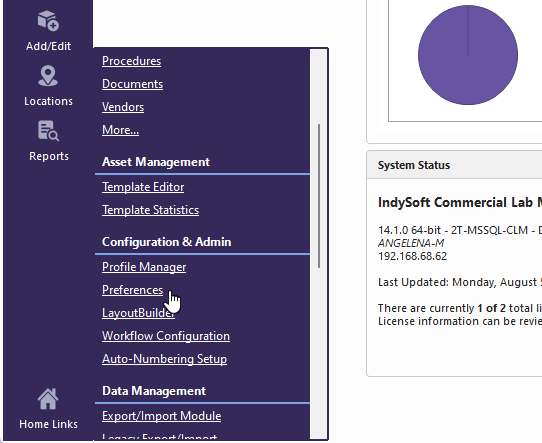
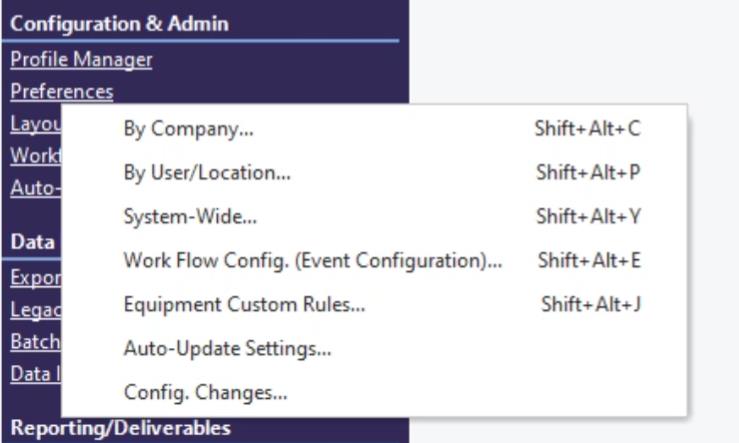
Launch User/Location Settings from the Main Screen
The User/Location Settings dialog has multiple tabs: General, Event Display, Default Companies, Master Equip. List, Variables, Workstation Identifiers, Document Locations, Application Settings, Printer Routings, External Devices, E-Mail Settings, Default Layouts, Tech Sync, MetConnect, and Interface. See each section below for more details:
- User/Location Settings - General
- User/Location Settings - Event Display
- User/Location Settings - Default Companies
- User/Location Settings - Master Equip. List
- User/Location Settings - Variables
- User/Location Settings - Workstation Identifiers
- User/Location Settings - Document Locations
- User/Location Settings - Application Settings
- User/Location Settings - External Devices
- User/Location Settings - Printer Routings
- User/Location Settings - E-mail Settings
- User/Location Settings - Default Layouts
- User/Location Settings - Tech Sync
- User/Location Settings - MetConnect
- User/Location Settings - Interface