Workflow Configuration
Overview
The Workflow (Event) Configuration utility is one of the most exciting and unique features of IndySoft and is all CORE editions. This utility allows you to add, edit, and delete custom events to model the flow of your company. Creating your events can make IndySoft fit your needs without custom programming. Because of the Work Flow Configuration's power, it can also be somewhat complex, so be prepared to take some time and experiment with this part of IndySoft. When just getting started with the Work Flow Configuration module, we recommend using the help file and/or manual to get an overview of each feature set of the Work Flow Configuration module. Then, take a real-world example of how you would like your equipment to flow, and try to set one up. Once you get a few events under your belt, we think you'll be amazed at the power this system can provide your company.
One thing you should notice about every screen in the Work Flow (Event) Configuration Wizard is that a primary interface is always present.
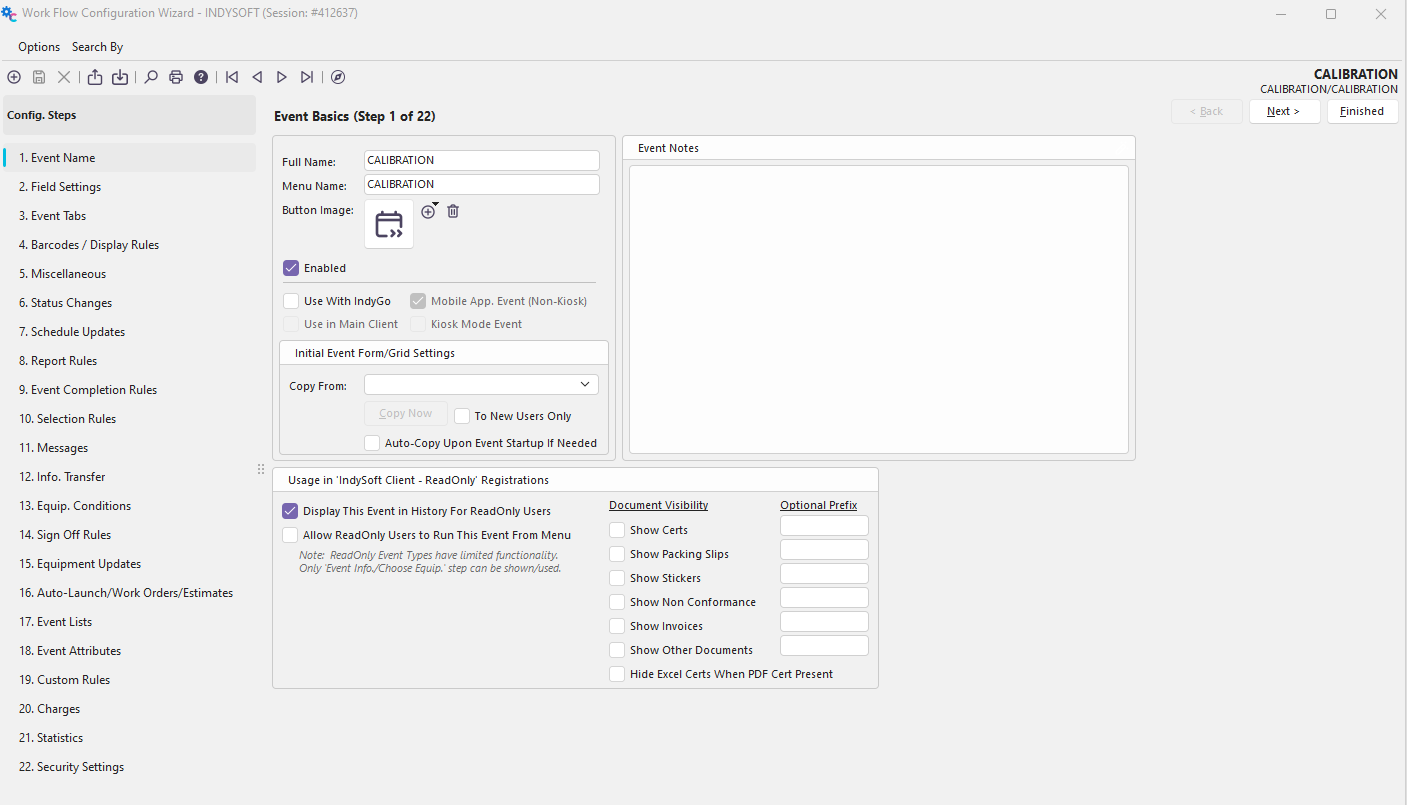
 New Event
This will create a new event. Each event type must have a unique Event Name. In addition, you can choose to clone the settings for your event from either the current event or, through the Clone From drop-down, any other event in the system.

New Event Dialog
 Save Event
This will save any changes you have made to the current event.
 Cancel Equipment Modifications
This will cancel any edits made on steps 1-6 you do not wish to save.

Cancel Equipment Modifications Confirmation
 Export Event Configuration
This will allow you to select any of the events in the system to export to a file. See Workflow Configuration - Export/Import
 Import Event Configuration
This will allow you to import events from a previously exported file. See Workflow Configuration - Export/Import
 Search By: Event Type
This option allows you to quickly select an Event from a drop-down list to work on.
 Print Event Barcodes
This brings up a dialog that allows you to select events and print their barcodes. Barcodes help program other systems for automatic billing or performing different types of record-keeping. Highlight Events on the left and press the right blue arrow to make them available for printing.
Event Barcodes are used for quickly launching the event from the main screen without using the keyboard or mouse. These barcodes will use the Termination Character as set up in User/Location Settings.
 IndySoft Help
This option allows you to launch the IndySoft Help docs quickly.
 Navigational Buttons
These buttons will allow you to quickly move forward or backward to another event.
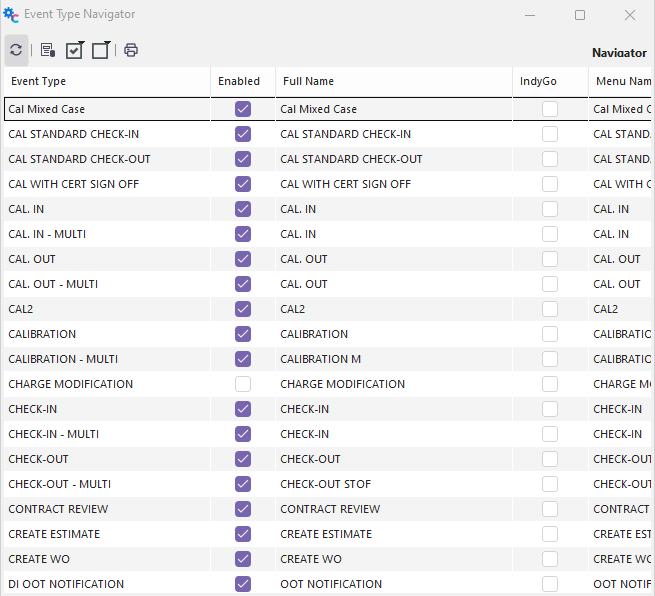
 Navigator
This opens the Event Type Navigator, allowing you to select an event quickly and enable/disable events.
 ../Storage/indysoft-help-publication/98762295.png
The Event Type Navigator window is scrollable -- scrolling to the right reveals more column fields while scrolling down reveals more event types in the list (if applicable).
Screen Navigation Buttons

Each button focuses on navigation through the screens in the Work Flow Configuration Wizard. Back and Next move you to the previous/next screen. 'Finished' exists in the Work Flow Configuration Wizard and allows you to save changes.
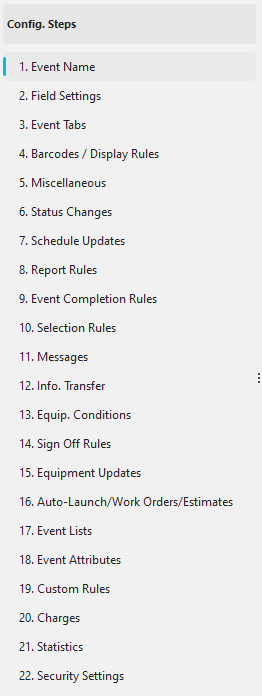
Configuration Steps
 ../Storage/indysoft-help-publication/98762348.png
This panel lists all the screens available within the Configuration Wizard, allowing one to quickly jump to any screen by clicking on the text.
Workflow Configuration
- Workflow Configuration - Export/Import
- Workflow Configuration - Event Name
- Workflow Configuration - Field Settings
- Workflow Configuration - Event Tabs
- Workflow Configuration - Miscellaneous
- Workflow Configuration - Barcodes / Display Rules
- Workflow Configuration - Status Changes
- Workflow Configuration - Schedule Updates
- Workflow Configuration - Report Rules
- Workflow Configuration - Event Completion Rules
- Workflow Configuration - Selection Rules
- Workflow Configuration - Messages
- Workflow Configuration - Info. Transfer
- Workflow Configuration - Equip. Conditions
- Workflow Configuration - Sign Off Rules
- Workflow Configuration - Equipment Updates
- Workflow Configuration - Auto-Launch/Work Orders/Estimates
- Workflow Configuration - Event Lists
- Workflow Configuration - Event Attributes
- Workflow Configuration - Custom Rules
- Workflow Configuration - Charges
- Workflow Configuration - Statistics
- Workflow Configuration - Security Settings