Add, Backorder, and Cancel Repair Parts
Adding repair parts to a vendor PO was changed in version 13 to more closely mimic other areas where repair parts are utilized.
At the bottom of the vendor PO dialog, one can add, received, backorder and cancel repair parts.
Upon pressing the add button, the user will be pushed to a repair part selection screen. The company will default either from the User/Location default company for repair parts or if no default company is selected then the company will default from the company currently on the equipment view for that user. Once you have executed the filter at the top of the selection screen, one can multi-select repair parts with assistance from either your Ctrl of Shift keys on your keyboard. A newer wildcard search has been added which essentially is the same function as pressing ctrl + f on the grid. This will allow you to search any field in the grid simultaneously. %20&%20Vendor%20Purchase%20Orders.jpeg)
Upon selection of your repair parts, you will be prompted per selected part to enter the quantity of items to be ordered in individual prompts. The cost shown in this window differs from the window when adding in events as it references the Actual Cost field. The Actual Cost is the cost from the vendor whereas the Line Cost is the outward facing price to your customers. 
Upon pressing "OK" per line item, your item will be added with its quantity and total cost showing in your vendor PO detail screen. Congratulations! You are well on your way to successfully creating a PO! Isn't this already way better than version 11 and 12?
Backordering and Canceling Repair Parts
There are new "buckets" which describe the status of a repair part on a vendor PO. If you request a specific part, but the item is on backorder from your vendor, you can specify that status with a right click option on the line item.
One can backorder or cancel the entire quantity of a line item's parts using the Backorder All Unreceived Parts or theCancel All Unreceived Parts. Upon performing that operation, one will see all of the quantities for that specific part go from unreceived to their respective buckets. The line item status should also be updated to reflect the change.
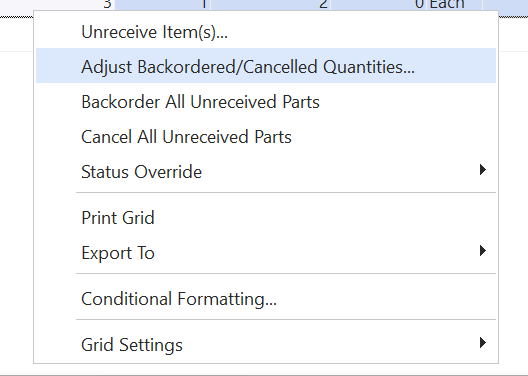
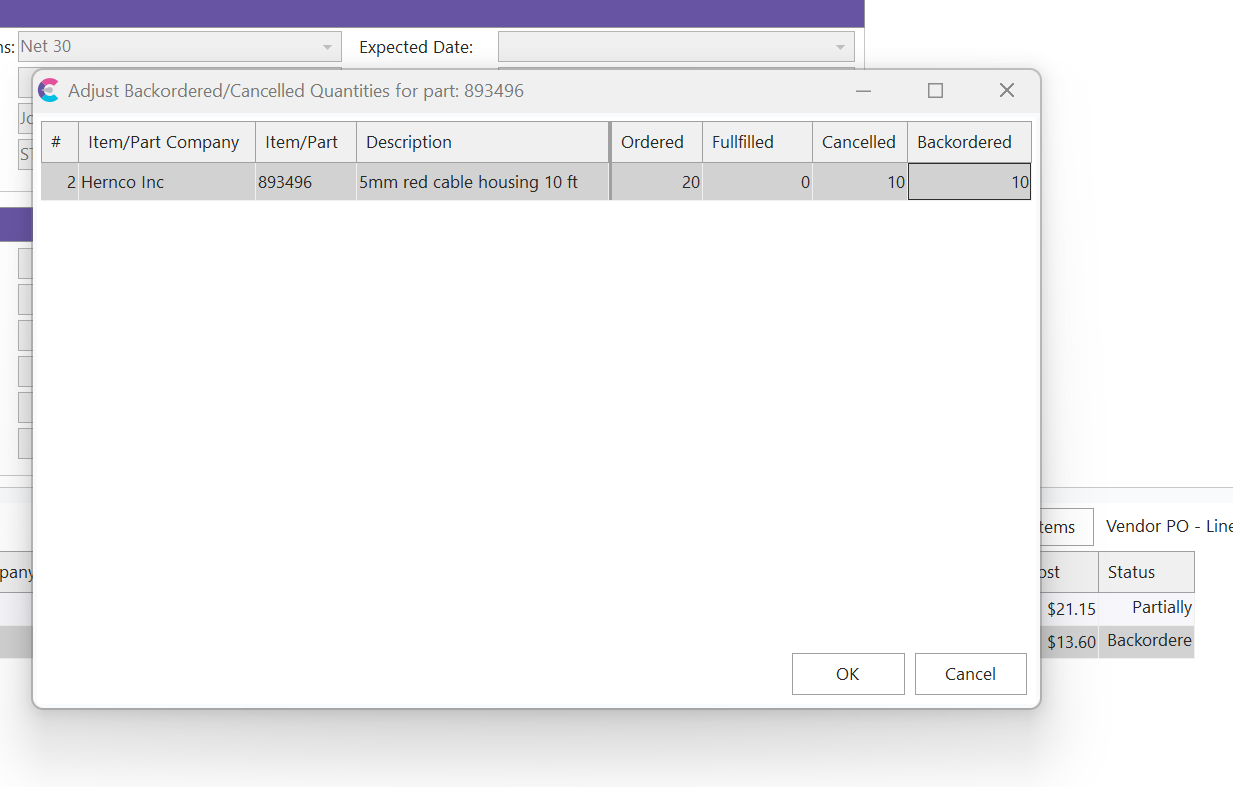
One can also Adjust Backordered/Canceled Quantities with a right click option. This will allow the user to manually specify, of the ordered, not fulfilled remaining parts in which bucket those items should be placed. The quantity specified between the canceled and backordered items will not be allowed to exceed the Quantity Ordered minus the Quantity fulfilled.
A line item status, much like the main vendor PO status has an override option. In the case that you disagree with how IndySoft updates these statuses!!! You can express yourself by manually updating both the main status (header option) and the line item statuses (right click per line item).