Add/Edit Tracking Status
Update Event Status
This option is essential if you want to update the tracking status on a piece of equipment. If you're unfamiliar with tracking status, this is the label in the upper left-hand corner of the Equipment View Tab that specifies the status or location of a piece of equipment. For example, 'Checked-Out' would be a standard tracking status you might find when a piece of equipment is being used. Check this option to change an equipment's tracking status after an event. Next, specify the new Event Status you want the event to sign to each piece of equipment. If the status you need is not in the status list', then you'll probably want to create a new status.
 Adding A New Event Status
Press the add a new event status button, and the following dialog will appear:
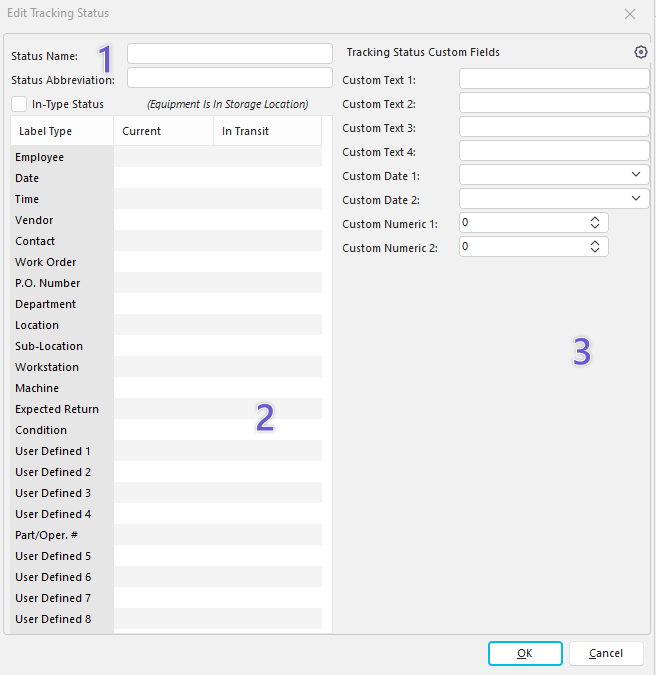
Add Tracking Status Dialog
1. Specify a Status Name and a Status Abbreviation
· Status Name displays the new tracking status for the equipment. You are limited to 20 characters with Status Name.
· Status Abbreviation is an abbreviation for the status, limited to 6 characters.
2. Setup Attributes
Along with status, you can set up certain attributes to display the status. A user can click on the 'Tracking Status' to pull up a dialog with other information about the equipment's location and status.
| --- || | 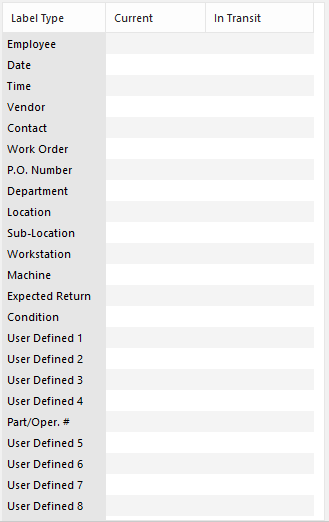 Each piece of equipment has two types of statuses: Current and In Transit statuses.
· When performing a 1-step 'Issue' type of event, you typically only use the 'Current' type of attributes.
· If you are utilizing a 2-event type of Transfer/Receive event, then you would most likely use both Current and In Transit during the creation of the event type for the 1st step. For the 2nd step, you would probably use the Current attributes.
| | To force an equipment attribute to display, you must enter a label for the property. To edit the labels, click inside the grid (see highlighted cell above). Leaving a field blank will force the attribute to not display with the tracking status info dialog. The screenshot below shows the tracking status attribute information that we defined earlier, presented in the right-hand panel of Equipment View:

Equipment View Tracking Status Example
The In-Type Status checkbox can be used in Tooling Management environments to specify whether or not a tool is on-hand. Note: This is only applicable to the Classic view.3. Tracking Status Custom Fields
You can set up tracking status custom text, date, and/or numeric fields here.
| --- | --- || | 
Tracking Status Custom Fields
To edit tracking status custom field labels, click the cogwheel icon in the top right-hand corner. Note: you must be a System Administrator to edit custom field labels. The following dialog will appear:
| --- || | 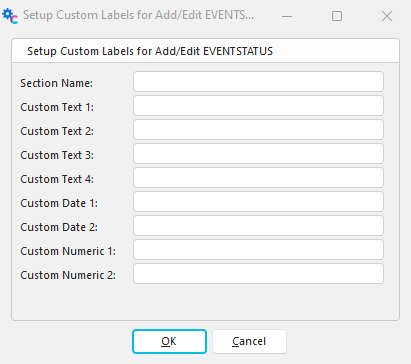
Setup Custom Labels for Add/Edit EVENTSTATUS
Once edited, your custom text labels will appear instead of the default labels. See the following example for details.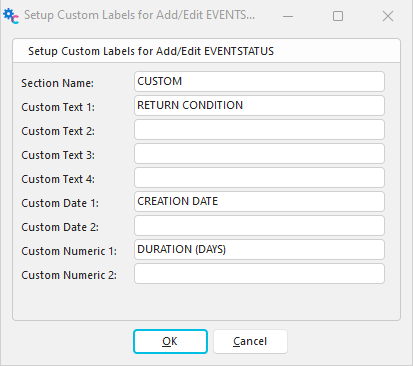

Setup Tracking Status Custom Fields - Example
 Editing an Existing Event Status
To edit an event status, select an existing event status type and press the Edit Event Status button. You will then be allowed to edit the event-type attributes. The format is similar to the 'Add Tracking Status' dialog, except for the added 'Related Event Types' section in the lower left-hand corner. Note you cannot edit the status name or status abbreviation.
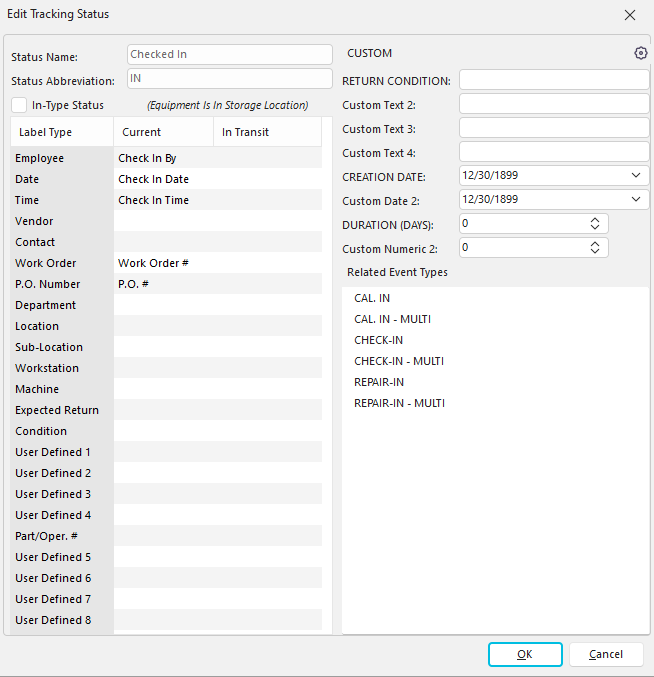
Edit Tracking Status Dialog - Work in Process
 Delete an Existing Event Status
Select an event status type and press the delete event status button to delete an event status. Remove All Unused Event Status
Clicking this icon will remove any unused Event Status not currently assigned to at least one piece of equipment. |