Database Unicode Upgrade
All data stored in the IndySoft database follows a character set established by the underlying database (MSSQL, Oracle, Firebird, etc.) Typically character sets target one language or group of languages. However, the Unicode character set is unique since it is designed to allow for characters from all major languages worldwide. (See http://unicode.org/standard/standard.html)
Starting in Version 11, IndySoft supports the use of a Unicode database. If the IndySoft database is brand-new upon installation, then a Unicode DDL script can be used in MSSQL or Oracle to create the Unicode field types. In this case, the ConvertDB utility is NOT required. *-Unicode.sql db creation scripts can be located in the IndySoft program directory inside the 'DBScripts' subdirectory.
If the IndySoft database has been in prior use as a non-Unicode database, then it must first be upgraded. This one-time database conversion process is accomplished through the ConvertDB utility. This utility can only be run by a System Administrator. Before upgrading a database, note some specifics relevant to each database type:
Unicode - MSSQL Databases
It is important to understand that a Unicode database in MSSQL will, by definition, store double-byte data for each character (UTF-16 encoding). So in comparison to a non-Unicode database (single byte), this will effectively double the size of the database. So there is a huge benefit in supporting all international characters within a single database, but there is a trade-off in database size. Please ensure that your database administrator allows for the growth of the database size during the conversion process, as IndySoft is used in daily operations.
Unicode databases in MSSQL utilize several modified data types as compared to non-Unicode databases:
oNVARCHAR (instead of VARCHAR)
oNCHAR (instead of CHAR)
oNTEXT (instead of TEXT)
The ConvertDB utility loops through all IndySoft database tables and modifies these field types as needed - retaining all existing data.
Unicode - Oracle Databases
In general, Oracle databases can be Unicode-enabled by relying on the server's default character set or utilizing unicode field types within the relevant database tables. IndySoft relies upon this second strategy. This allows for the least intrusion on existing database servers (only the IndySoft tables are modified).
Unicode databases in ORACLE utilize several modified data types as compared to a non-Unicode database:
oNVARCHAR2 (instead of VARCHAR2)
oNCHAR (instead of CHAR)
oNCLOB (instead of CLOB)
The ConvertDB utility loops through all IndySoft database tables and modifies these field types as needed - retaining all existing data.
Unicode - Firebird Databases
Firebird databases require very little change to support Unicode. Only a quick change to the database default character set is required. Starting in version 11.0.40, the database upgrade process (isupdb.exe) automatically updates the default character set of all IndySoft Firebird databases to Unicode during the 7.5 database upgrade. So running ConvertDB.exe on a Firebird is typically NOT necessary (unless instructed by IndySoft Support).
Running ConvertDB Utility
Running ConvertDB has several initial requirements:
a.ConvertDB can only be run from a 2-Tier database connection.
b.ConvertDB can only be run by a user with a 'System Administrator' profile in IndySoft. A login is required.
c.All users MUST be logged out of the IndySoft database before the ConvertDB utility is run and remain logged out while the database is being converted.
d.It is highly recommended that the IndySoft database be backed up completely before beginning the upgrade.
For MSSQL and Oracle databases, the upgrade process will involve logging all constraints and keys from IndySoft tables, dropping these objects, upgrading necessary field types, then re-adding the same constraints/keys. This can be a lengthy operation - depending on the size of the IndySoft database. All IndySoft layouts (from LayoutBuilder) will also be quickly upgraded to Unicode at the end of the process.
Before initial login, the 'Confirm Database Settings' dialog will appear. This dialog reminds you of the current database connection settings from DatabaseSettings.exe - so you can be sure which database is about to be upgraded. Do NOT accidentally upgrade the production database when you think you only point toward the test database! This upgrade cannot be reversed. Always double-check the connection before proceeding. After confirmation, log in as a 'System Administrator.' There are only two checkboxes to review before beginning the upgrade:
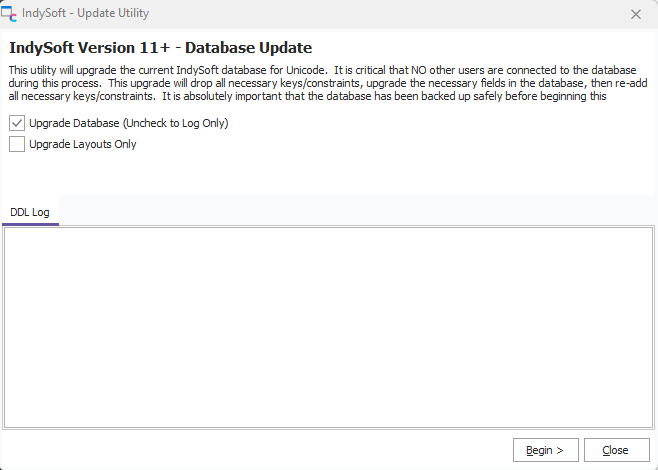
ConvertDB - Database Upgrade to Unicode
Upgrade Database (Uncheck to Log Only): The database will NOT be upgraded if this item is unchecked. Instead, all required ddl changes will be logged for review.
Upgrade Layouts Only: This item is rarely needed; only check if directed by IndySoft Support. This will only upgrade layouts from LayoutBuilder - database tables will not be upgraded.
Press 'Begin' to start the conversion. All actions will be logged to the 'DDL Log' window as performed. After the upgrade is completed, users can log in to the upgraded database.
Note: After the database upgrade to Unicode is complete, all users must check the 'Unicode DB' checkbox in their DatabaseSettings connection settings (or from within the Application Server setup) before connecting to the upgraded database. IndySoft will attempt to alert the user if a mismatched condition is found - but this condition must be fixed in DatabaseSettings before logging into the main screen.
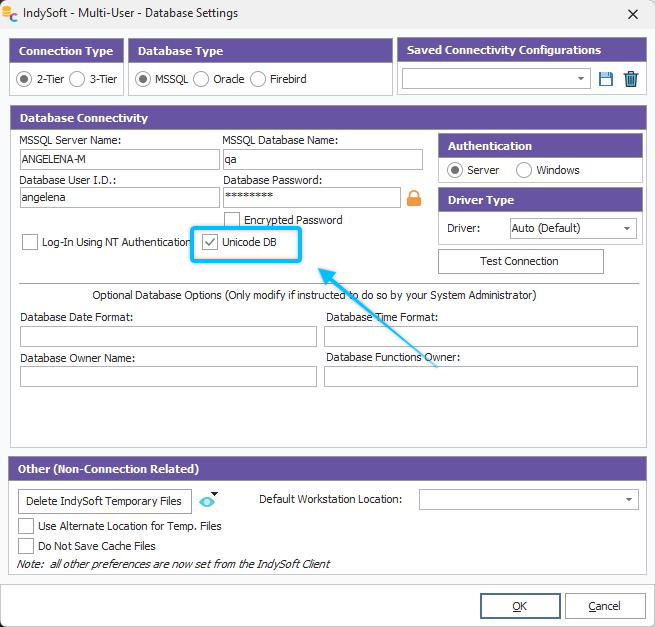
Unicode DB Setting - Database Settings
After upgrading the database to Unicode, international characters can be freely input into any IndySoft screen:

Unicode Data - Example
Drop/Re-Add Logs
 Note: This feature is specific IndySoft version 12.1.0 and on.
If you are using version 12.1.0 and on, there are new behind-the-scenes features for the Unicode upgrade utility (ConvertDB.exe). Whenever the utility is run, it will automatically add any drop/re-add SQL statements to a log file that tracks activity. You will now have a log of all the objects included in the upgrade so you can drop/re-add them later. If something unforeseen were to occur during the upgrade (for example, running out of disk space), you can now go into the file path C:\Users\Public\Public Documents\IndySoft to see the new .sql files. Note these log files will be created regardless of whether the utility checks the 'Upgrade Database' option.
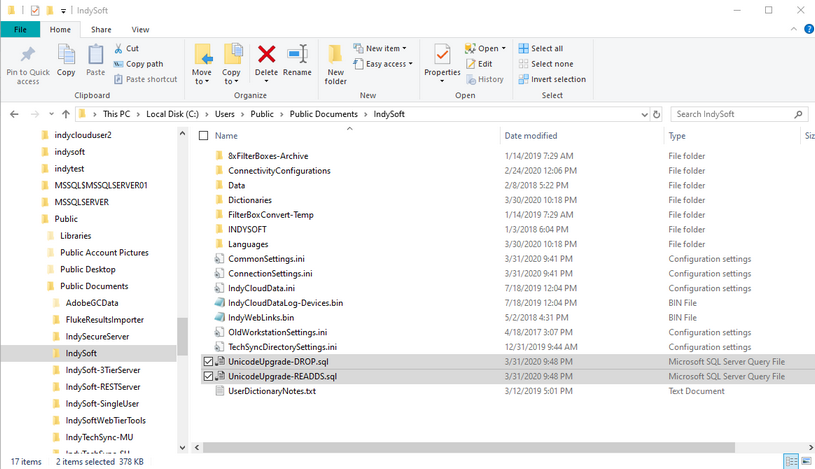
Unicode Upgrade: DROP, RE-ADD SQL Logs |