Parts And Operations Module - Add/Edit Layout Types
Layout types control the # of fields visible in the layout type of each part/operation - that top half of the part/operation dialog. Click 'Add/Edit' along the header to add a new layout type. See the screenshot below for more information:
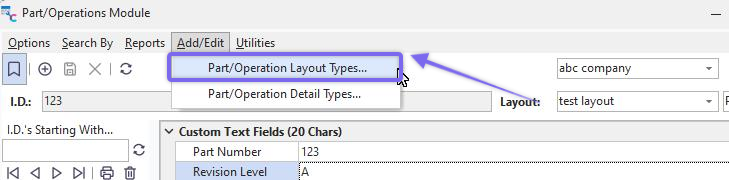
Part/Ops - Add/Edit Part/Operation Layout Types
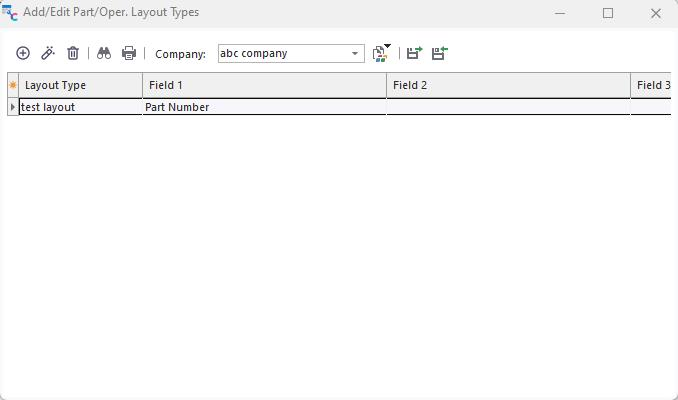
Part/Operation Layout Types Dialog
You can add, edit, and/or delete part/operation layout types from this dialog. Click on the  icon to add a new part/op layout type. The following dialog will appear:
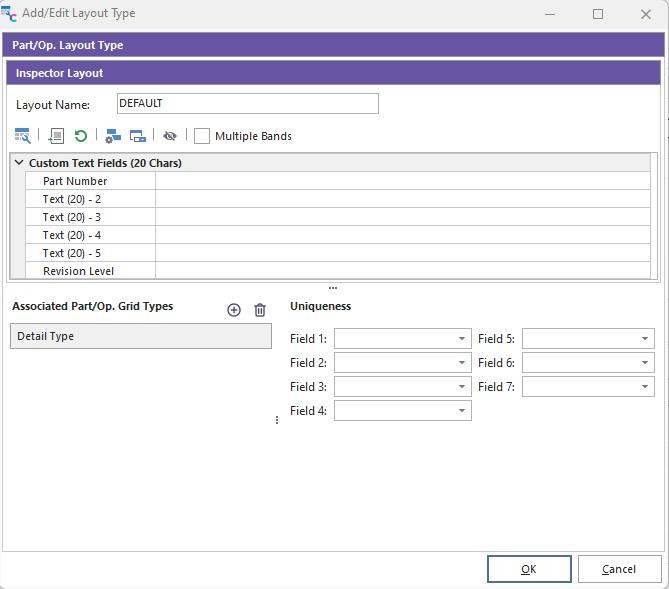
Part/Ops - Add/Edit Layout Type Dialog
The fields in the layout type can be modified on the top of the dialog, and field security can be modified. In the bottom-left of the dialog, you can associate the layout type with one or more detail grid types, as defined in Parts And Operations Module - Add/Edit Detail Types. So when this layout type is used for a part/operation, these detail types will be shown on the bottom of the screen, each detail type with its sub-tab. Finally, designate up to 7 layout fields that can be combined to form a uniqueness constraint for all layout records.
 Customize Fields
This option will display a small floating dialog where fields can be dragged into and out of the current layout. You will note that dozens of fields of various types are allowed. The captions of the fields can be changed with the 'Customize Caption For Selected Field' option - so use 'Customize Fields' to add/edit the correct number and type of fields. When this dialog is visible, it is also possible to drag/drop the layout fields to various positions.
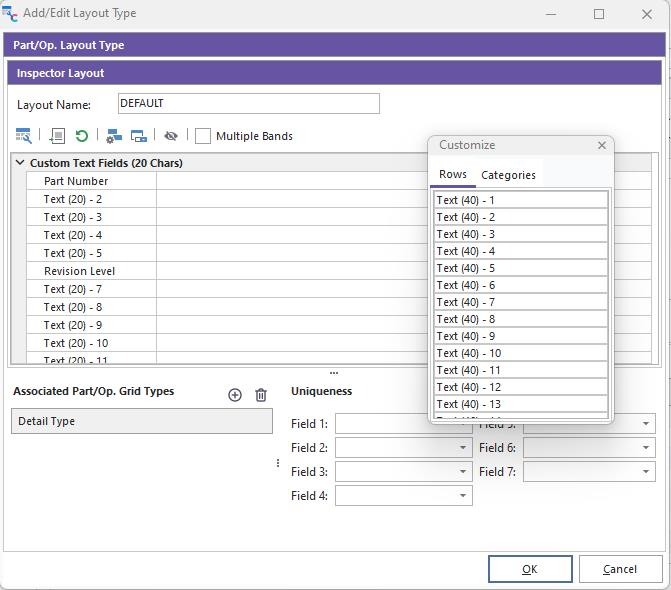
Part/Ops - Add/Edit Layout Types...Customize Fields
Note that fields can be placed in an outline structure - with fields nested underneath other fields or categories. To create a new category, go to the 'Categories' tab and press the 'New' button. Categories or Rows (fields) can be dragged/dropped into or out of the layout. Hint: To add a new row to the bottom of a main group, drag the field onto the category's name. Close the 'Customize' dialog after completing the row/field editing.
 Customize Caption For Selected Field
This option will pop up a small dialog for inputting a custom caption for the current field. If no caption is given, the default name will be used (which typically corresponds to the field type and size.
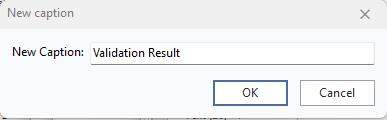
Part/Ops - Layout Types - New Caption
 Reset Caption For Selected Field
This option will reset the caption for the current field to its original name - which typically corresponds to the field type and size.
 Field Security
This option will display a dialog for editing various security options for this field. Security values can be set across profiles, as defined in Profile Manager. See the text description of each security item for more details. Security settings are loaded each time the parts/operations module is started.
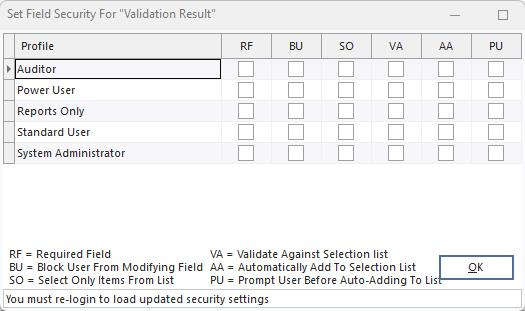
Part/Ops - Layout Types - Set Field Security
Note that all profiles are shown in the grid, each with a row. The six security settings can be set for each profile - since the captions are long, they are abbreviated with two characters each - a legend is shown below the grid. Fields can be required or blocked, and drop-down lists (if applicable) can be set to only select items from the list, validate new items, etc. Press OK when all changes have been completed.
 Modify Selection List Items
If the current field is text-based and includes a drop-down list - use this option to modify the selection list items available to the user when editing the field from the parts/operations main screen.
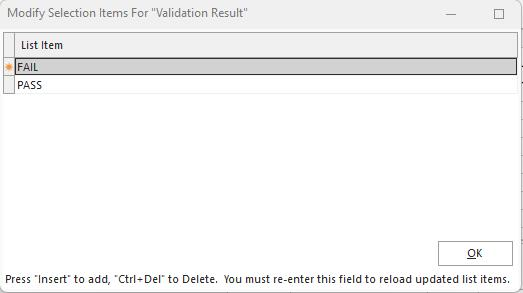
 Set All Fields Invisible
Use this option to set all layout fields non-visible for the current layout quickly. This is helpful if you only want to show a small # of fields - it is quicker to hide them all and then use the 'Customize Fields' option to display only the fields desired quickly.
Multiple Bands
Use this option if you would like multiple band columns to be drawn if there are more layout rows than can be shown in the amount of vertical space allowed for the layout. A second (or more) column will be created in this case. The example below automatically shows the Text(20) -8 to Text(20) - 15 fields in a second column.
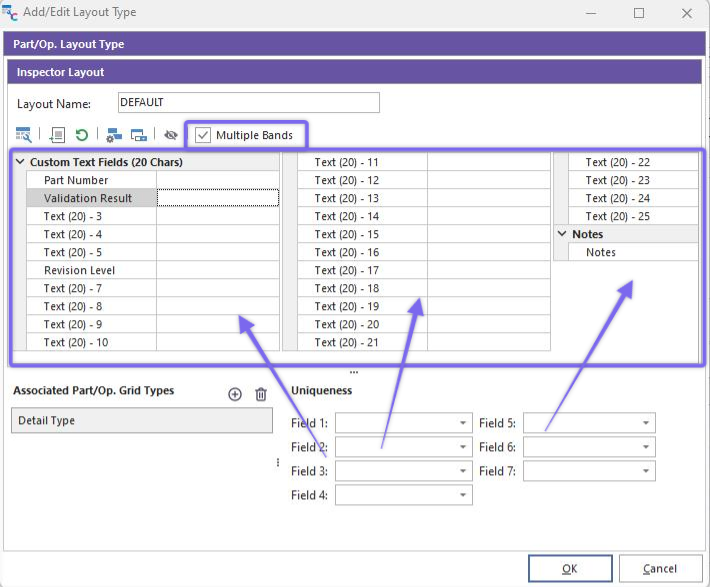
Part/Ops - Layout Types - Multiple Bands |