Setup IndySoft Secure Server Connection
Use this dialog to set up your connection to the IndySoft Secure Server. To complete this connection, you will need to
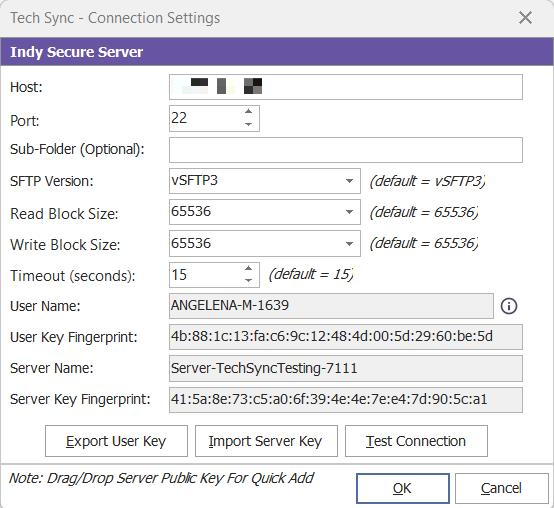
Tech Sync - Connection Settings
Host: Input the IP address of the IndySoft Secure Server.
Port: Input the port for the IndySoft Secure Server.
Sub-Folder (Optional): Input sub-folder name. Typically this option is left blank.
User Name: This user name is automatically created when the dialog is displayed. Typically this corresponds to the workstation name followed by a random number. This user name will identify this client in IndySoft Secure Server's user key listing.
User Key Fingerprint: This fingerprint is for reference only - it is displayed after the 'Export User Key' button is pressed. This fingerprint is uniquely tied to the user key (but it is not equivalent to the user key). This fingerprint can confirm that the user key exported matches the key imported on the server (where the fingerprint is also available for cross-reference.)
Server Key Fingerprint: This fingerprint is for reference only - it is displayed after the 'Import Server Key' button is pressed. This fingerprint is uniquely tied to the server (but it is not equivalent to the server key). This fingerprint can confirm that the server key imported matches the key exported on the server (where the fingerprint is also available for cross-reference.)
Export User Key: Press this button to export the current user key. A new user key will be created if no user key exists. First, you will be asked to randomize the client to ensure a unique key is created. The following dialog will display:

Random dialog
The green progress bar will only proceed when the mouse is moved over the dialog. Move the mouse to any fashion across the dialog. These mouse movements are used to ensure the uniqueness of the created key. After creating the key, an email is automatically previewed with the user name, fingerprint, and attached user key. This email should be sent to the Administrator for the IndySoft Secure Server. If this Admin. has already been selected for the Secure Server, then the email address will be auto-populated:
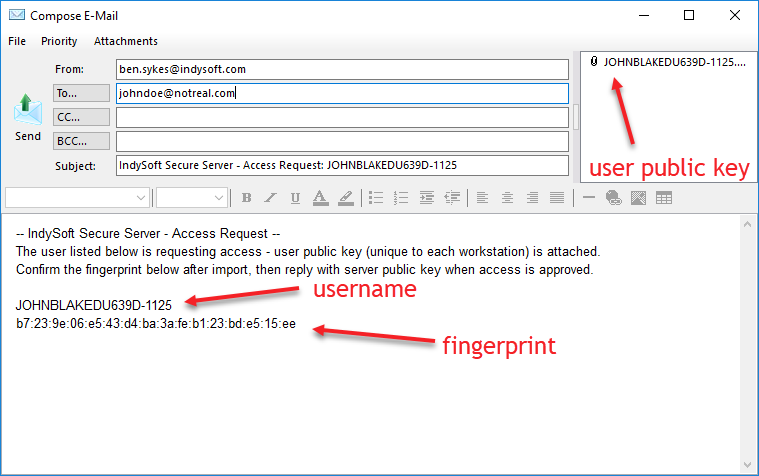
User Access Request Email
When the Server Admin. receives the email, they will add the username, import the user public key, then respond with a follow-up email that includes the server key:
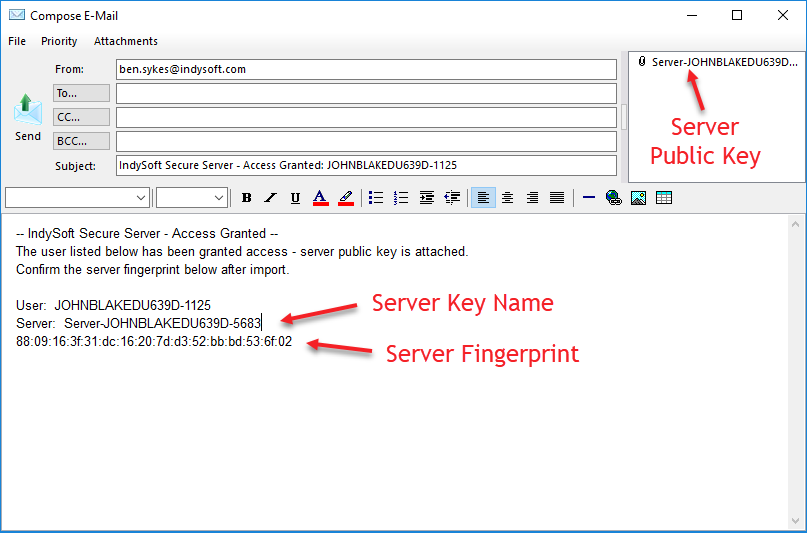
User Access Granted EMail
Import Server Key: When receiving this email, save the attached server key file, then import using the 'Import Server Key' button. Once the server key is imported, double-check that the 'Server Key Fingerprint' matches the fingerprint in the email. Now you are ready to test the connection.
Test Connection: press to test the connection to IndySoft Secure Server. Common results:

Connection Success

Server Service not running - no response

Authentication Failed - The user Key is not present on the server, or Server Key is incorrect. |