Starter Database Setup (Admin Only)
This dialog is available from the 'Starter DB Setup' button on the Server tab.
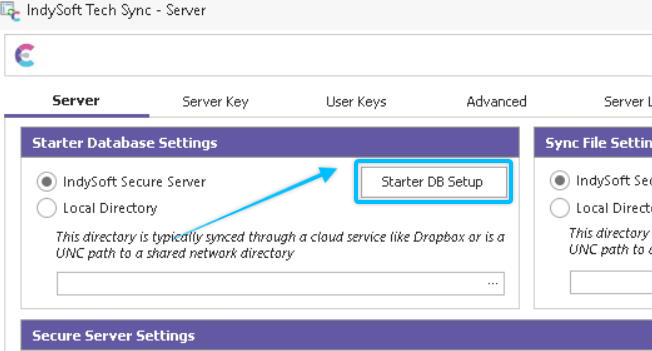
Secure Sever - Starter DB Setup
This sets up the options for the 'starter' Firebird database that is created each weekend, that will be used by Single-User workstations to create new databases for remote use. Typically this starter database is created in a scheduled task that runs on the weekend.
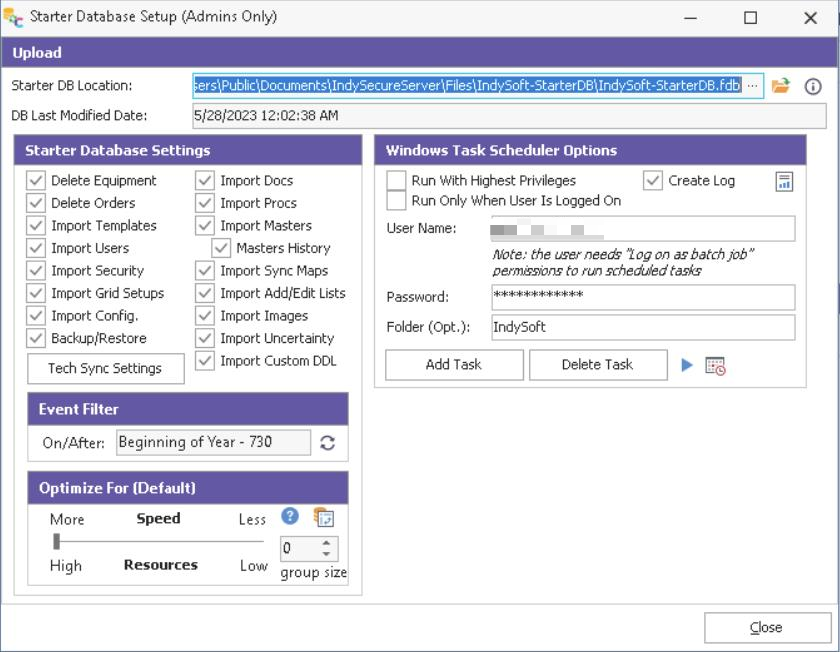
Starter Database Setup
Starter DB Location: the fixed location of the starter Firebird database. This is automatically set to a 'IndySoft-StarterDB' subdirectory in your IndySecureServer \Files directory.
Last Receive Sync: last date/time that the starter database was used to Create New Database (add in assets/events from a selected company, etc.)
DB Last Modified Date: date/time when the starter database created (typically lists the date/time of last weekend)
Prior to Upload: options that control how the starter database is created. So we always start with a clone of the current Single-User database in place on the server. Then we delete all equipment records (if 'Delete Equipment' is checked) and orders (if 'Delete Orders is checked). Next, a connection is made to the Multi-User database, and a complete copy of various data groups is made between the Multi-User and Single-User database. The data groups below can be copied completely from Multi-User. If any of these options are turned on then ALL data in that group is first deleted from Single-User, and only the data from Multi-User is imported. This insures that you are only left with the current data from Multi-User:
Delete Equipment: removes ALL equipment from the starter database (equipment will be re-populated in the Create New Database operation)
Delete Orders: removes ALL orders from the starter database (orders will be re-populated in the Create New Database operation).
Import Docs: note that documents can also be included if 'Import Add/Edit Lists' is checked
Import Procs: note that procedures can also be included if 'Import Add/Edit Lists' is checked
Import Templates: syncs all templates and related tables
Import Masters / Import Masters History: syncs all masters/standards and related tables. Select 'Import Masters History' to also bring in History events and related tables for these masters/standards.
Import Users: syncs users list from profile manager
Import Security: syncs all security categories, security items, and profiles from Multi-User database.
Import Sync Maps: syncs Sync Maps - these are important to standardize how assets are exported later in Single-User Tech Sync
Import Grid Setups: syncs test point grid setups and Classic view layouts.
Import Add/Edit Lists: syncs ALL add/edit lists across all companies. This might seem like a lot of information to sync, but it is FAST - better to have everything. Keep in mind that this sync is only happening once a week on a server - so even if it takes a few minutes to complete, not an inconvenience to Single-Users workstations.
Import Config.: syncs ALL configuration tables, this includes layouts, flowcharts, Workflow Config., reports, etc.
Import Images: syncs images
Import Uncertainty: syncs uncertainty
Import Custom DDL: syncs custom/non-standard tables.
Backup/Restore: will perform a backup/restore of the Firebird starter database
The IndySoft suggested setup is to simply check ALL options.
Tech Sync Settings: when a Single-User uses the Create New Database operation and creates a database with assets from a company they are about to visit, it is expected that within this new database they will want to automatically sync modified assets/orders back to the server, and receive updates on templates, documents, etc. So rather than cloning the Tech Sync settings currently in place in the Multi-User database (which would be opposite of what the Single-User needs), this dialog allows you to standardize the Tech Sync settings that will be put in place globally in any Single-User database cloned from this starter database. So the good news is: the Single-User doesn't have to setup anything in their user/location prefs for Tech Sync - it is ALL pre-populated. Regardless of the user they use to login, all users in the Single-User database will have these sync settings. These settings mirror exactly the User/Location - Tech Sync Settings dialog:
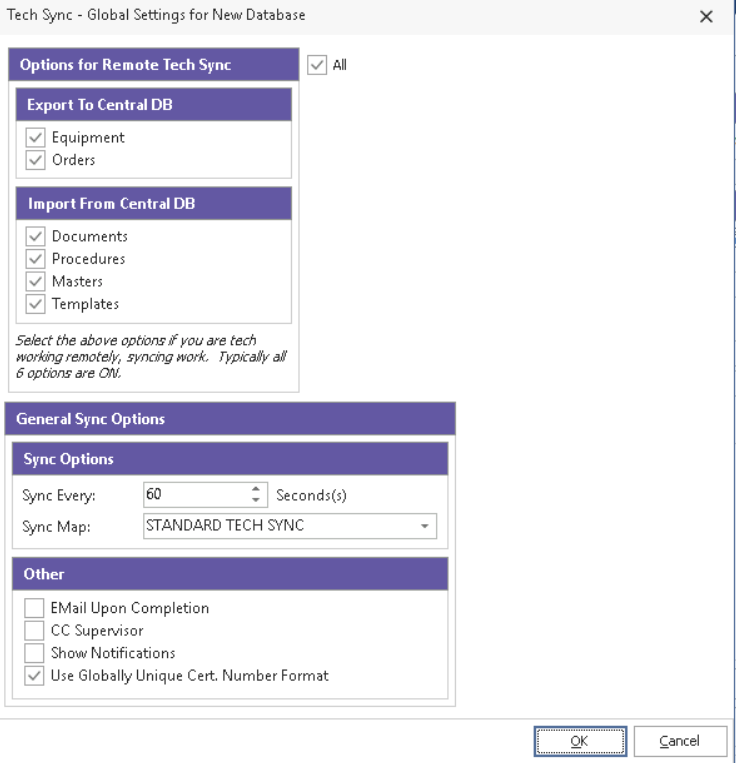
Tech Sync - Global Settings for New Database
Windows Task Scheduler Options: modify these settings just as you would in the Alarm System to setup a schedule task for the starter database creation. Use Add Task and Delete Task to add/remove the task from Windows Task Scheduler.
 Create Starter Database Now: use this button to manually test the creation of a starter database. This performs the same option as the scheduled task. Progress will be shown at the bottom of the dialog. Give it a try and test the timing so you know the time selected for the scheduled task is appropriate.
 Launch Windows Task Scheduler: launches the task scheduler for review of the task.
Download (Testing Only): these options are only needed in rare testing situations. Once the starter database is created, this option allows you to test the automatic download of the starter database, and automatic switching of connection settings to this database. Like the Create New Database option, this test also moves over your Single-User license from your current database to insure correct licensing. This is an easy way to start over with a completely blank starter database. Keep in mind that the downloaded database will be named the same as your current database. The current database will be archived with a '-BACKUP' suffix |