Studies - Add New Schedule
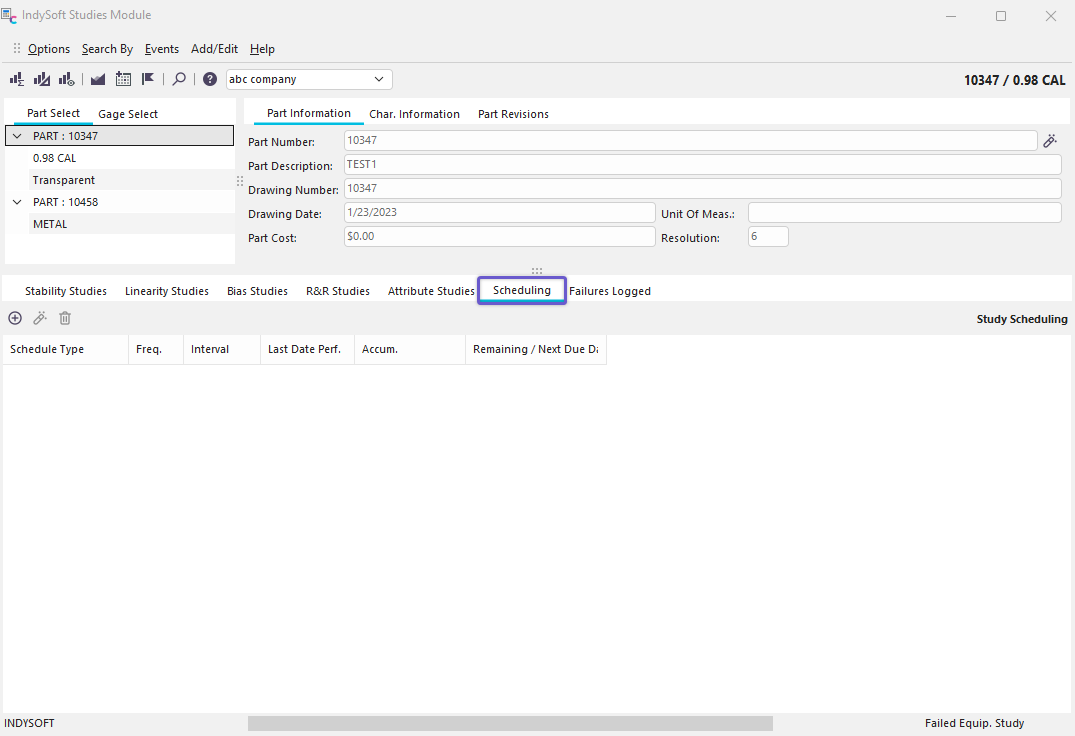
IndySoft Studies Module - Scheduling Tab
Adding New Schedules
Adding a schedule in the Gage Studies module is much like adding a schedule for equipment on the IndySoft main screen. The most important difference is that schedules created in the Gage Studies module are specific to a company/part/characteristic, not a particular equipment I.D. 5 Schedule Types are allowed:
Schedule Types
R+R
Repeatability and Reproducibility Study. See the Studies - R&R Study Overview for more details.
Bias
Bias Study - See the Studies - Bias Study Overview for more details.
Linearity
Linearity Study - See the Studies - Linearity Study Overview for more details.
Stability
Stability Study - See the Studies - Stability Study Overview for more details.
Attribute
Attribute Study. See the Studies - Attribute Study Overview for more details.
Adding a new Schedule to a piece of equipment
To add a new schedule, click the  Add a Schedule button. The dialog displayed below will appear. After the dialog, there is an explanation of all the information needed to add a schedule.

Schedule Information
Schedule Type
This is the type of schedule that you wish to add. Certain events will automatically move forward certain schedule types when they are completed. For example, if you choose Calibration as the Schedule Type and Calibration is performed, then the Due Date for the equipment will automatically be increased by one interval.
Freq./Interval
This field specifies the length of 1 scheduled interval. There are normally two necessary fields to complete this option (except Uses, SBU, and SBU - described below). Frequency describes the number of intervals for the schedule. Interval is the base unit of measure used when setting up the schedule. Below is a list of possible intervals:
Hours
This interval is only used with Accumulate style schedules. After the specific number of hours has elapsed, the equipment will be marked as due for the specified Schedule Type.
Days
After the specific number of days has elapsed, the equipment will be marked as due for the specified Schedule Type.
Weeks
After the specific number of weeks has elapsed, the equipment will be marked as due for the specified Schedule Type.
Months
After the specific number of months has elapsed, the equipment will be marked as due for the specified Schedule Type.
Years
After the specific number of years has elapsed, the equipment will be marked as due for the specified Schedule Type.
SBU
Stands for 'Schedule Before Use' - After an event that is used to issue a piece of equipment is completed, the schedule will be marked as being due with the event date. For example, by default, IndySoft makes the Check-Out event have this behavior with Accumulate style schedules.
SAU
Stands for 'Schedule After Use' - After an event used to check-in a piece of equipment is completed, the schedule will be marked as due with the event date. For example, by default, IndySoft makes the Check-In event have this behavior with Accumulate style schedules.
Parts
This interval is only used with Accumulate style schedules. After the specified number of parts has been measured, the equipment will be marked as due for the specified Schedule Type. The number of parts measured is added from the amount specified during the related event.
Uses
This interval is only used with Accumulate style schedules. After the equipment goes through a complete 'issue for use'/'receive from use' type of cycle, the remaining uses will be decremented by 1. When the remaining uses drop below 1, the equipment will be marked as due for its schedule type.
Last Date Perf.
This field specifies the last date that the scheduled event occurred for the current equipment. This field is only updated by IndySoft after completing the related scheduled event.
Due Date
This date is typically calculated by IndySoft whenever the Frequency, Interval, or Last Date Performed changes, or an event, associated with the schedule type is performed. Note: All three fields (Frequency, Interval, and Last Date Performed) must be filled in for this calculation. This field will not be displayed if the equipment is scheduled by Accumulation of Time.
Remaining
This field is only displayed for equipment schedules based on time accumulation. When this is the case, this field displays how much of the selected interval is left until the equipment is marked as being due for the schedule type. |