Mapping
The mapping tab allows for granular control over the data pulled from the Fluke MetCAL data source and the associated target columns in IndySoft.
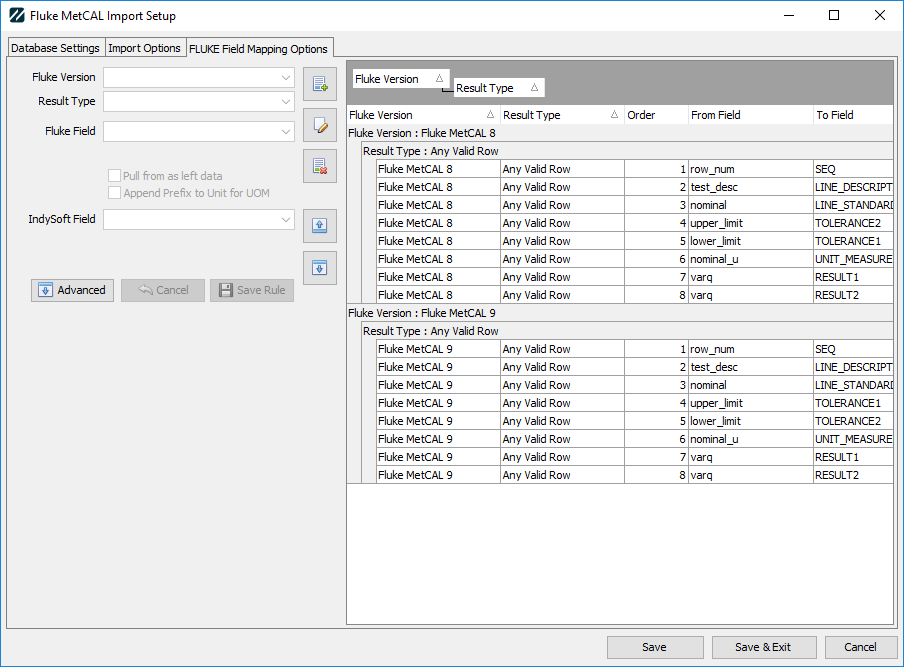
The Editor Interface
Toolbar
Add

The add button is used to create a new mapping rule. Once clicked, the editor on the left side will enable.
Edit

After selecting a row in the mapping grid view, the edit button will load that record into the left-side editor.
Delete

After a row has been selected in the mapping grid view, the delete button will delete that row from the rules.
Sort Up/Sort Down


When a row has been selected, it allows changing the execution order of rules. For example, in our default mapping scheme, nominal is extracted first with a resolution rule to pull from fixq and place into NUM_RESOLUTION. Additional data point rules (tolerance, as found/as left) are then set to use the "Tied Resolution Field" created by that nominal rule. The resolution rules are explained below.
Mapping Grid
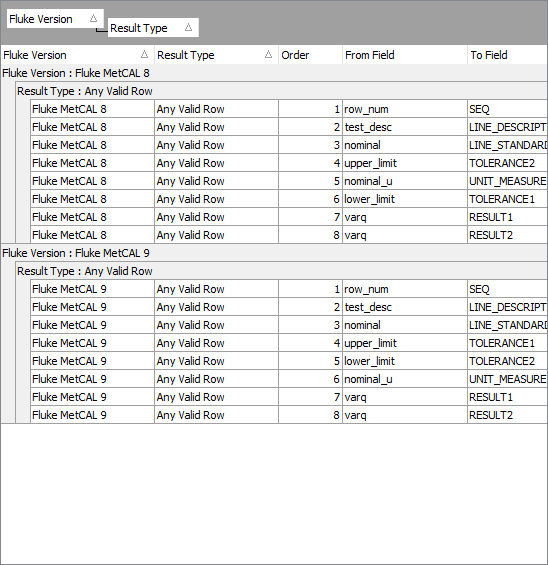 .
.
Field Editors
The field editors allow manipulation of the mapping rules.
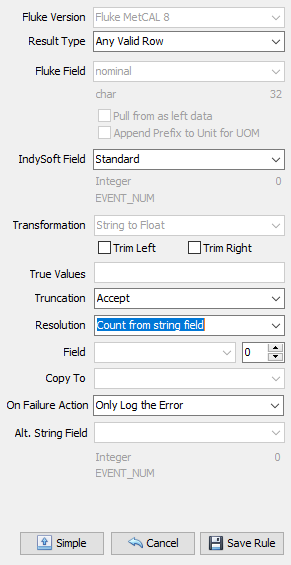
Fluke Version
This should be set to the version of Fluke you will be using.
Result Type
For most use cases, setting this to "Any Valid Row" will ensure any row that contains numerical results or test_description fields will be processed. Other entries related to specific result types from Fluke. The currently-supported list is as follows:
·Brace
·Eval
·Numeric
·FixedRes
·Go-NoGo
·Slew
·SKEW
Fluke Field
This should be set to the field name you wish to import.
Pull from as left data
When selected, the field above will be used from, and only if, the As-Left dropdown in the importer has been pointed to a secondary calibration event.
Append Prefix to Unit for UOM
When selected, if the field is a unit of measure (suffix is _u), then the system will find the matching _p (prefix) field and concatenate the two together.
IndySoft Field
This should be set to the target field in the IndySoft database.
Transformation
This read-only field shows the type of conversion that will take place. Examples include:
·String to String
·String to Float
·String to Integer
etc.
Trim Left/Trim Right
When the Fluke source field is a string, any leading, and trailing spaces will be removed if these options are checked.
True Values
When converting a field from a string intended to be a 1/0 true/false, entering a comma-delimited list of "True" values will set the field value to 1; otherwise, 0.
Example: T,True,Yes,1 ... any of these detected values will result in a 1 value
Truncation
If a string truncation occurs, this option either accepts the truncation or skips the field import.
Resolution (Uses Resolution, Field, Modifier, and Copy To options below)
There are multiple ways to determine the resolution to be used. Generally, if there is no singular integer field to determine resolution, using this feature with one of the floating point values in the results table is best. The following outlines the resolution options available:
Tied Resolution Field - This option should be set for any floating point value that derives its resolution from a singular field in IndySoft. Example... Tolerance+, Tolerance-, Result1 (As Found), and Result2 (As Left) pull from the field NUM_RESOLUTION. Setting these fields to "Tied Resolution Field" will ensure that mapping is automatically handled.
Source Count - This option will count the number of digits following the decimal point in the selected Fluke field and use it for the resolution.
Integer from Field - This option will enable the "Field" option (explained below) to allow you to select a field containing your integer-based resolution
Count from string field - This option is similar to the Source Count option. However, the "Field" dropdown can then be used to read the number of digits from a different Fluke field. Generally, you would likely read from the fixq or varq field to obtain a resolution for a floating point number.
Fixed Value - This option will pull the resolution from the modifier "spinner" next to the Field option.
Default from Options - The final option will pull the default value set in the setup screen for the appropriate Fluke Version.
Field
When applying resolution, this is the Fluke field to read from for matching options above.
Modifier
When "Fixed Value" is selected, this is where the resolution is set. Otherwise, the modifier spinner can be used to increment or decrement any extracted resolution by the value contained in the spinner. For instance, if it is known the resolution always needs to be higher, setting this to "1" will extend the resolution one more digit. Negative values will do the opposite.
Copy To
This is the final IndySoft field to store the resolution result.
Alt. String Field
Used to store a copy of the original Fluke Field value into another IndySoft field. |