Main Screen
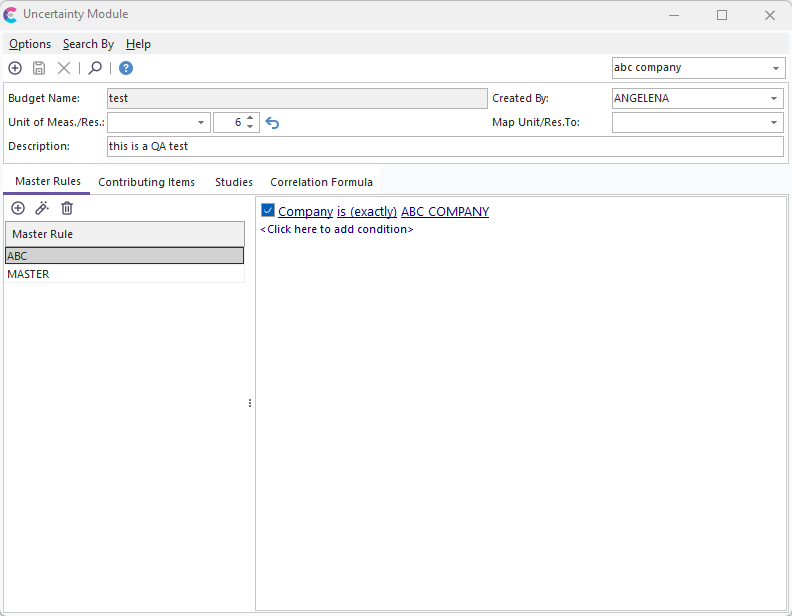
Uncertainty Module - Main Screen
The Uncertainty Module's main screen has a similar look and feel to the IndySoft main screen. Uncertainty Budgets are shown one budget at a time, with header information listed on the top of the form and several detail tabs below showing detailed information for the selected budget. All budgets are saved into the database under a specific Company / Library. The currently selected company is in the upper right-hand corner of the Uncertainty Module main screen. Always select the appropriate company before performing any operations in the Uncertainty Module.
Use the 'Search By' menu option to select a previously saved budget. For more details, see the Search By Menu topic.
To add a new uncertainty budget, press the  button on the top bar.
You will notice six header fields on the top of the Uncertainty Module:
Budget Name: The unique name of this budget (within the selected company). Budget Names are limited to 50 alphanumeric characters. This is a required field.
Created By: The employee name that created/maintains the Uncertainty Budget. To add an employee to the drop-down list, go to the IndySoft main screen and select the 'Add/Edit...Employees' menu option.
Unit of Measure: The Unit of Measure appropriate for this Uncertainty Budget. Note that you can also associate a Unit of Measure per contributing item. Suppose various Units of Measure are used across Contributing Items. In that case, it is the responsibility of the user to convert these units in the VBScript per Contributing Item or the VBScript for Correlation Formula into this Unit of Measure listed for the Uncertainty Budget. This Unit of Measure can be automatically input into an IndySoft test point field (along with the Resolution) during an event that calculates uncertainty. See the 'Map Unit/Res. To' field below for more details.
Resolution: The Resolution appropriate for this Uncertainty Budget. Note that this Resolution will be used when editing numeric values in the Contributing Items and Studies detail tabs. Also, this Resolution will be applied to the final uncertainty that is passed along to the appropriate test point(s) within calibration events. This Resolution can be automatically input into an IndySoft test point field (along with Unit of Measure) during an event that calculates uncertainty. See the 'Map Unit/Res. To' field below for more details.
Map Unit/Res. To: If you want to copy the Uncertainty Budget's Unit of Measure and Resolution into a test point field after calculating the uncertainty in a calibration event, select from 1 of the 4 choices listed. These are four custom text fields available per test point in IndySoft. The format of the text will be 'Unit of Measure (Res.)'.
Description: An optional description of the selected Uncertainty Budget. This description is limited to 200 alphanumeric characters.
In addition to these header fields, several detail tabs are provided below. For more details, see the following topics:
Master Rules
Contributing Items
Studies
Correlation Formula
Also, several other advanced options are available from the main menu. For more details, see the following topics: