RCM Setup
The RCM (Reliability Centered Maintenance) Setup dialog sets up all variables and locations required for RCM functionality. There are three sections:
·Company Locations: Avg. Cycles Per Day, Service Factor
·Templates: Maint. Interval
·Configuration
 Note: It is important first to set up the fields, status, and schedule type used by the RCM Utility on the Configuration tab - it might be helpful to review this section first.
Company Locations: Avg. Cycles Per Day, Service Factor
Use this page to track all locations that have cycles that should be considered by the RCM service - which executes at noon each day to re-calculate due date schedules and update effective cycles. First, select a company from the drop-down at the top of the page.
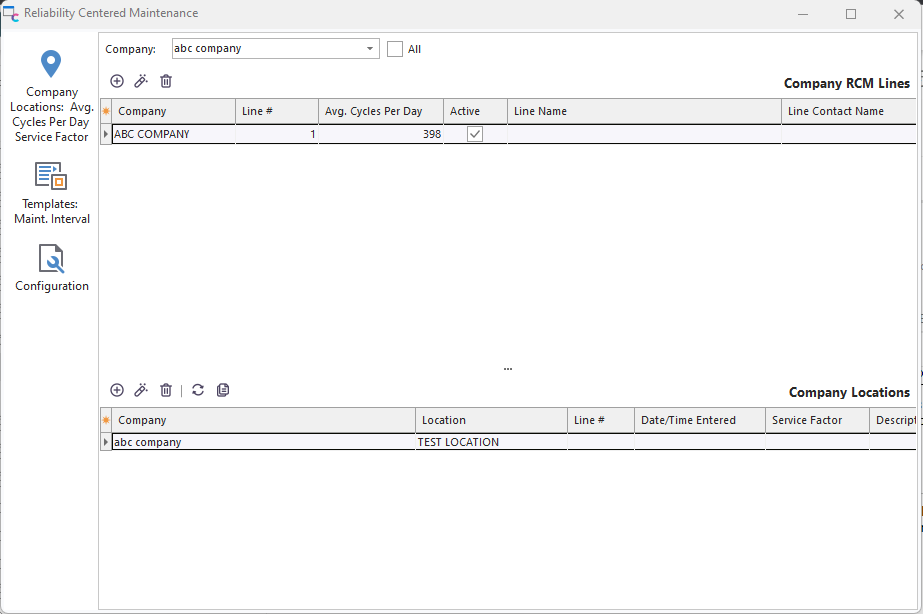
RCM - Company Locations: Avg. Cycles Per Day Service Factor
On the company level, you track the Average Cycles Per Day for up to 6 lines. The current values for the company selected are shown - press the 'Edit Avg. Cycles Per Day' button to modify:
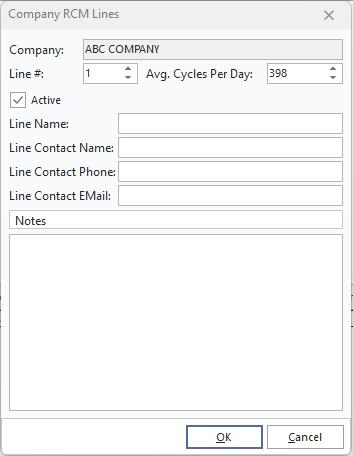
Edit Average Cycles Per Day
So in the above example, the 'ABC COMPANY' company is tracking only 1 line, and the average daily cycle is 398 for that line.
Next, use the grid at the bottom of this page to track all locations for this Company on the various lines and note the Service Factor for each. Selecting the 'All' checkbox on the top of the page will cause all locations (across all companies) to be displayed. These locations are any potential values for the 'Current Location' field on the equipment level in IndySoft when assets are currently checked out for usage. These locations can exist on any of the six lines noted above the grid. For each location, input the related Line # and the Service Factor. The Service Factor is multiplied by the Avg. Cycles Per Day each time Effective Cycles are updated.
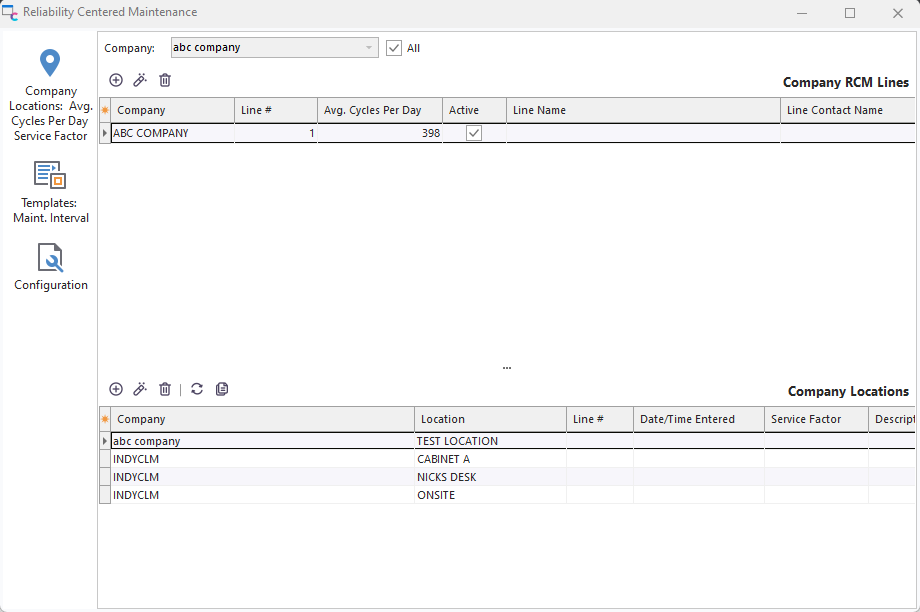
Company Locations: ALL
For example, say you have an asset 'ABC123' and want to use the RCM utility to automatically update the 'CALIBRATION' schedule based upon its usage at various locations on any assembly line, etc. This automatic re-calculation of the due date is only appropriate when the asset is in 'Checked Out' status, and the 'Current Location' field is set to a location set up in this utility. The RCM service makes these calculations at noon each day. So today, the RCM Service notes that the asset is currently 'Checked Out' and its 'Current Location' is 'RIG234A'. This location is found under the '900331' company and mapped to Line #1, which has an Average # of Cycles of 398. But the Service Factor is set up as 2.0. So every day this asset is checked out to this location, the Effective Cycles (an equipment-level field) should be increased by (398 * 2.0) = 796. This asset's 'Maintenance Interval' is currently set to 10,000 cycles (as set up on the Templates tab of the RCM Setup Utility). So today's 796 cycles are added to the previous total of 3,184, and the new total = 3,980 cycles. This new total is subtracted from the 10,000 cycle interval leaving 6,020 cycles before a CALIBRATION will be required. At the current rate, this next due date will occur in 7.56 days, so this new due date is recorded for the CALIBRATION schedule for the current asset. Note: this example could apply to any schedule type, not simply 'CALIBRATION.' The schedule type is set up on this utility's 'Configuration' tab.
Templates: Maint. Interval
Use this page to set the Maintenance Interval for various templates related to the RCM-related schedule type. This Maintenance Interval will be stored to all related assets using the 'Maintenance Interval' field, as set up on the 'Configuration' page. You cannot add new templates using this interface - you can only set intervals for templates that already exist in the IndySoft database. To add or delete templates, use the Template Editor.
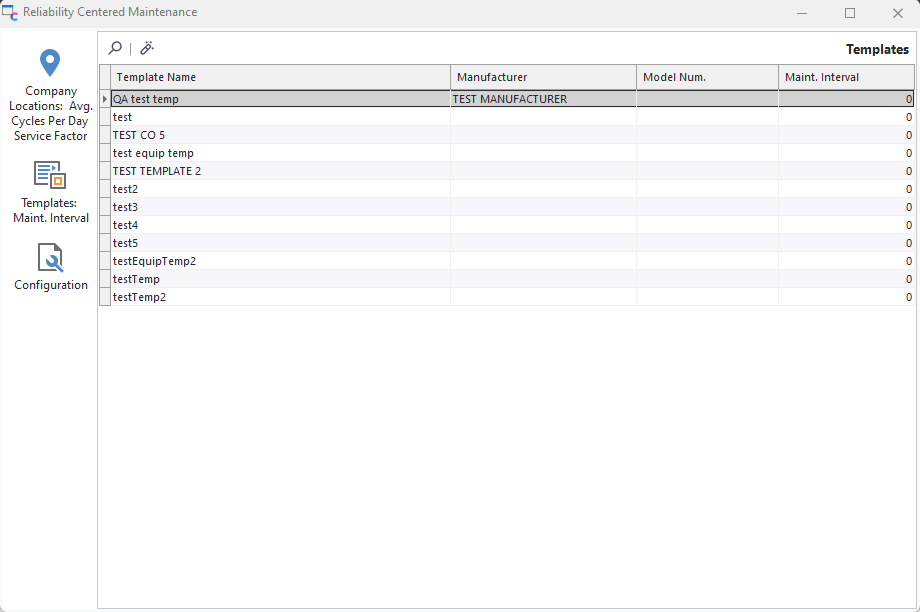
RCM - Templates: Maint. Interval
There are three options above the grid:
 Search For Template
This locates a template in the grid below - this might be quicker than simply scrolling with the mouse, etc.
 Edit Maintenance Interval For Selected Template
Edit the interval for the current template; the following dialog will be displayed:

Edit Maintenance Interval Dialog
The same operation can be launched through a double click within the grid.
Configuration
Five settings are important for customizing the RCM Utility on your system.
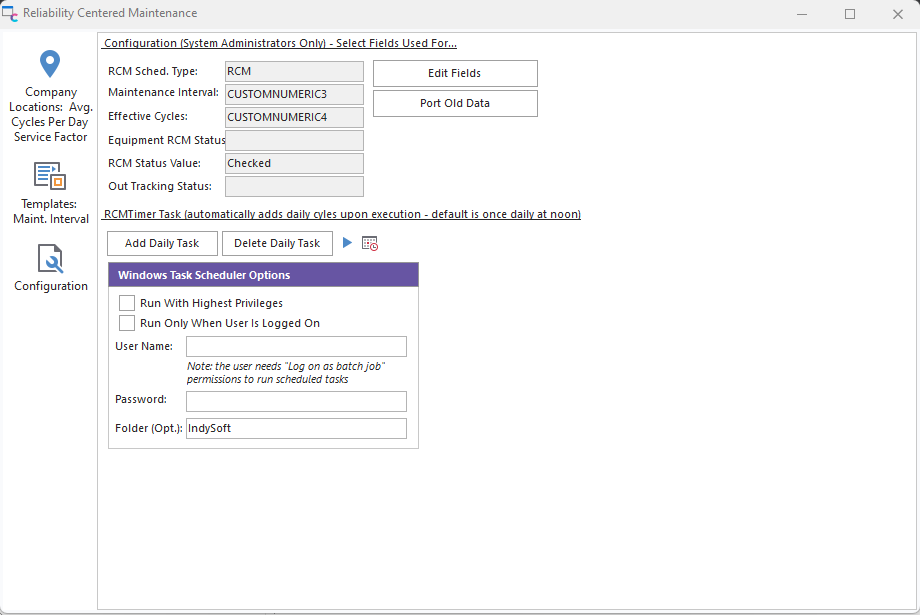
RCM - Configuration
Use the Configuration tab...Edit Fields dialog to modify:

RCM Setup...Configuration...Edit Fields
·RCM Sched. Type - the name of the schedule type that will be updated through the RCM Utility. This schedule type must already exist in the Add/Edit...System-Wide...Schedules...Schedule Types wizard.
·Maintenance Interval - select a numeric field from the equipment table in IndySoft that will be dedicated to storing the # of cycles that should trigger an update of the related schedule.
Important: this schedule type will also be automatically updated using a 'DAYS' scheduled interval.
·Effective Cycles - select a numeric field from the equipment table in IndySoft that will be dedicated to storing the current # of cycles for this asset. Note that this is an 'effective' cycle since the Service Factor is considered.
·Equipment RCM Status - select a status (checkbox) field from the equipment table in IndySoft that can filter which assets use RCM functionality. This field is optional; all equipment is considered if no specified is specified.
·Out Tracking Status - select a tracking status appropriate for RCM consideration when calculating. So, only assets with this tracking status will be considered when the service makes the daily adjustment to Effective Cycles for all assets. Typically a tracking status of 'Checked Out' (or something similar) will be used. The 'Current Location' of each of these assets is then looked up among the locations input on the 'Company Locations..' tab in this setup module; the effective cycles are re-calculated for the asset based on a day's worth of usage and the due date for the related schedule type is re-calculated. |