Studies Module - Overview
The IndySoft Studies Module can organize and compute the results of Stability, Linearity, Bias, R&R, and Attribute studies. The implementation of these studies is based on the MSA Fourth Edition (published by the AIAG) and other statistics resources. The studies module is only meant to collect the data for these studies and perform the required calculations on that data. The charts and reports provided are based on those in the MSA Fourth Edition; please refer to them for more details.
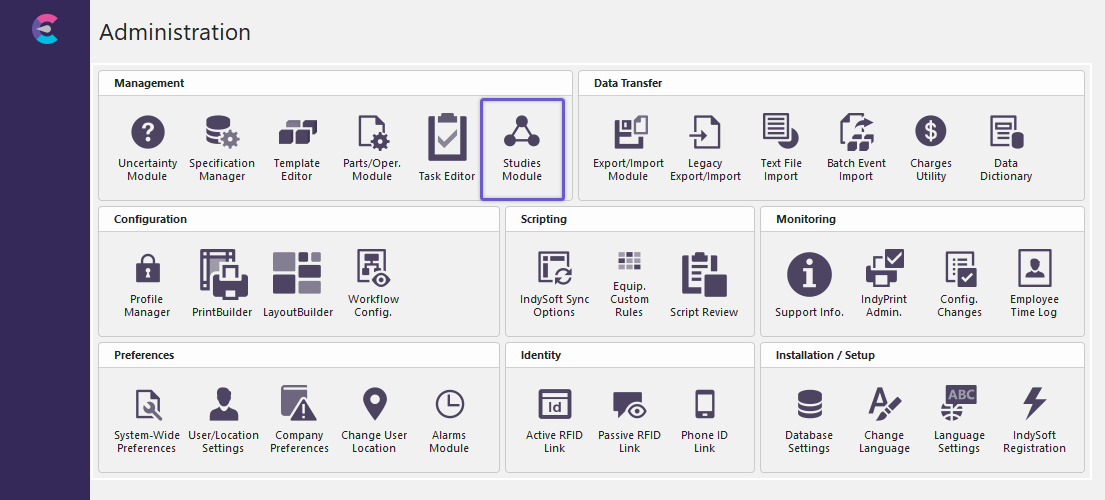
IndySoft Home Screen - Options ... Studies Module
To launch the Studies Module, choose it from the IndySoft Utilities menu. The following dialog will appear. This dialog is where all your studies will be managed.
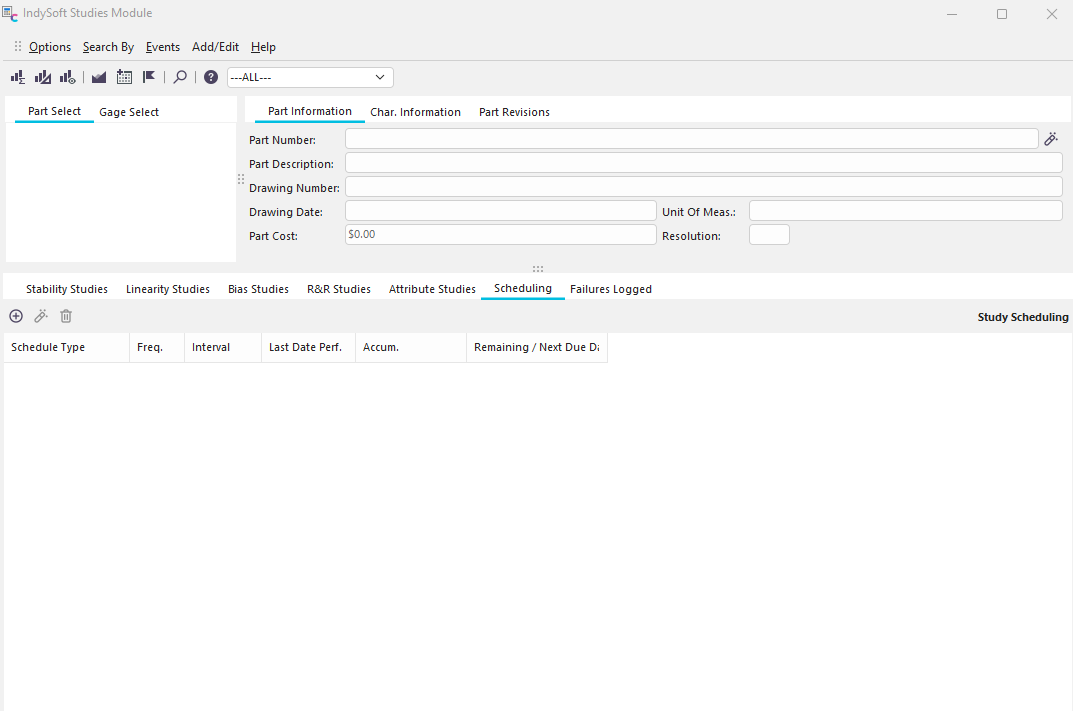
Studies Module - Main Screen
You can organize your studies by the part measured in the study or by the gage that performed the measurements. If you view studies performed on a part, you can further refine your search by the study's characteristics. If you view the studies performed on a gage, you can specify the exact gage or the type/subtype or manufacturer/model number.


Part & Characteristic Selection Gage Selection
When you select a part and characteristic, its information will be displayed to the right. You can also press the  button to open the Add/Edit Parts window and make any changes needed.
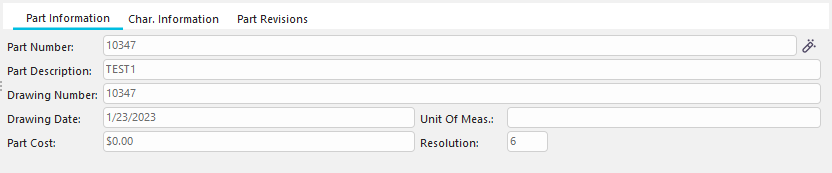
Part Information
The currently selected Part and Characteristic is displayed on the main Studies screen header bar on the right side. You will also notice in this header bar several buttons for launching new studies and other operations and drop down for changing the current company (applies only to the studies module):

Studies Main Screen - Header Bar
The icons, from left to right, are:
New Bias Study
Launch a new Bias Study wizard for the selected Part/Characteristic. For more details, see the Studies - Bias Study Overview section.
New Linearity Study
Launch a new Linearity Study wizard for the selected Part/Characteristic. For more details, see the Studies - Linearity Study Overview section.
New R&R Study
Launch a new R&R Study wizard for the selected Part/Characteristic. For more details, see the Studies - R&R Study Overview section.
New Stability Study
Launch a new Stability Study wizard for the selected Part/Characteristic. For more details, see the Studies - Stability Study Overview section.
Add A Schedule
Add a new schedule for the selected Part/Characteristic. For more details, see the Studies - Add New Schedule section.
New Logged Failure
Add a new Logged Failure. Logged Failures are specific to a study type and apply to a generalized group of gages. An active Logged Failure will limit which gages can be successfully checked for usage using IndySoft. For more details, see the Studies - Add Logged Failure Section.
Search by Part/Char.
Quickly find a specific Part and Characteristic for the company selected to the right.
Help
Open the IndySoft Administrator Help.
The bottom of the study's main form will contain at least seven tabs containing detailed information about the studies performed upon the currently selected Part/Characteristic or Gage. The first five tabs list stability studies, linearity studies, bias studies, R&R studies, and attribute studies. These grids resemble the Events listing on the IndySoft main screen's History tab. These tabs allow for quickly launching new events and editing previous events. The Scheduling tab allows you to view/edit schedules for parts/characteristics. The Failures Logged tab allows you to view any failed studies. In addition, you may have tabs containing legacy stability, linearity, or bias studies. You cannot launch new legacy studies but can still view them for auditing purposes.
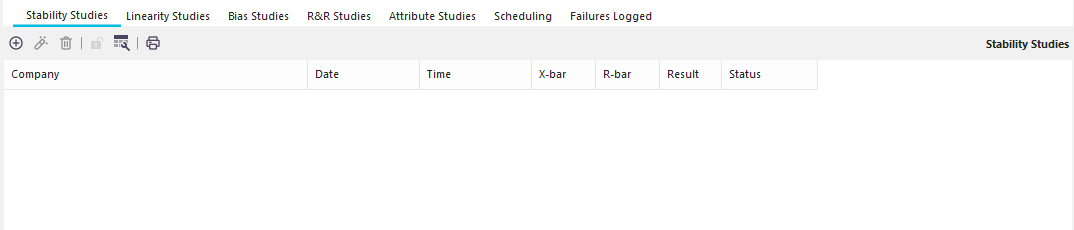
Studies Detail Tabs
On the top of each detail tab, there are several buttons available for quickly launching new studies events and modifying previous events:
Insert Study
 Launch a new Stability, Linearity, Bias, R&R, or Attribute Study, based on the appropriate tab. You will be asked to select the Company and Gage the study will be performed on.

Equip. for Study
View Study
Relaunch the studies wizard for a previously saved study event.
Delete Study
 Delete a previously saved study event.
Mark Event as 'Incomplete'
 Marks a previously saved study event as 'INCOMPLETE,' so it can be modified when the wizard is re-launched.
Customize Grid
 Quickly add or remove fields from the history grids for Bias, Linearity, R&R, or Stability Studies. Drag/drop fields to/from the floating window.
Right-clicking on the grid will open a menu that gives you similar options to those above, plus the ability to export the grid to Excel or HTML.
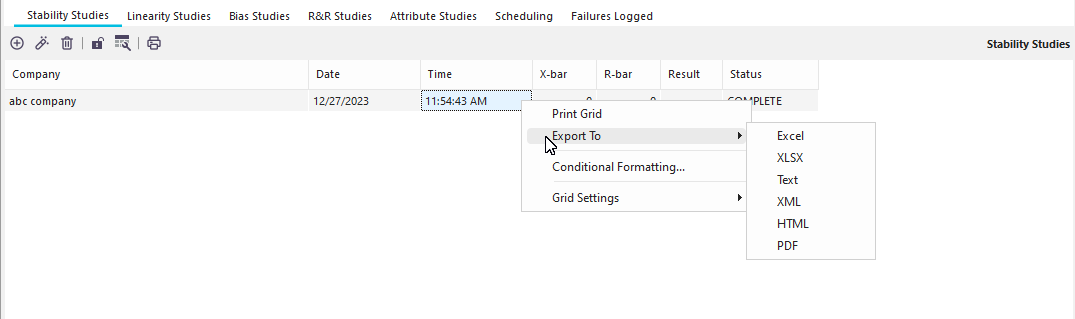
Grid Options
Show Field Header allows you to do sizing.
Show Group Panel allows you to drag fields to the grouping panel to organize the grid based on any field.
Customize Fields allows you to add/remove/reorganize the fields displayed.
Save Grid to ... allows you to save the grid in the appropriate format.
View/Edit Event... allows you to open the study and examine/change the details.
Delete Event... allows you to delete the Event. |