Service Agreements - Overview
Service Agreements - Overview
The Service Agreement Module allows Customers and end users to easily set up contracts or agreements for calibrations/services.
The agreement functions to:
- Create Work Orders in advance
- Provide a template for pricing in those work orders
- And specify equipment and equipment-specific pricing options
Customers who generally need this feature set are scale companies and onsite calibration service providers. One key distinction between this workflow and that of a traditional lab is that the scheduling of the equipment to be worked on is controlled by the agreement and not by the schedule of the equipment itself.
The general workflow for Service Agreements in IndySoft is as follows.
- The Service Agreement is created while in the "Draft" status, where the user inputs the contract scheduling specifications. Some of these options are inherited from company information by default, and non-equipment charges can be inherited and are looked up from the service charges defaults at the system-wide or branch-specific levels.
- Before an Agreement can be made "Active," the agreement must have Scheduling Freq, Interval, and next service date OR, separately, must have specific dates chosen and the option checked.
- Once the agreement is made "Active," then it can be used to create work orders, which will inherit specific options from the agreement. Orders can be created en masse across all agreements from the service agreement module. They can also be created from the agreement directly as Ad Hoc or in a similar manner to the batch creation process.
- Certain changes can be made to agreements while in active status, such as editing/adding/removing equipment, removing work order associations, adding documents, and modifying notes. All other changes have to be done when the status is in "Draft"
- A service agreement ends once the expiration date hits OR, if there is no expiration date, whenever the customer decides.
Enabling Service Agreements and Requests
In order to enable the functionality behind service agreements and service requests, the user must enable the checkbox "Enable Service Agreements and Requests" in Order System Preferences. Basic Elements that are enabled with this feature are:
- Add/Edit Service Charges
- The ability to Launch the Service Agreements Module from a Hyperlink
- Service Requests and Agreements are exposed in the Add/Edit Company dialog (see more information on Service Requests here)
- The ability to add labor, distance, and zone charges to an estimate or work order
The customer will also want to turn on/enable the ability to have multiple work orders open with the same equipment/event in place… ALLOW_WO_REPEAT_EQUIP with a Text Value of ‘1’ is the system-wide variable needed. Users will also have the ability to launch the Service Agreements interface by adding it directly to the Admin Panel or adding a hyperlink using the EXTERNALEXE option and using SERVICEAGREEMENTS.EXE as the executable name (must be customized/added by an Admin).
Getting Started
Non-equipment-related charges are one of the major pieces behind Service Agreements and Requests. It is important to define a default Charge Type per predefined charge. (Labor, Zone, Distance, Flat). To do so, launch the Service Agreements Module (ServiceAgreements.exe), click on the cog in the upper right-hand corner, and select "Settings."
-
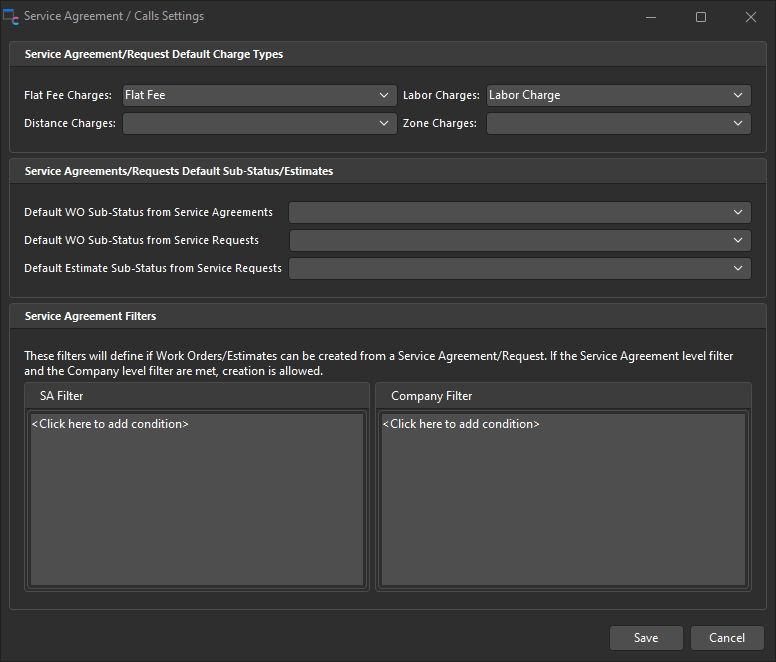
Service Agreement/Request Default Charge Types - allow the user to specify or default pre-existing charge types from their system-wide add/edit lists to replace the IndySoft hard-coded values (if left blank). This allows for greater flexibility in pre-existing systems, integrating with accounting software, or any other custom purpose. This should be one of the first options set for ease of use. Charge types will be pulled from the system-wide add/edit list.
-
Service Agreement Filters - can be used in a similar fashion to Workflow Configuration Selection Rules or Event Completion rules in events. If the filters are met, then work order and estimate creation from Agreements and Requests can be made. Filters are mostly recommended to allow Admins/Sales personnel to block companies that are delinquent in payment, not yet active… etc…
Other Options from the Admin Cog in ServiceAgreements.exe include Service Agreement and Service Request Custom Rules, as well as Custom Captions for custom fields 1-10 for agreements and requests. Only aliased fields will show up in service agreements and requests unless none are aliased - in that case, all fields will be exposed.
Service Agreement/Request numbers can be set in profile manager under the management drop-down menu -- Numbering and Certificate Settings. Requests and Agreements play off of the same next number, but have 2 separate prefixes for easy identification.
User Interface
Service Agreement - Header
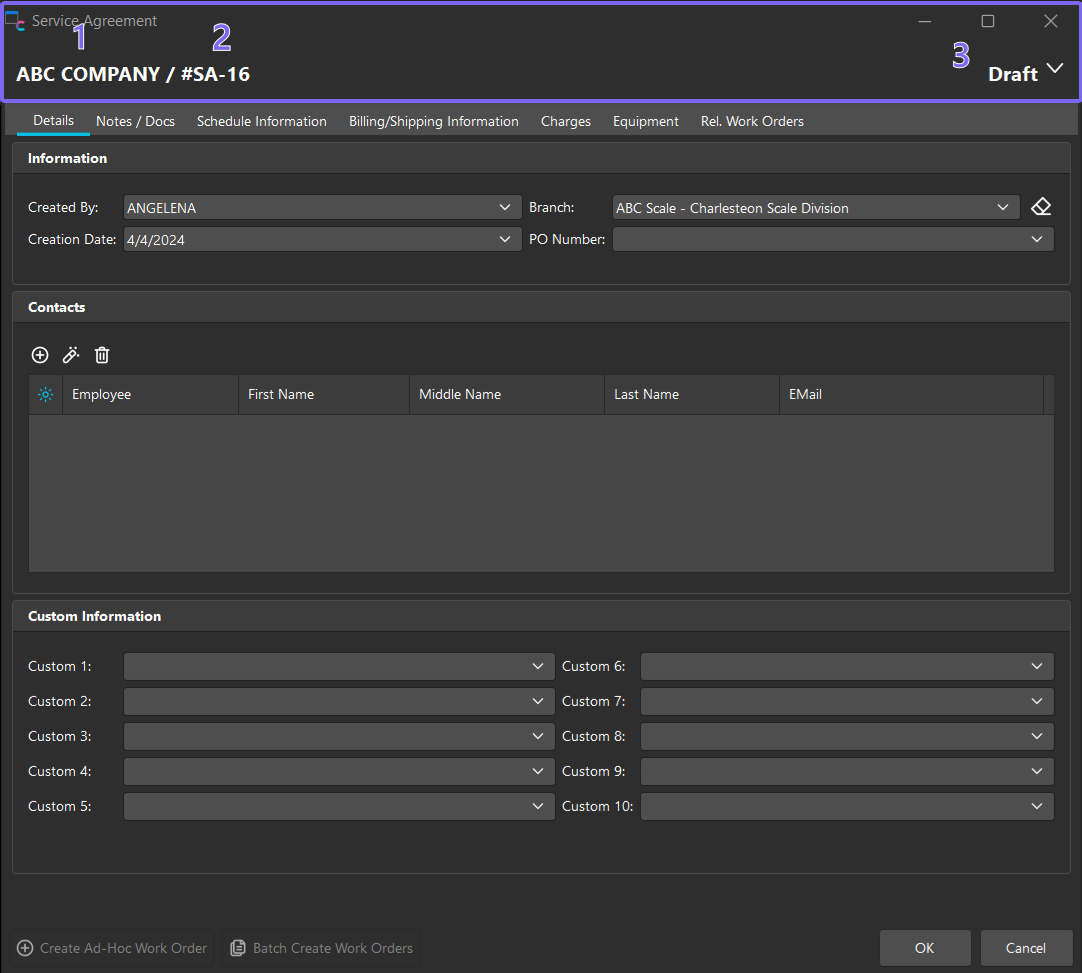
The Service Agreement Header holds key pieces of information and options.
-
Related Company for whom the services are provided. If the contract needs to be transferred to another company, then the user can do so with a right-click option in the ServiceAgreements.exe selection grid. This will not change anything except for the associated company in the header.
-
Service Agreement Number: This has an option for a prefix as well as the next number pulled in. These can be set in Profile Manager numbering and certificate settings. Service Requests will share the next Number but will use a dedicated prefix.
-
Status: There are 5 status options:
- Draft: In draft mode, all fields can be edited in the interface, but work orders cannot be created while in the draft state
- Awaiting Approval: Equipment, Document, Related Work Orders, Notes, and contacts can be manipulated, but no orders can be created.
- Active Equipment, Document, Related Work Orders, Notes, and contacts can be manipulated. This is the only status from which work orders can be created.
- Canceled: Equipment, Document, Related Work Orders, Notes, and contacts can be manipulated, but no orders can be created.
- Expired: Equipment, Document, Related Work Orders, and contacts can be manipulated, but no orders can be created. Agreements that are past their expiration date will be marked as Expired when opening the Service Agreement Module.
Service Agreement - Detail Tabs
Details | Details
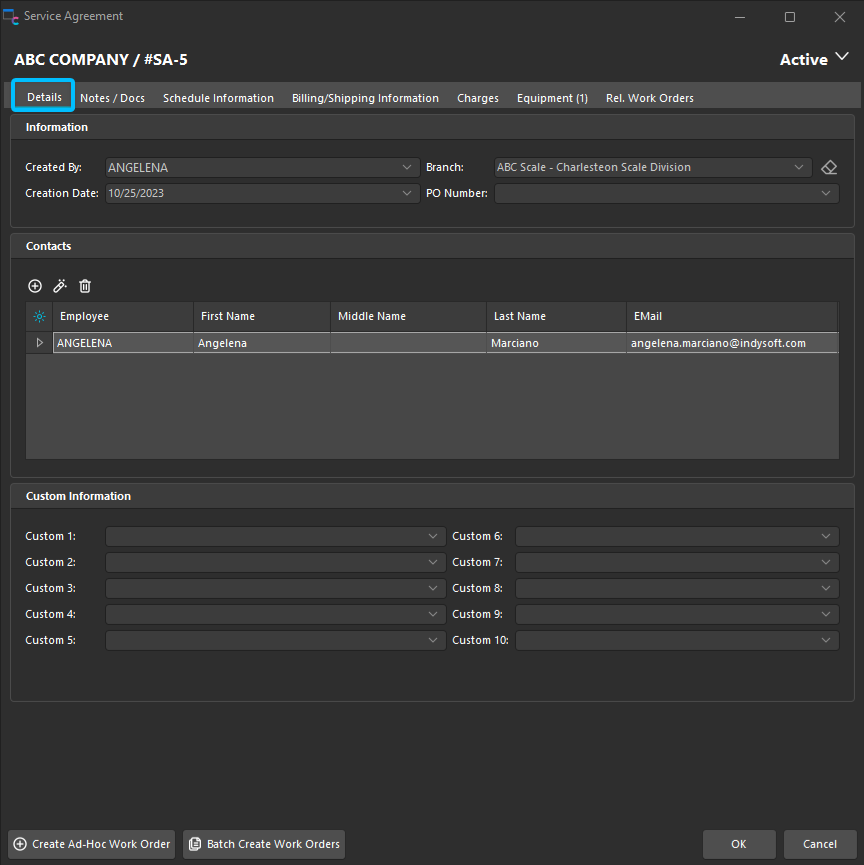
See the sections/fields with descriptions in the table below:
| Created By | Upon creation of the service agreement, this field is populated by the user who created the Agreement. (Does not populate in WO)
| Creation Date | The date on which the Agreement was created. (Does not populate in WO)Branch | If using branches, this will default from the Agreement Company’s assigned branch in add/edit company. This will help dictate charge pricebook options for the agreement (if applicable). Upon creation of a work order, this value will populate the Work Order branch.P.O. Number | This will populate the related work order PO number field when the work order is created.Contacts | Can be added from the Agreement Company’s list of employees or added new to the list in the interface. Contacts can be assigned a Contact Type, which is a system-wide add/edit list. Contact Types can be freely entered when adding a contact as well.Custom Fields 1-10 | These custom text fields allow for aliasing (which can be set in the cog option under the details tab by system admins) and have corresponding system-wide drop-down lists. These drop-down lists can be found under Add/Edit Service Agreements. The fields will reference the drop-down lists and also allow free-form entry. By default, they will populate Work Order Custom 1-10. | |
Notes/Docs | Notes/Docs
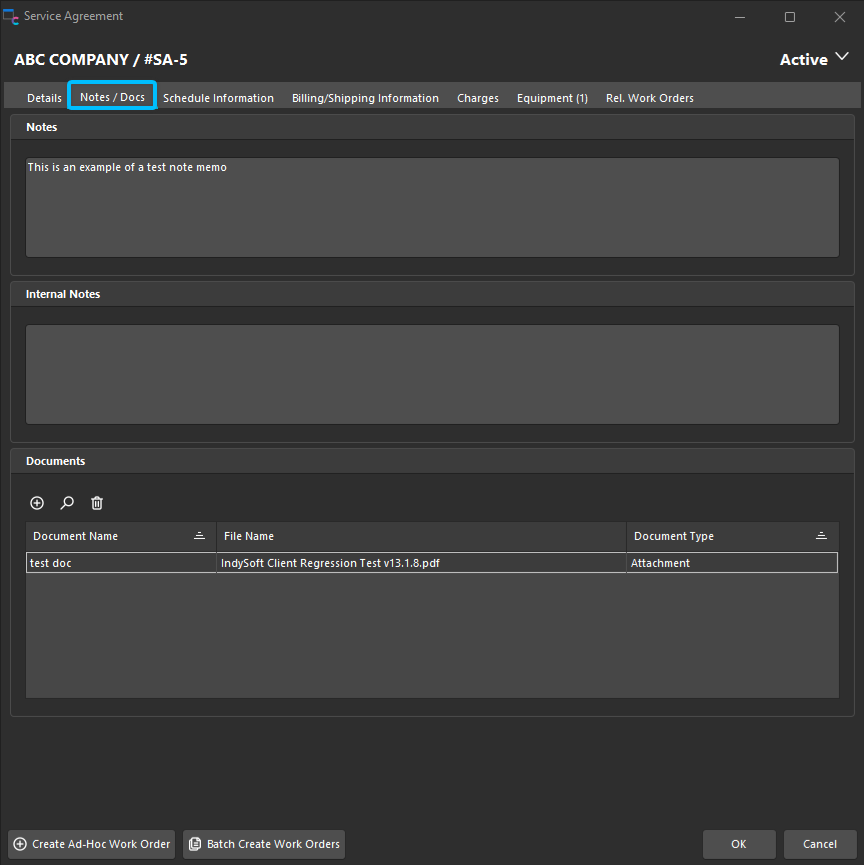
See the sections/fields with descriptions in the table below:
| Notes | Will populate in the related work orders upon creation. Right-click option will allow the user to pull in company notes as well as pull in note types.
| Internal Notes | Will not populate in the related work orders upon creation. Right-click option will allow the user to pull in company notes as well as pull in note types.Documents | This section represents where attached documents can be added to the service agreement. | |
Schedule Information | Schedule Information
Service Agreements will either have a Schedule based upon a frequency/interval and next service date OR they will allow for the use of Specific Dates.
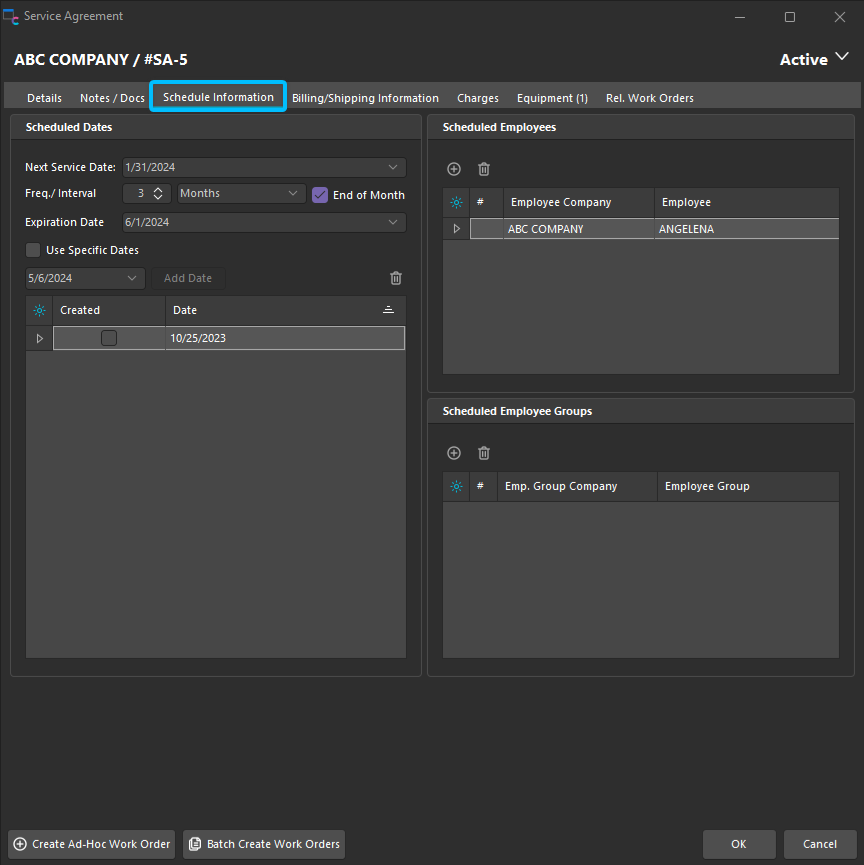
See the sections/fields with descriptions in the table below:
| Next Service Date | Used as a placeholder for the next work order which should be created. When creating a new agreement, the next service date should be the first day on which service will be scheduled. Each time a work order is created (except for ad-hoc work orders), the next service date will automatically be calculated based upon the frequency/interval.
- The next service date will populate at the work order level as the due date and NOT the scheduled date.
| Use Specific Dates | Can be used when the frequency and interval solutions are not adequate. If you need to schedule it for every 3rd Wednesday or on the 1st and the 16th of every month, then you can schedule those in this way. |
Important Note:
- For a service agreement to be made active, it must either:
- Have a next service date, Frequency and Interval OR
- Use the "Use Specific Dates" function
- If a service agreement has particular individuals/groups who should be scheduled each time, then those can be specified here, and they will make their way down to the work order scheduled for employee/group child tables.
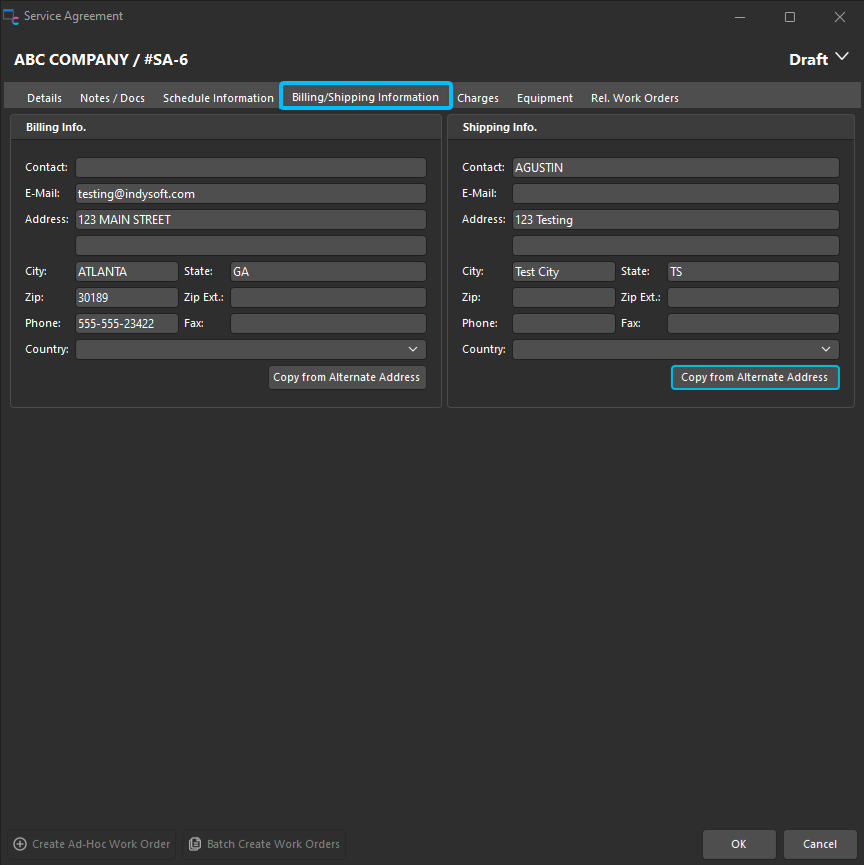
Upon Creation of a service Agreement or request, the default Billing and Shipping Information from the Company will be inherited into this screen. The user can then add or edit beyond that point, or look up any saved alternate addresses for that company. These addresses will make their way to any created work orders.
 |
Charges | Charges
|
Charges | Charges
If the box is checked to auto-add a charge to a work order, then that charge will automatically be added upon the creation of the work order from the service agreement or request. If you need to look up the appropriate amount from service charges, then click on the little piece of paper to see appropriate prices that may have been pre-specified in the add/edit list.
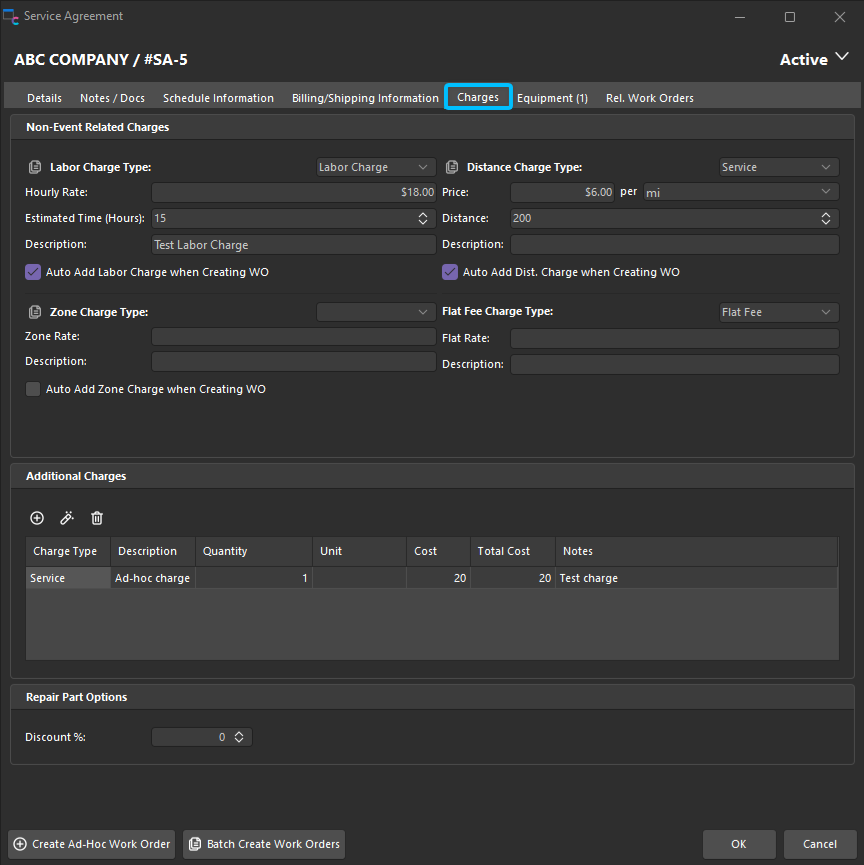
See the sections/fields with descriptions in the table below:
| Zone Charge | Zones are used as a distance range to indicate a travel price. The Zone rate is the price for that zone, the zone is the label for the zone, and the description describes what that zone is. Zone charges do not have a default as they are specific to a customer/agreement. Only the price and the description will flow down to the work order line item.
| Labor Charge | Labor charges can be defaulted or pulled in from the Service Charge per branch or system-wide. Description (not shown) and charge amount will flow down to the work order level.Distance Charge | It can be defaulted or pulled in from the Service Charge per branch or system-wide. Description, unit of measure, quantity (# of miles), and charge amount will flow down to the work order level.Flat Fee Charge | In the case of the Flat Fee Charge, if any value is entered, then it will be added upon the creation of the work order. There is no pricing lookup for Flat Fee Charges. Cost and description flow down to the corresponding work order charge upon creation. |
Charge Types can be specified in the service agreements executable under the options cog in the 'Settings' section.
Service Agreements can also offer Repair Part percentage discounts. This option only appears if the New Discount Functionality is enabled. If applicable, the percentage discount will look to see if a piece of equipment is on a Service Agreement, if a percentage discount exists, then it will be applied for that line item regardless of the event type. |
Equipment | Equipment
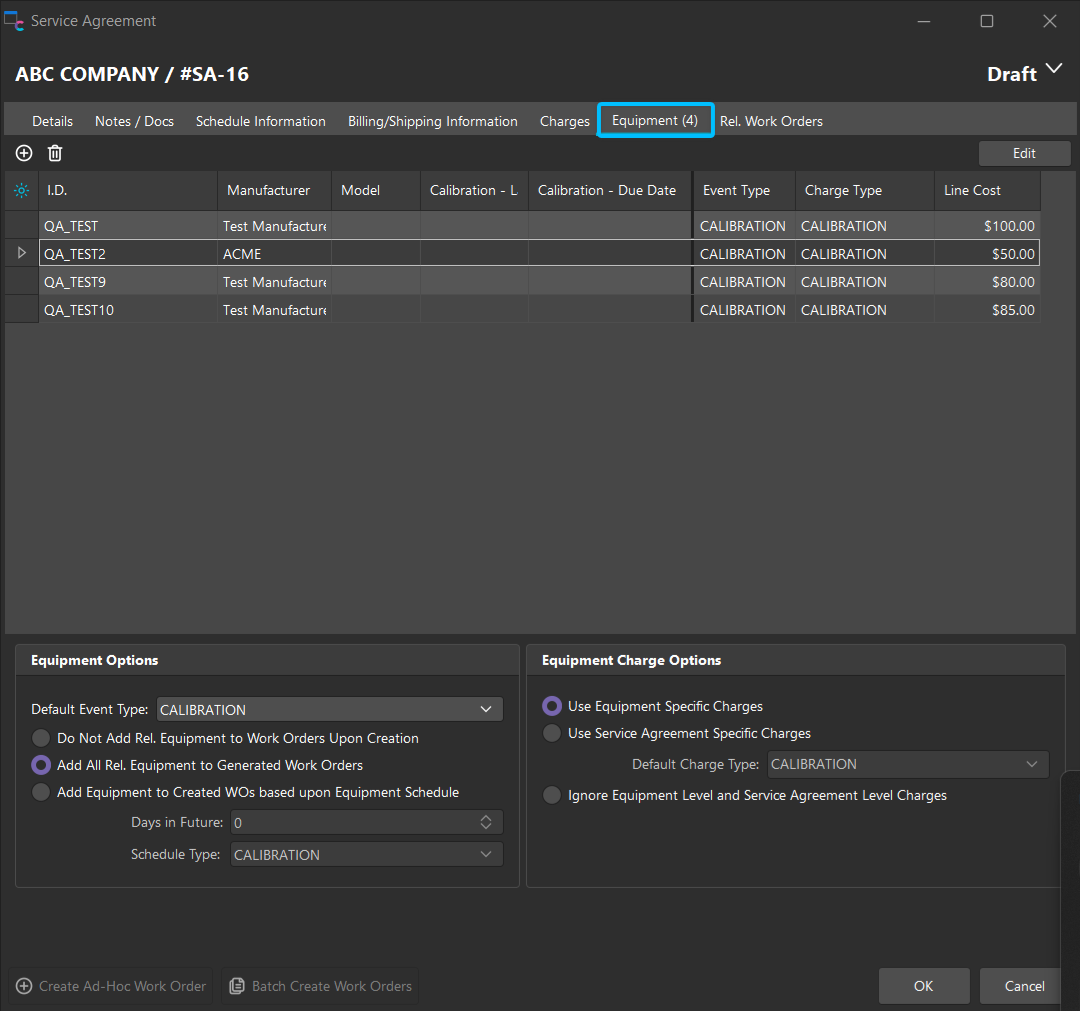
Many Service Agreements will have specific equipment that needs to be serviced. The equipment tab allows you to form an association, set pricing, charge types, event types, and how the service agreement will drive pricing and the creation of work orders.
Adding equipment to a work order will require an event type be specified. This will inform the creation of the work order line items to have the appropriate event type. Individual event types can be set after adding equipment to the Agreement using the Edit button on the top right.
Equipment Options
| Default Event Type | This should always be populated by default upon the creation of a work order. Per user, if you set/use a default event type, that should also be remembered upon creation of a new service agreement. This determines which event type will be used by default when adding equipment.
| Do Not Add Rel. Equipment to Work Orders Upon Creation | When creating a work order from a service agreement, no equipment added to the Agreement will be added to a new work order. This might be used in the agreement if you simply wanted to capture the pricing for a specific event type but were unsure of what should be worked on before you arrived. Or if you had a flat fee and just added work on the fly.Add All Rel. Equipment to Generated Work Orders | This option adds all equipment from the agreement to every work order created from it.Add Equipment to Created WOs based upon Equipment Schedule | This option might be used if you had a monthly contract but were only supposed to service items based on the equipment schedule where it made sense. This option works with the Days in Future and Schedule Type options. |
Example: If a contract is scheduled Monthly, but the equipment has varying schedules and those equipment schedules dictate the work to be performed, then good practice would be to schedule approximately 28 days in advance. This would help ensure that equipment did not become overdue by more than 3 days.
This feature uses predictive scheduling after use of an initial due date… meaning that each piece of equipment has its own Next Service date…
If a work order is created for August 28th and a piece of equipment has a 2-month calibration schedule, and the equipment due date is within that number of future days or past due… Then, August 28th will be the predicted date, and the predicted next due date will be October 28th. From there on out, the schedule will be based on that predicted due date. If a piece of equipment does not have a due date, frequency, interval, or due date, then that equipment will be skipped in the creation process.
When changing the Schedule type in the interface, the grid above should change to reflect/show the correct values for the equipment for that schedule type.
Equipment Charge Options
| Use Equipment Specific Charges | If this radio button is selected, then normal equipment charge rules will apply. (Estimate charges, equipment-based charges in events)
| Use Service Agreement Specific Charges | If this is selected and the scale global var is on, then upon launch of any event, IndySoft will look for the combination of the Event Type, Gage_SN, and company in that event... And will check to see if there are any ACTIVE service agreements with "Use Service Agreement Specific charges" selected. If the event finds this true, it will pull in that charge and ignore all other charges. That charge type does not need to be added in the related events workflow configuration charge rules. Other charges can be added on the fly after the fact if necessary in the event. |
If more than one Service Agreement meets these requirements, then the most recent agreement will be utilized for the charge. When saving a service agreement, we check for duplicate equipment/event entries in service agreements and let the end user know that a piece of equipment/event combination should not exist on multiple active service agreements at the same time to avoid confusion.
If adding equipment to a service agreement, a Default Charge Type should always be selected. Any equipment added will inherit that default charge type.
Service Agreement Equipment/Equipment Charge Editing
Upon pressing the 'Edit' button,

the user will be able to modify the event type, charge type, and line cost per piece of equipment. There are also multi-select and right-click options to update charge types, update event types, update line cost (flat value) or to pull in an existing charge from the equipment level.
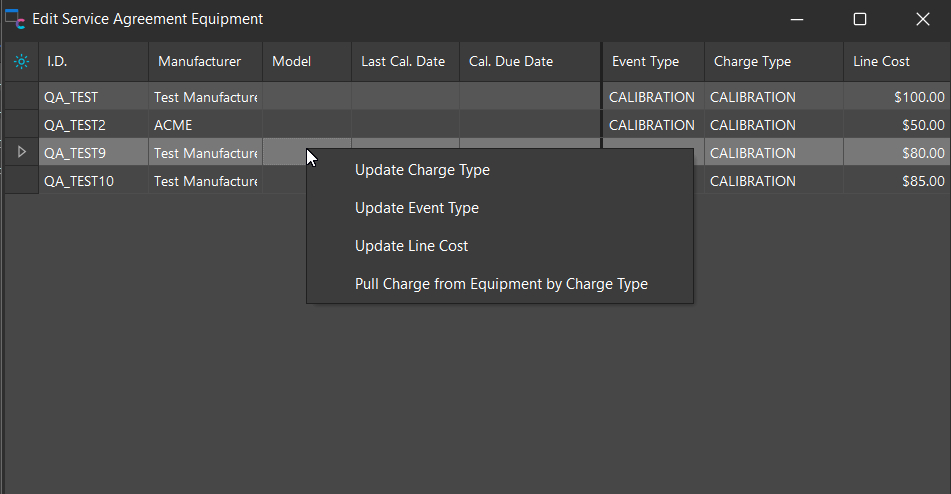
If pulling the charge from the equipment level, the user will be prompted to enter a charge type to pull in. If there are 2 or more of that same charge type for that piece of equipment, then the highest value will be pulled in. If no charge exists, then nothing will change. If a charge DOES exist at the equipment level, then the charge type will be updated, as will the line cost.
Ignore Equipment-Level and Service Agreement-Level Charges
If the equipment/event combination in an event matches an active service agreement with this item selected at that Agreement level, then no charges will be pulled in by default from either the equipment or service agreement level. (Might be quite useful in a flat fee situation).
Equipment Validation
If equipment is deleted from the Service Agreement and that equipment/event exists on a related work order, then the user will be asked if they would like that item removed where it is an incomplete line item on an incomplete work order. |
Related Work Orders | Related Work Orders
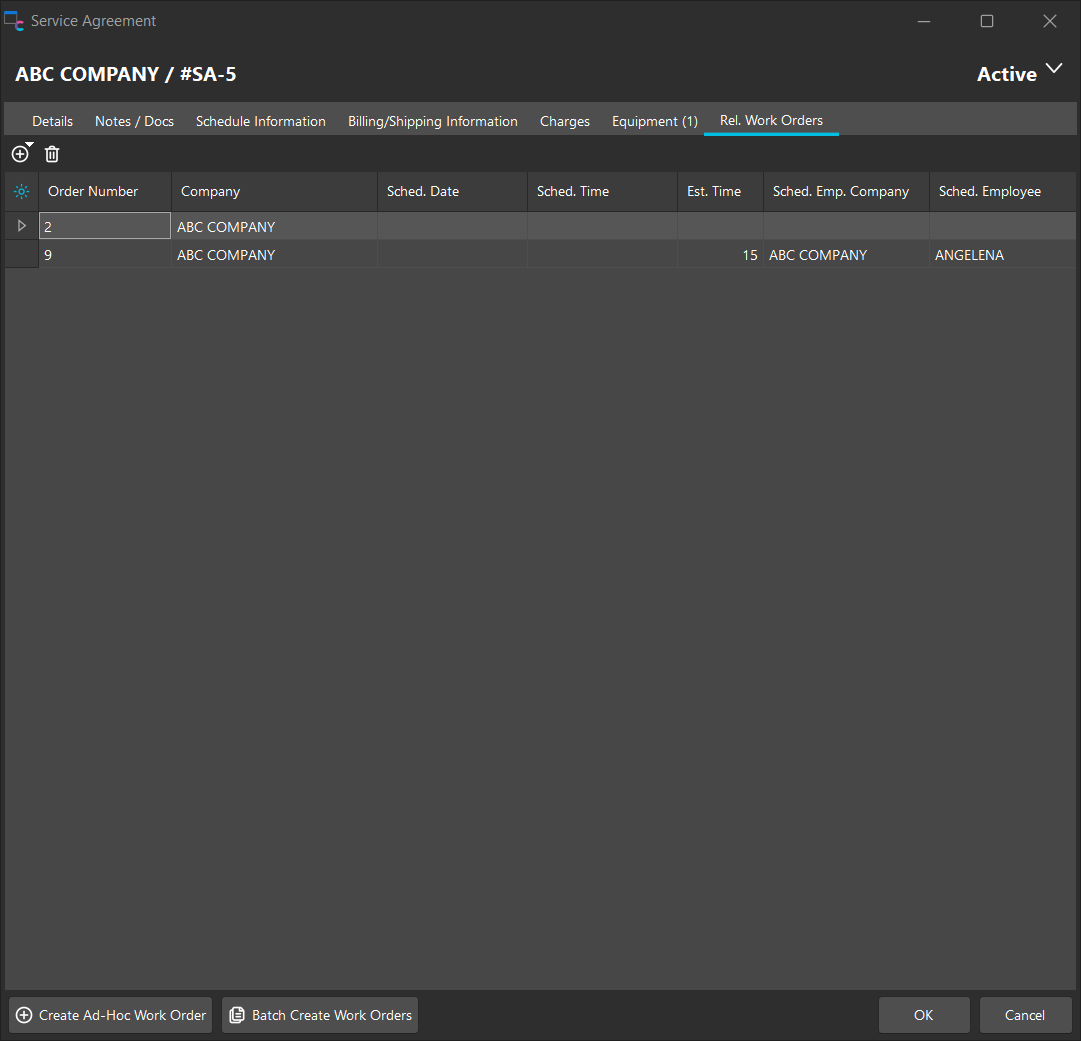
Work Orders created from that service agreement will be shown here and can also be disassociated if necessary. Users can also associate work orders manually using the menu options.
 |
|