Spec Manager - Options
Along the top menu bar of the SpecManager, there are two dropdowns: Options and Add/Edit
Options
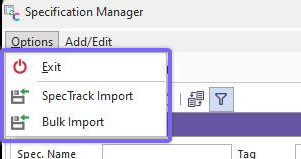
Within the Options dropdown, you will notice 3 options: Exit, SpecTrack Import, Bulk Import
Options - SpecTrack Import
The SpecTrack import utility is designed to import specification entries from the California Edison Mudcats SpecTrack product. It facilitates the mapping of the data into the proper IndySoft fields, as well as converting the parameters and contributions into the correct nomenclature.
Note: The SpecTrack importer imports units of measure from Mudcats as is -- so any incorrect units, or units that are not in the IndySoft Units of Measure add/edit list, will still be imported. In some cases, the uncertainty lookups may not work properly as the TotalError() functions perform unit conversion while trying to locate the appropriate specification entry. If the units do not match exactly, then the conversions will not work.
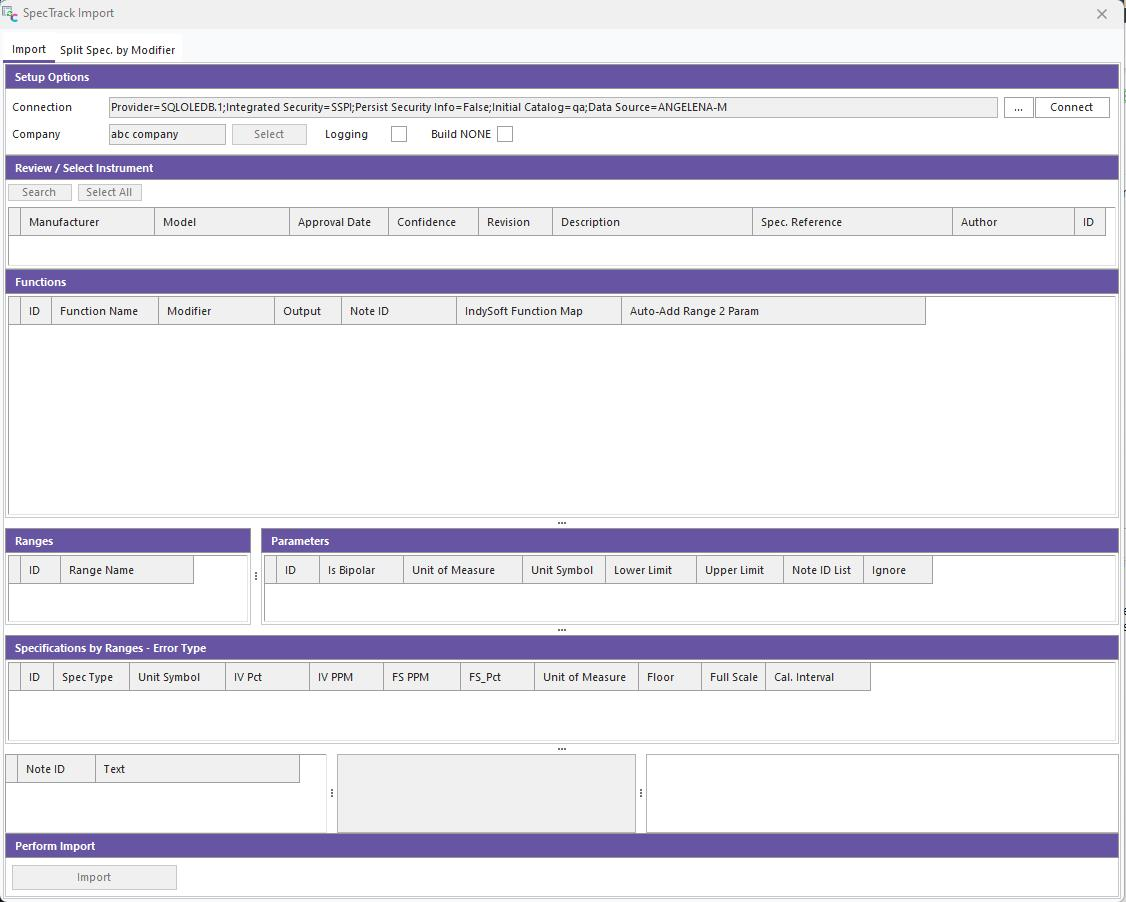
Connection - This is the connection string that allows the utility to connect to the Mudcats database directly and pull in the required data.
- This string is built by the selections and entries in the Data Link Properties dialog.
 Data Link Properties - This dialog sets the configuration to build the connection string that connects to the Mudcats database.
Provider Tab- Select the data type - typically 'Microsoft OLE DB for SQL Server'
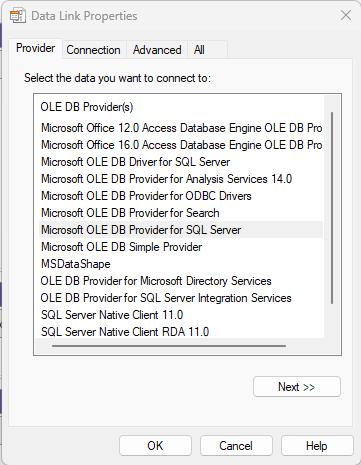
Connection Tab- Server connection
- Enter the IP address for the server connection
- Enter the SQL user name and password to connect to the server
- Find and select the applicable DB
Advanced Tab- Not currently in use
Connect - Press the 'connect' button to initiate the connection for data retrieval

Company - The default company you would like to use to import any Man/Model related specifications into

Logging - Checking the 'Logging' box enables logging of the import process and is useful for troubleshooting when there are problems encountered.
- The log file is available within the users temp directory

Build NONE- Checking the 'Build NONE' box will cause the Error Type to import regardless of if the SpecTrack Cal Interval is NONE.
- If this is not checked, the Error will be ignored.

Search- To search the Mudcats SpecTrack for a particular specification to import, click on the 'search' button. The following search form will pop up:
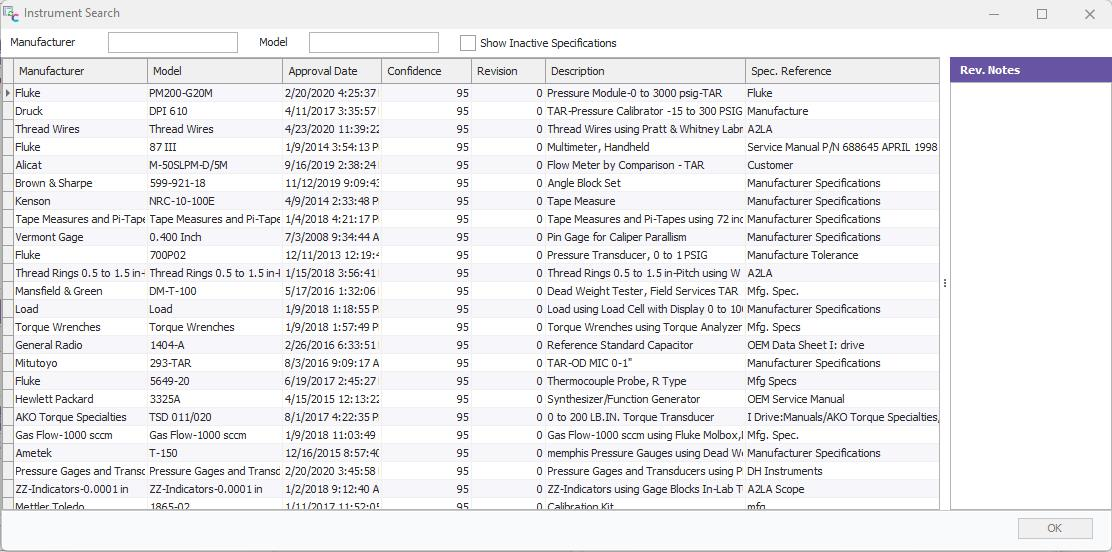
You can quickly search using the manufacturer and model boxes. Note however, specification entries in Mudcats may not be listed by Man./Model. For those situations, you can use the in-grid column filtering options.
As you hover over a column header, you will see a filter icon appear 
When you click on the filter icon, the following dialog pops up:
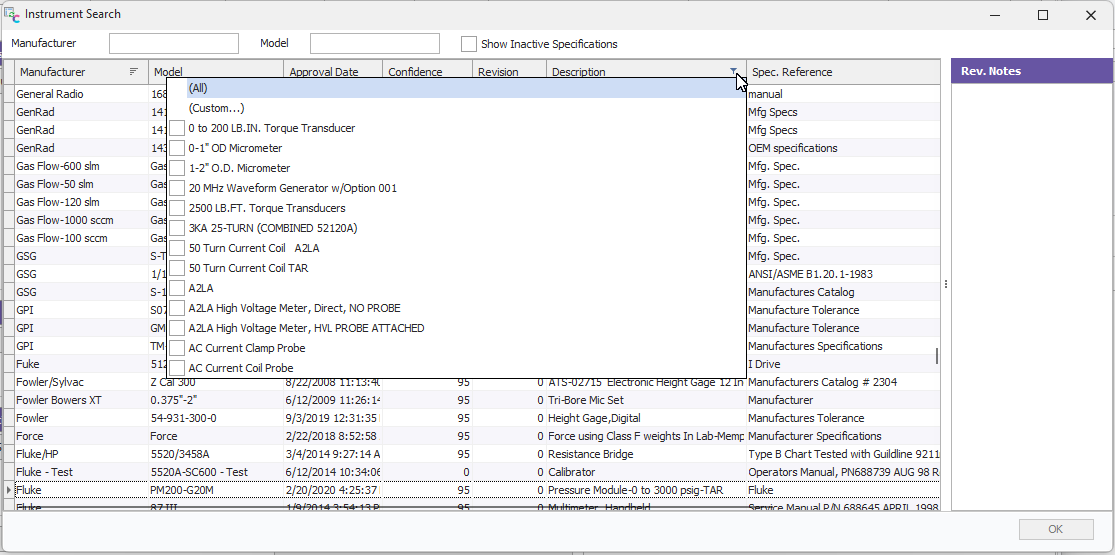
Select (Custom...) to create a custom search criteria
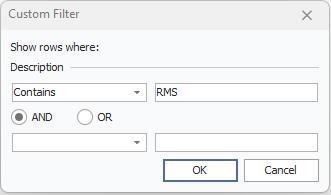
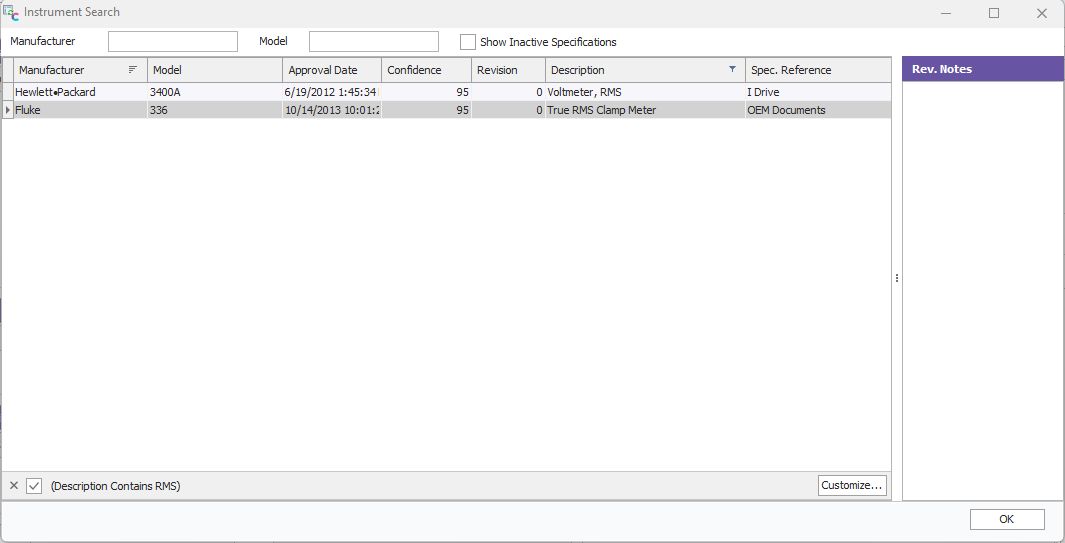
NOTE: This search is case sensitive. In this example, Description - Contains - 'Rms' will return no records whereas 'RMS' returns 2 specification records.
Double click on the specification in the grid that you wish to import:
IndySoft SpecManager will find and return the appropriate data for the selected specification and will display it within the import form (as shown below):
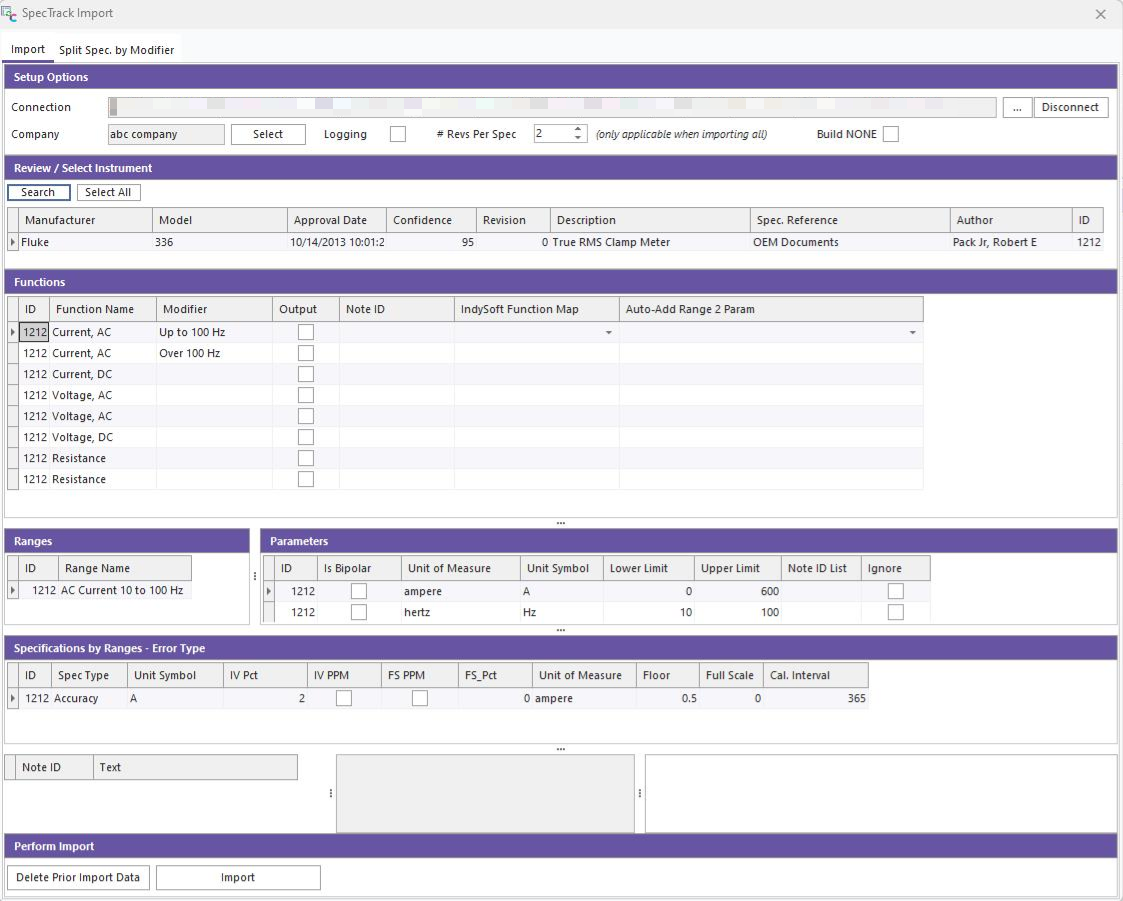
Most likely, the Mudcats Function Name is not going to match the IndySoft parameters. To ensure the imported specifications will work with our Uncertainty Module, we must map the function to the appropriate parameter name. This mapping is accomplished by selecting the desired parameter 1 and parameter 2 from the List boxes in the Functions section:
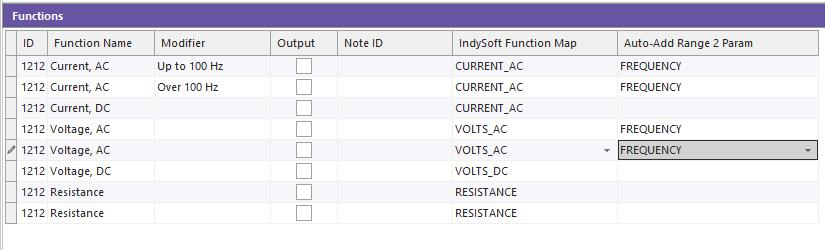
If the IndySoft Function Map field is left blank or IGNORE is selected, that particular function will be skipped and not imported.
Once the Mapping is complete, press the 'Import' button to begin the import process:

The specification will import using the SpecTrack description plus "(SpecTrack)" as the Specification Name and the SpecTrack 'Spec Reference' as the Revision Name. This can be changed as needed in SpecManager.
Additionally, if the specification had a Manufacturer/Model assigned to it in SpecTrack, the import will auto-add that Man/Model combination to the entry selected at the top of the form.
Upon completion of the import, the following will pop up:

Options - Bulk Import
* NOT YET IMPLEMENTED *
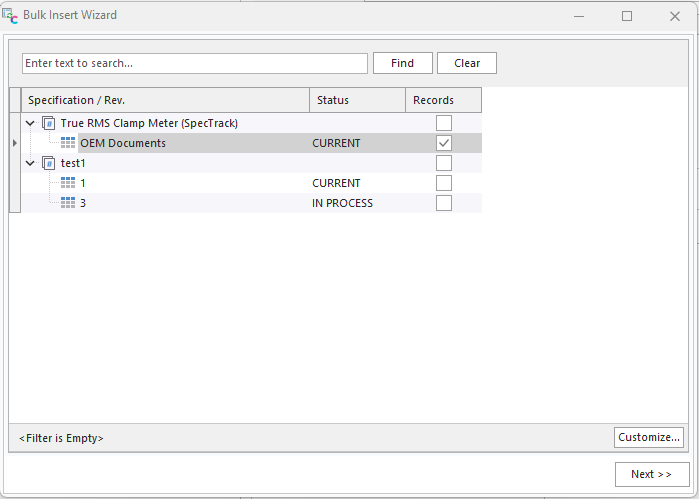
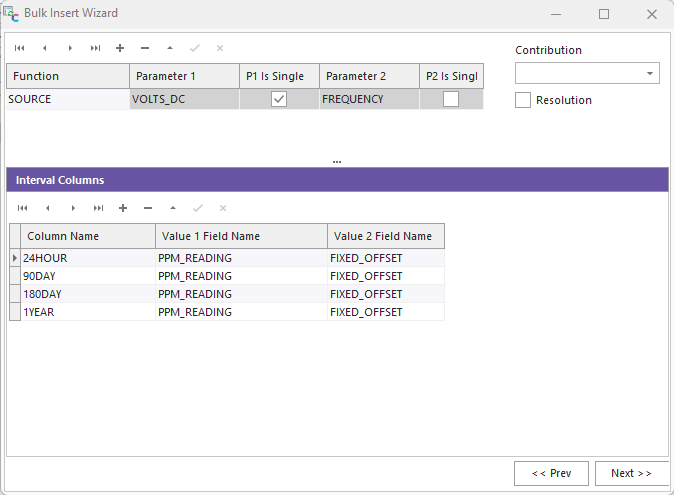
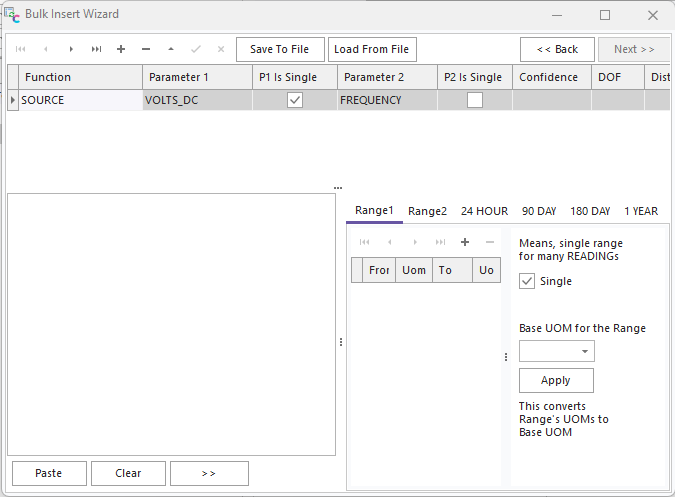
Bulk Insert Wizard - The purpose of the Bulk Insert Wizard is to simplify and speed up the creation of SpecManager specifications from manufacturers manuals or data sheets.
- It allows for the copy and pasting of entire tables of data from a PDF, parsing the information and inserting it properly in the correct format.
- This section is still under development.