Import Contributing Items From Excel
Before choosing to Import Contributing Items From Excel, it is recommended that you first define your master rules and any studies that may be needed in your budget. When you launch the option, you'll be given an open file dialog to select an XLSX file (Note: it must be an XLSX file. If you have other Excel formats, save them to XLSX first). Once that is done, the file will open, And you can select your Contributing Items.

Select the sheet and cell range containing your contributing items for the Contributing items. If you wish, you can include a header row. If you choose a header row, check "Top Row is a Header Row." Then click Next to map contributing items.

To Map Contributing Items, Select a column and which element of the Contributing Item dialog it will map to (in either order). The only column that is required is the Standard Uncert Column. Then click Next to Confirm.
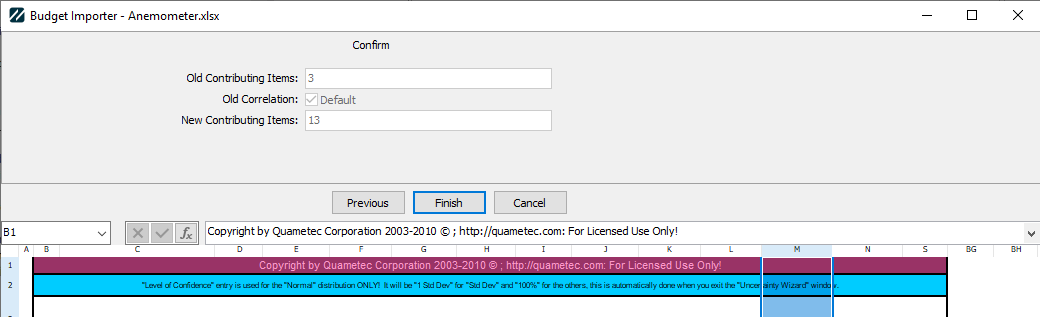
On the Confirm dialog, you're given a review of how many contributing items your budget had initially, how many you are replacing them with, and whether you were using a default correlation before. Click Finish to start importing Contributing Items.
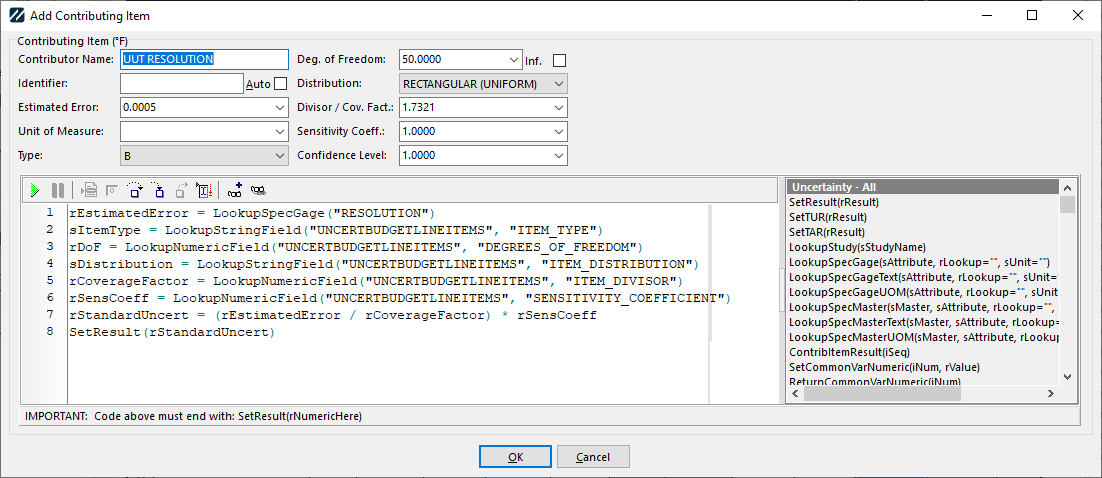
If you mapped the Estimated Error column, you'd be given a dialog for each row in the budget to decide if you'll use the Budget value, a Spec from the Gage, a Spec from one of the masters, or a study. If you choose a Spec, you can also select which spec on the gage/master to use.


Based on the choice of Error source, the first line will use the appropriate function (LookupStringField, LookupSpecGage, LookupSpecMaster, or LookupStudy). You will then see a preview of the import and have a chance to tweak it if you want to. This will be displayed for each contributing item you select to import.
Finally, the correlation formula will be set to default and root-sum-square times 2. |