Options Menu
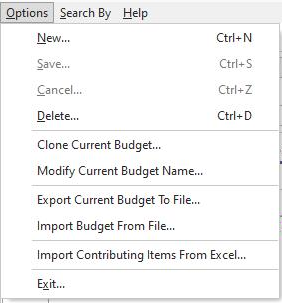
Options Menu
Several options are available - notes below:
New: This action will create a new Uncertainty Budget open for initial edit on the main screen. You can also use Ctrl+N as a keyboard shortcut.
Save: This action will save the field settings of the current Uncertainty Budget. You can also use Ctrl+S as a keyboard shortcut.
Cancel: This action will cancel any onscreen modifications to the current Uncertainty Budget. You can also use Ctrl+Z as a keyboard shortcut.
Delete: This action will delete (after confirmation) the currently selected Uncertainty Budget. Warning: this operation cannot be undone.
Clone Current Budget: This action allows the user to create a new Uncertainty Budget based on the existing settings in another budget. If a new budget is going to be very similar to one already existing, using this option can save time when setting up the new budget.
Modify Current Budget Name: This action allows the user to modify the Budget Name of the currently selected budget. Note that the Budget Name cannot be modified from the Uncertainty Module main screen after the budget has been initially saved into the database. After initial saving, the 'Modify Current Budget Name' menu option must be used to modify the Budget Name. This ensures that all Master Rules, Contributing Items, Studies, IndySoft Main Screen Uncertainty Attributes, and IndySoft Main Screen Uncertainty Budget Associations are updated with the new information.
Export Current Budget To File: This action allows the user to save all the settings for the currently selected budget into a *.zip file, convenient for export to another IndySoft database. This option will assemble all main header information, along with Master Rules, Contributing Items, Studies, and Correlation Formula, zip this into one file, and store it at the user's location. This option is also convenient for exporting a budget to a consultant for assistance or contacting IndySoft Support.
Import Budget From File: This action allows users to import a budget from a *.zip file previously created from the 'Export Current Budget To File' option. You must first create a new Uncertainty Budget, type the Budget Name, and save the budget on the main screen. Then by selecting this option, you will merge the information in the zip file into the budget currently selected. The information contained in the *.zip file will override any onscreen field data.
Import Contributing Items From Excel: This action allows the user to replace the contributing items with items in an Excel XLSX file.
Exit: Use this menu option to exit the Uncertainty Module. |