Alarm System - Task Scheduler Options
Windows Task Scheduler Options
 Clicking this button in the IndySoft Alarm Management screen will open another window to edit the Task Scheduler Options.
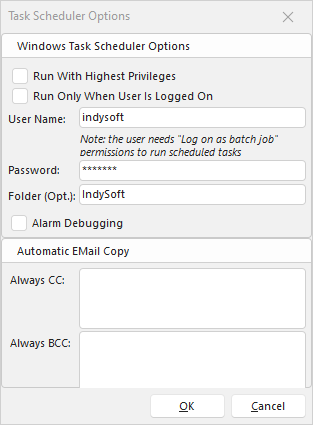
Task Scheduler Options Dialog
Windows Task Scheduler Options
Before a Windows Scheduled Task can be added, you must use this dialog to specify a user that will be used to run each alarm by Windows. Be sure to choose a valid Windows user with all the necessary privileges to run an IndySoft alarm. If a task is registered using the Administrators group for the security context of the task, then you must also ensure the Run with highest privileges check box is checked if you want to run the task. If you want only to have an alarm run when a user is logged into Windows, check the Run Only When User Is Logged On option.
If you need to run the Windows Task Scheduler under the SYSTEM account, enter SYSTEM in the User Name field and leave the password blank.
The optional "Folder" setting will allow you to store your Alarms in its sub-folder for Windows Versions or Vista or higher. Lower versions of Windows will have this field greyed out.
Automatic Email Copy
While Alarm emails are set up in step 5 Output - Email to an addressee, a copy of every alarm can always be sent to another email address as a 'Carbon Copy' or 'Blind Carbon Copy.' Enter as many email addresses as necessary, separated by semicolons. |