Alarm System - Main Interface
The IndySoft Alarms Management interface is designed to allow users quick access to setting up and editing scheduled alarms.
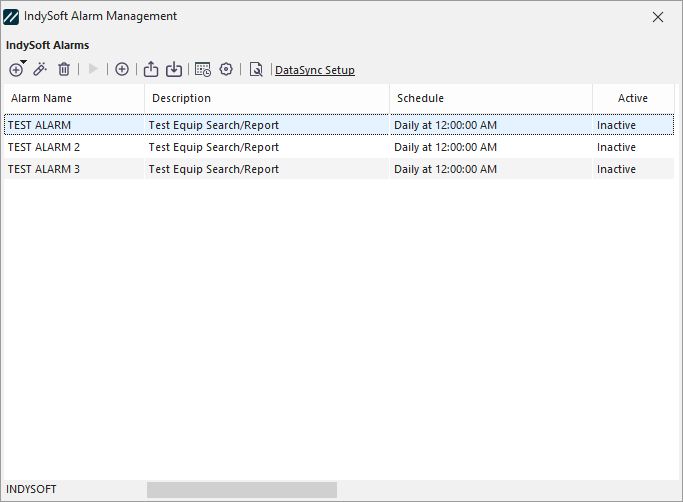
IndySoft Alarm Manager
 Add New Alarm
This option will allow you to create a new Alarm.
 Edit Selected Alarm
Editing an existing alarm is accomplished by double-clicking the alarm entry from the grid or pressing this button while the alarm is highlighted. You can edit anything in the alarm settings except for the alarm name. If you need to rename an alarm, create it as a new alarm in the desired name, then delete the original.
 Delete Selected Alarm
To delete an existing alarm, select it from the Scheduled Alarms grid, then right-mouse, click the item, select Delete from the context menu, or click the Delete icon in the toolbar.
 Execute Selected Alarm
To test an alarm, press the Execute Selected Alarm button, and it will immediately start processing.
 Update Windows Task Scheduler With All Active Alarms
Press this button to re-add all active alarms to the Windows Task Scheduler. Note that this is only necessary when moving your scheduled alarms to a different workstation or when first upgrading prior scheduled alarms from a pre-9.1.13 version of the IndySoft client.
 Export Selected Alarm to File
To save an alarm for transfer to another system, highlight it, click the Export button, and save it to a file on your workstation.
 Update Selected Alarm to File
A saved alarm can be imported into the Alarm Service. Importing an alarm will overwrite the currently highlighted alarm.
 Launch Windows Task Scheduler
Clicking this button will open the Windows Task Scheduler. This option will not appear on pre-Windows Vista operating systems.
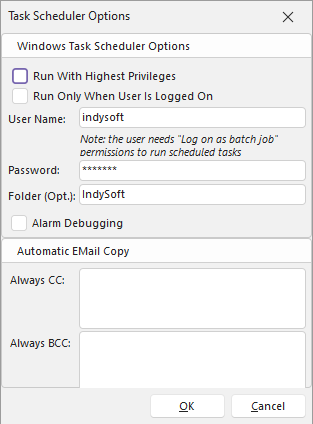
 Task Scheduler Options
The button will give the option to specify a User Name and Password for the Scheduled Tasks added to Windows. See Alarm System - Task Scheduler Options for more details.
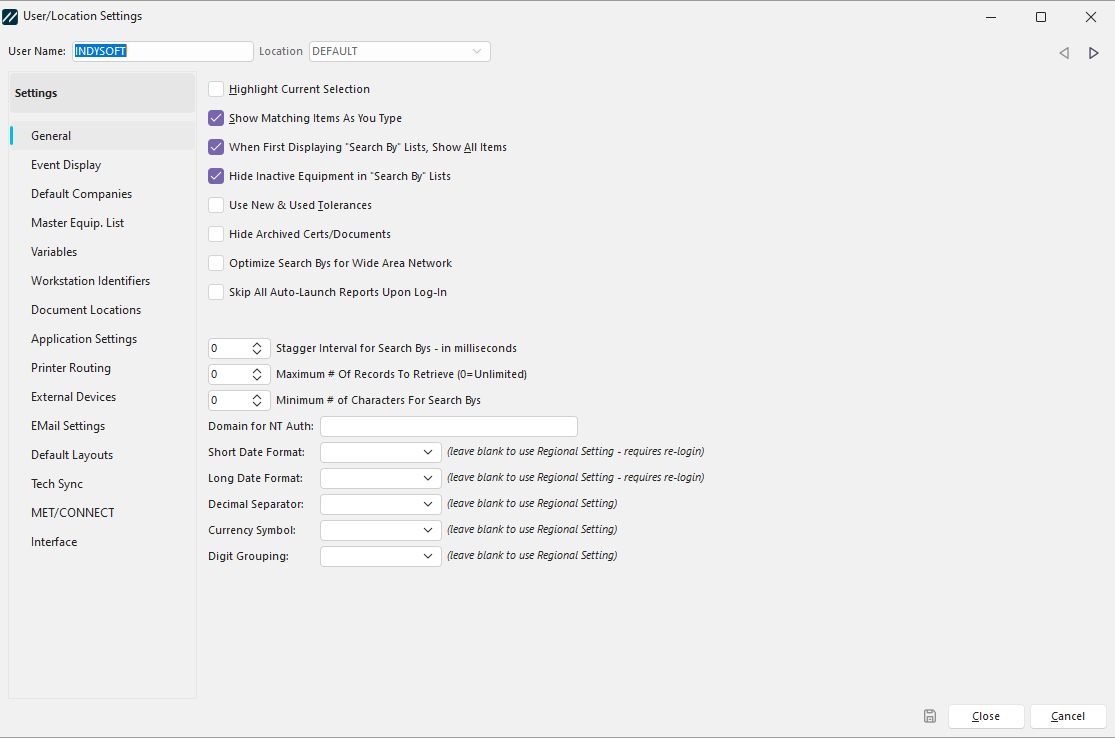
 Modify/Confirm User/Location Settings (Alarm Module always uses DEFAULT)
This button will launch the User/Location Settings dialog, where you can easily edit your settings before confirming and continuing with your alarm.
Right Mouse Menu Options
This menu option will allow you to Active or De-Activate all Alarms at once.
 |
|