IndySoft Error Dialogs
If an error occurs while running IndySoft, then the user will be presented with a standard error dialog, like in the example below:

IndySoft Error Dialog
To automatically send the bug report to IndySoft (requires an internet connection), press the "Send Bug Report" button. If you choose this option, IndySoft needs to know a few things before sending the report.
Step 1
IndySoft Automated Issue Report Dialog - Customer Information - Step 1
Enter (optionally) your Company Name, Contact Name, and Customer #. Last, enter your E-Mail address which is the only required field. Press the Continue button.
Step 2
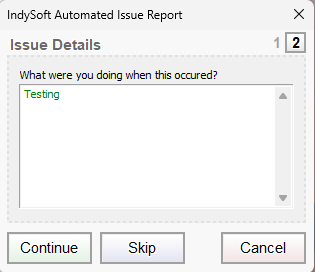
IndySoft Automated Issue Report Dialog - Issue Details - Step 2
Next, you can optionally specify any details about what was going on when your error occurred.
More Information
In version 13, we removed the ability for the user to view a bug report directly from this dialog by clicking 'Show Bug Report' for security purposes. The bug report will be automatically copied to the user's clipboard and can be pasted into a Notepad to view/save to send to IndySoft Support (if you are unable to automatically send the bug report by email).
On the right of the dialog, you will have the option to continue working in the application. |