Cloud Data Logger
The IndySoft Cloud Data Logger can automatically import the current temperature and humidity readings from multiple devices set up through www.easylogcloud.com into the IndySoft database. Note that only one instance of CloudDataLog.exe must be running at any one time to sync multiple devices. The physical devices can be at multiple locations, but only one CloudDataLog.exe is required to port all the cloud data into the IndySoft database.
Initial Setup
To begin, launch CloudDataLog.exe from your IndySoft program directory. The utility runs in the Windows system tray. Right-mouse click on the tray icon and select 'Options' to open the main screen, or double-click on the tray icon:
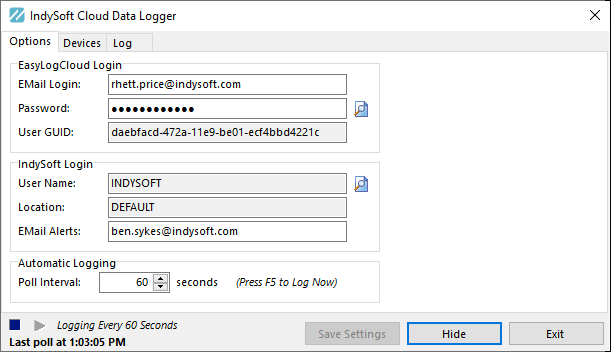
Options Tab - Cloud Data Logger
First, input your email and password credentials for EasyLogCloud.com and then press the 'Login to EasyLogCloud.com...' button to the right of the Password edit box. After successful authentication, your current User GUID will be displayed. This User GUID is used for all future interactions with EasyLogCloud.com. This User GUID will be automatically refreshed with updated values when needed (as long as the current email/password credentials are correct).
Next, press the 'Select IndySoft User/Location' button to the right of IndySoft Login...User Name:

IndySoft User Name / Location - Cloud Data Logger
Use this dialog to select from IndySoft user names (logins) and related locations. If required, this user/location combination is required so the IndySoft Cloud Data Logger can send alert emails. The email settings specified in the User/Location Settings dialog...The email tab will be used. Press the 'View/Edit User/Location Settings' button to review or modify these settings.
Note: it is also important that this related login is associated with an employee in IndySoft that has a valid email address specified in the Add/Edit Employees wizard. You will be prompted to auto-add if this email does not exist in the database. This related email address is then populated into the 'EMail Alerts' edit on the main Options page. If required, this email address can be manually edited from the main Options dialog (if you want the emails sent to a different location than the default email for the related IndySoft login).
Next, from the Options main screen, confirm/set the Poll Interval for how often the temperature/humidity readings will be read from EasyLogCloud.com and populated into the IndySoft database. The default interval is once every 60 seconds. Press OK to confirm your selection.
Once your Options have been confirmed, move to the Devices tab and press 'Add New Device':

Select New Device - Cloud Data Log
Type a unique name for the device for 'Device Name' (note that this name does not need to match its name at EasyLogCloud.com). Select the 'Active' check to enable readings (any devices not set to Active will be ignored, and no values will be saved to the IndySoft database). Next, use the location GUID drop-down to select from the available locations on EasyLogCloud.com. Select the location where your EasyLogCloud devices are stationed (match this to the Locations tab in EasyLogCloud). Select the Device GUID from the drop-down (devices are only listed for the selected location). All current EasyLogCloud.com location/device settings are available for reference in the drop-down grids. Press the 'Test Readings' button to sample the current data at the selected device if desired. Press OK to confirm your selection.
Scheduled Data Logging
At this point, EasyLogCloud credentials have been input, a device location selected, an IndySoft user/location selected, and at least one device setup. Now the polling interval automatically begins. You can confirm that readings are taking place from the status in the lower-left of the dialog:

Status - Cloud Data Log
Press the 'Pause Logging' button to pause logging temporarily. Press 'Restart Logging' to resume normal interval checks if paused. Note: You can press F5 at any time to initiate a temperature/humidity check.
Log Tab - Debugging
If issues are executing the REST commands to EasyLogCloud.com, these errors will be noted in a system tray notification message. But extra details on each error will be shown in the 'Log' tab. Have this information available to IndySoft technical support if needed. All valid REST commands are also logged to the Log tab for review. For every 5,000 lines, the log is automatically cleared. Use right-mouse click options on the Log tab to Clear the log or save the log to a file:

Log Right-Mouse Click Options - Cloud Data Log
Setup from IndySoft Client
Finally, input the appropriate 'Device Name' from the 'Devices' tab into your IndySoft User/Location Settings...External Devices...Data Logger Name field. This will allow all Temperature and Humidity readings to be automatically input into IndySoft events whenever this user/location is selected:

Device Name - Cloud Data Logger
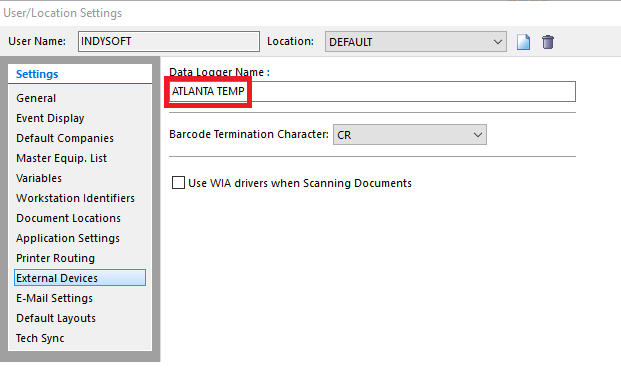
User/Location Settings - External Devices - Data Logger Name |